This appendix describes the process of upgrading from Octopus Authentication Server versions 4.8.4 and lower. If you are working with version 5.0 or higher, please refer to the article Octopus Authentication Upgrade.
Octopus Authentication 6.8 allows upgrading from versions 4.4.1 and higher. If you are upgrading from version 3.1.2, we recommend first upgrading to Octopus Authentication Server version 4.6.4, and then continuing with the upgrade to version 6.8.
The upgrade is available for Authentication Servers and Management Console servers. Upgrade of an All-in-One environment is NOT supported.
In distributed server configurations, it is recommended to follow the steps described in the sections below, according to your current version. These upgrade processes perform a full backup of the current Octopus system, ensuring no loss of data or settings:
Note: When upgrading to version 6.8, there is no need to rename the certificate file after completing the upgrade. The name of your file will be maintained automatically during the upgrade process.
IMPORTANT: If your environment includes a DMZ Server, upgrade it after performing the distributed server upgrade described in the following procedures. For instructions about DMZ upgrade, refer to Octopus Authentication Upgrade.
To perform upgrade for distributed servers:
Disconnect the Authentication Server from the Management Console by deleting it from the Management Console. If you have more than one Authentication Server, we recommend deleting all of them.
After you disconnect the servers, they will continue to authenticate users, and the Management Console will be ready for upgrade.
Run the Management Console upgrade by executing the Octopus Authentication Server upgrade script:
sudo ./octopus-####.run
The installation will display the currently running version and prompt you to confirm that you want to proceed with the upgrade.
Specify the setting for firewall configuration (default = yes).
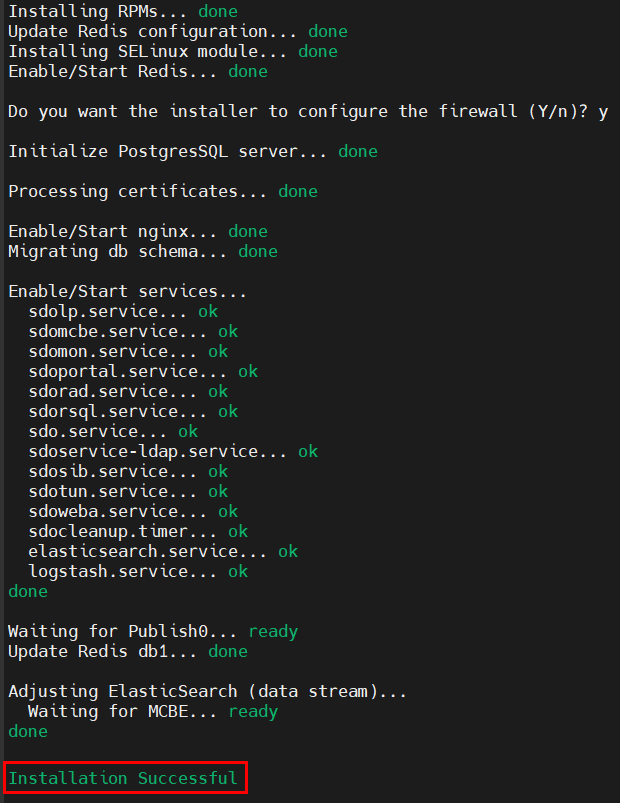
Verify that the installation completed successfully.
If you have a Secondary Management Console (MC), upgrade it by executing the Octopus Authentication Server upgrade script, as described in Steps 2-4 above.
If you do not have a Secondary MC, continue with Step 6.
Disconnect the first Authentication Server from the load balancer. Run the upgrade script on the server, and verify that the installation completed successfully.
On the Authentication Server, open SSH and browse to /opt/sdo/scripts. Then, run update_remote using AUTH:

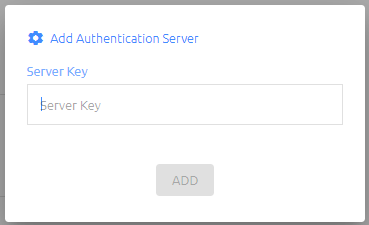
The setup will generate a Configuration String. This is the server's Public Key that you will copy and paste to the Management Console in the next step.
Add the Authentication Server to the Octopus Management Console:
Return to the Authentication Server SSH screen, and type the address of the Octopus Management Console. Be sure to use the complete domain name (FQDN) of the Management Console, not the IP address.
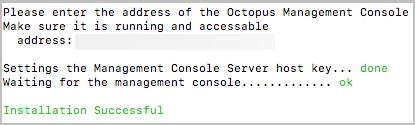
Verify that the installation completed successfully.
Connect the Authentication Server back to the load balancer.
Repeat Steps 5-10 for all additional Authentication Servers.
When the upgrade process is complete, restart the server.
To enable the new Management Console GUI to be uploaded, perform a hard refresh to the browser (Ctrl +F5), or clear the browser cache.
Note that a license warning ("Error reading license") will appear in the MC until the first Authentication Server is reattached. If you continue to see this error, verify that all Authentication Servers are reconnected. The connection process may take several minutes.
Note: After upgrade, if you need to change the port number for the SSH connection between the Management Console and the Authentication Server, run the following script: change_tun_port.sh
This script is located in the /opt/sdo/scripts folder.
Post-upgrade Procedures
After upgrading to version 6.8, it is recommended to perform the following steps to enable successful integration of Octopus SQL Agents and Remote AD Agents:
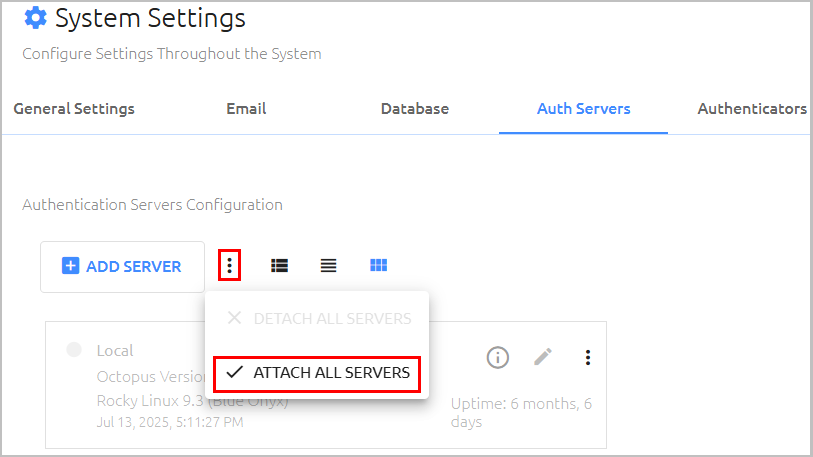
- From the System Settings menu of the Octopus Management Console, select the Auth Servers tab and detach all Authentication Servers.
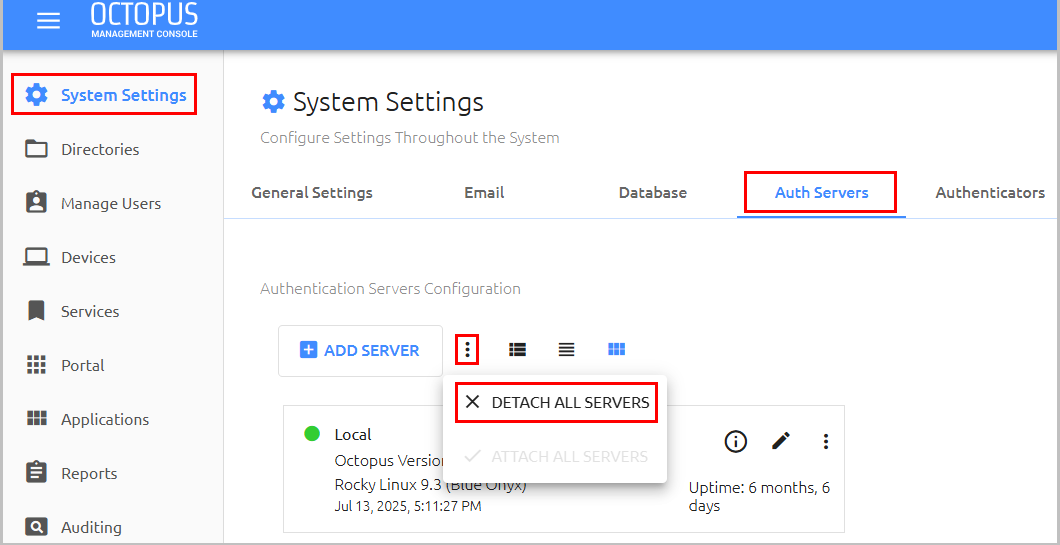
Run the update_remote.sh script.
At the top of the Auth Servers tab, reattach all Servers to the Management Console.