The Secret Double Octopus solution supports authentication to the User Portal and web applications using a passkey that is integrated with the user's workstation or smartphone. This document describes the prerequisites for successful passkey authentication and presents the flow for login to the User Portal.
To enable passkey authentication, the following configuration needs to be done in the Octopus Management Console:
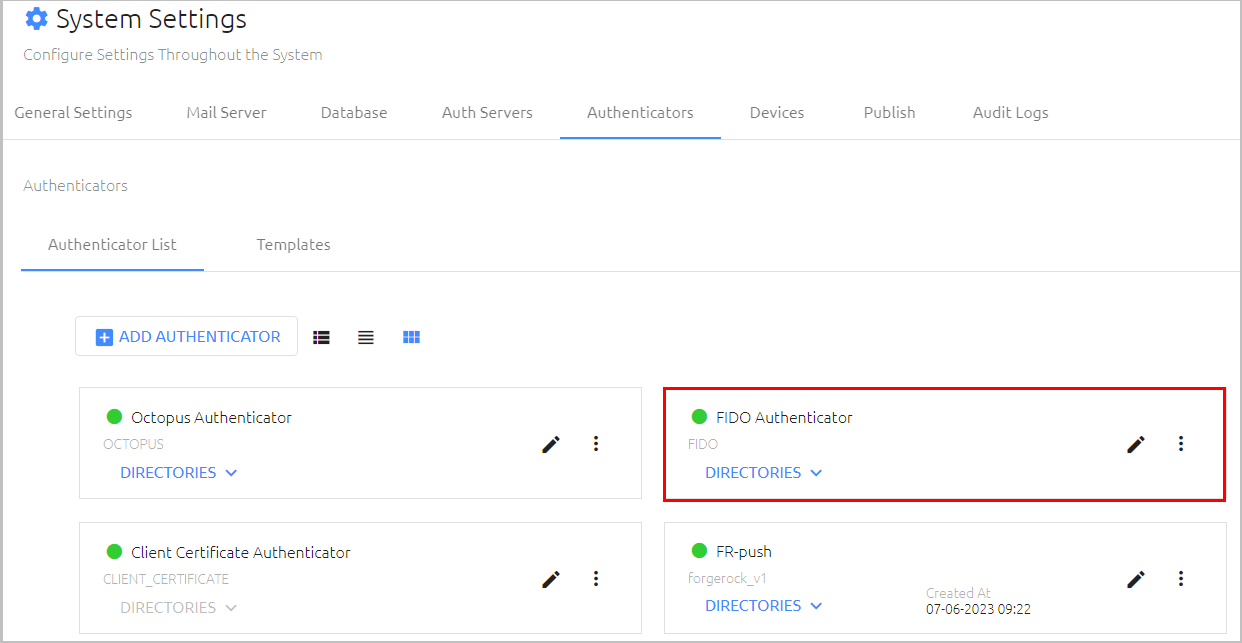
From the System Settings menu, select the Authenticators tab and verify that the FIDO Authenticator is enabled and connected.
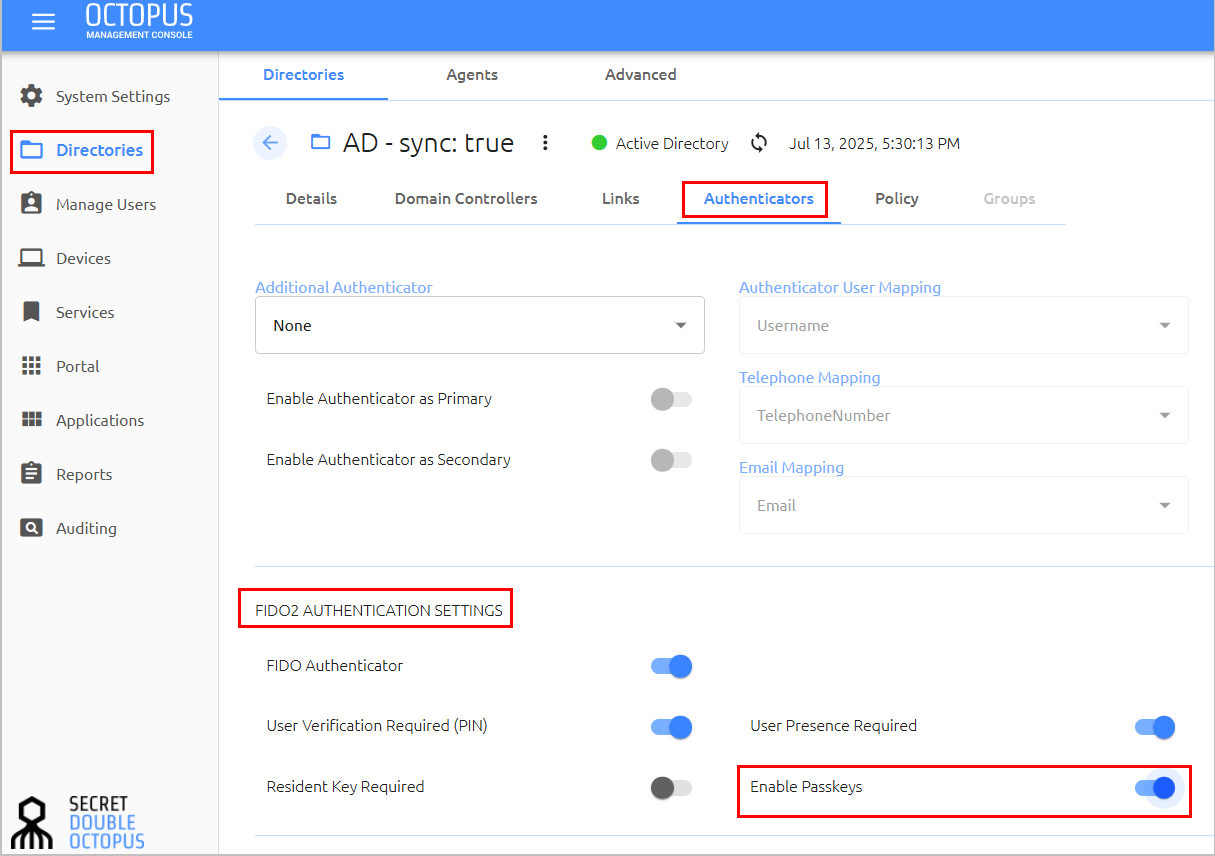
From the Directories menu, click the Edit icon of the relevant directory to open the directory settings. Then, select the Authenticators tab.
Under FIDO2 Authentication Settings, select the Enable Passkeys toggle to activate the setting.
In addition, users need to work with a password-supporting phone or a workstation with Windows Hello or Touch ID enabled with fingerprint sensor.
In order to authenticate to web applications using a passkey, users must first register (enroll) the passkey in the system. Users can perform registration after receiving an enrollment invitation email (for the FIDO Authenticator). Every passkey requires its own enrollment invitation.
IMPORTANT: Keys need to be enrolled from within the organization’s network, or while connected to a network VPN. After enrollment, users will be able to use the passkey for authentication from both inside and outside the network.
The following procedure presents user instructions for passkey enrollment. Keep in mind that the registration process is controlled by the browser, so the exact flow and screenshots presented may vary for different browsers. The example in the procedure shows enrollment of a passkey stored on a mobile device, using the Chrome browser.
To enroll a passkey:
Open the invitation email from Secret Double Octopus and click the Click to Enroll link. (Disregard the instruction about inserting a FIDO key.)
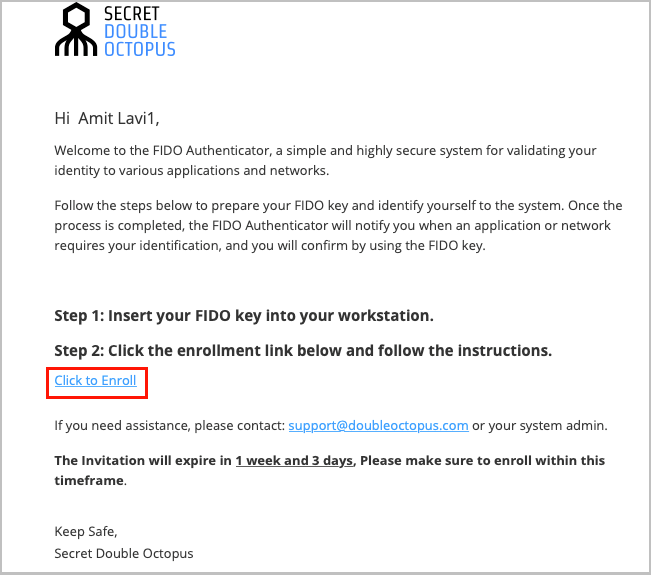
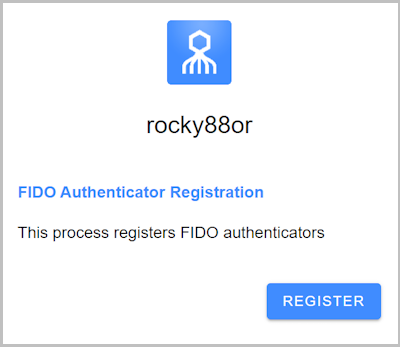
You will be redirected to FIDO Authentication Registration in the User Portal.
Click Register.
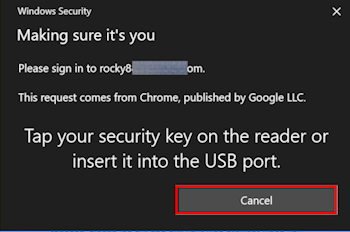
If the following popup opens, click Cancel.
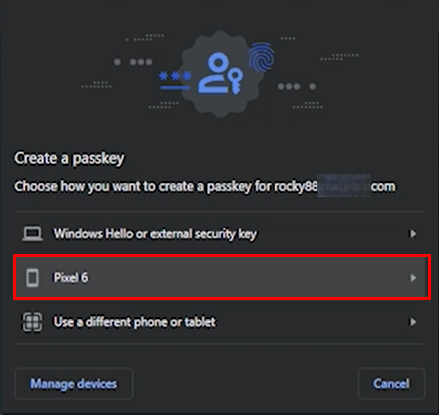
Select the device on which the passkey is stored. Any devices that are already connected with your computer will appear in the list of options. For example:
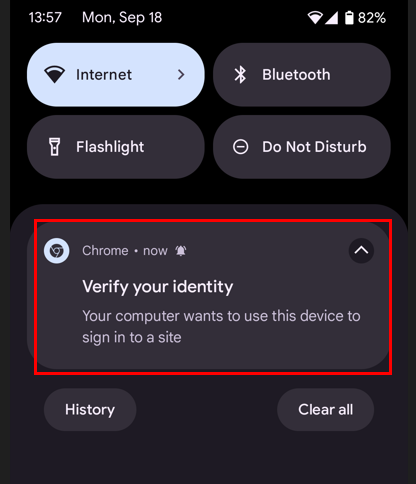
A notification is sent to the selected device.
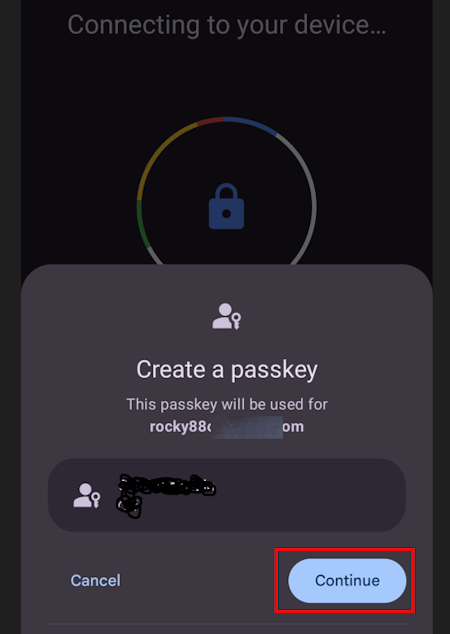
Follow the instructions shown in your browser and on the device. For example:
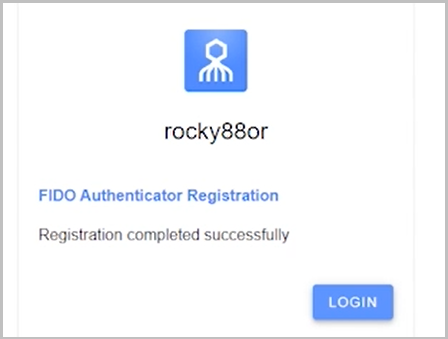
After the passkey is successfully enrolled, a confirmation message is displayed and the Login button appears.
The user authentication flow once a passkey is enrolled is presented below. The example used is login to the User Portal from a Chrome browser.
The user opens the User Portal in the browser of choice.
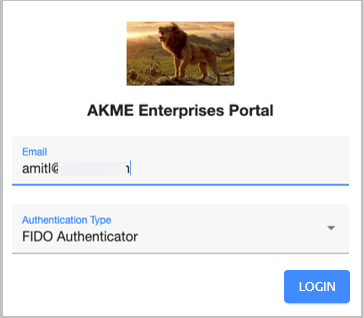
The user enters an email address / username, chooses FIDO Authenticator as the authentication type and clicks LOGIN. For example:
In the popup that opens, the user clicks Cancel.
The user selects the device on which the passkey is stored.
The browser then initiates a connection with the selected device.
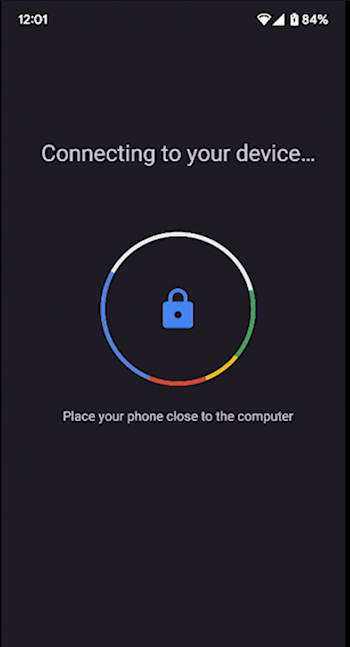
Following successful authentication, a confirmation message is displayed on the mobile device, and the User Portal is launched.