The Secret Double Octopus solution supports use of hardware OTP tokens to authenticate to Windows and the User Portal. This article presents the prerequisites for successful authentication with HW OTP tokens and describes the enrollment process.
Before sending enrollment invitations to your users, verify that the following configuration has been done in the Octopus Management Console:
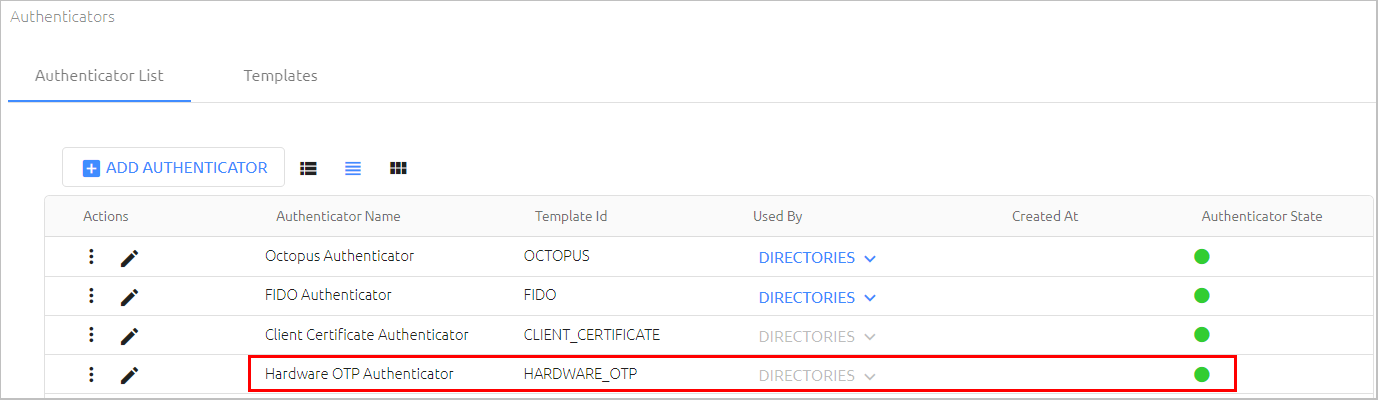
The Hardware OTP Authenticator is enabled and connected (System Settings > Authenticators).
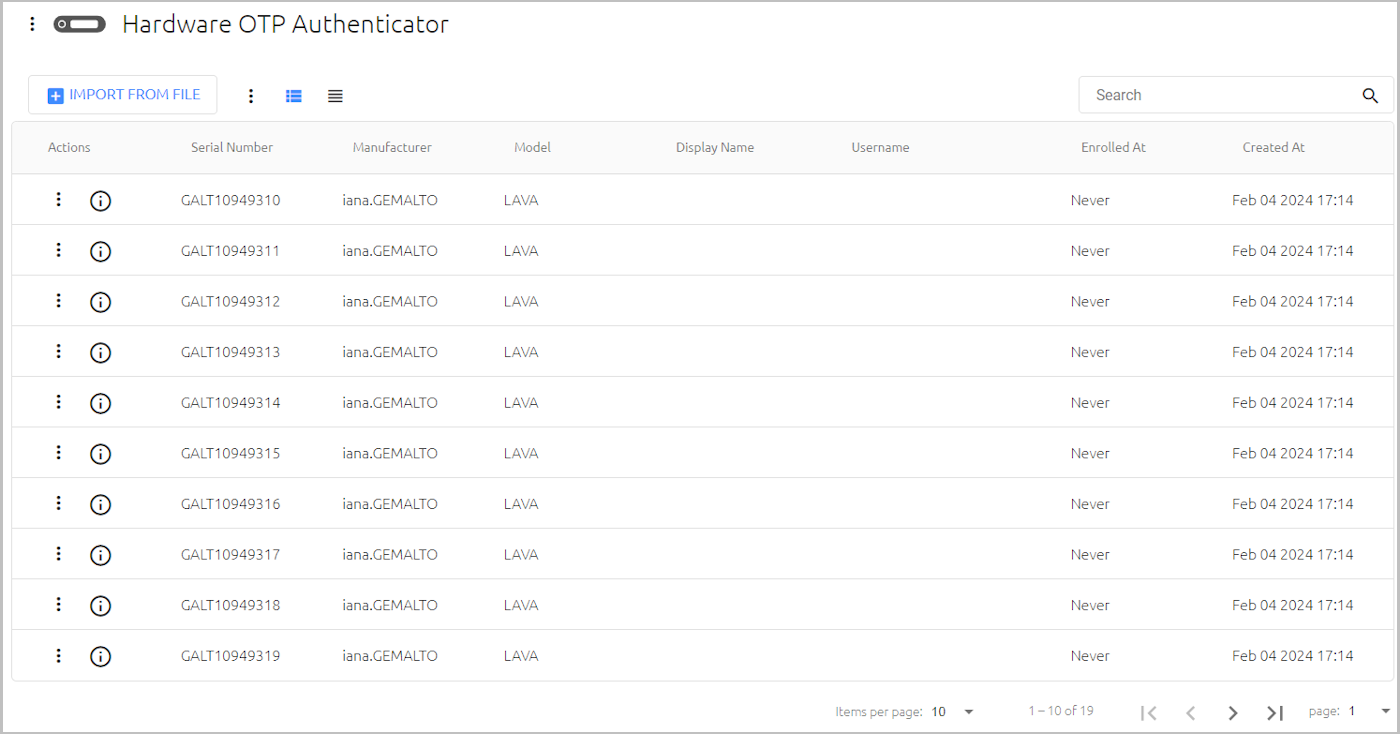
A list of hardware OTP tokens has been imported. For example:
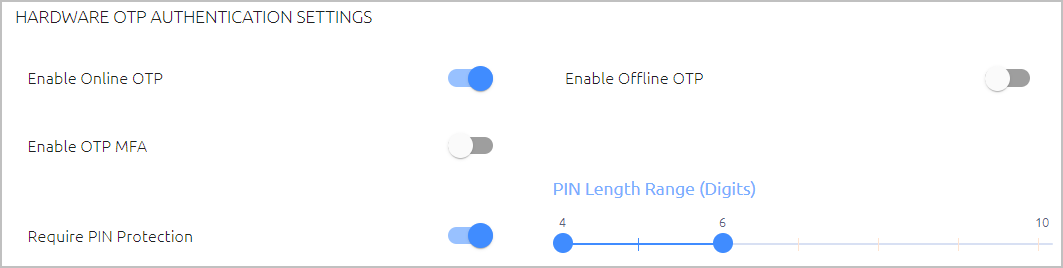
The relevant Hardware OTP Authentication Settings have been selected in the Authenticators tab of the required directory. For example:
In order to login using a HW OTP token, users must first register (enroll) the token in the system. Users can perform registration after receiving an enrollment invitation email.
The following procedure presents user instructions for HW OTP token enrollment.
To enroll a hardware OTP token:
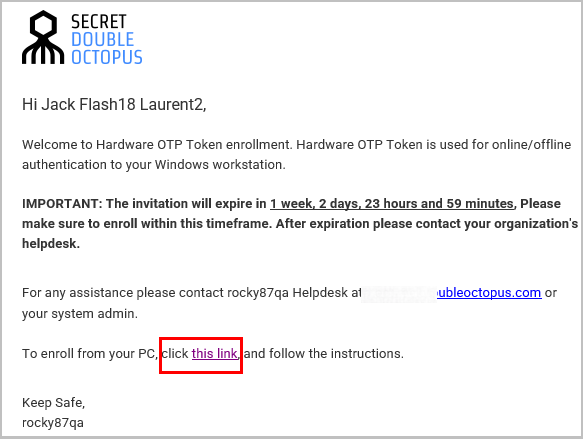
Open the invitation email from Secret Double Octopus and click the enrollment link.
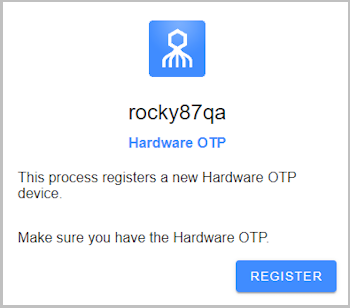
You will be redirected to Hardware OTP Registration in the User Portal.
Click Register.
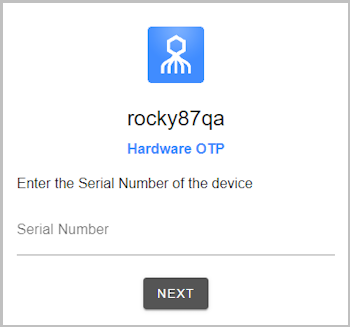
Enter the serial number of your token, and then click Next.
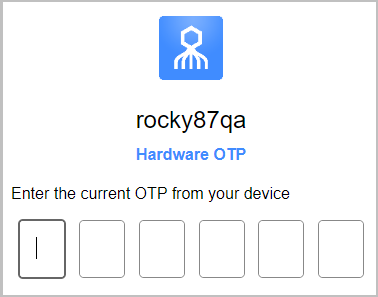
Type the OTP code displayed on your hardware token.
If you are required to use a PIN with your token, you will be prompted to choose a PIN of a specified length. In the following example, PINs consisting of four, five or six digits are supported.
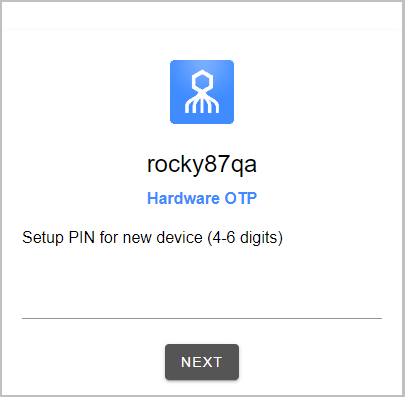
Enter a PIN code of your choice on the line, and then click Next.
After entering the PIN, you will be asked to retype it.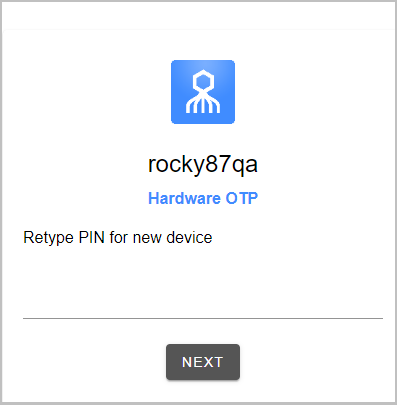
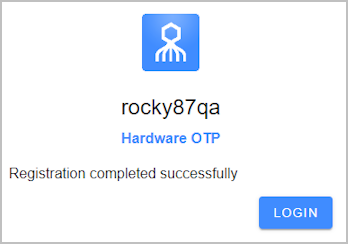
When your token has been successfully enrolled, a confirmation message is displayed and the Login button appears.
The user authentication flow once a HW OTP token is enrolled is presented below. The example used is login to Windows.
The user enters a username and selects OTP as the authentication method.
The user types the code displayed on the hardware token and presses <Enter>.
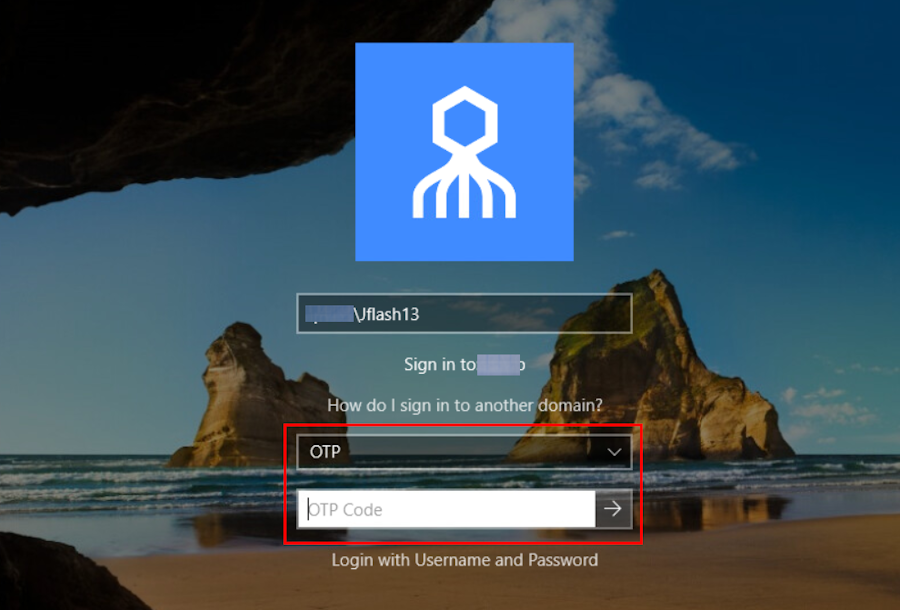
IMPORTANT: If a PIN has been configured for the token, the user enters the PIN followed by the OTP code, with no space between them.