By default, installation of the Octopus Management Console creates a local PostgreSQL DB. If the installer chooses not to create the default database, the database connection needs to be configured manually following installation, from the Management Console.
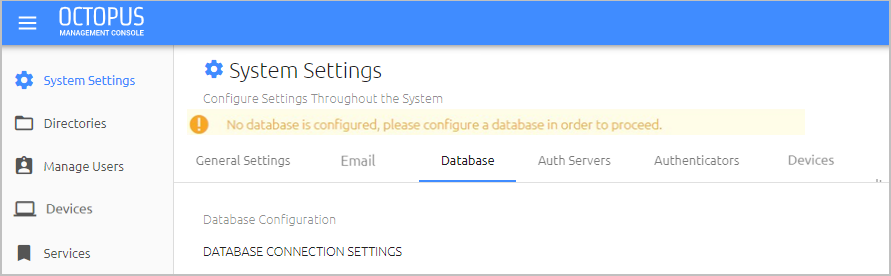
If a database was not added during installation, the Database tab opens when you log into the Management Console for the first time. In addition, the following warning message is displayed: "No database is configured. Configure a database in order to proceed."
Supported Databases
The following database types and versions are supported:
| Database Type | Minimum Version | Maximum Version |
|---|---|---|
| PostgreSQL | PostgreSQL 9 | PostgreSQL 15 |
| MS SQL | SQL Server 2012 SP4 | SQL Server 2022 |
| Oracle | Oracle Database 12c | Oracle Database 19c |
Database User Permission Requirements
Required user permissions for each supported database type are listed in the table below.
IMPORTANT: If you are working with multiple Management Console Servers, the same database user must be used for all instances.
Database Type | User Permissions |
MS SQL (SQL Server Authentication) |
|
| Oracle |
|
| PostgreSQL | Grant all privileges on database <db> to <user> |
Configuring the Database Connection
The database connection is easily configured from the Octopus Management Console.
To configure the database connection:
From the System Settings menu of the Management Console, select the Database tab.
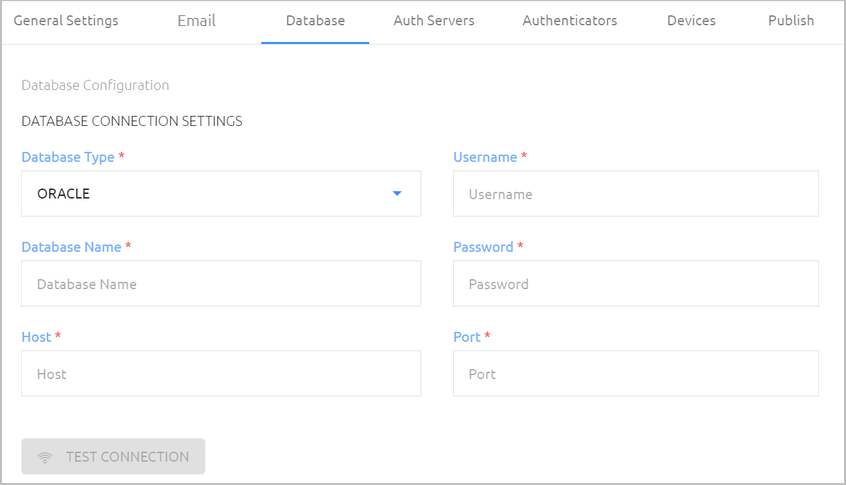
From the Database Type list, select PostgreSQL, MS SQL or Oracle.
Specify the following settings by entering the relevant values in the appropriate fields:
Database Name: Name of the database
Host and Port: IP address (or URL) and port of the database
Username and Password: Credentials of the database administrator
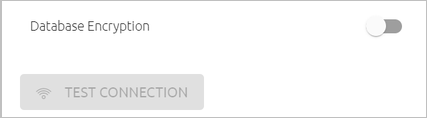
For MS SQL database types only: If the connection to the database is encrypted, enable the Database Encryption toggle button.
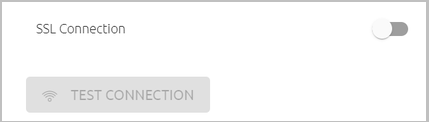
For PostgreSQL database types only: To enable SSL communication between the Octopus Authentication Server and an external database, enable the SSL Connection toggle button.
To check for validity of your settings, click Test Connection.
To save the settings, click Save and then publish your changes.