Enrollment – FIDO
Preface
This guide explains how to enroll a FIDO Authenticator for a user using the Invitations flow (commonly used with Auto-Enroll Groups).
The process includes the Admin steps to access a user’s invitations and the End-User steps to complete registration using a FIDO key.
Prerequisites
- User exists in SDO (synced from directory or created manually).
- Admin access to Manage Users and Invitations.
- FIDO enrollment is enabled/available in your environment policy.
- User has a compatible FIDO security key (with PIN configured if required).
Enrollment – FIDO Flow
Follow these steps to generate or locate the user invitation and complete FIDO registration.
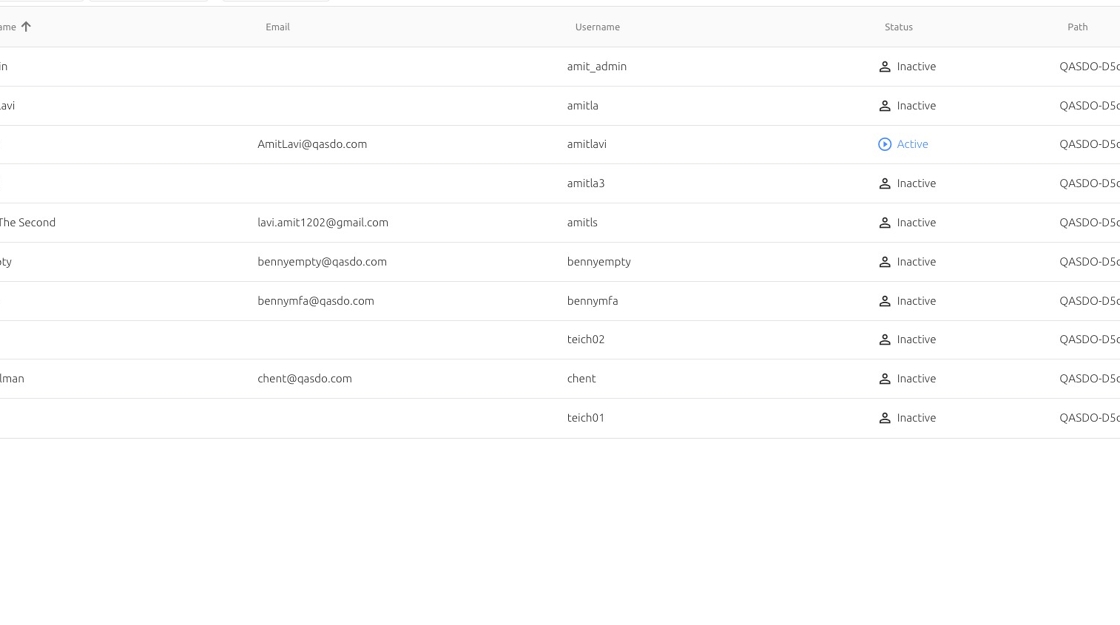
Open Manage Users
Navigate to the Admin Console user list.
https://companydemo1.doubleoctopus.io/admin/app/manage-users/users-list
Select the user
Click the relevant user row to open the user details.

Open “FIDO Authenticator”
From the user page, click FIDO Authenticator.

Open the action menu
Click the menu/button area to access invitation-related actions.

Continue to Invitations
Navigate to the user’s invitation view.

Locate the Invitations section
Open the user’s Invitations area.

Click “Invitations”
Select Invitations to view the invite links.

Copy / open the invitation link
Click the invitation entry to open or copy the enrollment URL.

End-user: open invitation URL
In a new tab, navigate to the invitation link (shared with the user).
https://companydemo1.doubleoctopus.io/?invitation=011c71b5Kwj8x4oUd9Tm9ZzvfCZo
Click “Register”
The user clicks Register to start FIDO enrollment.

Insert the FIDO key and enter the PIN
Insert the FIDO security key into the computer and enter the PIN code when prompted.
Confirm tenant selection (if prompted)
If the user is prompted, select the correct tenant (example shown).

Optional: open an invitation from email link
If a second invitation URL is used, open it in a new tab.
https://companydemo1.doubleoctopus.io/?invitation=011c71b5HgGGpbLTSqRcrx2P3bgJ

Click “Register” (finalize)
Click Register to complete the enrollment flow.

✅ FIDO Enrollment Complete
The user is now enrolled with a FIDO authenticator. If this enrollment was triggered by an Auto-Enroll group, future users added to the group will automatically receive the enrollment invitation according to policy.