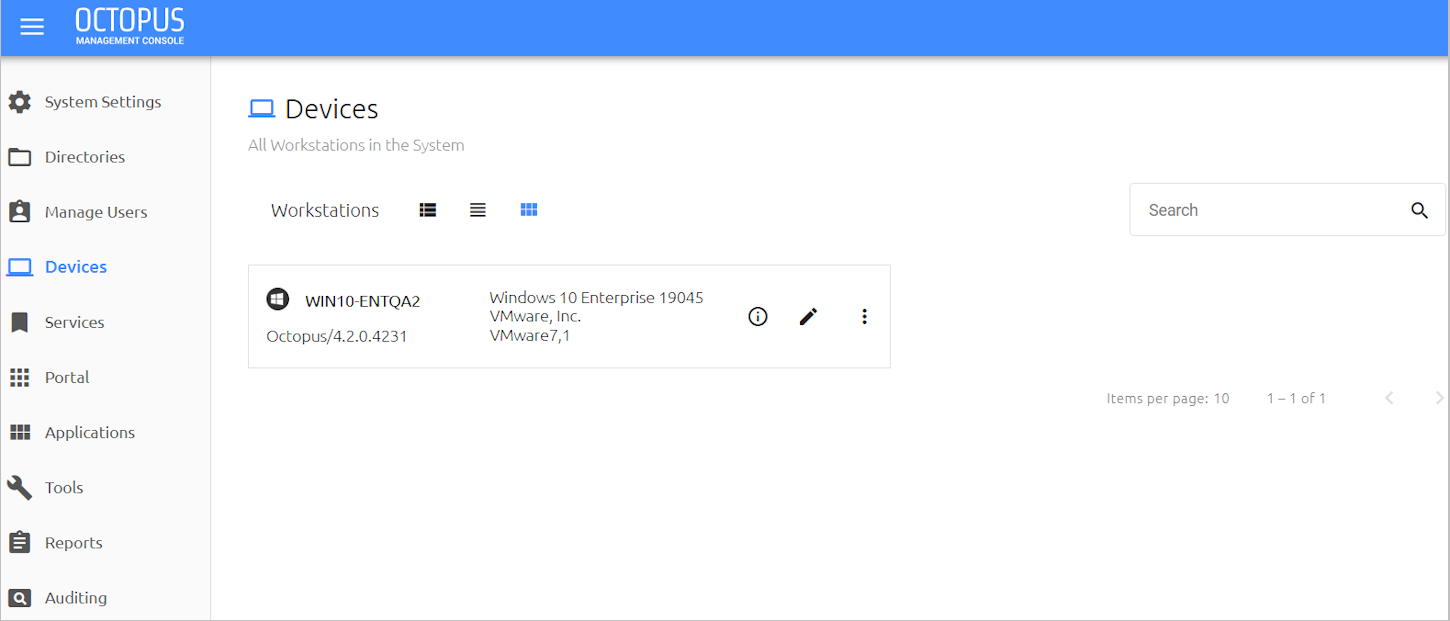
The Devices menu enables you to easily view and manage any workstation that communicates with the Octopus Authentication Server. The Workstations grid lists all machines in the system and provides basic information about each one. You can quickly locate specific workstations using the Search tool, by entering the name or ID of the workstation.
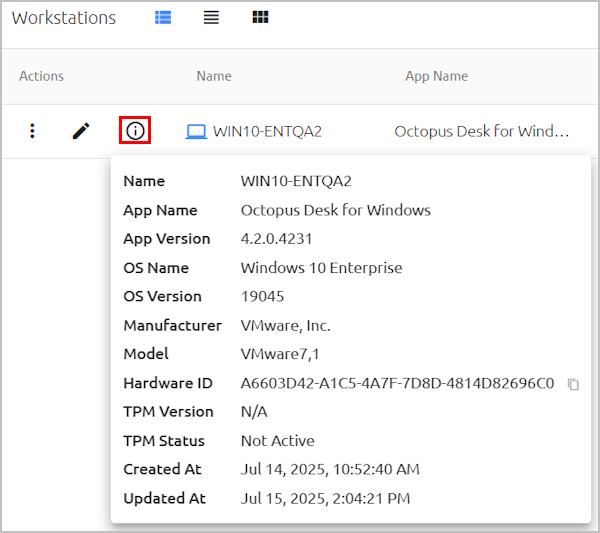
Clicking the Info icon in the row of a workstation opens a popup showing additional details, including hardware ID, TPM version, and more.
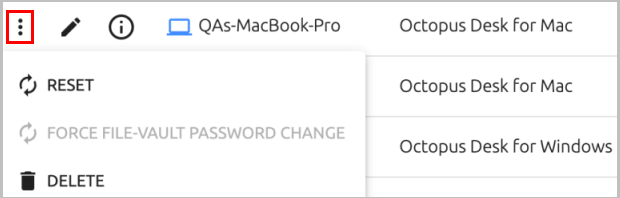
Clicking  in the Actions column allows you to perform the following operations on the workstation:
Reset: Deletes the workstation's history and all generated security keys. Use the Reset operation following an upgrade to Windows Agent 3.3 or Mac Agent 2.3.0. After a reset, the workstation will generate a new security key with the next authentication.
Force FileVault Password Change: Initiates an immediate rotation of the FileVault password. This operation is available for Mac workstations only. If the Password Age setting is set to 0 (System Settings > Devices > macOS FileVault Password Settings), the operation is disabled.
Delete: Deletes the workstation's history and security keys and also removes it from the list of workstations. This operation is generally done for workstations that are no longer in use. If a user authenticates on a deleted workstation, the workstation will be recreated and will reappear in the list.
Clicking  opens another page containing the following tabs, each of which provides additional data about the workstation:
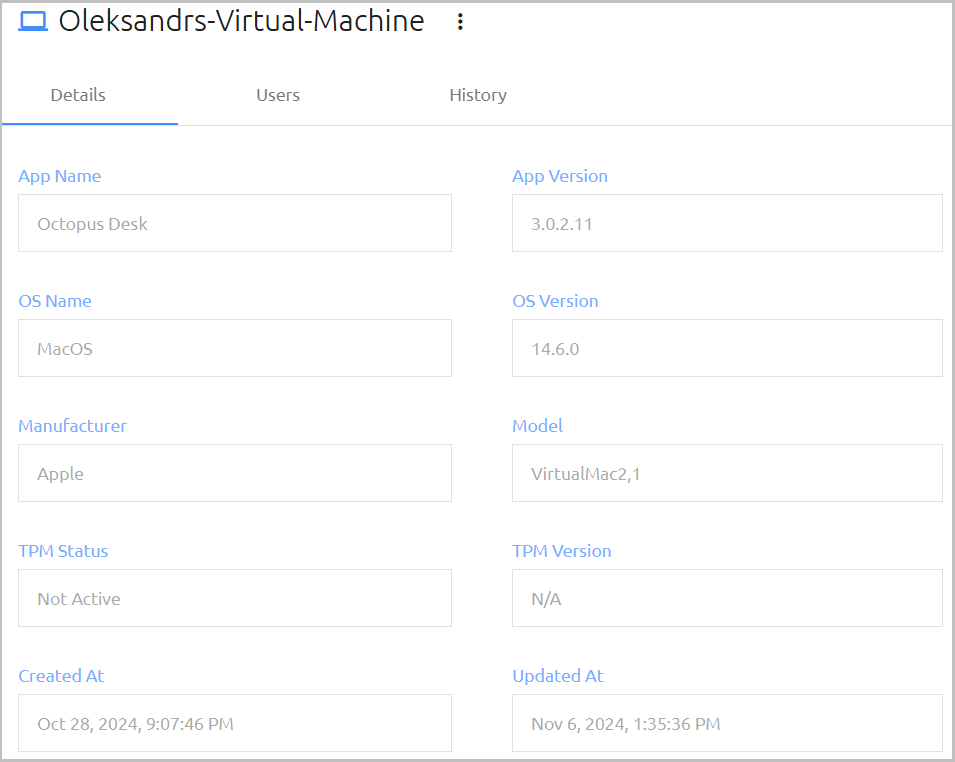
Details: Lists general information about the workstation, as well as timestamps for the machine's entry into the system and most recent update.
Users: List all users who have authenticated through the workstation and provides basic details about each user. Clicking
in the row of a user enables you to perform some common operations on the user. (For details, refer to the Performing Actions on Users section in the Managing Users chapter.)
Clicking redirects you to another page where you can view and update user details and settings.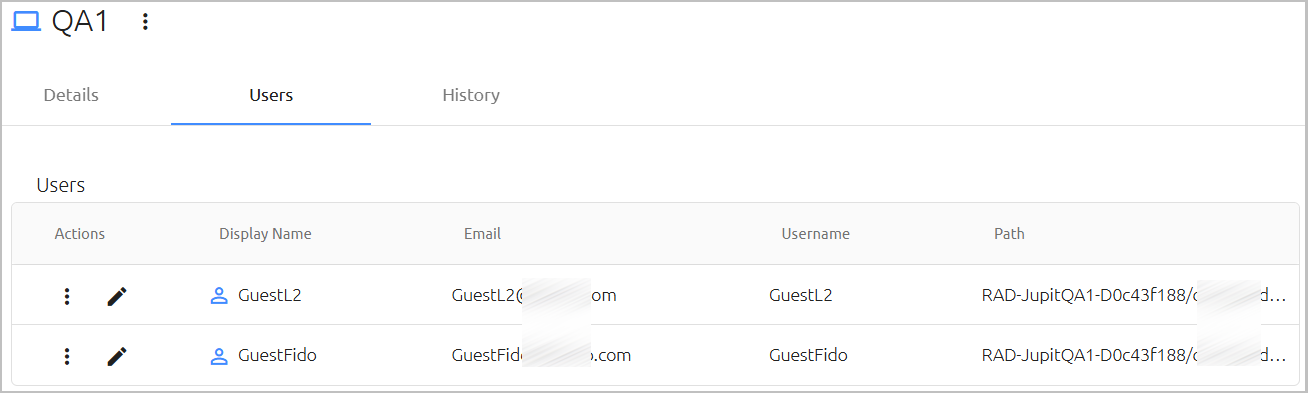
If a user is currently blocked from accessing the workstation due to enforcement of push fatigue protection mechanisms, a red Blocked icon appears in the row of the user. To manually unblock the user, click and select Unblock Device For User.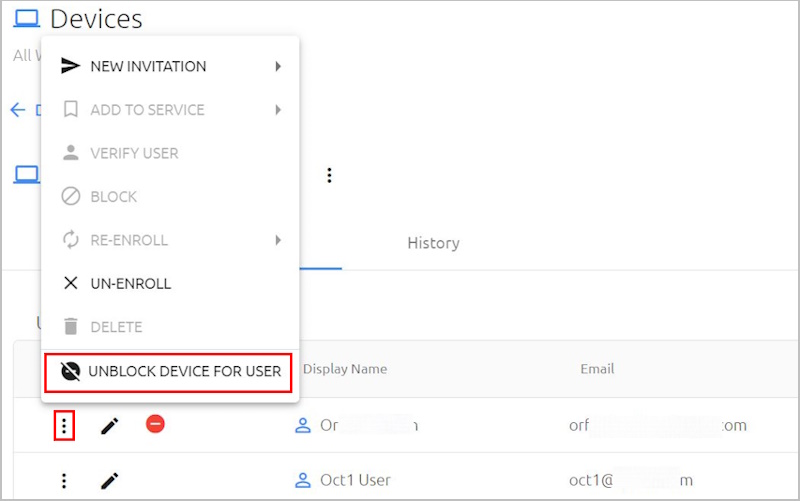
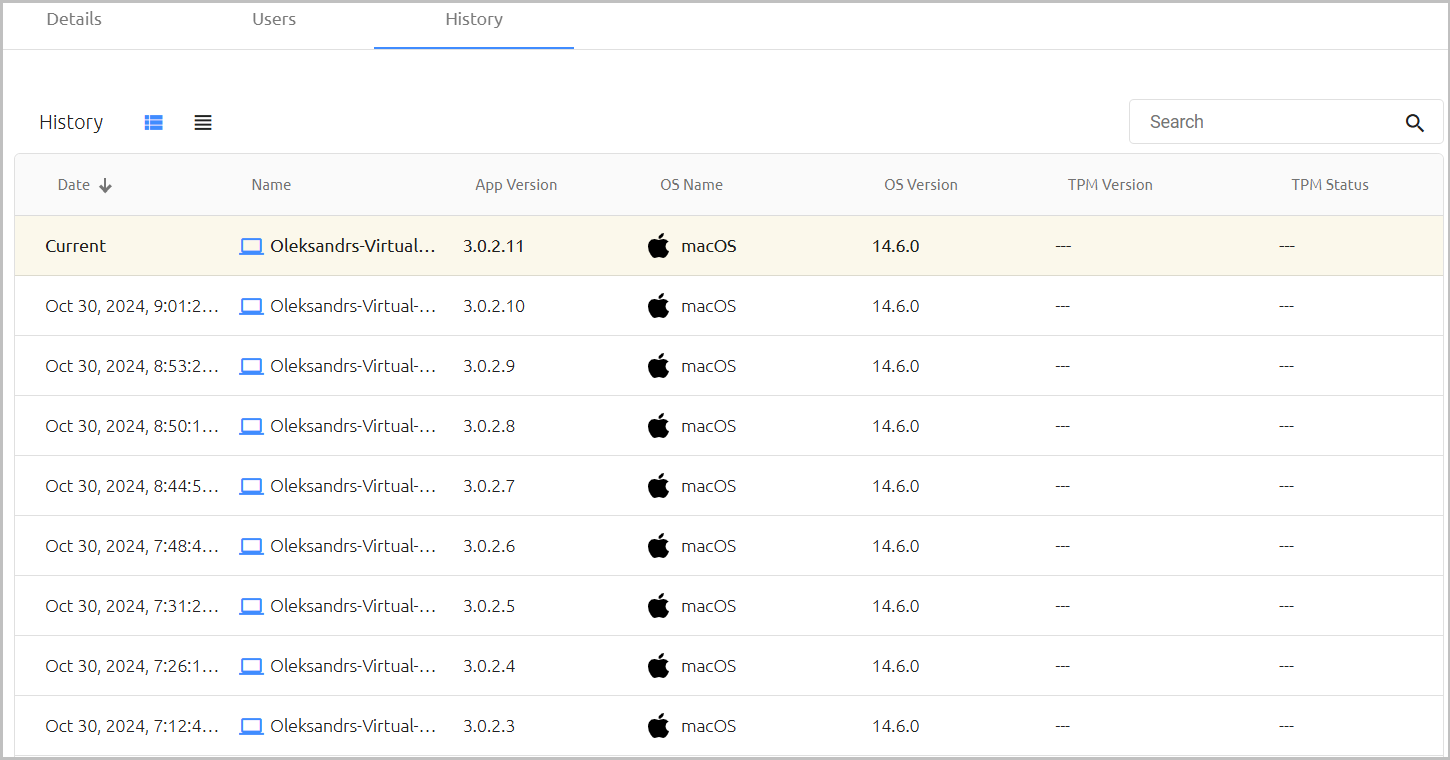
History: Provides information about all updates and upgrades that took place on the workstation.