In the event that you need to upgrade your entire solution from Red Hat version 8.x to 9.x, follow the instructions below. This method of upgrade allows you to rebuild your entire distributed server configuration without interruptions in system operation.
To upgrade a distributed configuration to Red Hat 9.x:
Install a new machine with Red Hat version 9.x.
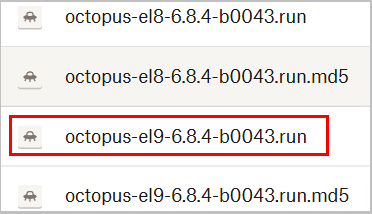
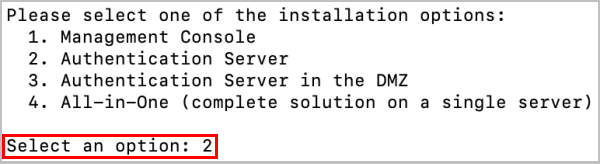
Install an Authentication Server on the new machine using the installation package for version 6.8.4. Be sure to run the el9 flavor installation script and select installation option 2.
Connect the new Authentication Server to your existing primary Management Console Server. For details, refer to Octopus Authentication Server Installation.
Install another new machine with Red Hat version 9.x.
Install a DMZ Server on the new machine using the installation package for version 6.8.4. Be sure to run the el9 flavor installation script and select installation option 3.
Connect this DMZ Server with the new Authentication Server that you created in Step 2. For details, refer to DMZ Installation.
Test the new installation and verify that the server is operating as expected.
Disconnect an Authentication Server on a machine running version 8.x from the Load Balancer, and delete the machine.
Install a new machine with Red Hat version 9.x. Then install a new Authentication Server on the machine using the installation package for version 6.8.4, as described in Step 2.
Delete the machine running the DMZ Server that was associated with the old Authentication Server.
Install a new machine with Red Hat version 9.x. Then install a new DMZ Server on the machine using the installation package for version 6.8.4, and connect it with the Authentication Server that you created in Step 7.
Connect the new Authentication Server to the Load Balancer.
Repeat Steps 5-9 for each old Authentication Server in your environment.
Install a new machine with Red Hat version 9.x.
Install a new secondary Management Console Server on the machine using the installation package for version 6.8.4. Be sure to run the el9 flavor installation script, select installation option 1, and specify secondary MC installation.

Connect the new secondary Management Console Server to your existing primary Management Console Server. For details, refer to Secondary Octopus MC Server Installation.
Run the script to change the secondary Management Console Server to the main one. Then, kill the old primary server and delete the machine.
Install a new machine with Red Hat version 9.x.
Install a secondary Management Console Server on the machine using the installation package for version 6.8.4. Connect it to the new primary Management Console Server that you configured in Step 13.