Secret Double Octopus allows you to authenticate using your FIDO2 key, so you can access your services quickly and easily. In addition to providing a fast login experience, FIDO2 key authentication offers an excellent solution for situations in which you are working offline, you have no mobile device, and so on.
 |
Secret Double Octopus supports the following FIDO2 tokens:
Yubico (YubiKey)
FEITIAN
This document describes how to register (enroll) a FIDO2 key and how to login using FIDO authentication. The following topics are covered:
In order to be able to authenticate using a FIDO2 key, you need to first register the key in the system. This process is also called enrollment.
You can register your FIDO2 key after you receive an enrollment invitation email from the system administrator.
IMPORTANT: If you have more than one FIDO2 key, you will need to register each key separately. Each key requires its own enrollment invitation.
To enroll a FIDO2 key:
Open the invitation email from Secret Double Octopus and click the Click to Enroll link.
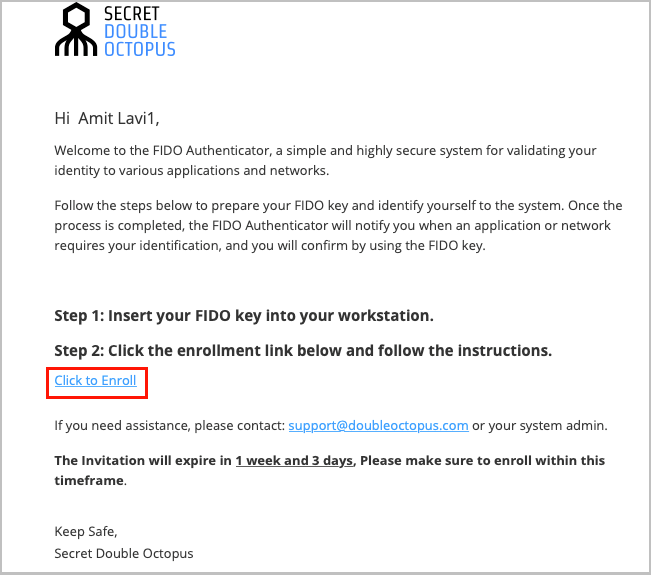
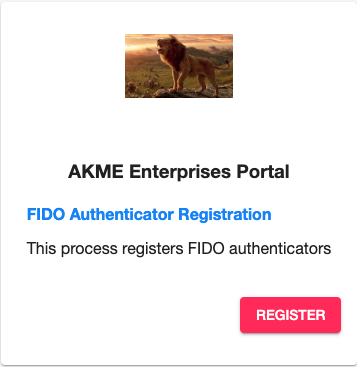
You will be redirected to FIDO Authentication Registration in the User Portal.
Click Register.
If you are working on a Mac, you may see the following screen. Select USB security key.
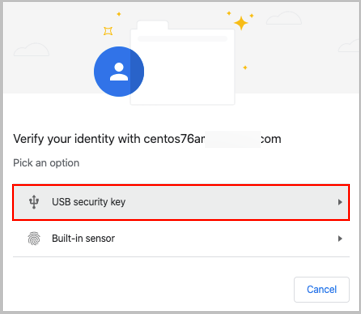
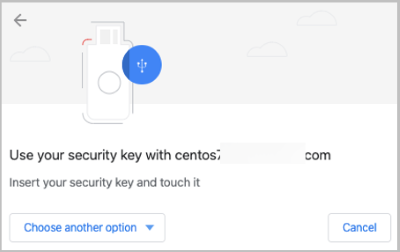
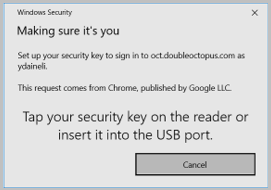
Next, you will be prompted to insert your key into the USB port.
Mac:
Windows:
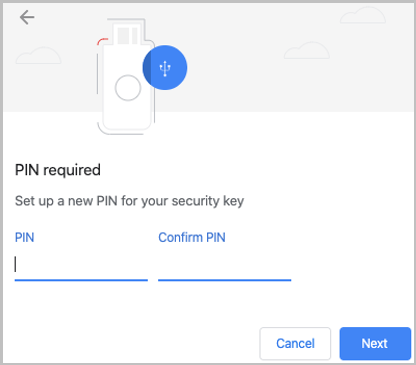
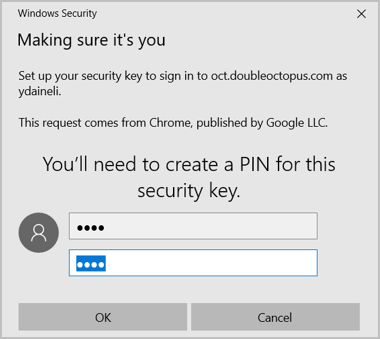
If you are prompted to create a PIN code, enter a PIN of your choice and retype it to confirm. Then, click Next or OK.
Mac:
Windows:
Click Allow to enable the workstation to access the FIDO key.
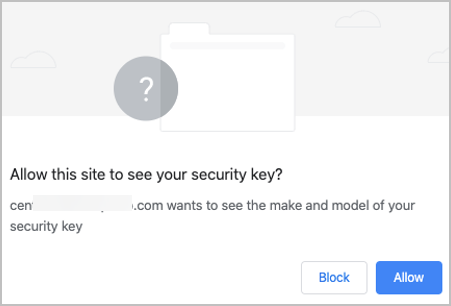
After your key is registered, you will be redirected to the User Portal. The next section explains how to log in.
You can use various authentication methods to log into the User Portal. The following procedure explains how to login using FIDO authentication.
IMPORTANT: Before logging into the User Portal, you need to register your Fido2 key in the system. For details, go to Registering Your Key.
To log into the User Portal using FIDO authentication:
Open the User Portal by typing the access URL in your browser.
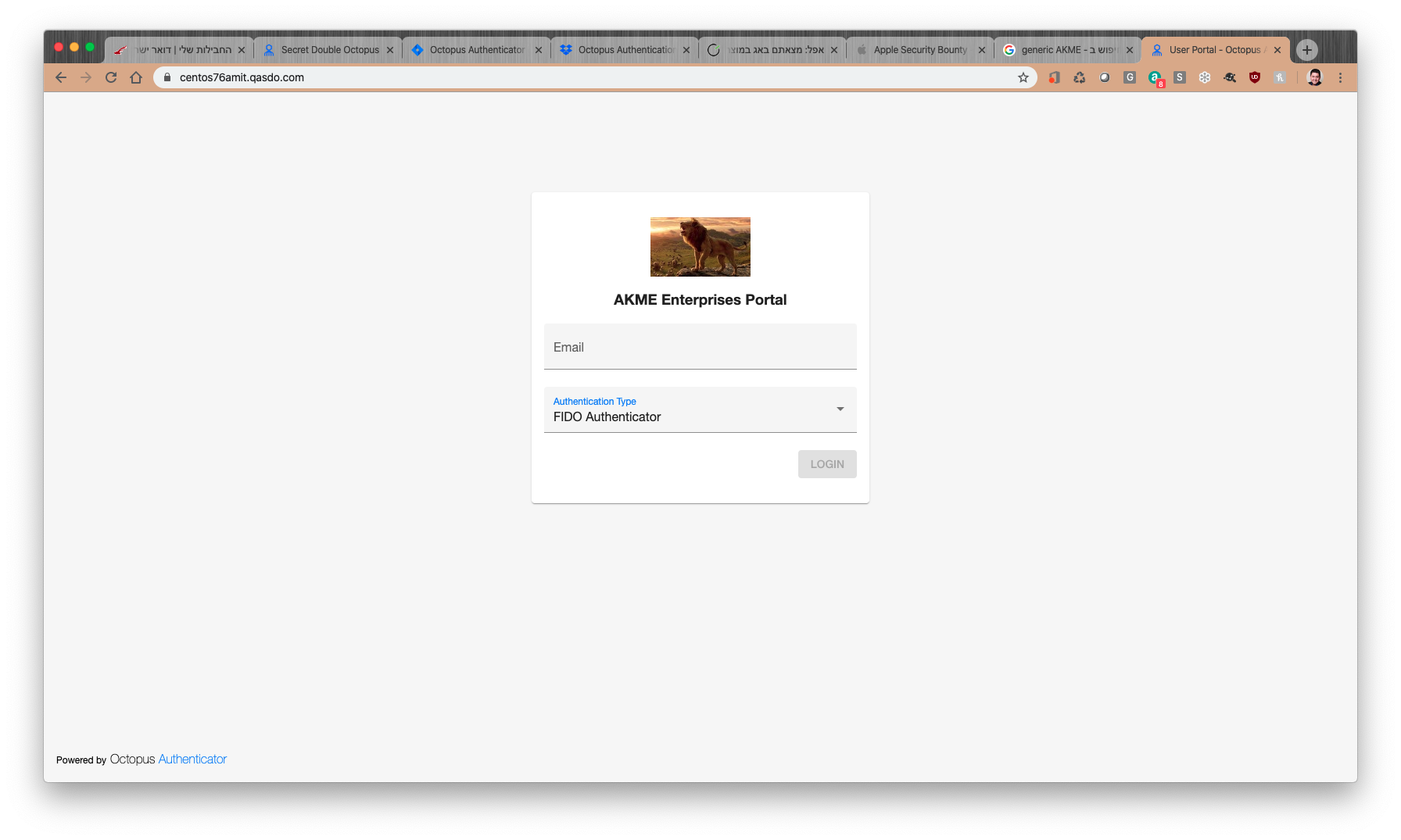
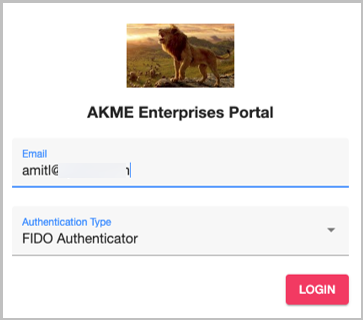
Enter your email address or username. Then, select FIDO Authenticator as the authentication type and click LOGIN.
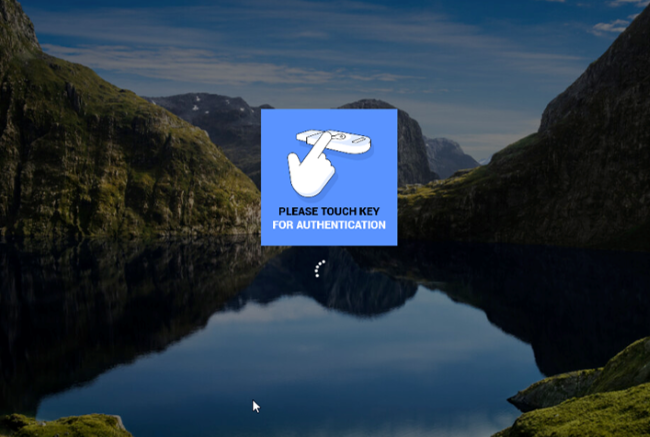
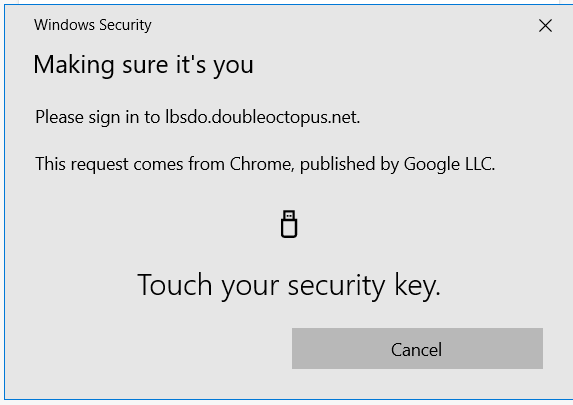
Insert your FIDO2 key into the workstation and touch it.
Mac:
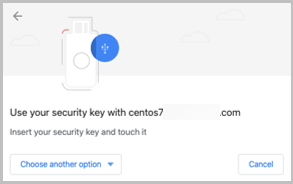
Windows:
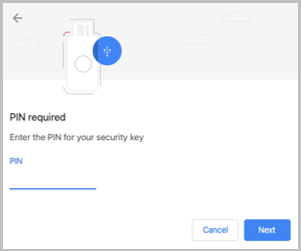
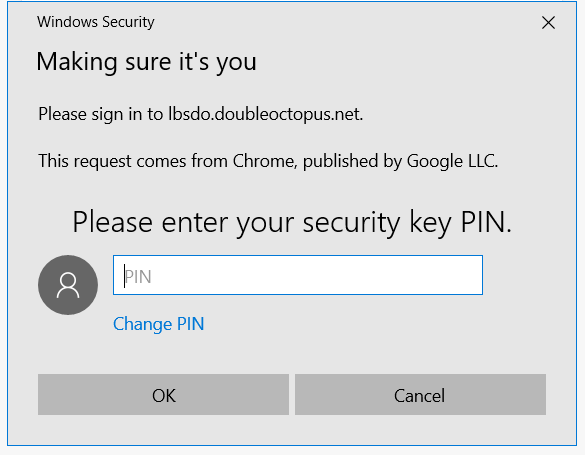
If you are prompted to enter a PIN code, type the PIN that you created during the registration (enrollment) process for the key. Then, click Next or OK.
Mac:
Windows:
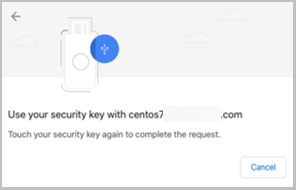
Touch your key again to complete the authentication.
When authentication is complete, the User Portal opens and you will be able to see all the services.

The procedure below explains how to log into a Windows workstation using a FIDO2 key.
IMPORTANT: Before authenticating to Windows, you need to register your FIDO2 key in the system. For details, go to Registering Your Key.
To log into a Windows workstation:
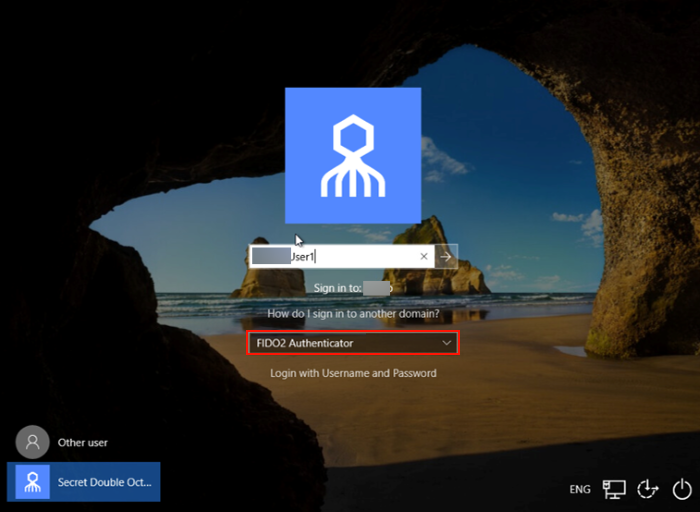
Open the Login screen, or unlock your workstation.

Enter your username and then select FIDO Authenticator as the authentication type.
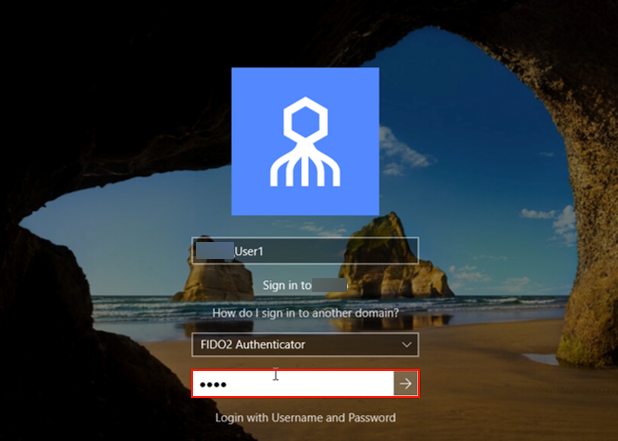
If you are prompted to enter a PIN code, type the PIN that you created during the registration (enrollment) process for the key.
Touch your key to complete authentication.