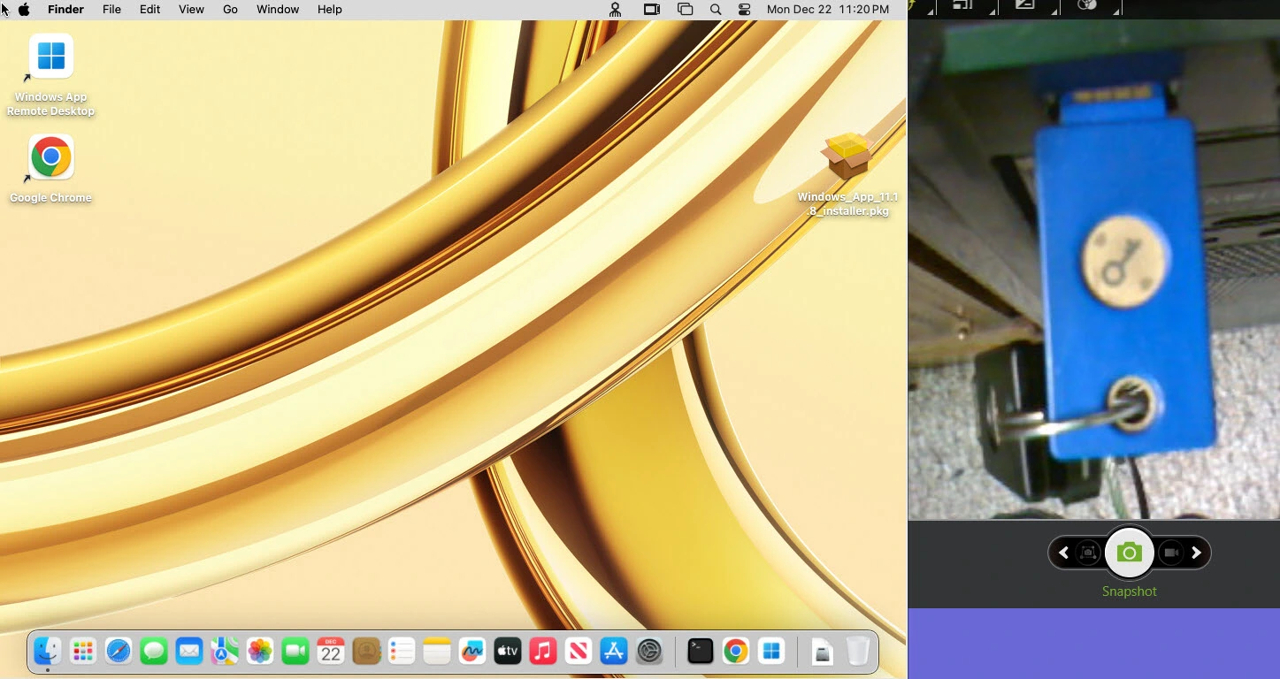
macOS Login with FIDO2 Security Key
Passwordless authentication to Apple macOS using a FIDO2 hardware security key
This guide explains how to log in to Apple macOS using a FIDO2 hardware security key with Secret Double Octopus (SDO). Authentication is completed using a physical key and a PIN, without entering a macOS password.
Step 1 – Open Authentication Options
On the macOS login screen, click the authentication options dropdown to view available login methods.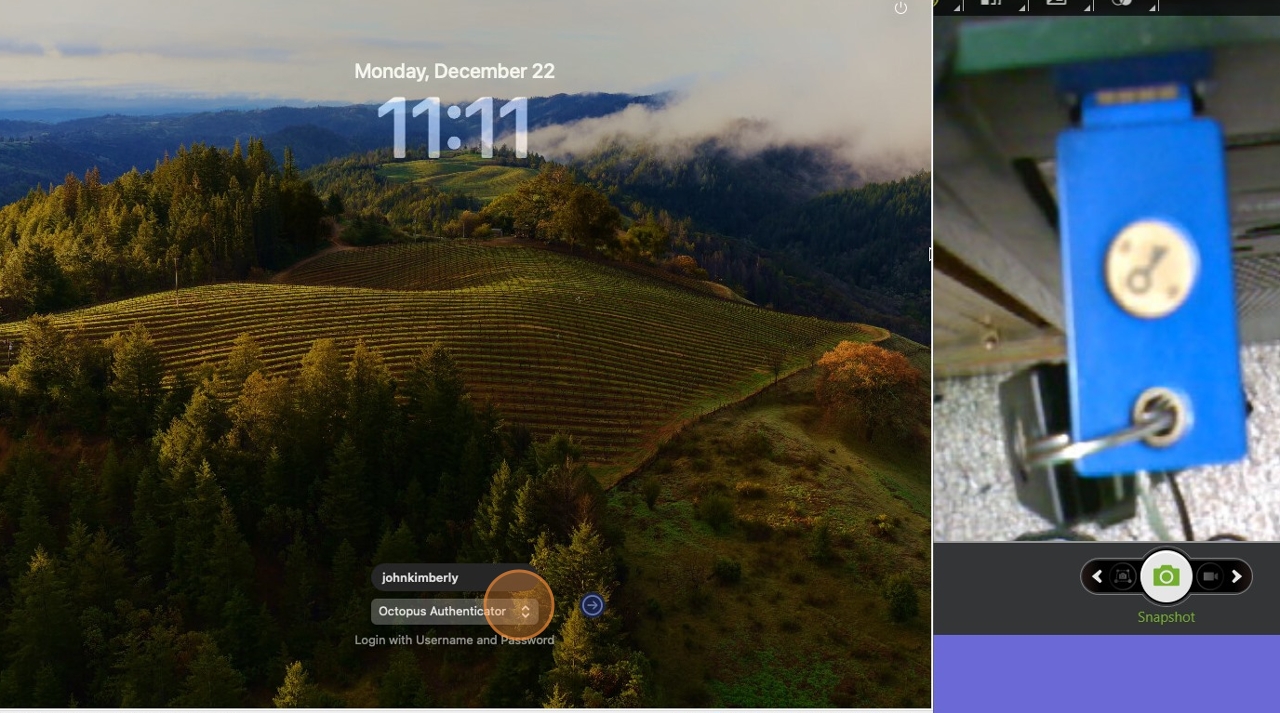
Step 2 – Select FIDO2 (PIN)
From the dropdown list, select FIDO2 (PIN) as the authentication method.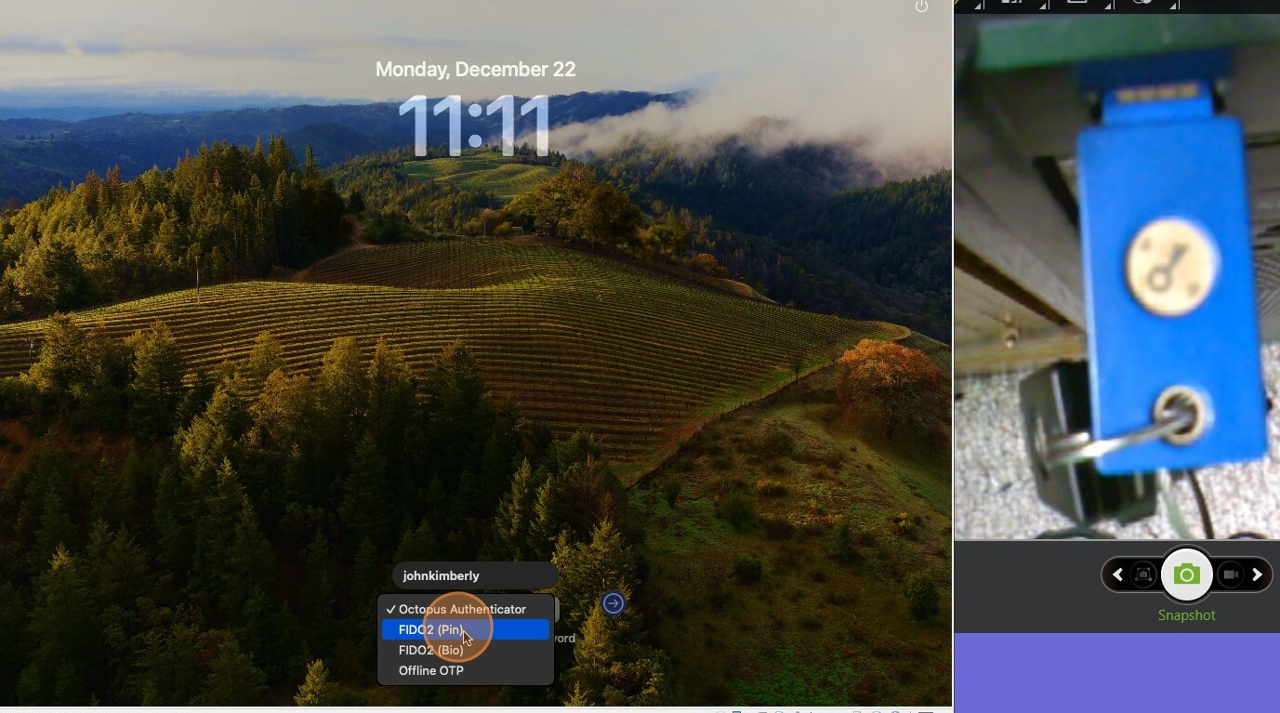
Step 3 – Enter FIDO2 PIN
Enter the 4- or 6-digit PIN associated with the FIDO2 key connected to your computer.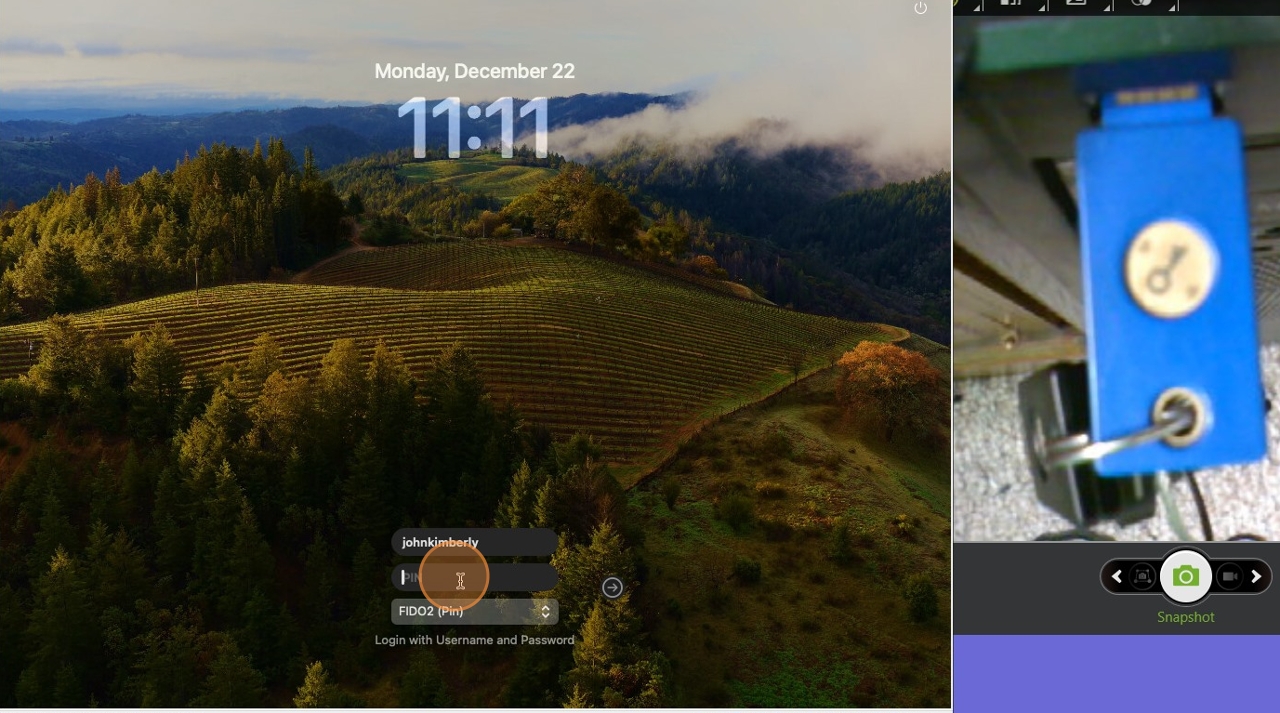
Step 4 – Click Go
Click the Go arrow to continue the authentication process.
Step 5 – Wait for FIDO2 Key Signal
The FIDO2 key will begin blinking, indicating that user presence is required.
Step 6 – Touch the FIDO2 Key
Touch the FIDO2 security key to complete user verification.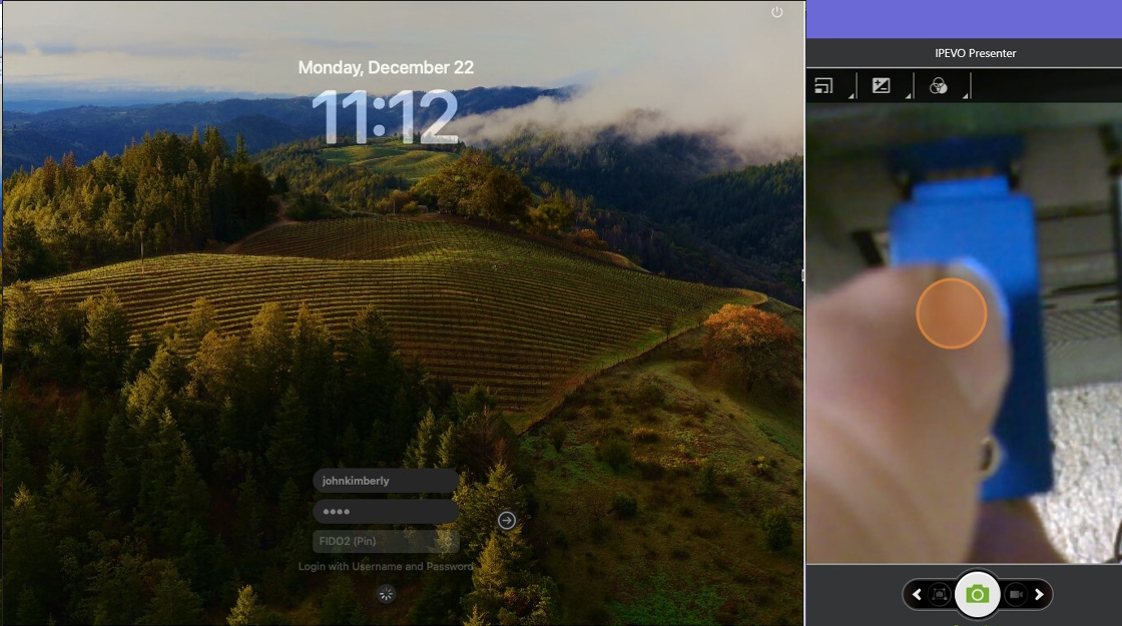
Step 7 – Login Complete
After successful verification, the macOS desktop will load.