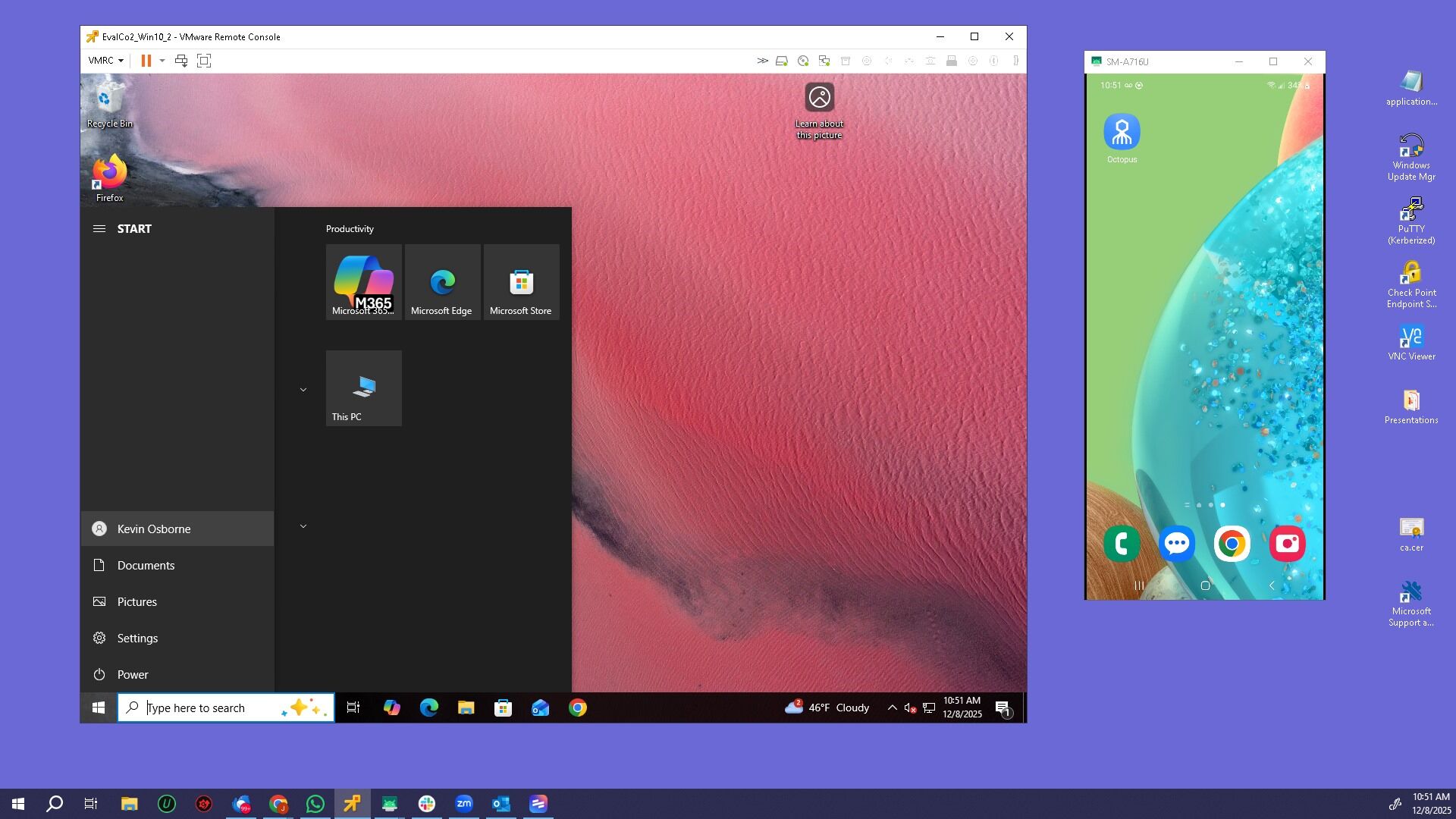
Windows Login with Octopus Authenticator
Passwordless authentication to Windows using the Octopus Authenticator mobile app
This guide explains how to perform a passwordless Windows login using the Octopus Authenticator. Authentication is completed by approving a secure push notification on your mobile device, eliminating the need to enter a Windows password.
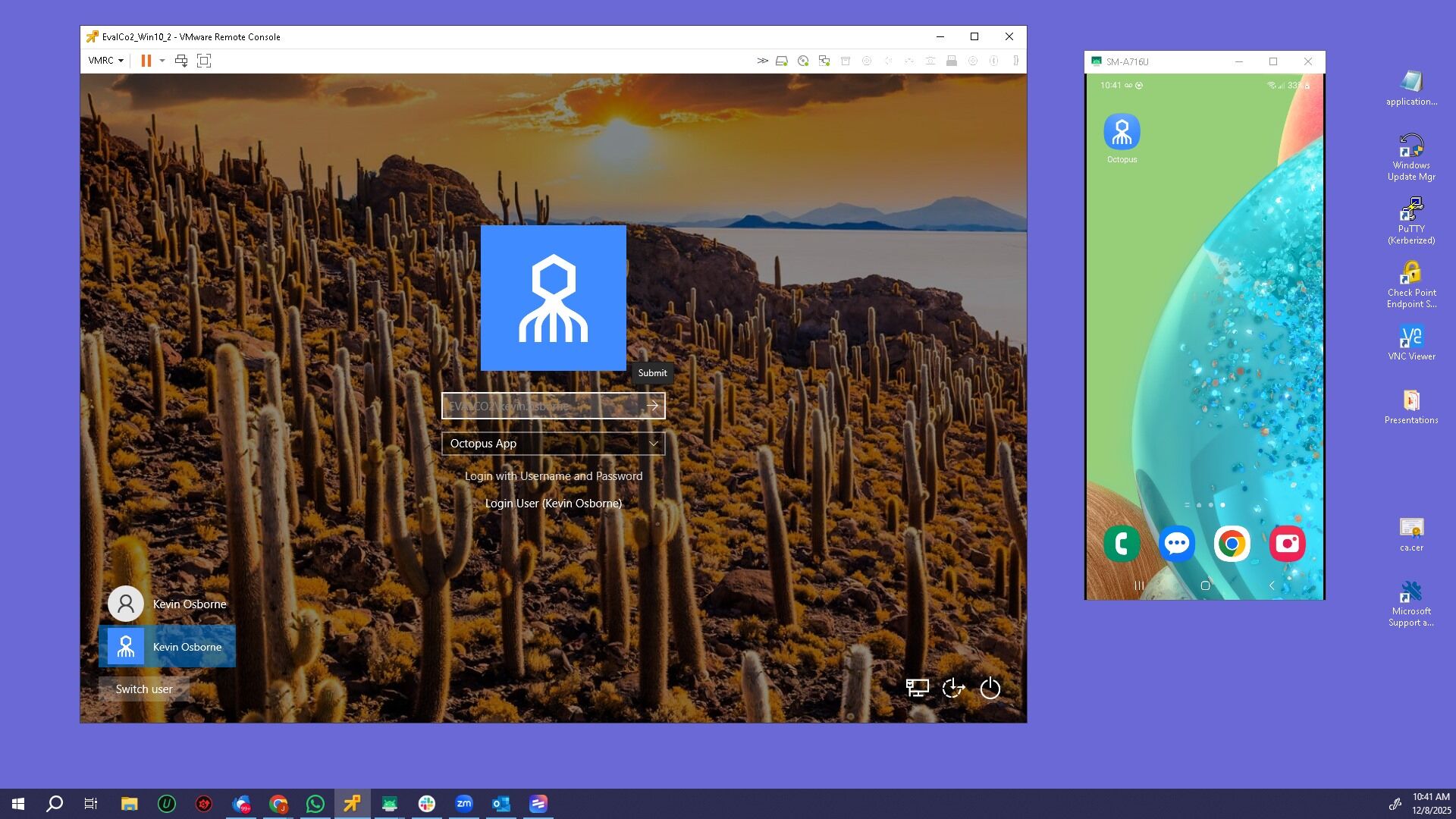
Step 1 – Initiate Windows Login
Click the Go arrow or press Enter to start logging in using Octopus Authenticator.
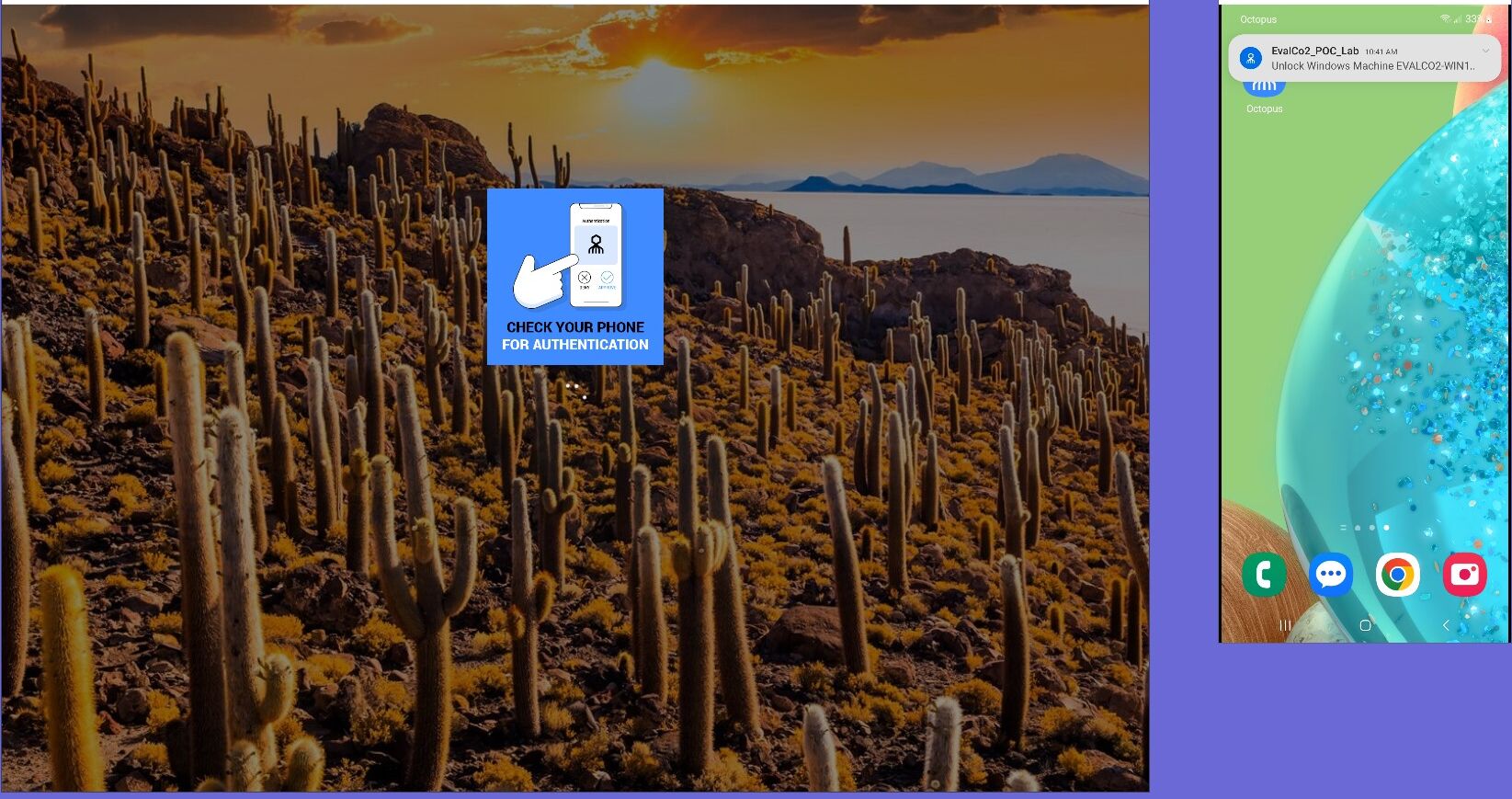
Step 2 – Receive Push Notification
A push notification is sent to your mobile phone. Tap the notification to continue.
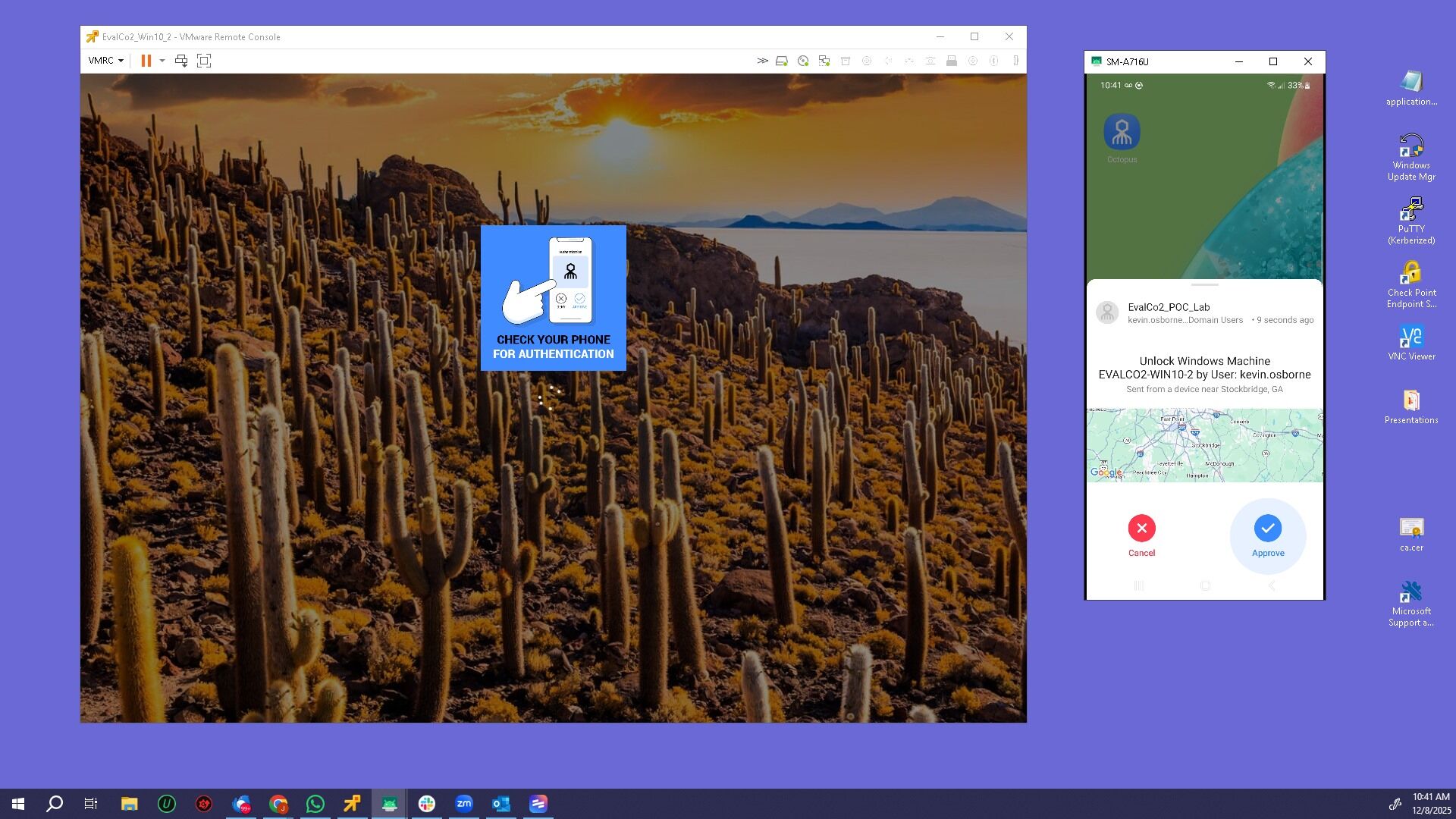
Step 3 – Approve Authentication
Authenticate using Fingerprint or Facial Recognition, then tap Approve.
Step 4 – Verify Successful Login
Confirm that the correct user has successfully logged into Windows.