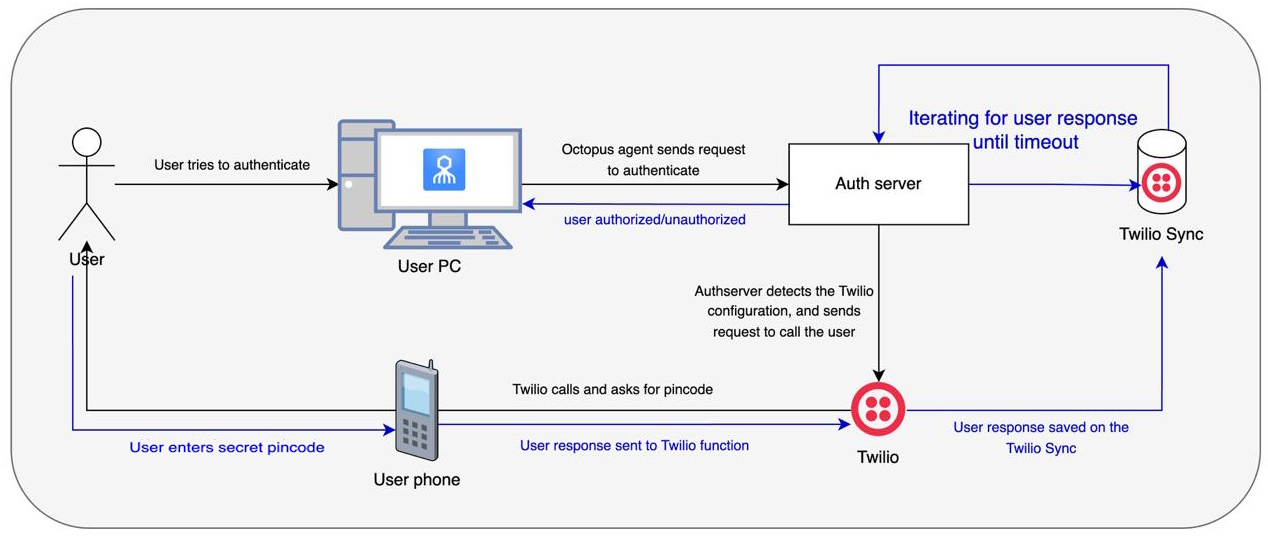
The Twilio Pincode Authenticator enables users without smartphones to perform passwordless authentication using a personal PIN for identification. On the Login screen, users select the Octopus Authenticator login method, type a username and press <Enter>. They then receive a voice call, during which they enter the PIN that was generated for them in the Octopus Management Console (in the Security tab of the user details). Upon providing the correct PIN followed by the pound key, users are logged into Windows or the User Portal.
The system architecture and authentication flow are illustrated in the following diagram.
Prerequisites
The integration described in this document requires deployment of Octopus Authentication Server version 6.7.2 (or higher).
The following sections describe how to perform the required configuration in the Twilio Explore Console:
Sync Services enable storage of data within Twilio. The service designated for Pincode Authentcation stores the PIN code entered by the user. You can create a new, dedicated service, or use an existing service.
To retrieve the Sync Service ID:
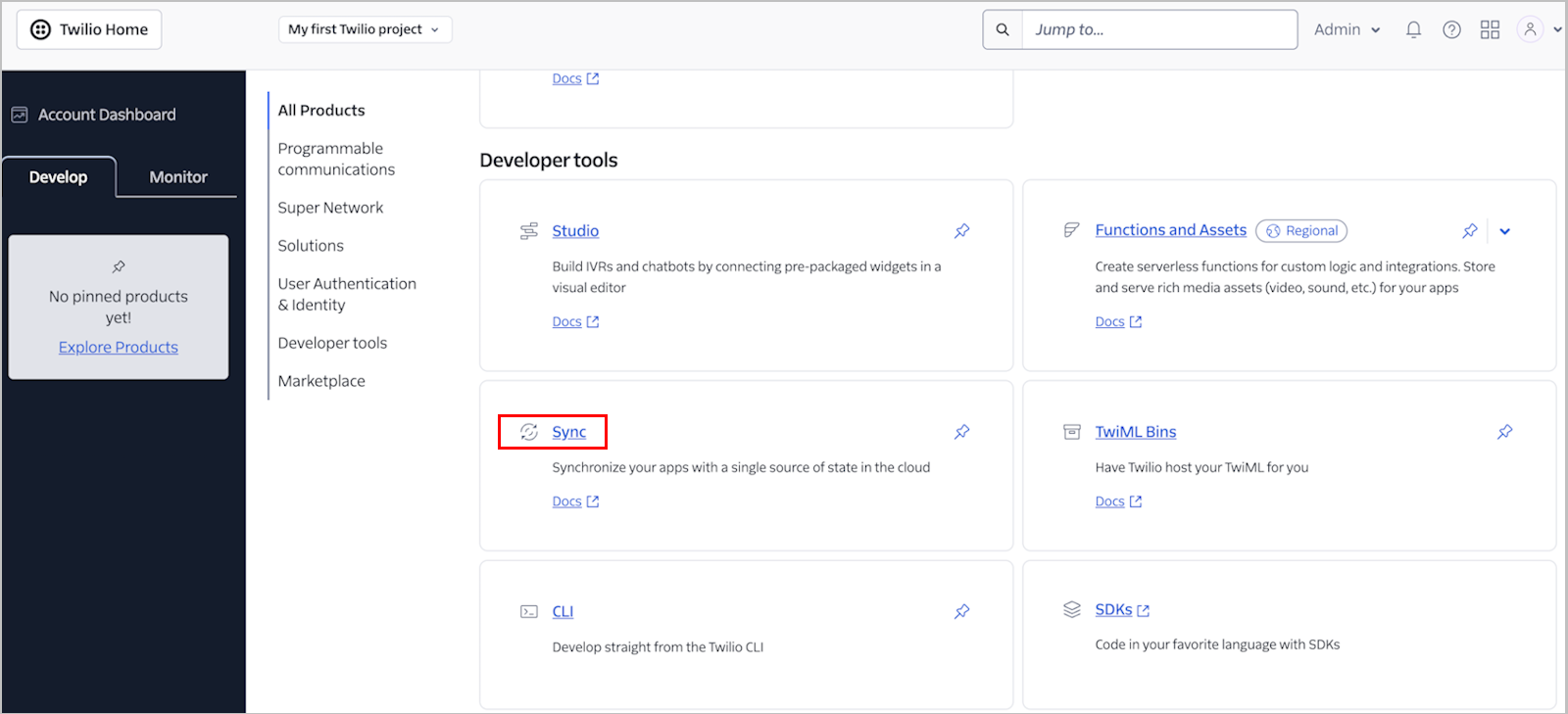
From the Twilio Explore Console, use the search tool (Ctrl + F5) to search for Sync.
Then, click the Sync link.
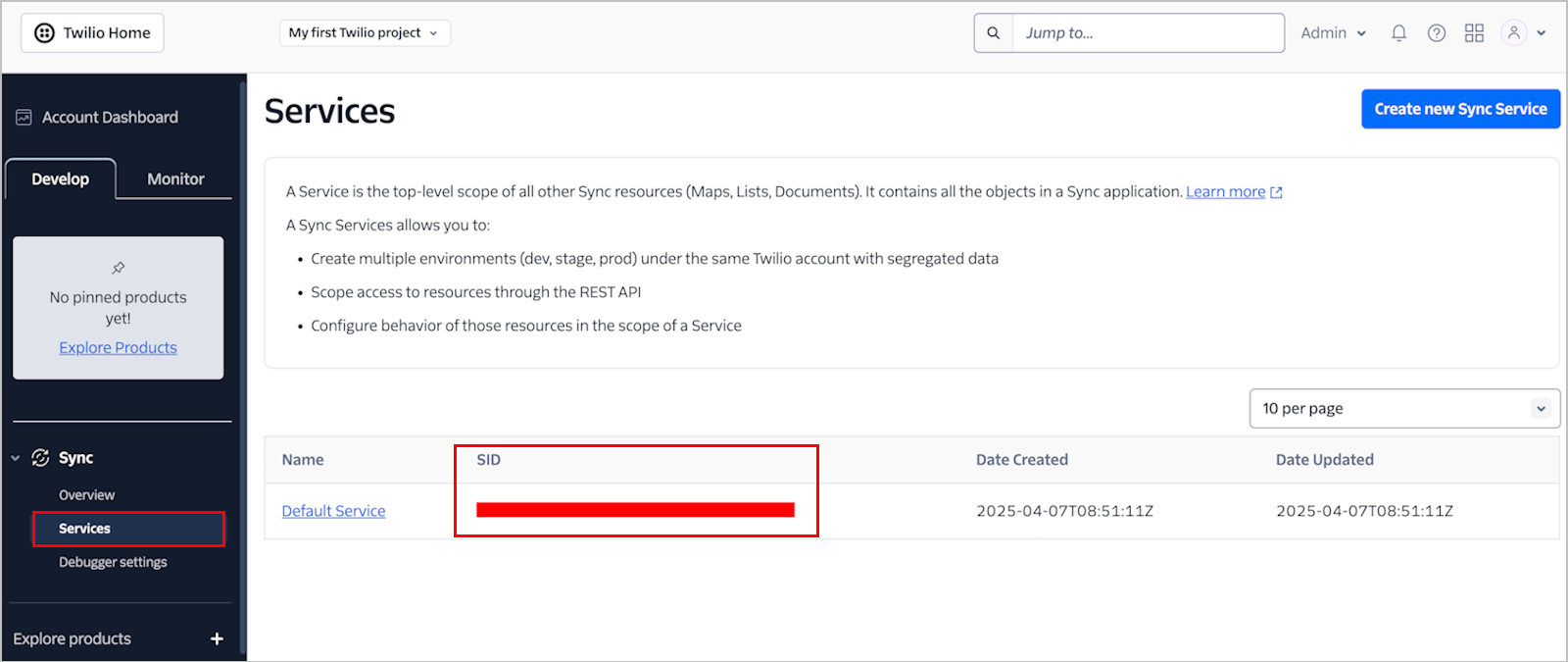
Navigate to Sync > Services. If desired, create a new Sync Service.
Copy the SID of the relevant Sync Service. (In the example below, the Default Service is used.) Save the SID for use at a later stage of the configuration.
A new Twilio function is required for handling storage of the user-entered PIN within the Twilio environment.
To create the Twilio storage function:
From the Twilio Explore Console, search for Functions and Assets.
Then, navigate to Functions (Classic) > List.
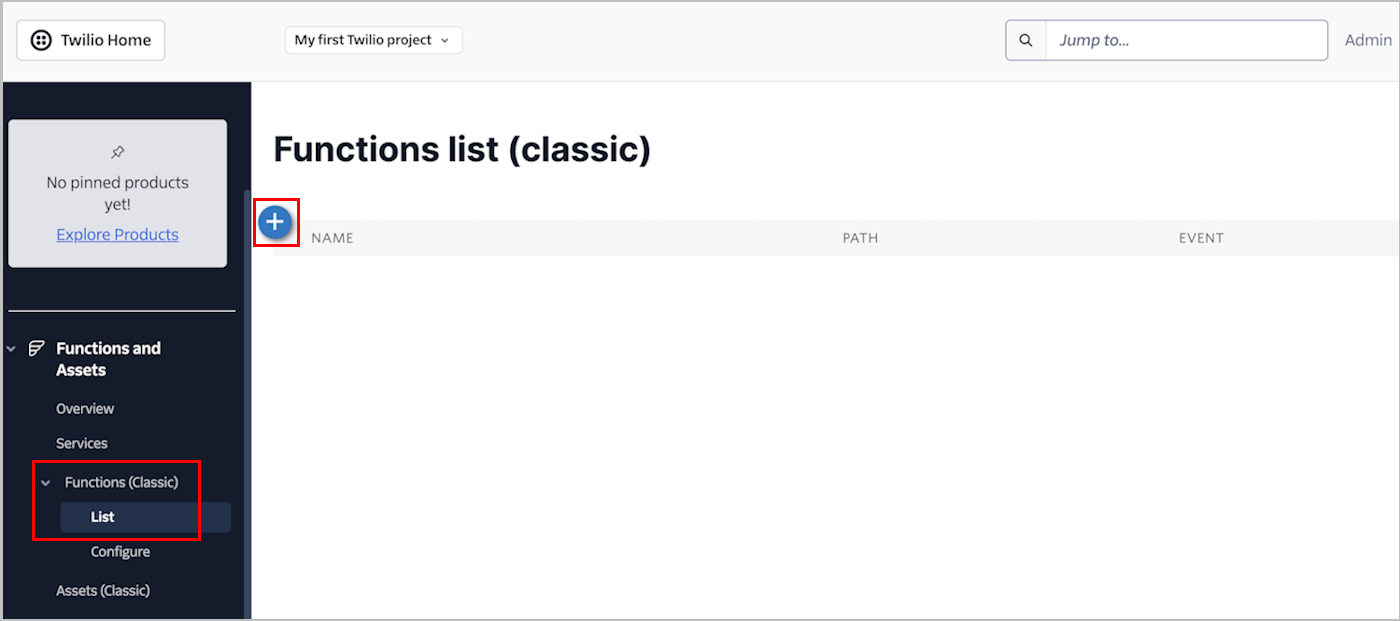
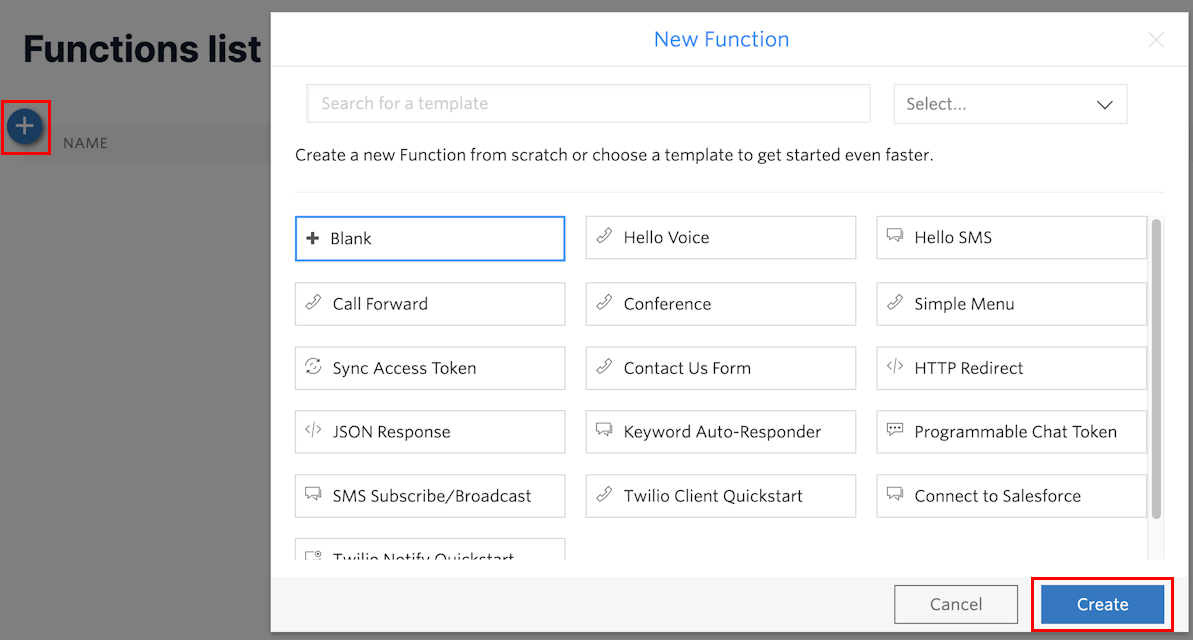
To create a new function, click the blue Add icon. Then, in the New Function popup, click Create.
Set up the function:
Enter a meaningful name for the function (e.g., StorePIN).
Enter a path (e.g., /store-pin). Then, copy the path and save it for configuration of the Function URL in the Octopus Management Console.
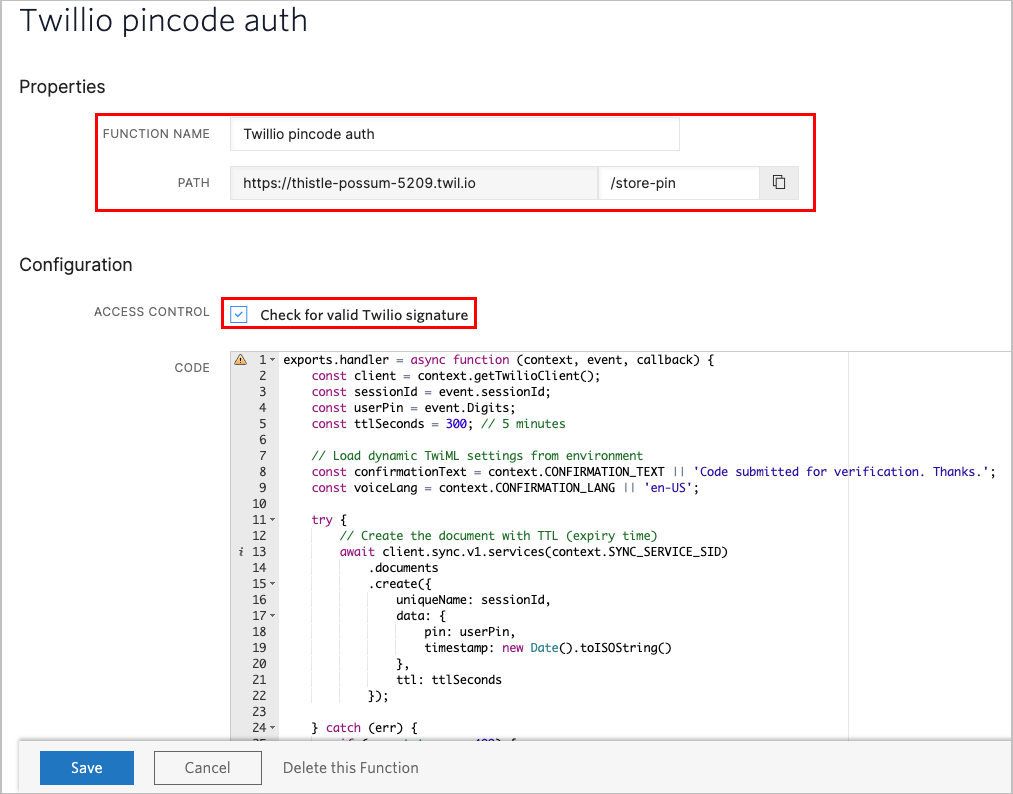
Select the Check for valid Twilio signature checkbox.
Paste the function code provided in the attached code file.
Click Save.
The final phase of setting up the Twilio Explore Console is creating environment variables that will be available to the storage function.
To add environment variables:
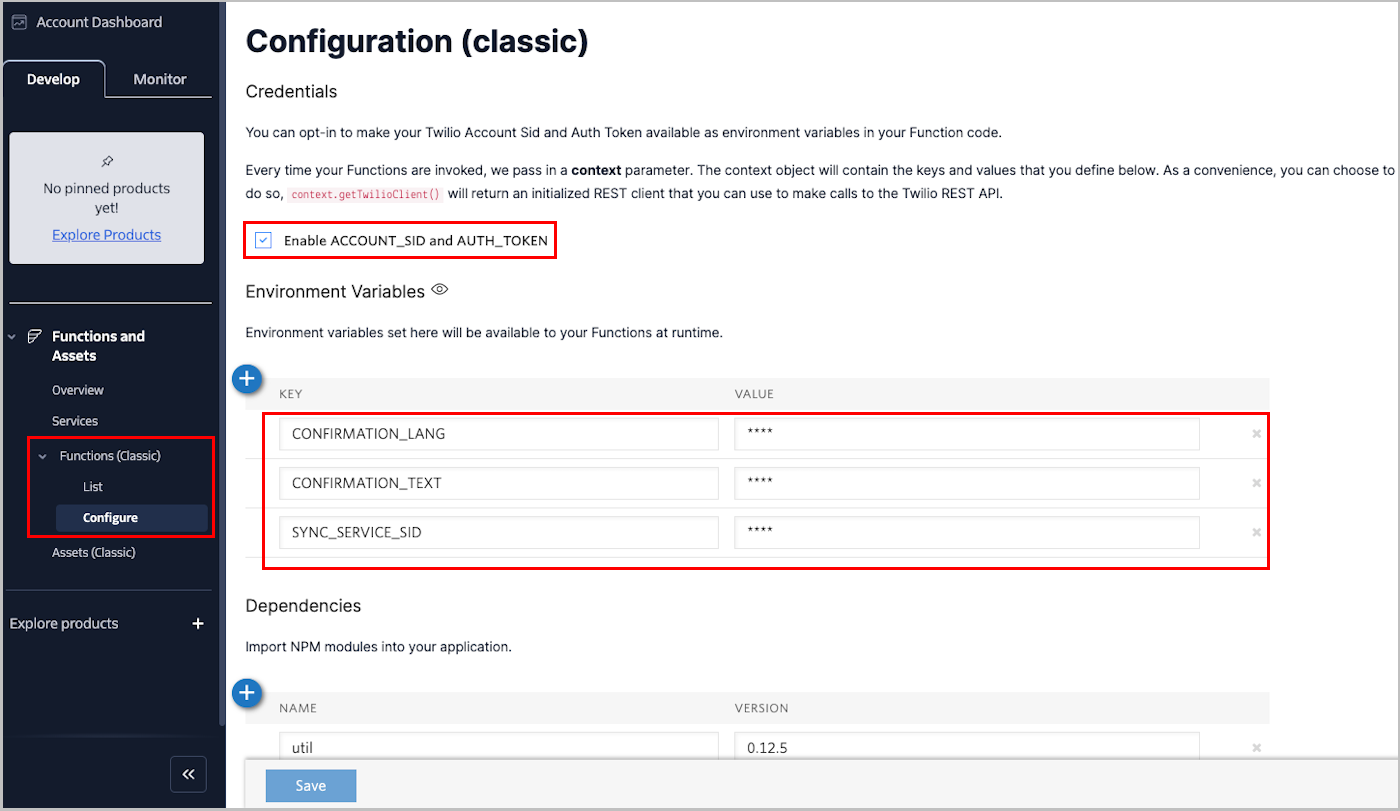
Navigate to Functions (Classic) > Configure.
Select the Enable ACCOUNT_SID and AUTH_TOKEN checkbox.
Add the following environment variables:
Key
Value / Notes
SYNC_SERVICE_SID
The Sync Service ID that you saved earlier (Retrieving the Sync Service ID).
CONFIRMATION_LANG
The language of the message that users hear during the phone call. The default value is en-US. For a list of language codes, refer to the Twilio documentation.
CONFIRMATION_TEXT
Text for the confirmation message played after the user enters the pincode. The default value is Code submitted for verification. Thanks.
Click Save.
The following sections present procedures that are required to set up the Management Console to support Pincode Authentication:
The descriptions below provide summaries of the required configurations. For more information and full details, please refer to the Octopus Management Console Admin Guide.
To successfully log in with Pincode Authentication, users must be provided with the PIN code that needs to be entered during the phone call.
To generate a PIN code for a user:
From the Manage Users menu of the Octopus Management Console, expand the required directory. Then select the relevant user to open the user details.
In the Personal tab, verify that the user's phone number is entered in the Telephone Number / Mobile field, or mapped to an Alias parameter.
Open the Security tab. Under Voicecall Authentication PIN, click Generate PIN.
The generated code is displayed in a popup window.
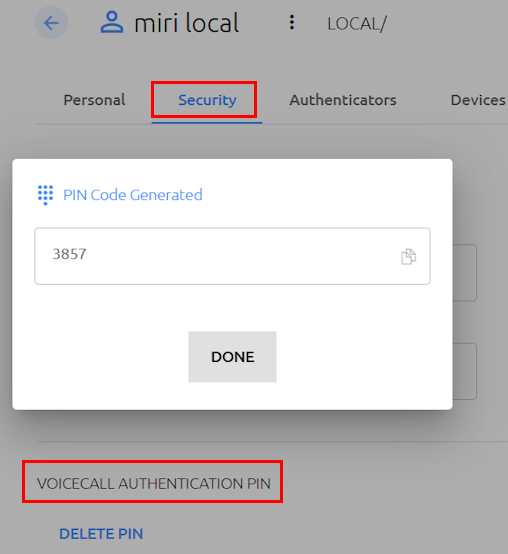
Copy the code and share it with the user.
If you encounter issues while generating the PIN, perform the following troubleshooting techniques and then try again:
Delete any existing authenticators or devices that the user has.
Unenroll the user.
The procedure below explains how to add and configure the Twilio plugin to support Pincode Authentication.
Before you begin, open the Account info section of your Twilio Console and copy the following settings:
Account SID
Auth Token
Twilio phone number
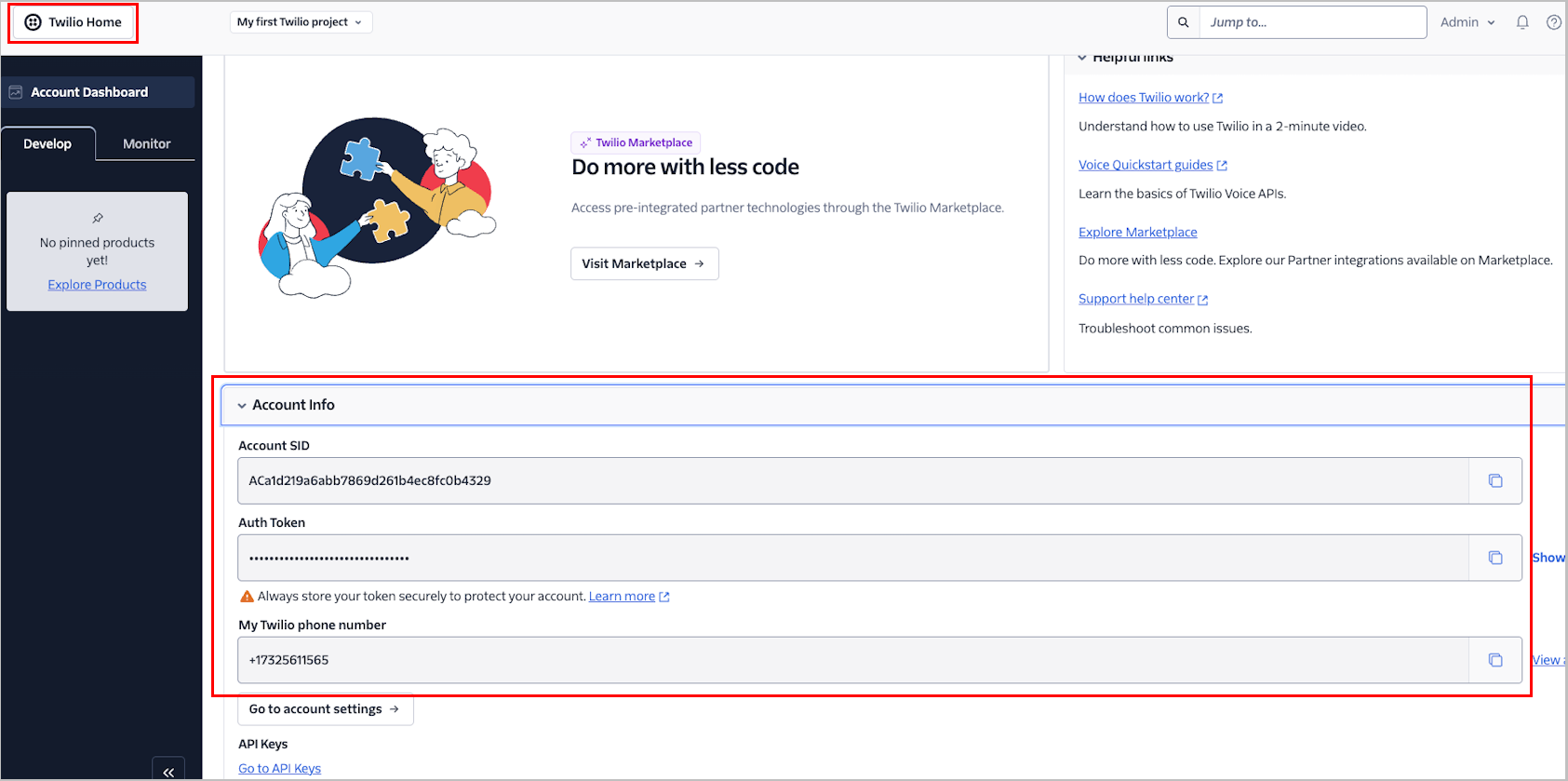
To add the Twilio Pincode Authenticator:
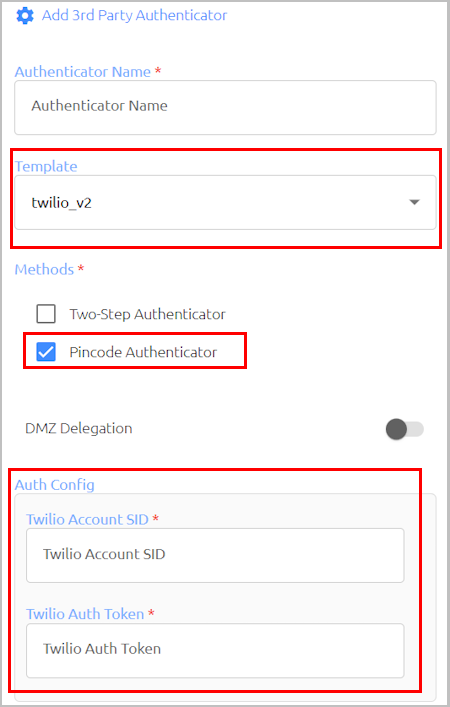
From the System Settings menu of the Octopus Management Console, select the Authenticators tab and click Add Authenticator.
The Add 3rd Party Authenticator dialog opens.
Configure the following settings:
In the Authenticator Name field, enter a friendly name for the plugin.
From the Template dropdown list, select twilio_v2.
Under Methods, select the Pincode Authenticator checkbox.
Under Auth Config, paste the Account SID and Auth Token that you copied earlier.
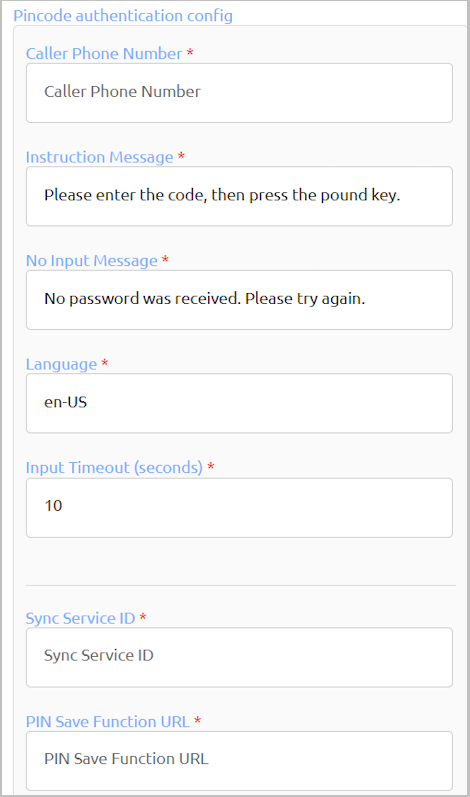
In the Pincode authentication config section, configure the following settings:
Setting
Value / Notes
Caller Phone Number
The phone number copied from your Twilio account.
Instruction Message
The text of the message that users hear during the call.
No Input Message
The message that is played when no user response is detected.
Language
The language of the messages. The default value is en-US. For a list of language codes, refer to the Twilio documentation.
Input Timeout
Duration (in seconds) to wait for input before ending the call.
Sync Service ID
SID of the Sync Service in Twilio (Retrieving the Sync Service ID).
PIN Save Function URL
The path of the Twilio storage function you created (Creating the Twilio Function).
To save the authenticator, click Add.
Continue by assigning the authenticator to the relevant directories and configuring User Portal integration, as described in the Octopus Management Console Admin Guide.