End User Training • macOS
Retrieve Password with Octopus Authenticator (macOS)
Use Octopus Desk for Mac to request a password retrieval, then approve the request using the Octopus Authenticator on your mobile device.
Before you start
Prerequisites
- Octopus Desk for Mac is installed and running.
- Your device is enrolled in Secret Double Octopus.
- Octopus Authenticator is installed on your mobile device.
- You are signed in with your corporate account.
Security notes
- Approve requests only when you initiated the action.
- If you did not request a password retrieval, tap Decline and notify your IT team.
- All retrieval actions may be logged and audited based on policy.
Retrieve password using Octopus Desk for Mac
Follow the steps below to request a password retrieval from the menu bar and approve it on your mobile device.
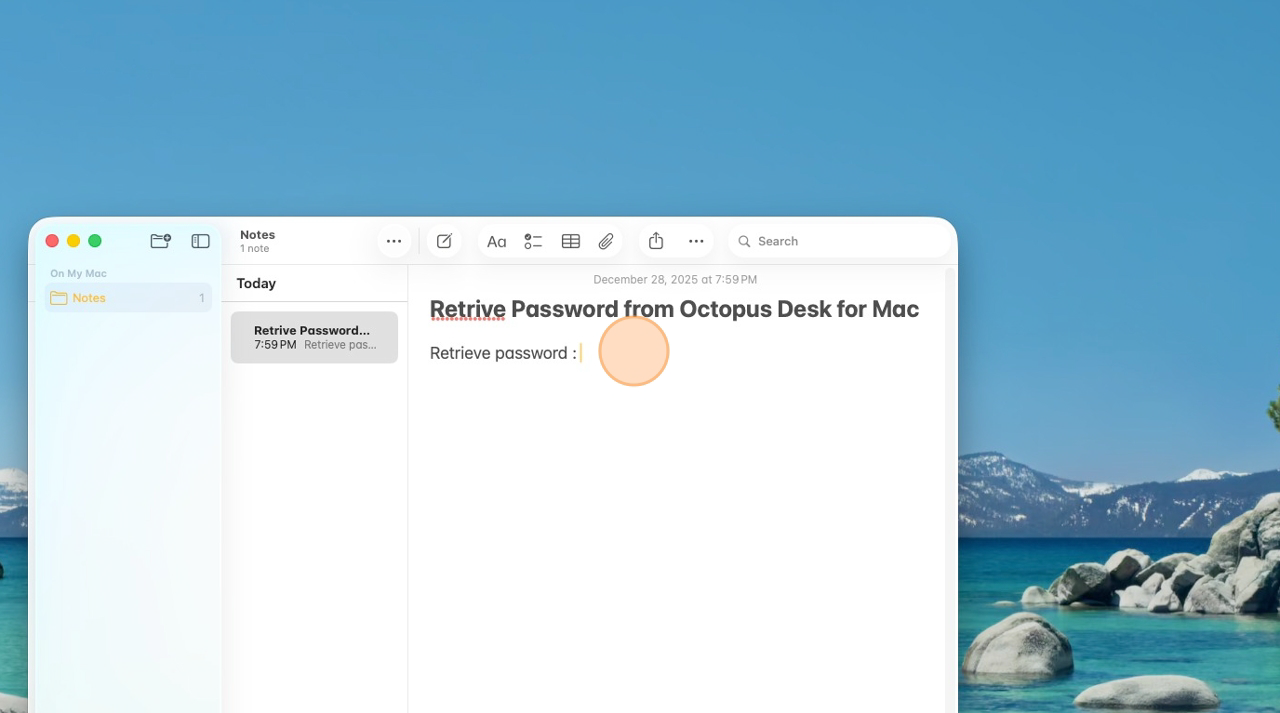
1) Make sure the macOS Menu Bar is visible
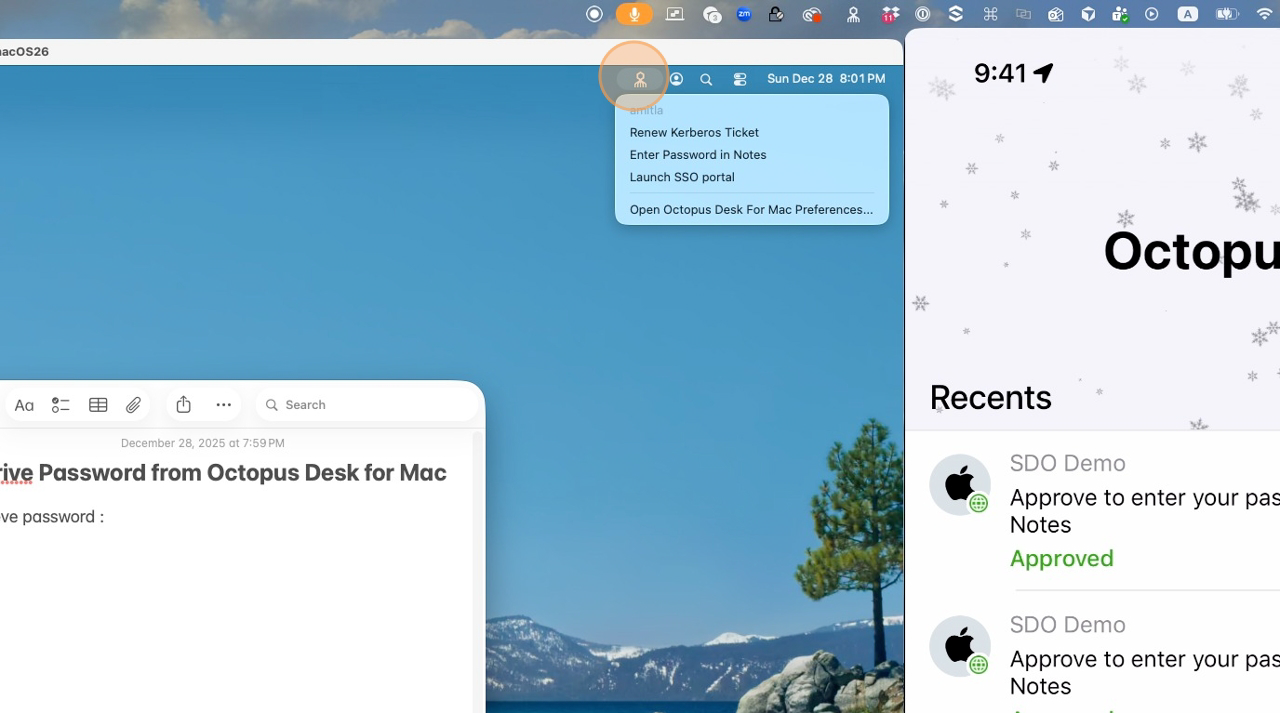
2) Click the Octopus icon in the menu bar
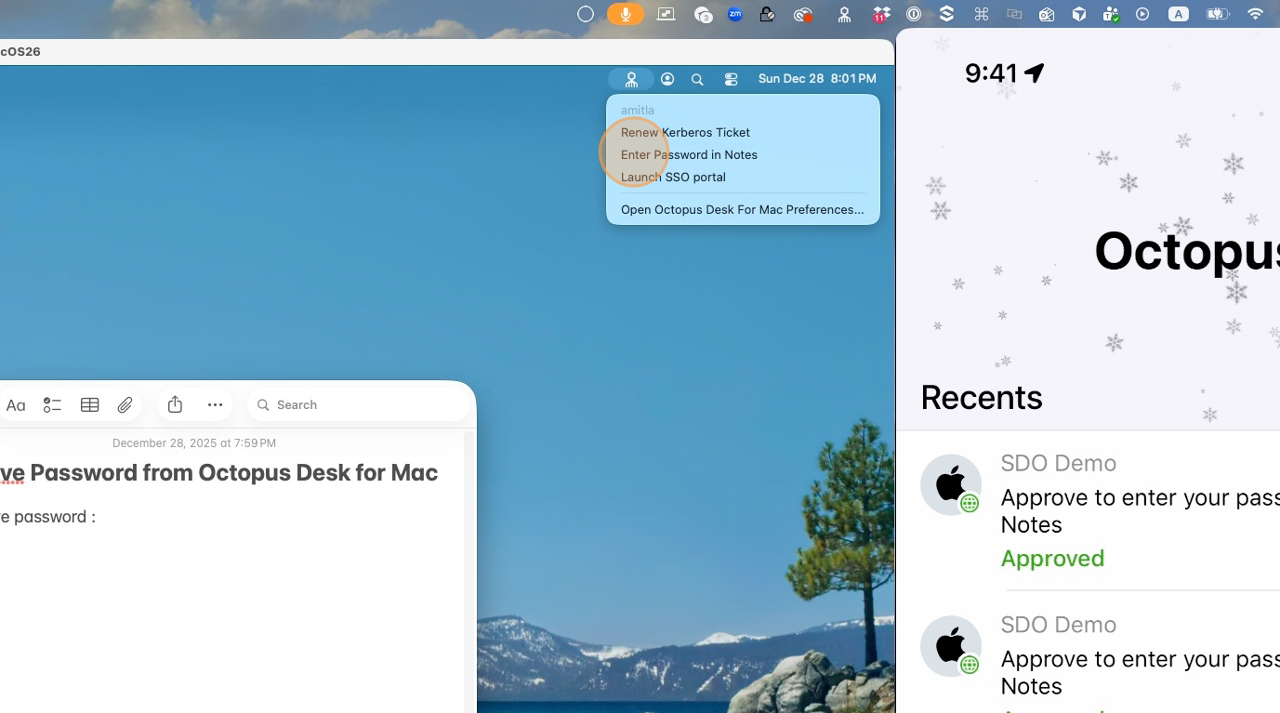
3) Select Retrieve Password
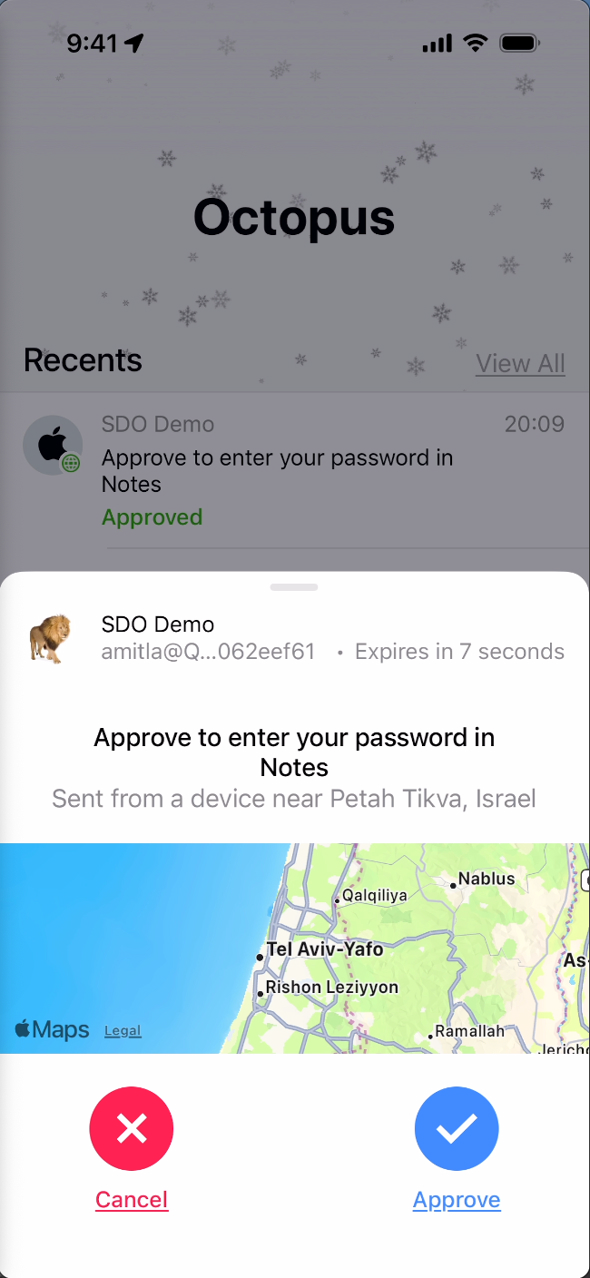
4) Approve the request in Octopus Authenticator
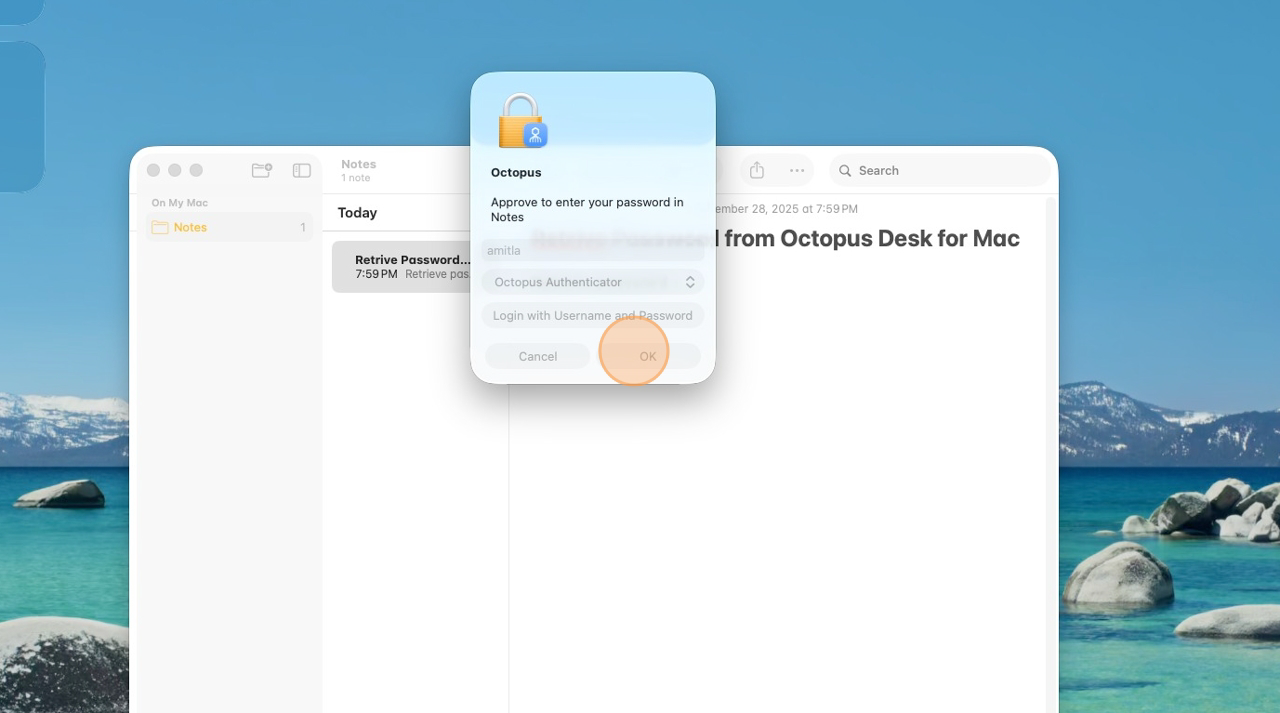
Tip: If you didn’t request this action, tap Decline and report it to your IT team.
5) On your mobile device, tap Approve in Octopus Authenticator
6) Password is retrieved securely (per your organization’s policy)
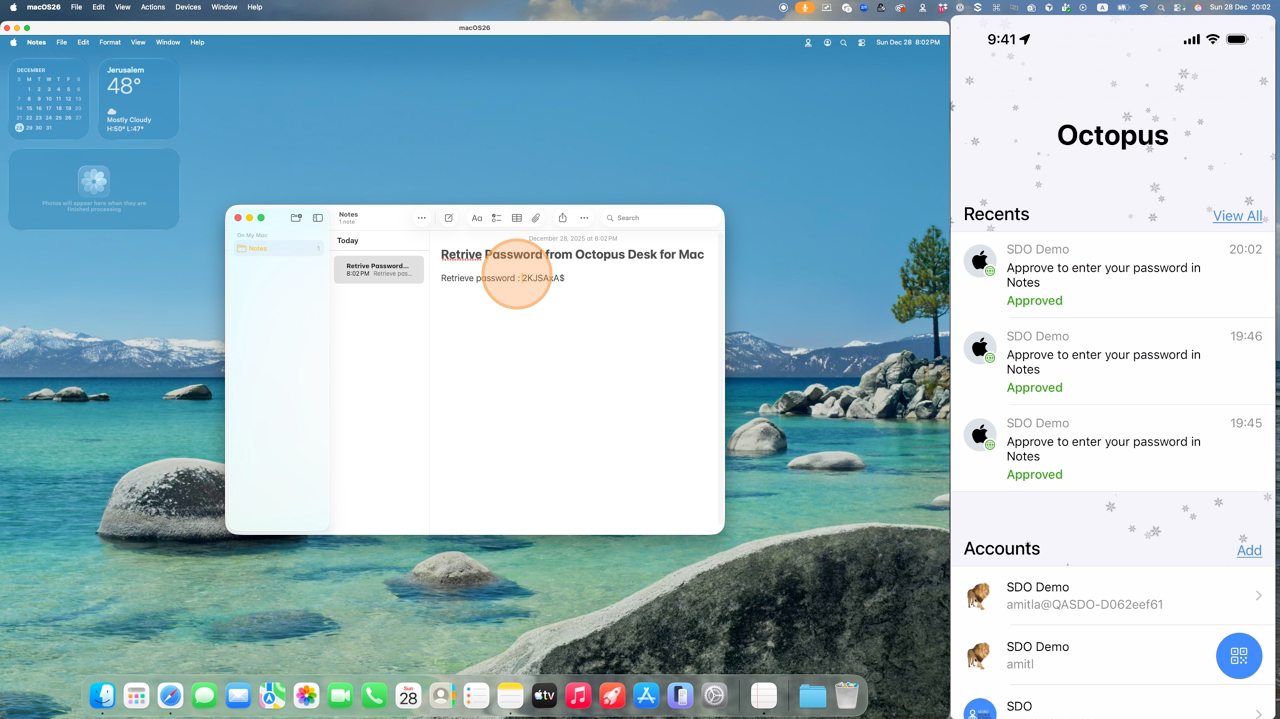
For security reasons, passwords are handled according to your organization’s policy. Actions may be logged and audited by Secret Double Octopus.