Support Specialist – Collecting logs
This page lists the daily-use topics for ZeroPassword™ Support Specialists. Select a topic below to open its step-by-step troubleshooting guide.
Use this list for resolving user issues, authentication logs and client-side troubleshooting.
Octopus Application logs
On the Device (iOS), collect crash logs with following steps"
- Open Settings: On your iPhone or iPad, open the Settings app.
- Navigate to Analytics Data: Go to Privacy & Security > Analytics & Improvements > Analytics Data.
- Find the Crash Log: Scroll through the list to find the crash log for the relevant app. Crash report names often start with the app's name followed by a timestamp and have a .ips extension.
- Share the Log: Tap on the desired log file, then tap the Share icon (a box with an arrow pointing up) to send it, for example, to yourself via email.
- now, to collect logs from the mobile app, do the following:
- Open the Octopus Authenticator mobile app, and select the relevant account.
- From the Help screen, tap Report Problem.
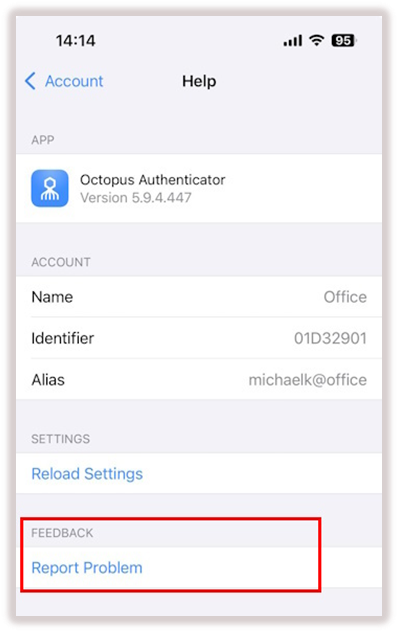
- Collect the log file that is generated (Authenticator.log) and send it to support@doubleoctopus.com.
Octopus Mac logs
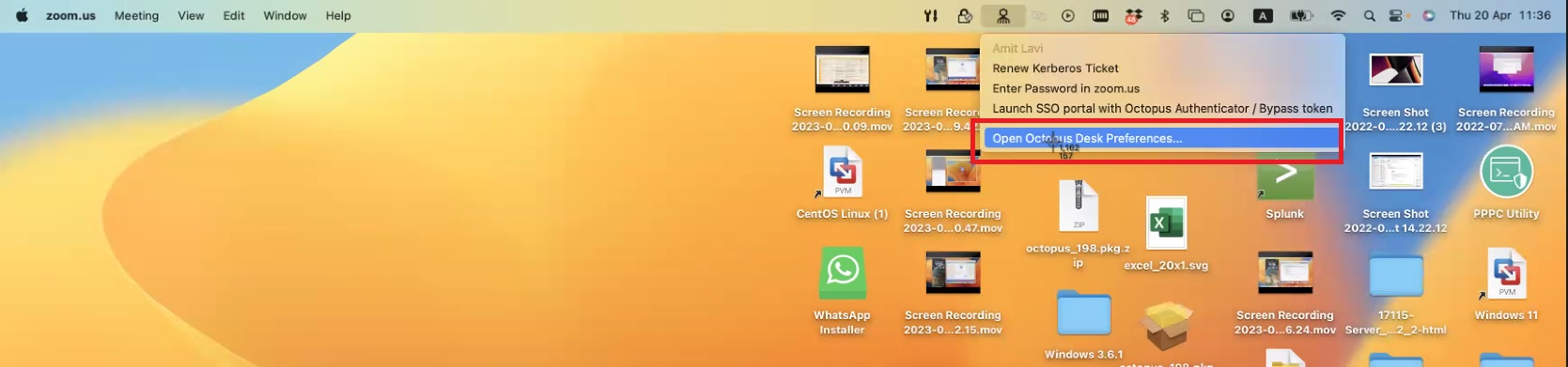
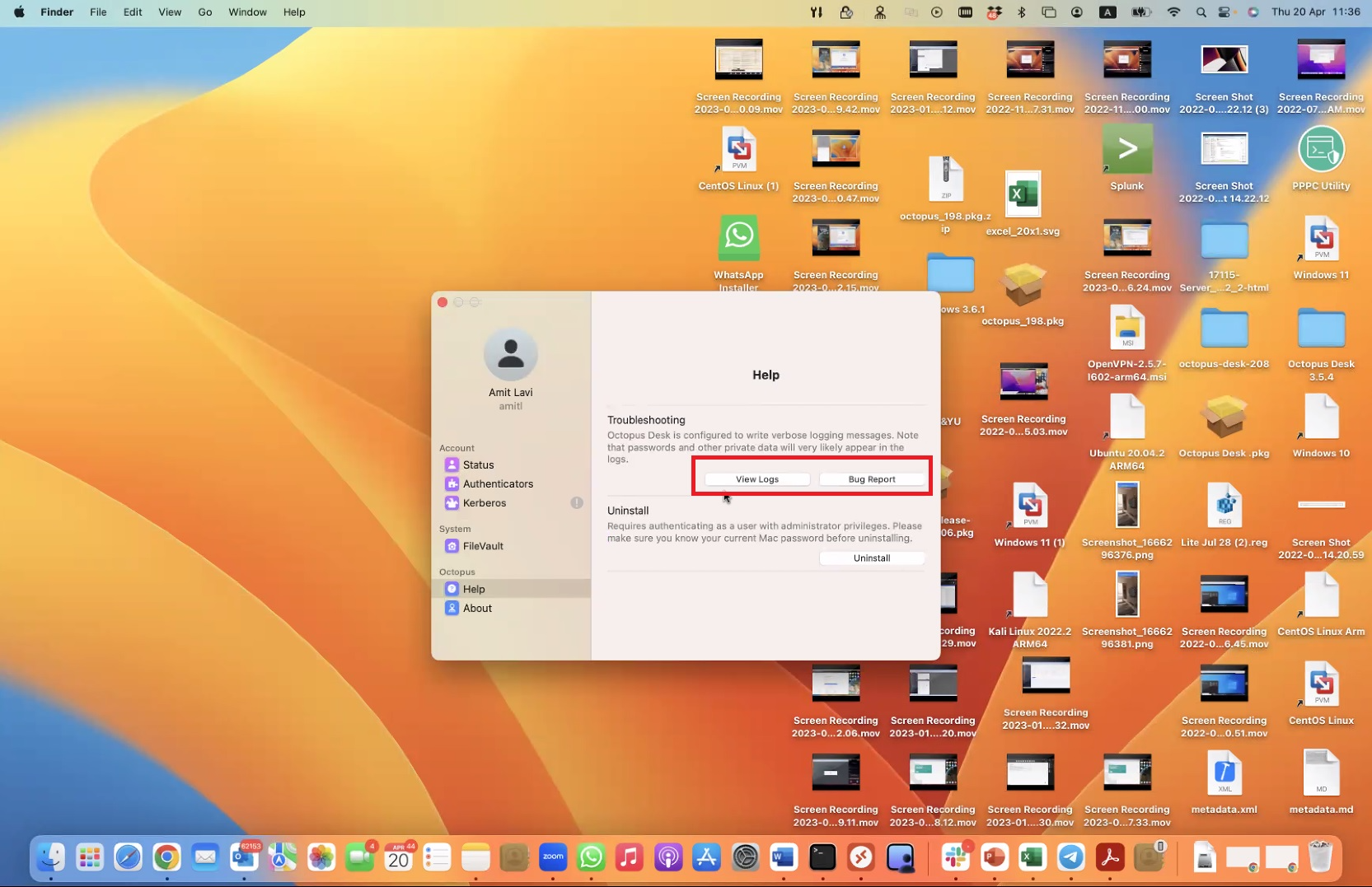
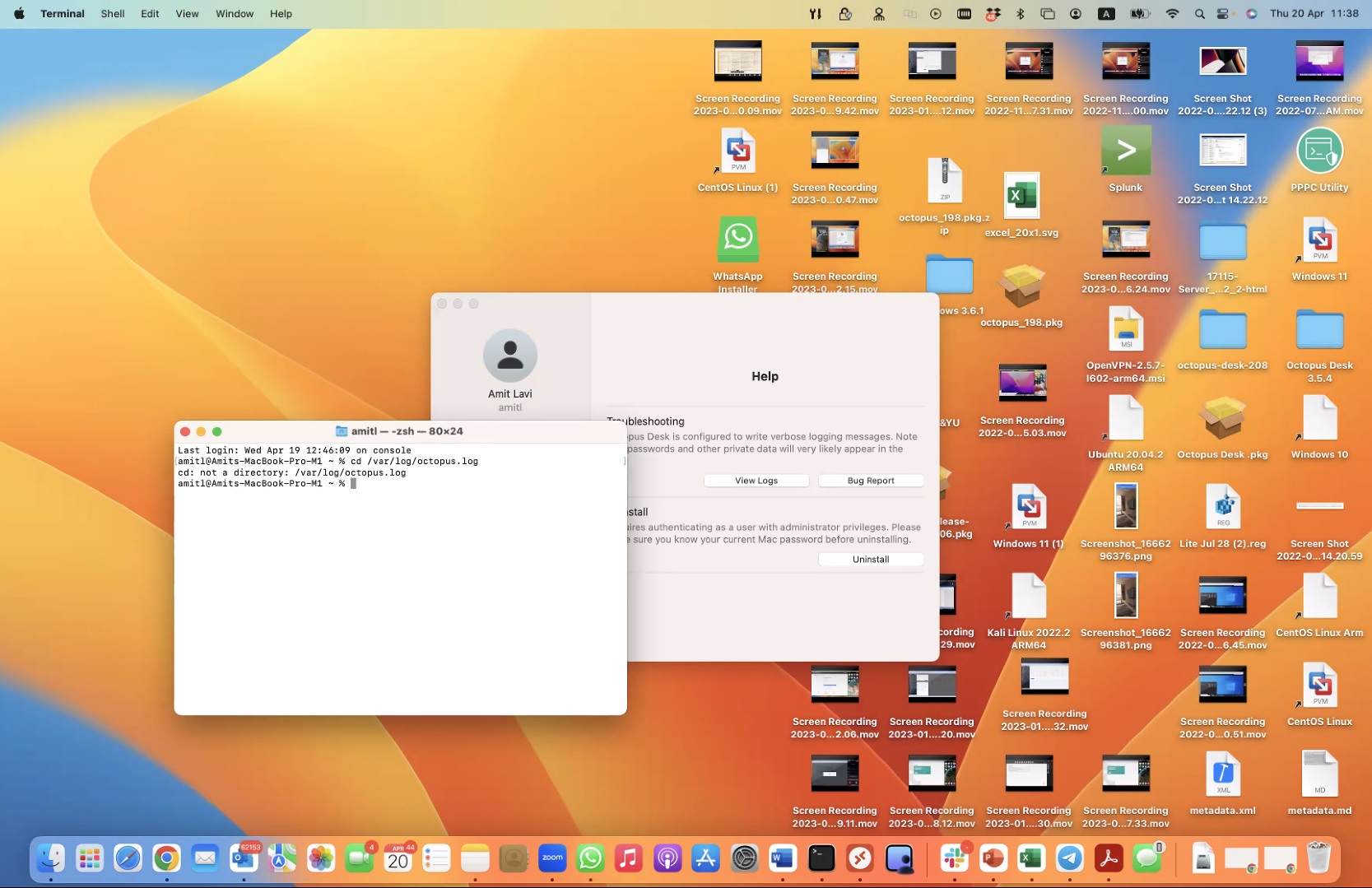
To collect Agent logs on MAC agent, repeat the follow steps.
Step 1 -
Step 2 -
Step 3 -
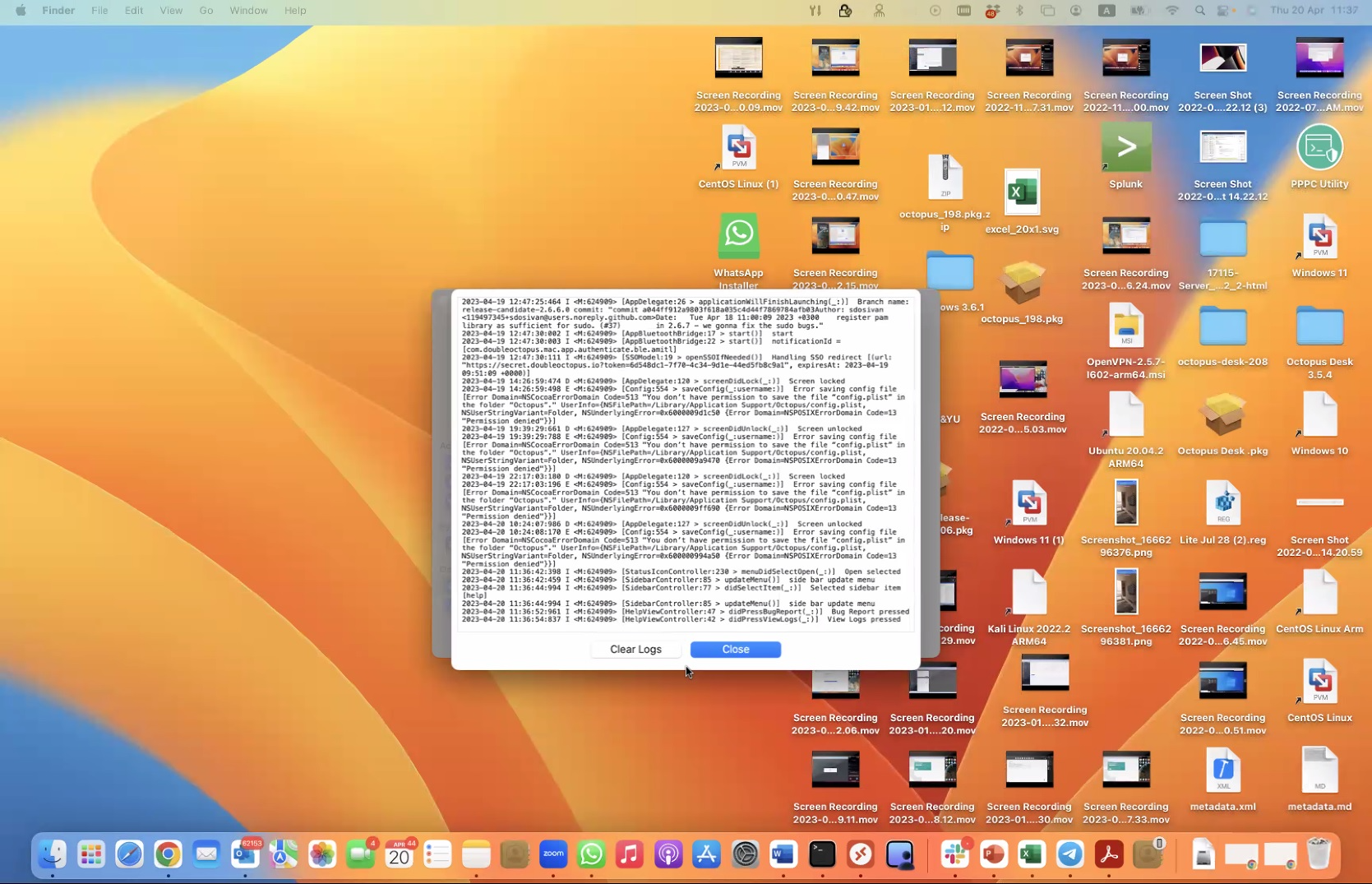
Alternative Option, one Step:
Octopus OnPrem Server logs
To collect server logs:
1. SSH into your Authentication server
2. Collect server logs from the past hour by running the following command
journalctl -u sdomon -S "1 hour ago"
or with
journalctl -u sdomon -S "2022-07-12 18:00:00" -U "2022-07-12 18:10:00"
adjusting the dates and times to encompass the login attempt(s)journalctl -u sdomon -S "2022-07-12 18:00:00" -U "2022-07-12 18:10:00"
Additionally, you can run the following to display a live feed from the Auth server
journalctl -u sdomon - f
3. Send the entirety of the log to us
To collect Audit logs from Server side:
1. If running server version 5.2.4 and newer:
a. Navigate to the Auditing tab of the Management Console UI
b. Click "Download Audit Logs", select "Download Logs From", then "Custom...", then enter the date rate that covers the login attempts
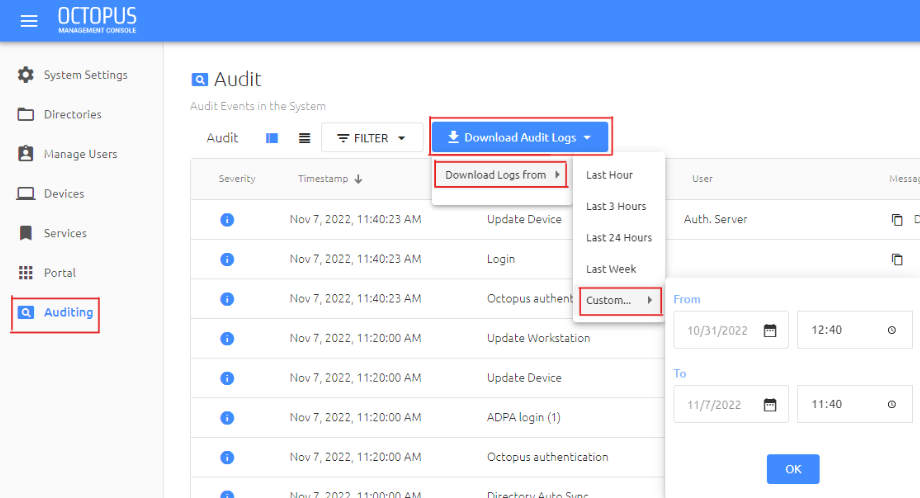
c. Send us the file that's created
Octopus Windows Agent logs
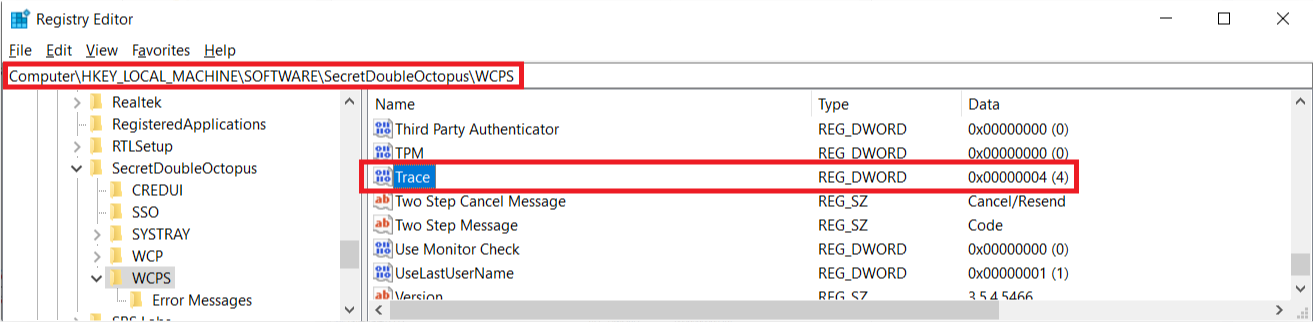
1. Enable tracing in the registry on the Agent machine:
a. Open Regedit and navigate to Computer\HKEY_LOCAL_MACHINE\SOFTWARE\SecretDoubleOctopus\WCPS
b. Enable/ensure the Trace entry is set to (4)
2. Perform a login attempt on the machine in question (success/failure doesn't matter)
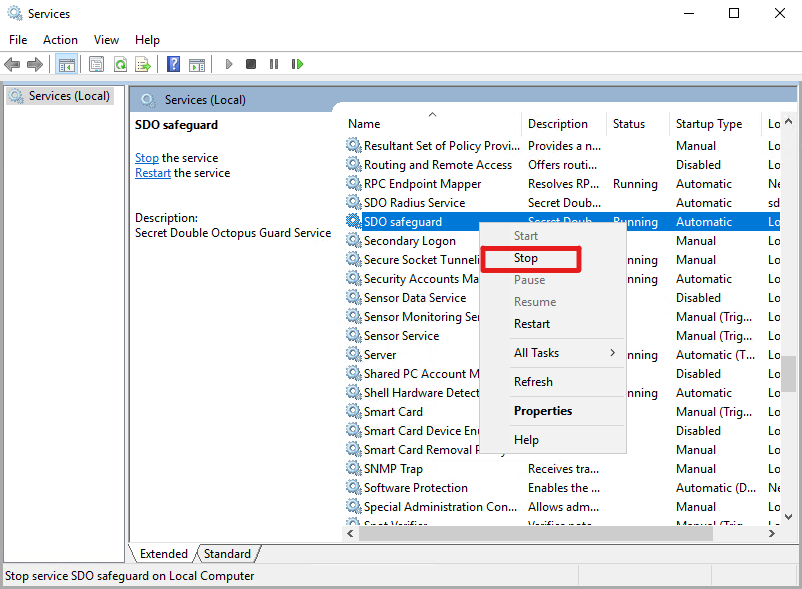
3. Log in to the machine, open Services, and stop the SDO safeguard service
4. Navigate to c:\windows\temp\SDO\ and collect all the logs labeled as sdo*.log (sdocred, sdorest, sdoguard, etc)
5. Zip these and name the file with the username and timestamp of the login attempt, then send to us