User Cannot Log In
Secret Double Octopus Helpdesk Guide
Step-by-step troubleshooting process for Level 1 support
Overview
This article provides the Level 1 support process for troubleshooting cases where a user cannot log in using Secret Double Octopus.
Follow the steps below to verify the user, check enrollment and authenticator status, and validate login behavior through the portal.
Resolution Steps
- Find the user with the reported issue.
- Open the relevant user record in the management interface.
- Press Enter / Return if needed to complete the search.
- Select the menu and verify the user to review enrollment and authentication details.
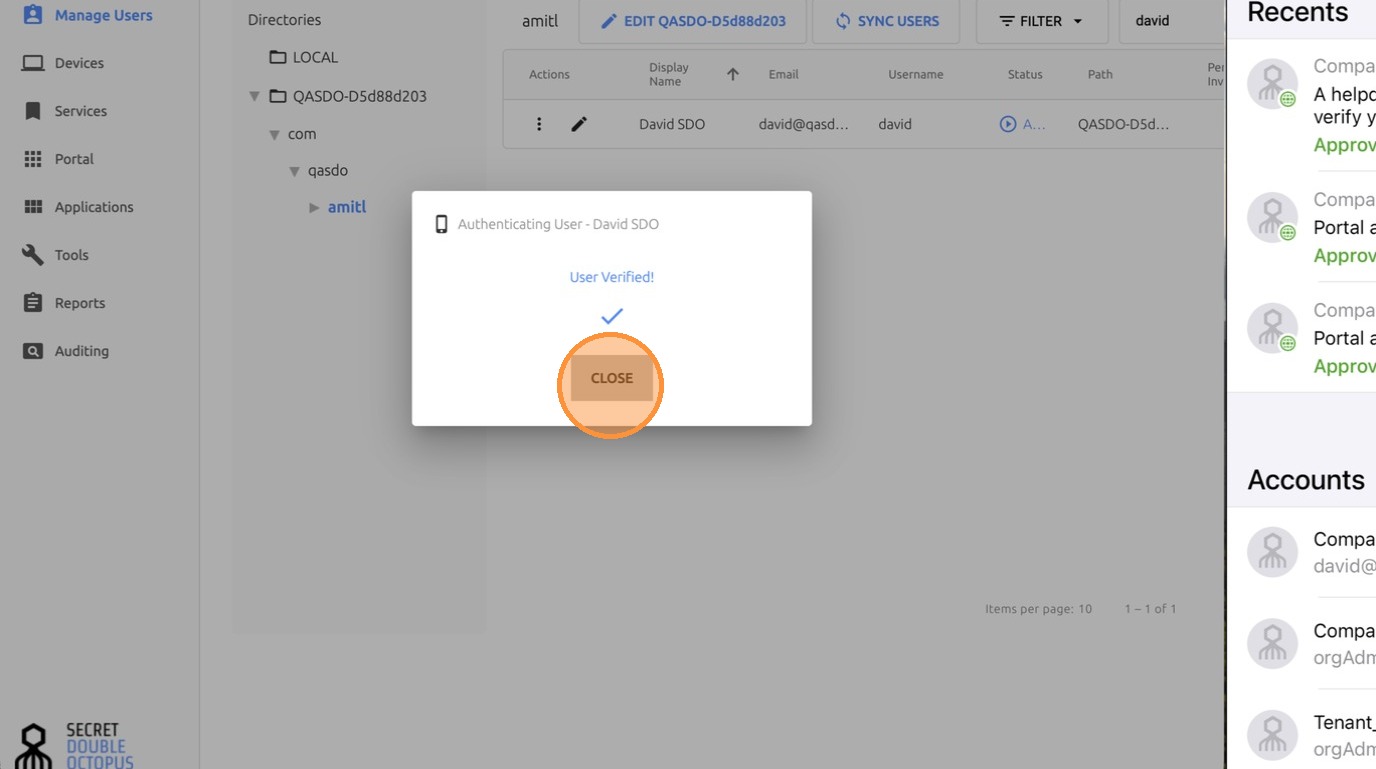
- Confirm the user authentication status is verified.
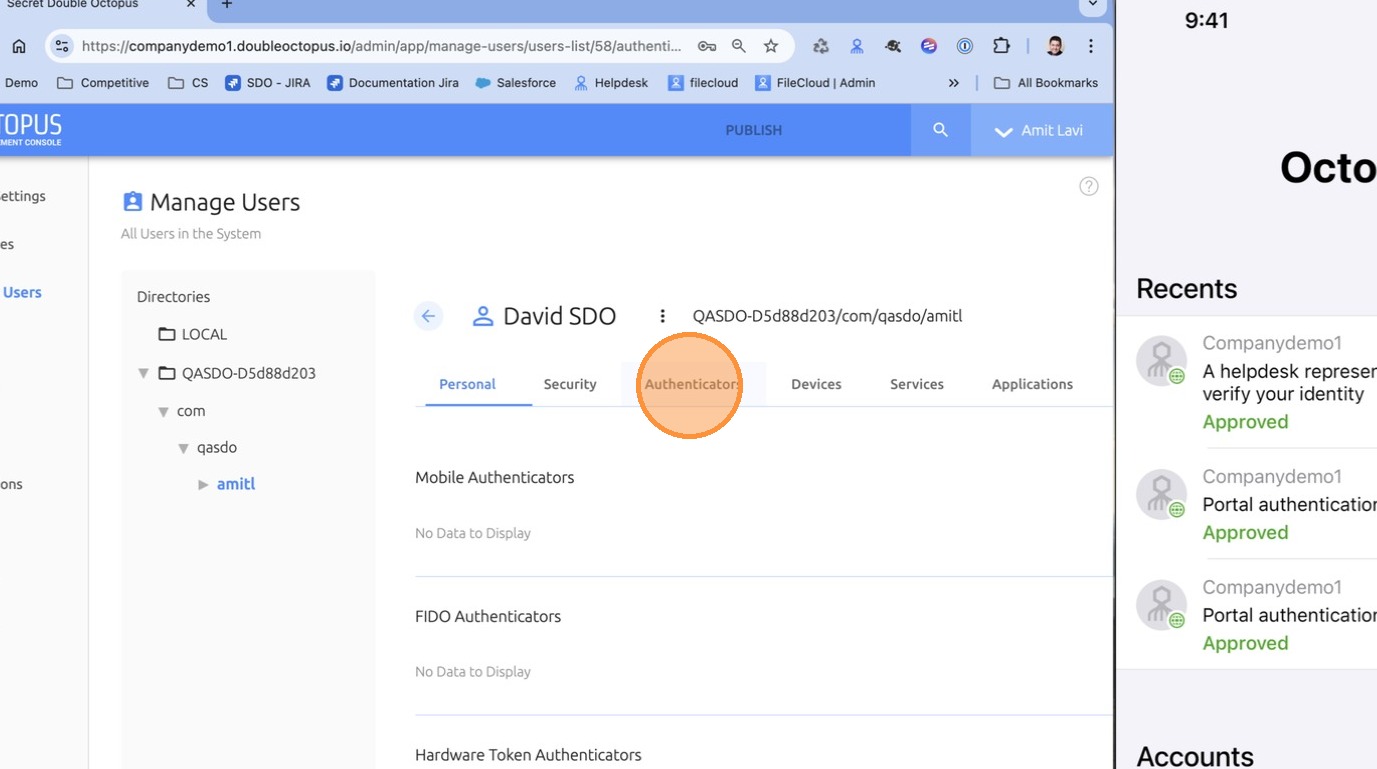
- Click on Authenticators.
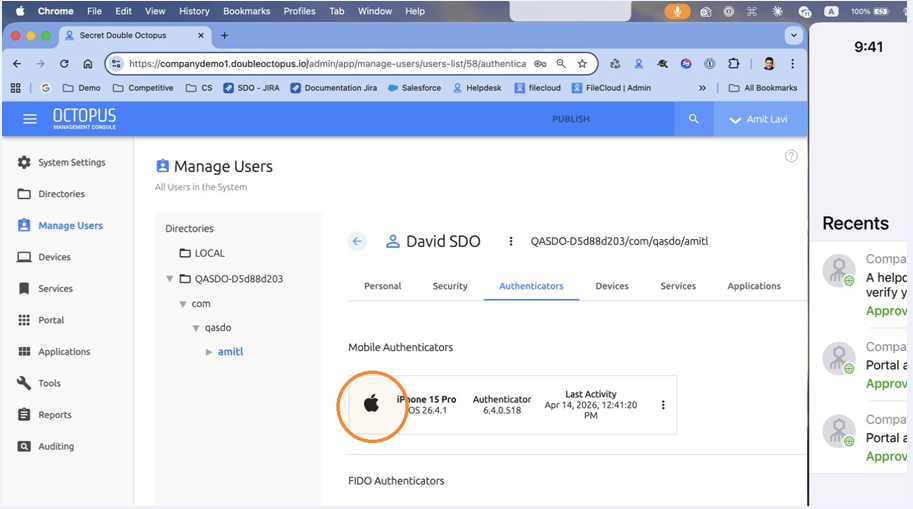
- Check the user authenticator is valid and not blocked.
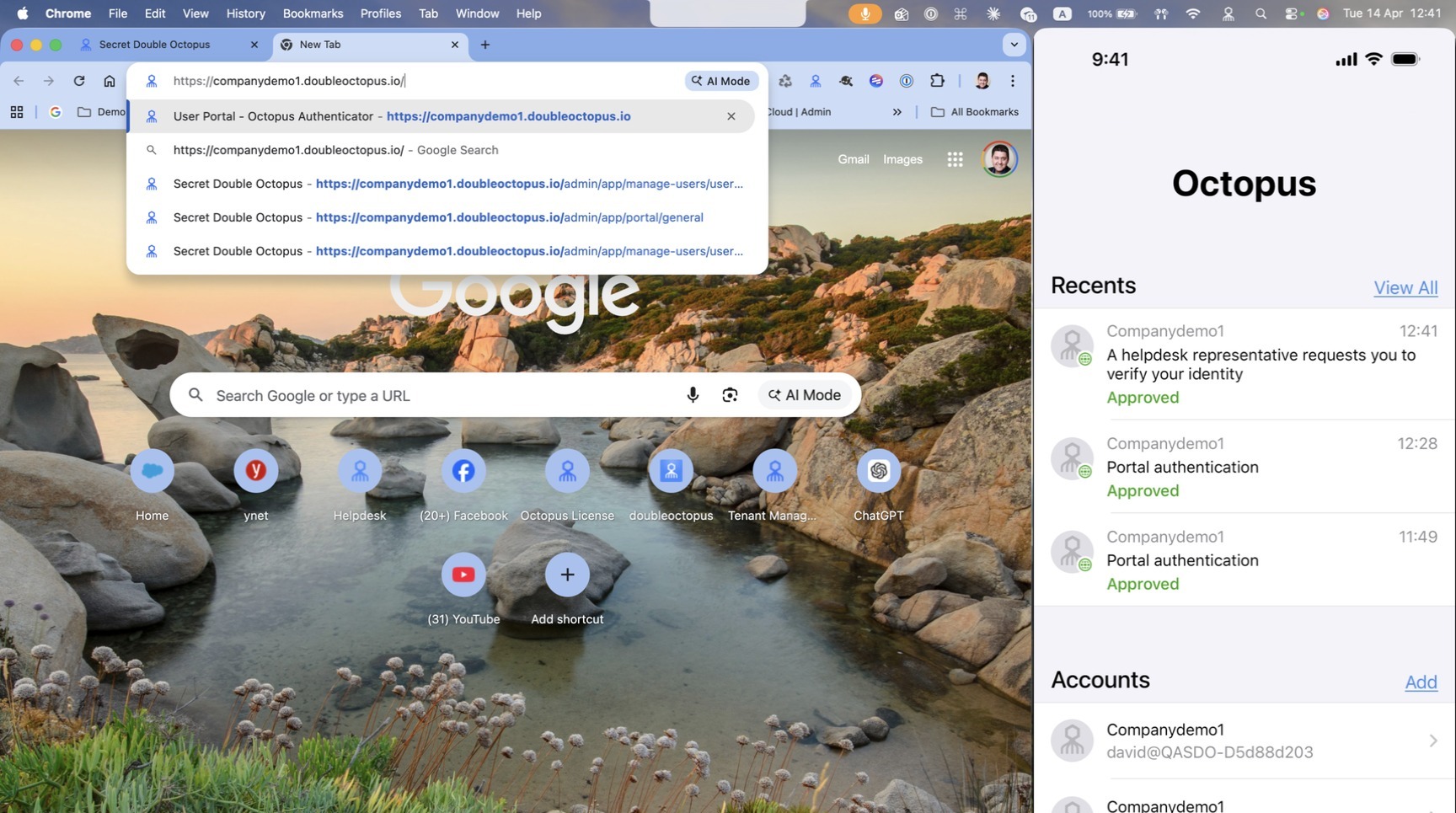
- Log in to the Portal.
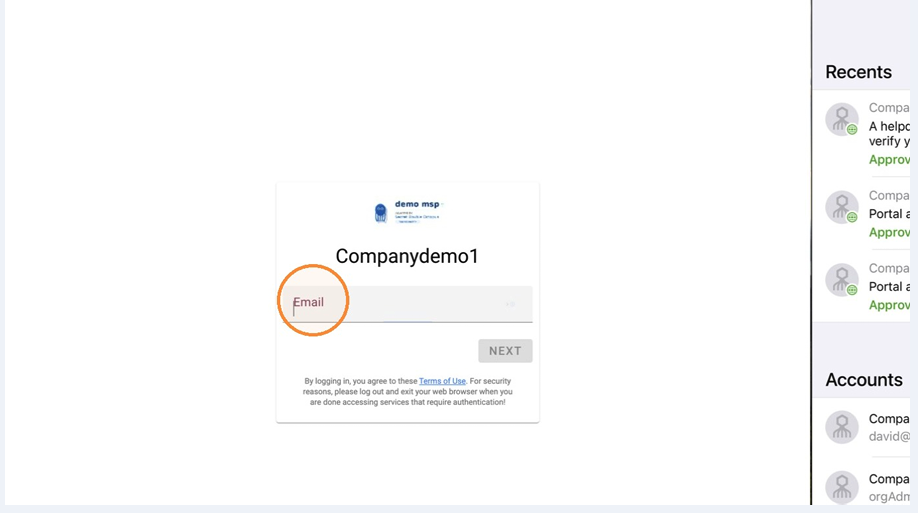
- Enter the user email on the login screen.
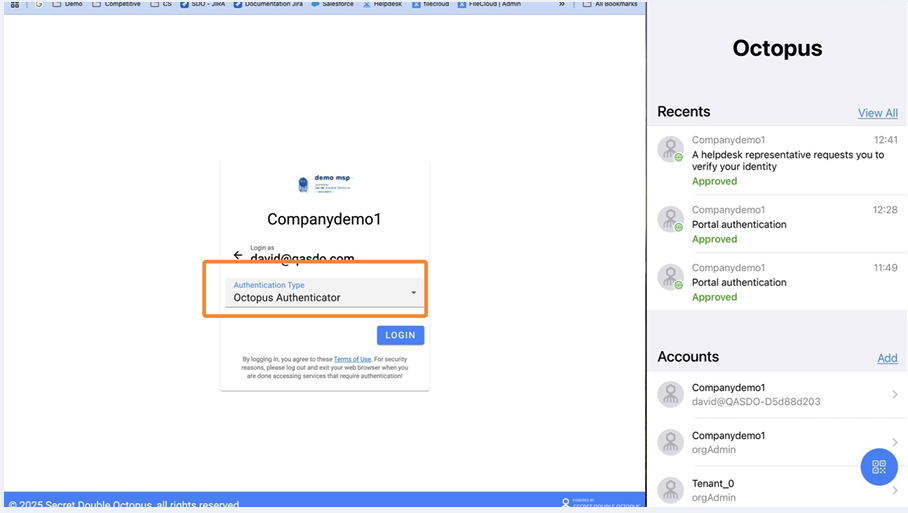
- Select the authenticator and click Login.
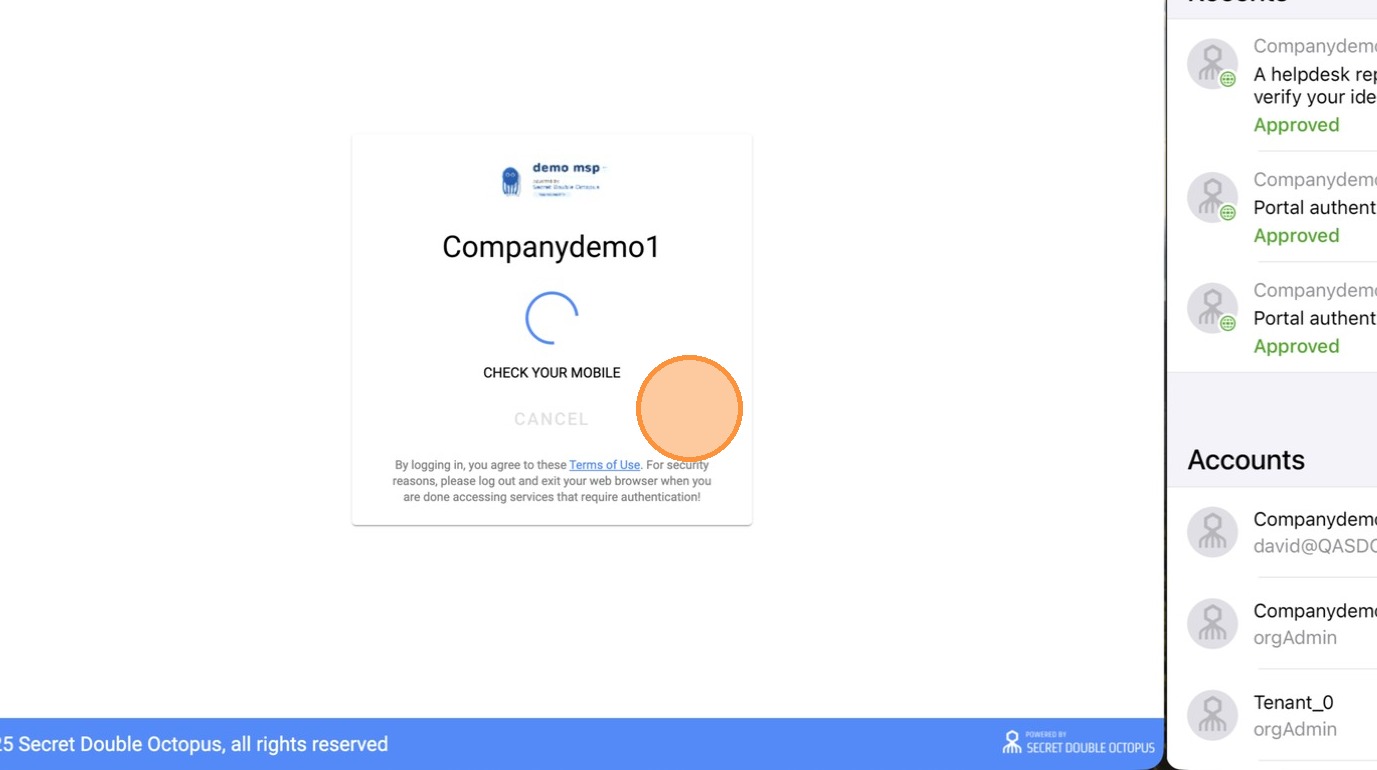
- Complete the login action and verify the result.
Quick Walkthrough
You can use the quick walkthrough below for a visual guide.
Detailed Step-by-Step Guide
Step 1: Find the user with the issue
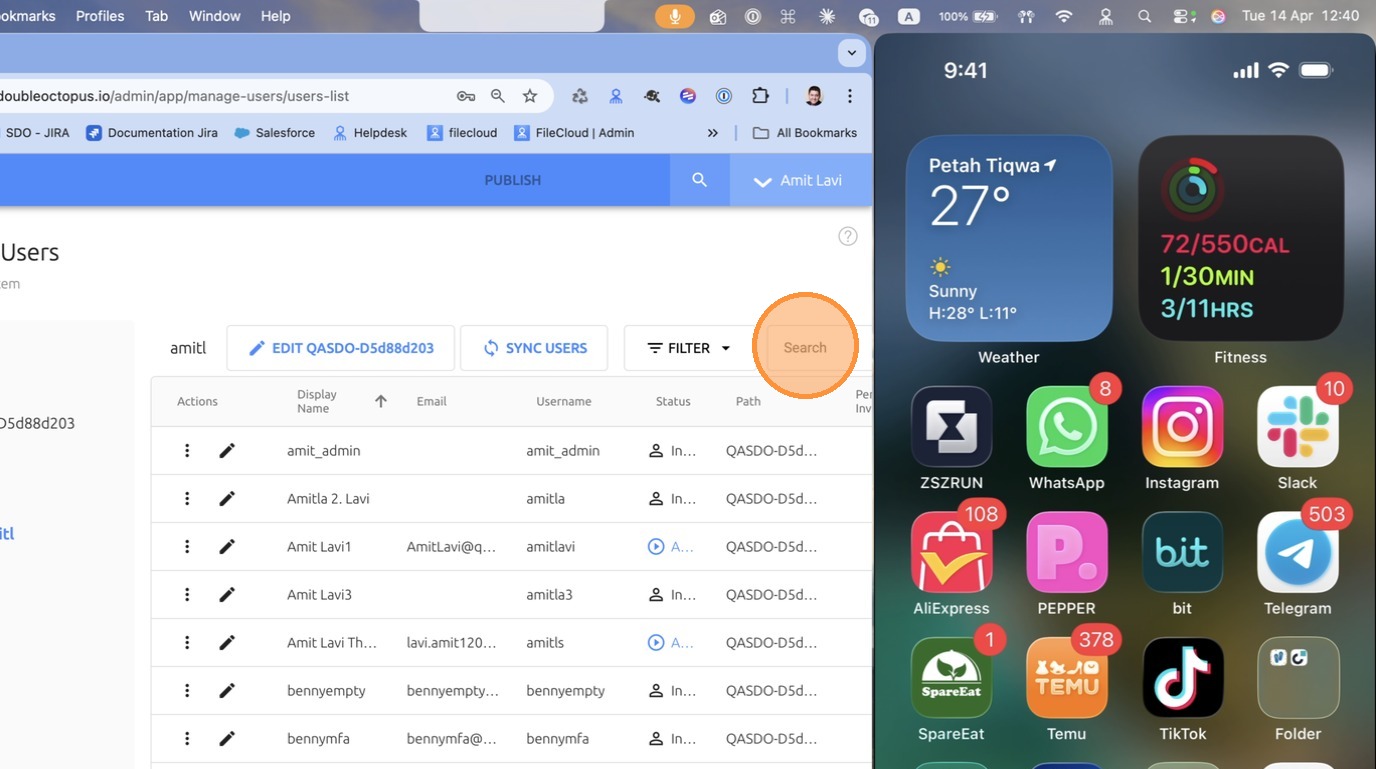
Step 2: Click here
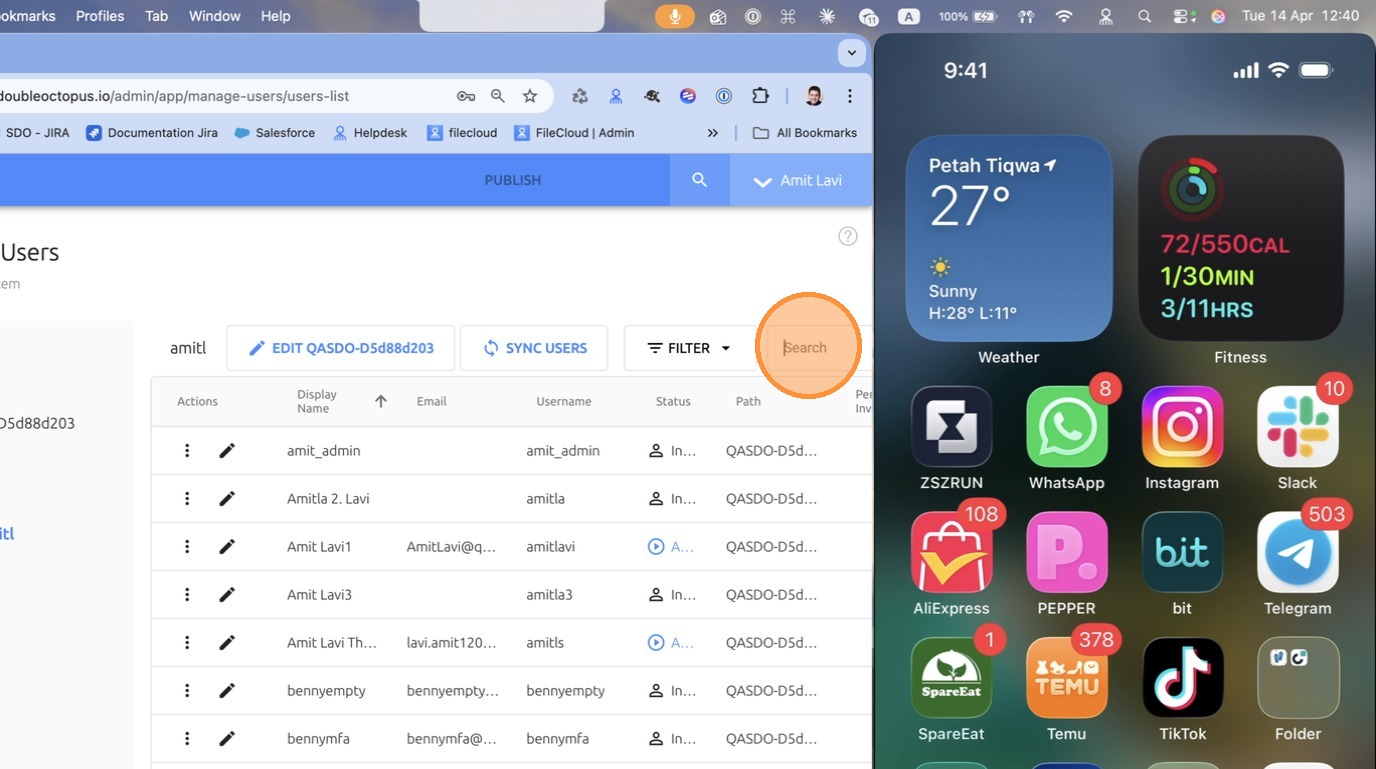
Step 3: Press Return
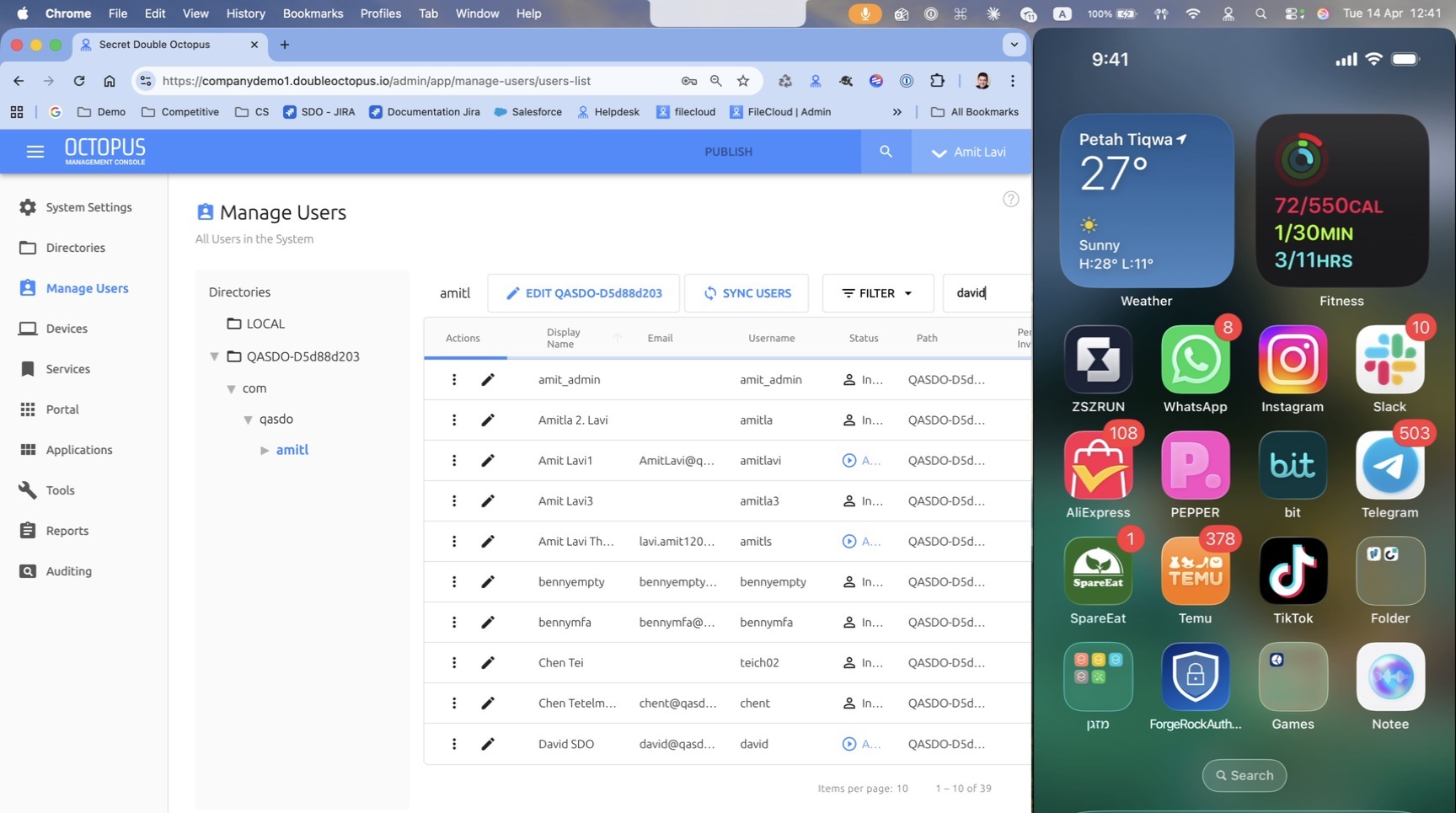
Step 4: Select menu and verify user enrollment and authentications
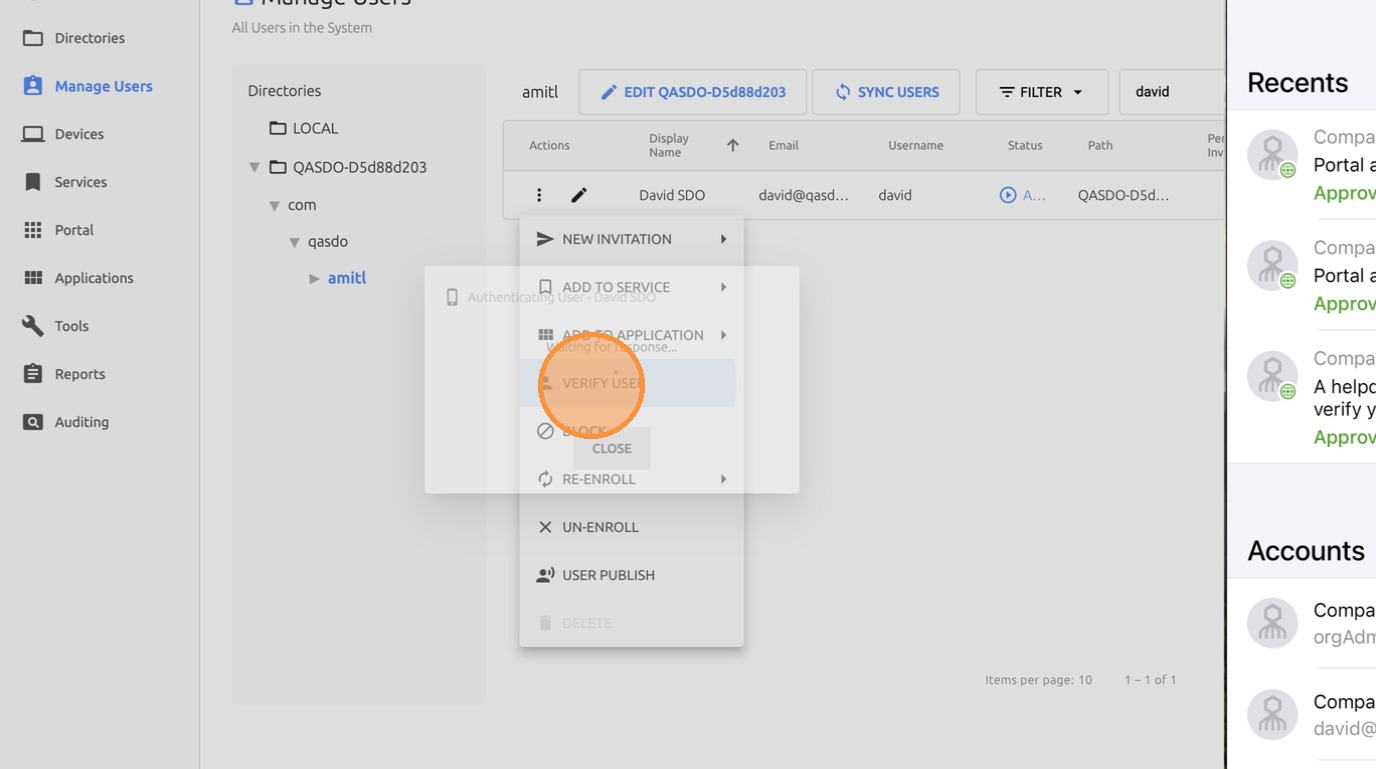
Step 5: Confirm the user authentication is verified
Step 6: Click on Authenticators
Step 7: Check that the user authenticator is valid and not blocked
Step 8: Log in to the Portal
Step 9: Enter the user email on the login screen
Step 10: Select the authenticator and click Login
Step 11: Complete the login process
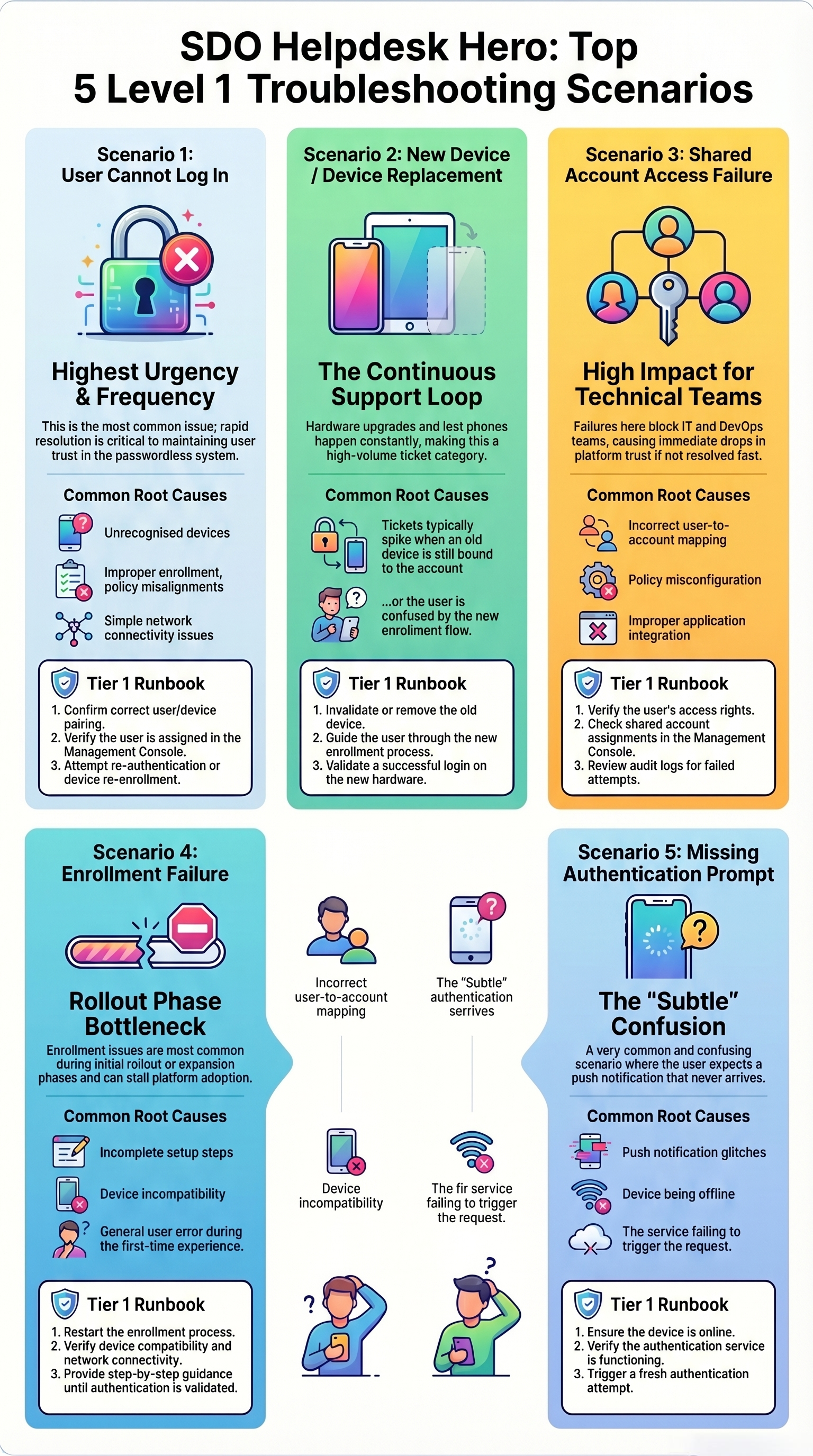
Note: If the issue persists after these checks, escalate the case to the next support tier with the user details, authenticator status, and portal login results.