New Device / Device Replacement
Secret Double Octopus Helpdesk Guide
Step-by-step process to reset and reinvite a user authenticator
Overview
This article explains how to reset an existing user authenticator and send a new invitation so the user can enroll again on a new or replacement device.
This process is commonly used when a user replaces a device, loses access to the old device, or needs to re-enroll their authenticator.
When to Use This Process
Use this process when:
- The user has a new phone or replacement device.
- The existing authenticator is no longer accessible.
- The old authenticator must be removed before re-enrollment.
- The user needs a new enrollment invitation.
Resolution Steps
- Navigate to the Management Console.
- Open the Authenticator menu.
- Click DELETE on the existing authenticator.
- Confirm the deletion by clicking DELETE again.
- After the old authenticator is deleted, send a new invitation to the user.
- Click NEW INVITATION.
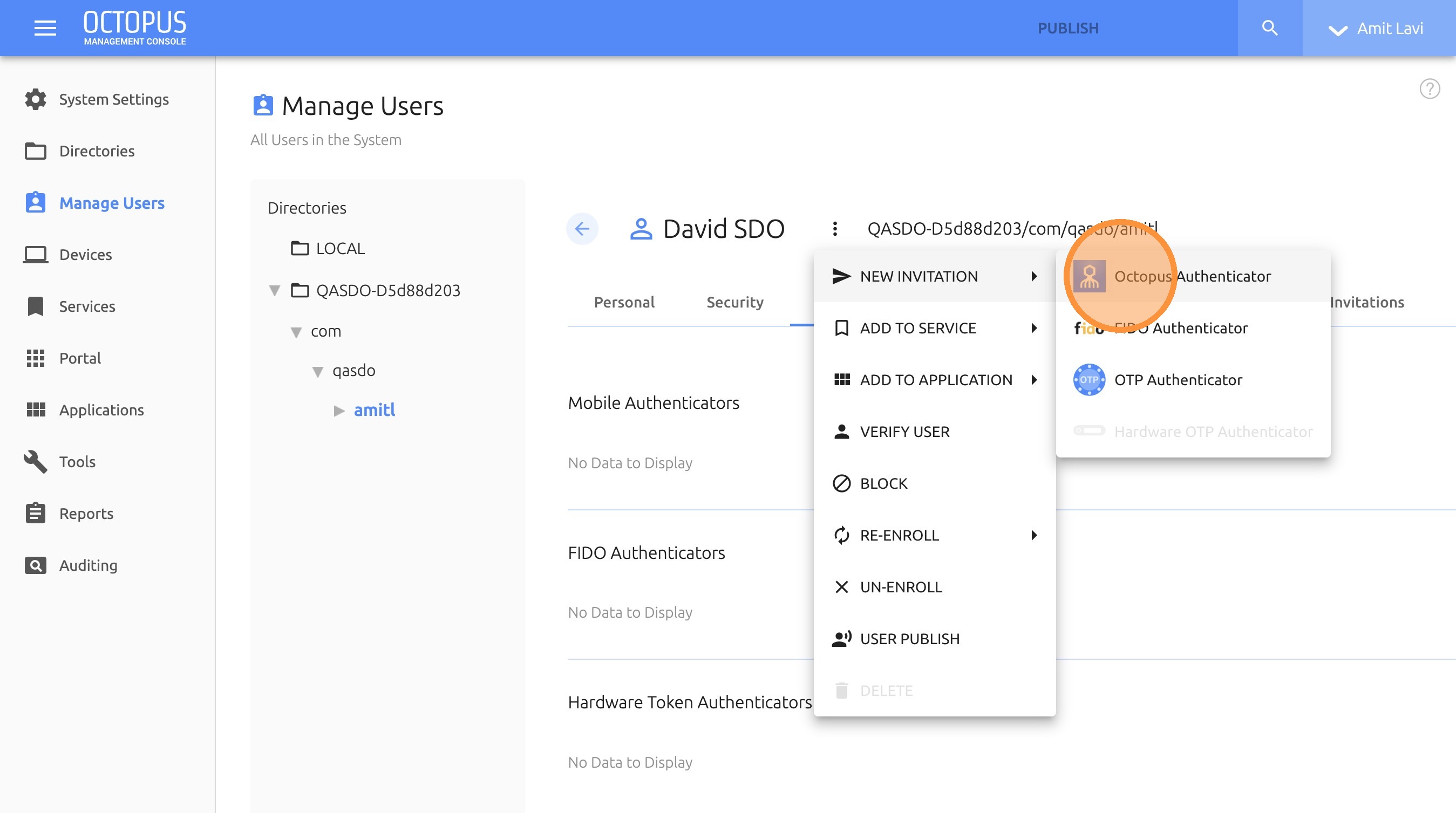
- Select Octopus Authenticator.
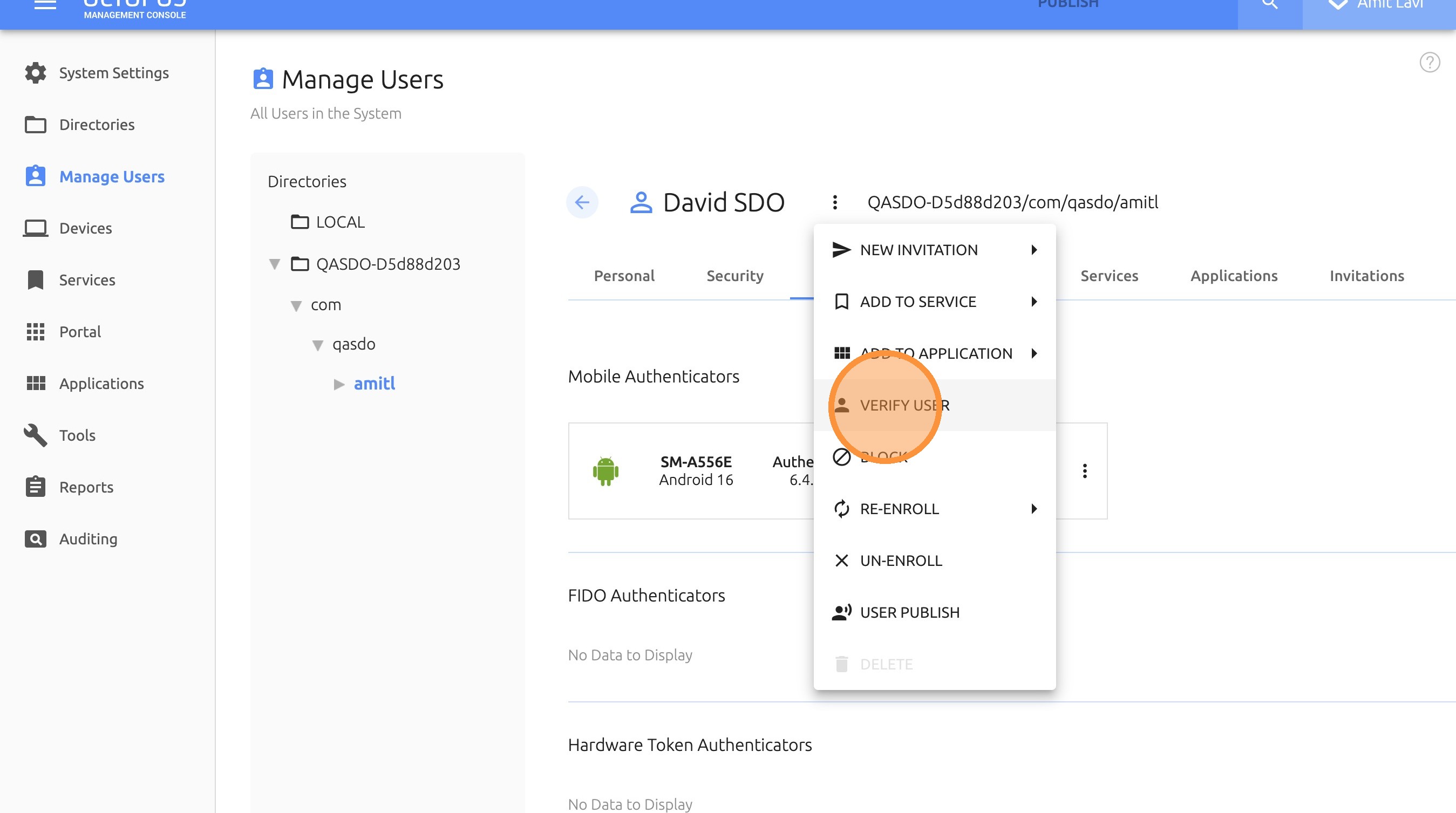
- Once the user enrolls on the new device, open the menu to verify authentication is working.
- Click VERIFY USER.
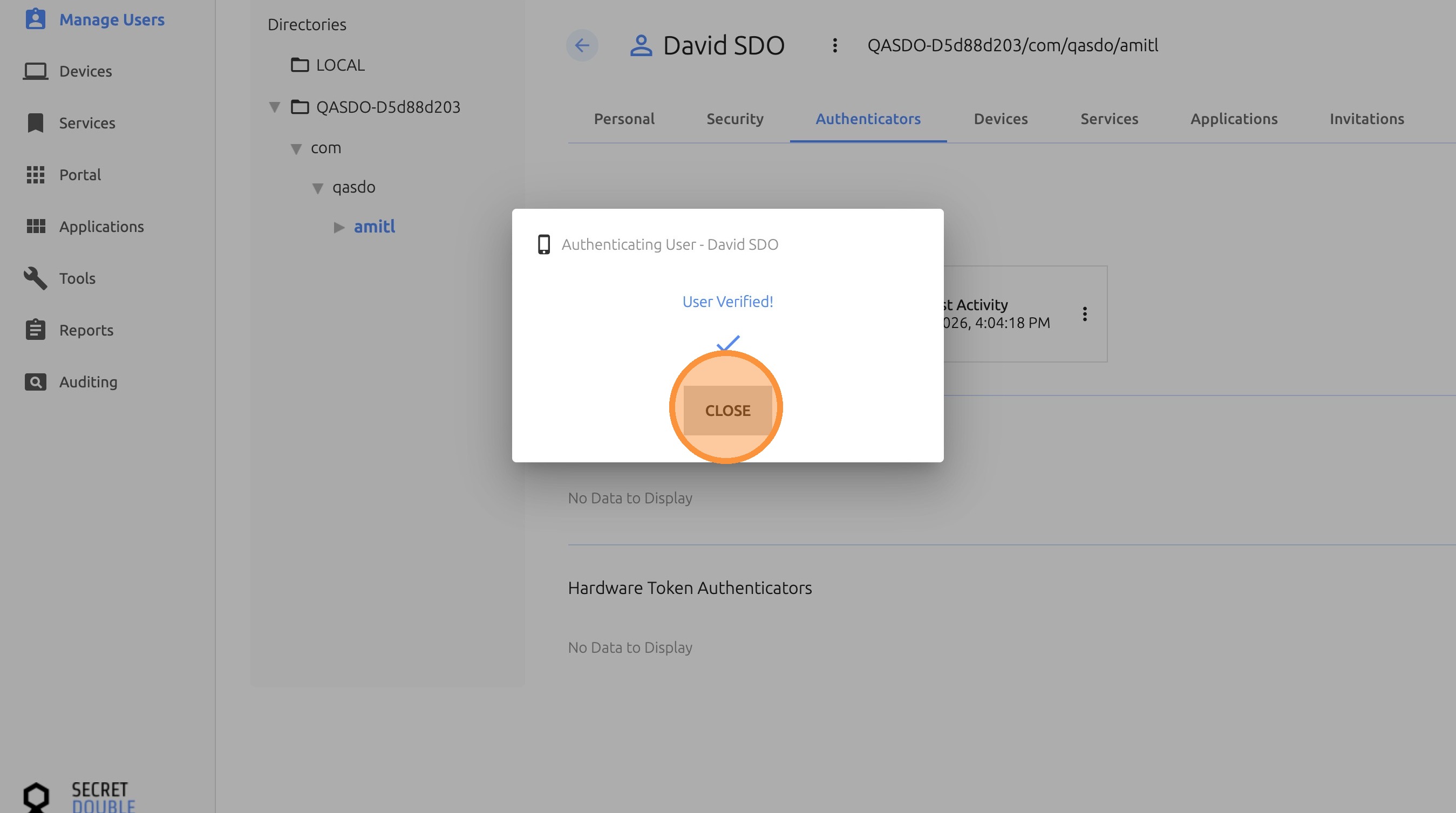
- Once approved, click CLOSE.
Quick Walkthrough
Use the walkthrough below for a visual step-by-step guide.
Detailed Step-by-Step Guide
Step 1: Navigate to Management Console
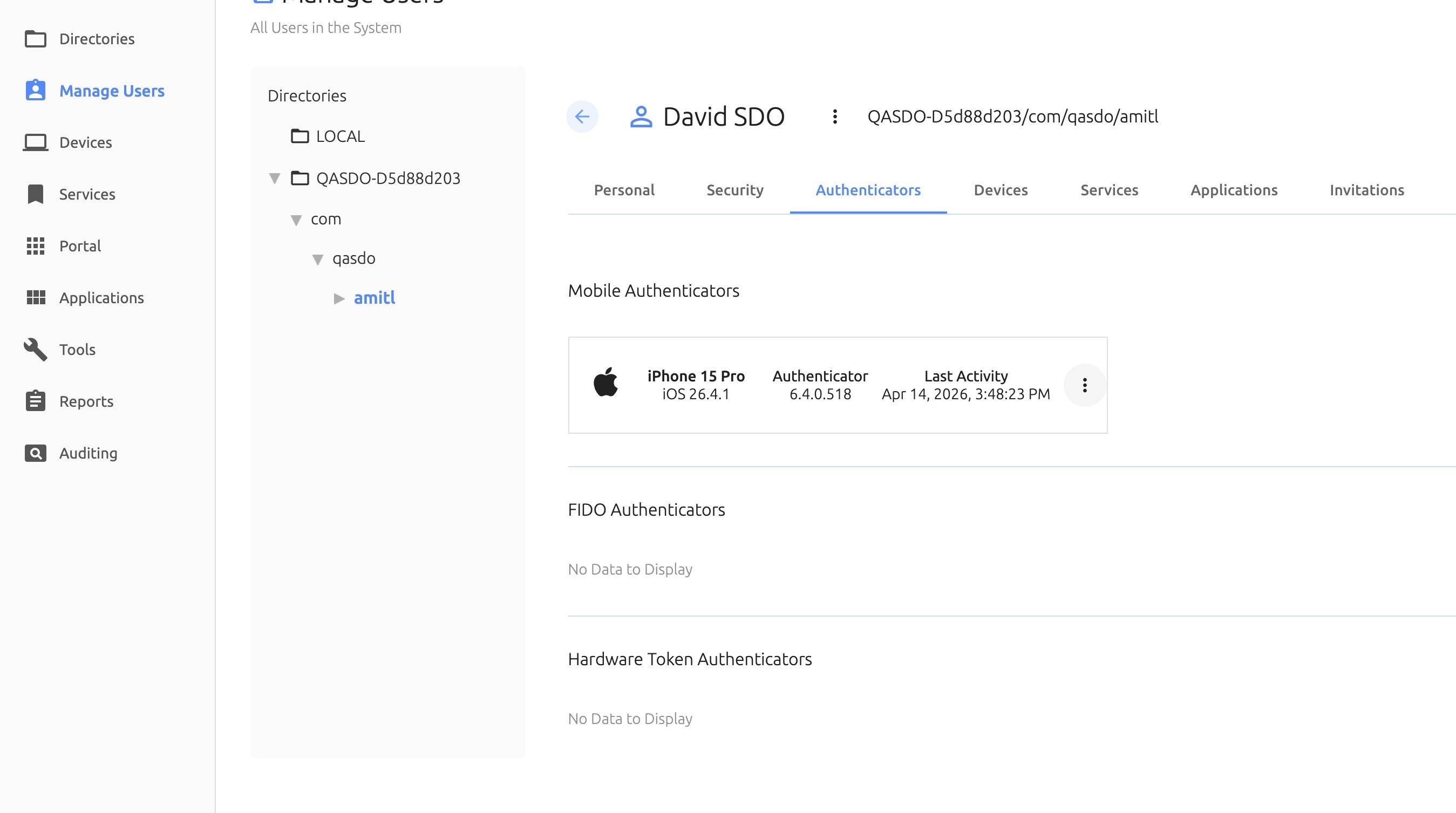
Step 2: Open the Authenticator menu
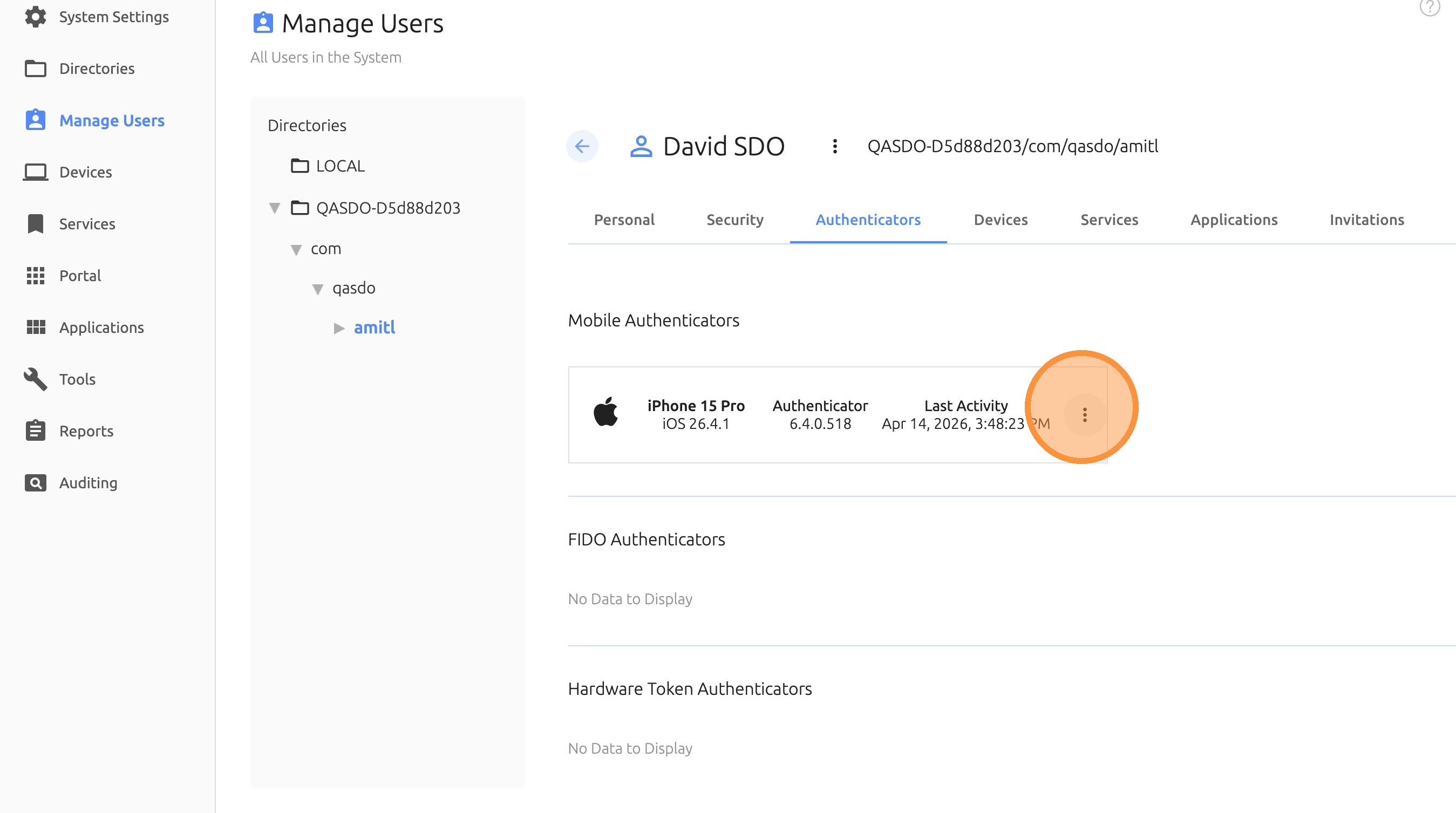
Step 3: Click DELETE
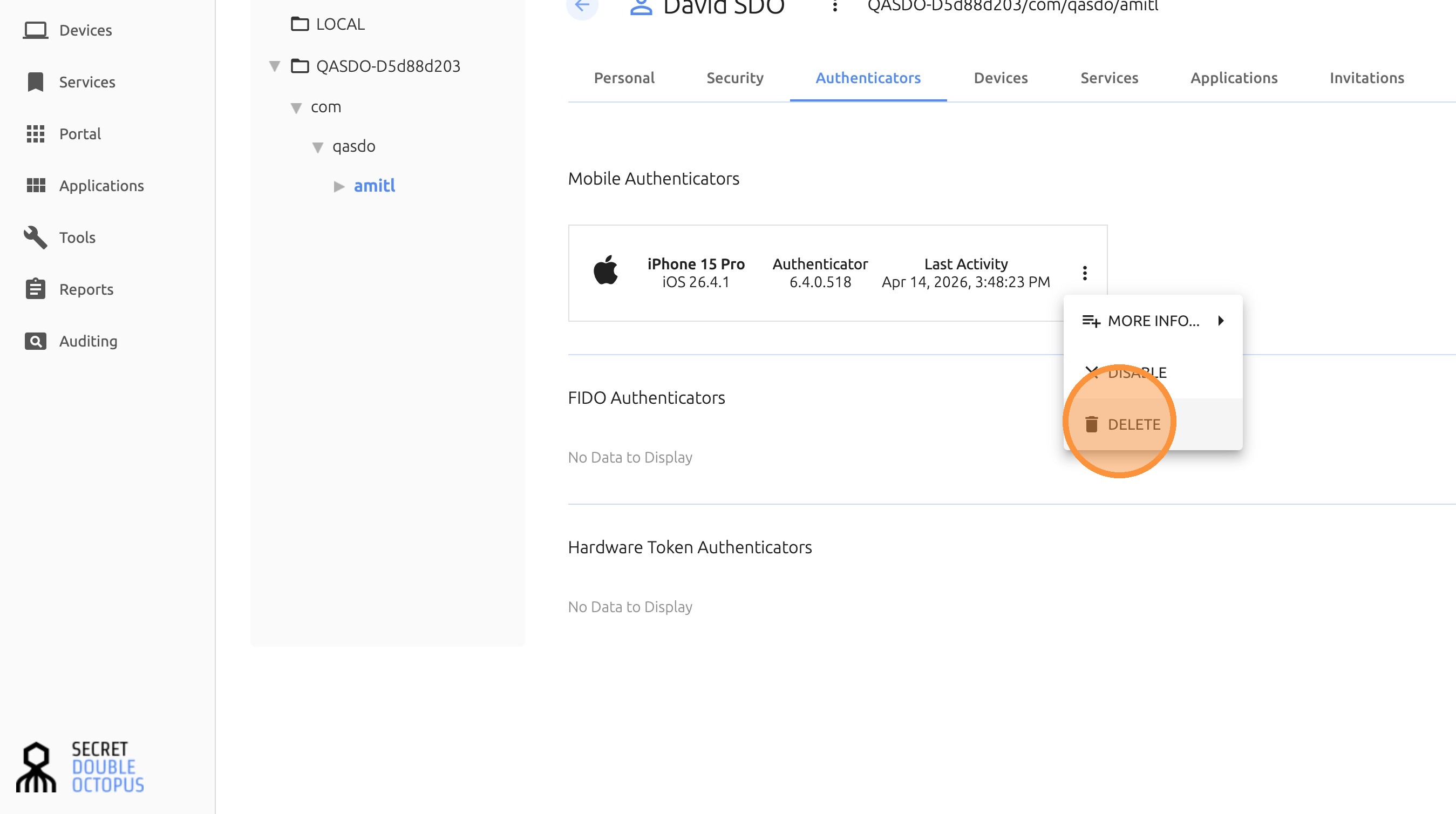
Step 4: Confirm deletion
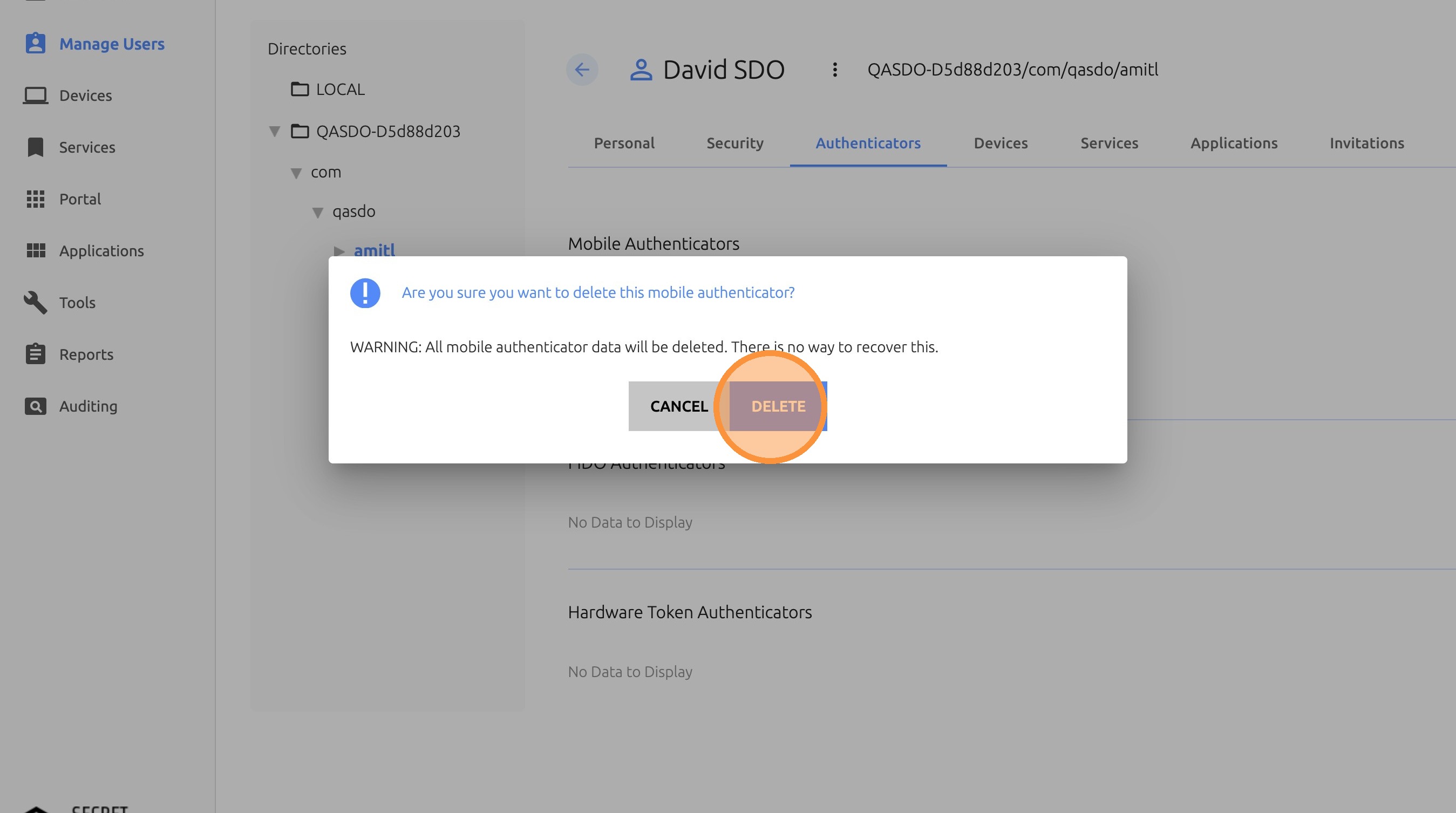
Step 5: Send a new invitation after deleting the old authenticator
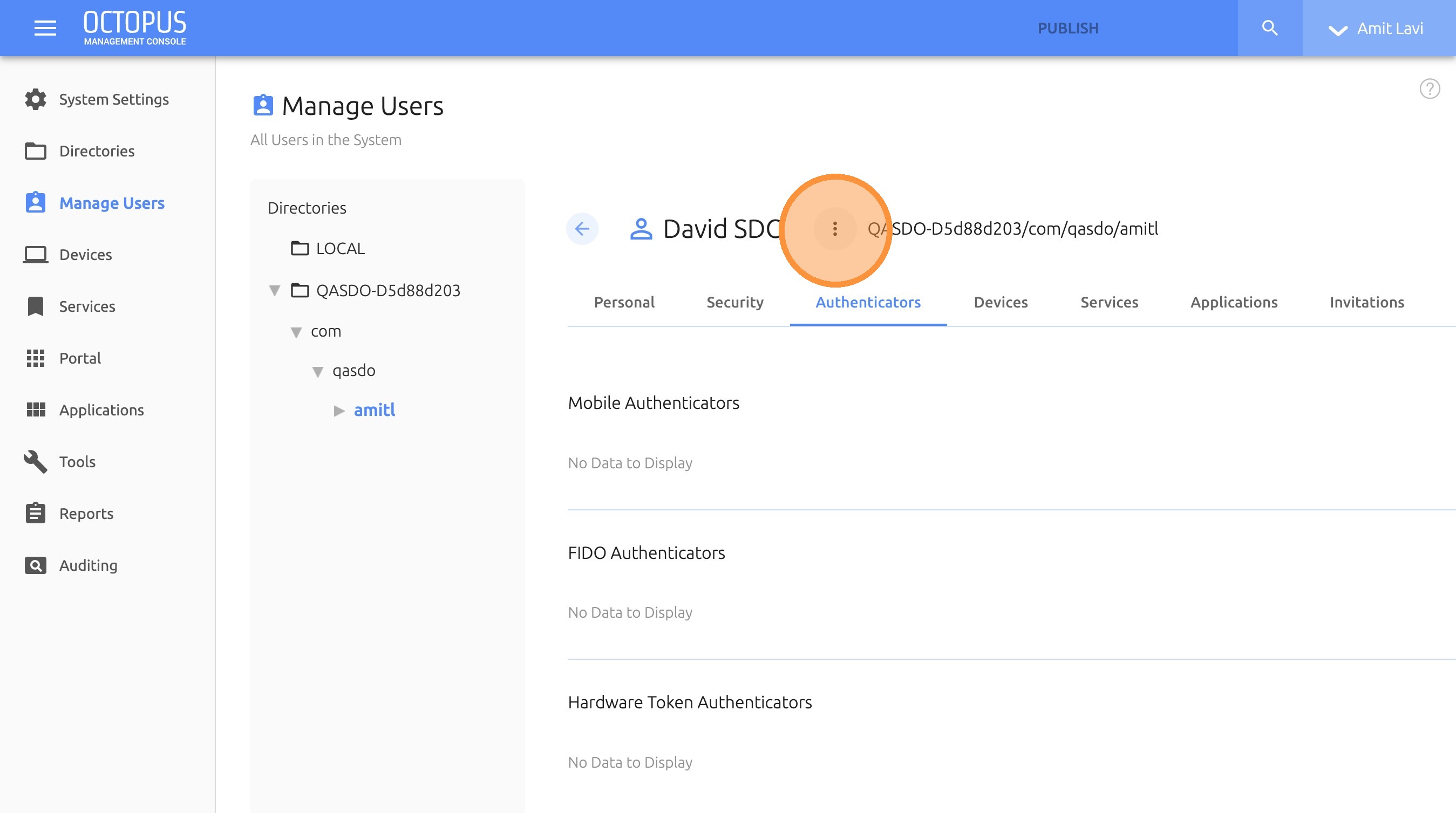
Step 6: Click NEW INVITATION
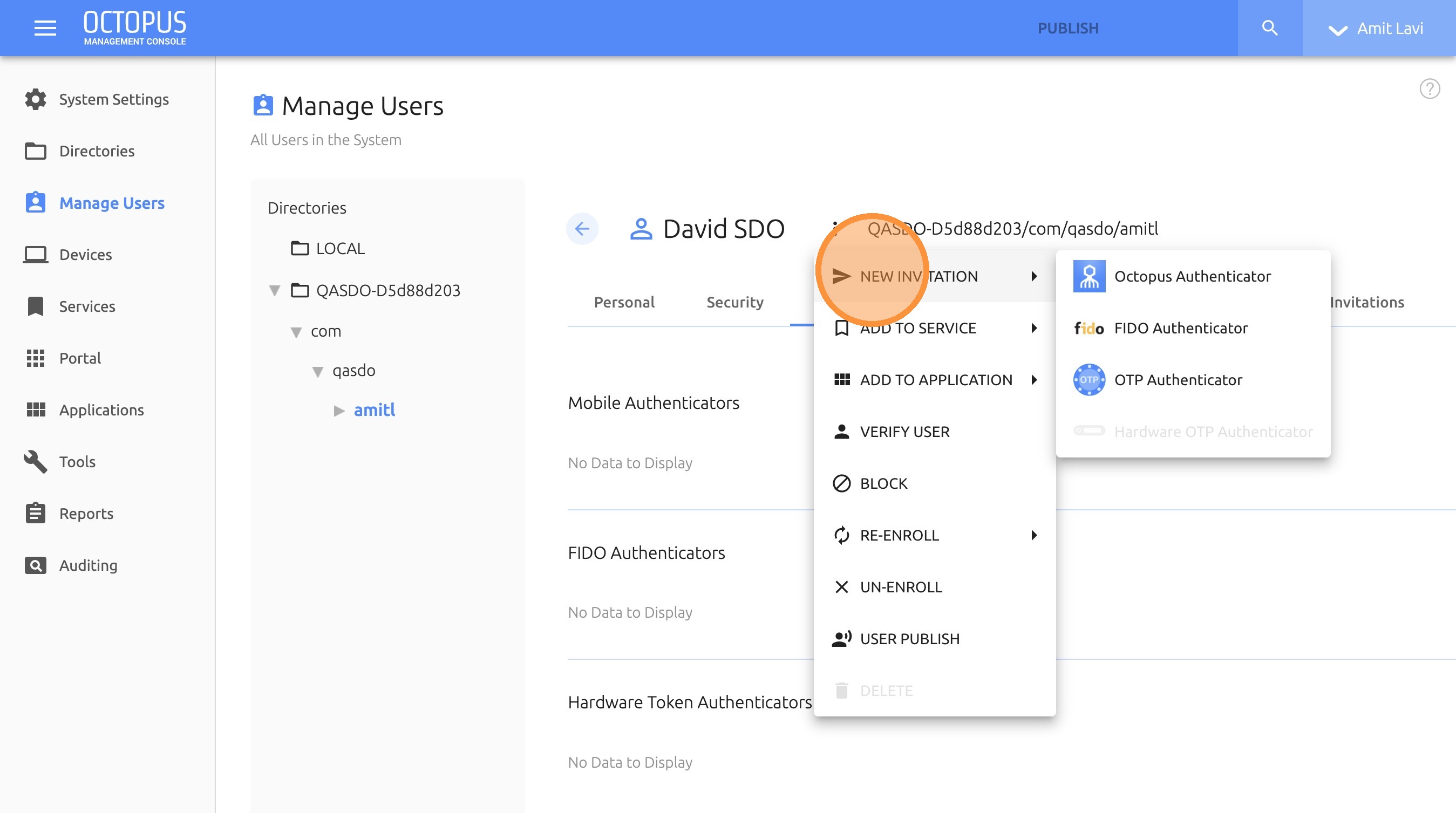
Step 7: Select Octopus Authenticator
Step 8: Open the menu to verify authentication on the new device
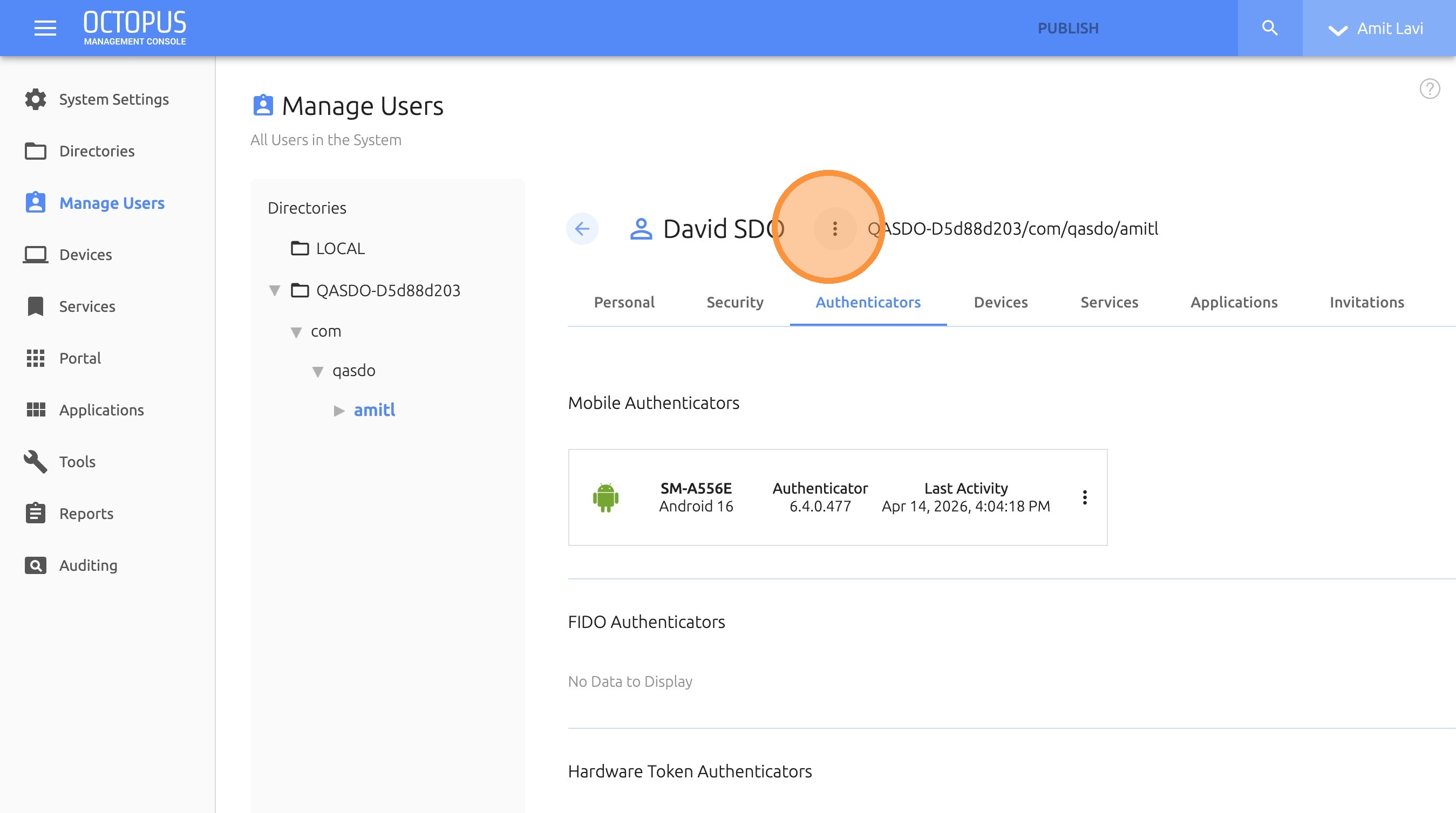
Step 9: Click VERIFY USER
Step 10: Once approved, click CLOSE
Note: After re-inviting the user, make sure the user completes enrollment on the new device and verify that authentication succeeds before closing the case.