Overview
The enrollment invite email, sent to users, is stored as an html file in the Management Console machine.
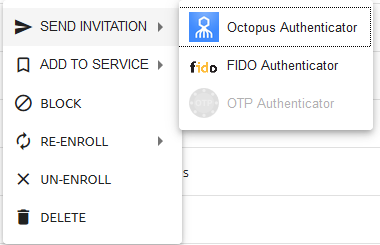
Currently there are three files; the Octopus Authenticator invite and second is for a Fido invite. A new, 3rd, invite file has been added for supporting the new OTP feature in 4.6.
Choosing the invites in the MC console:
Some of the invite details can be set in the MC. However, if changes to the text itself are required the admin can edit the file.
This article provides the instructions and limitations to perform the tasks.
Instructions
Changing/adjusting the invite global settings
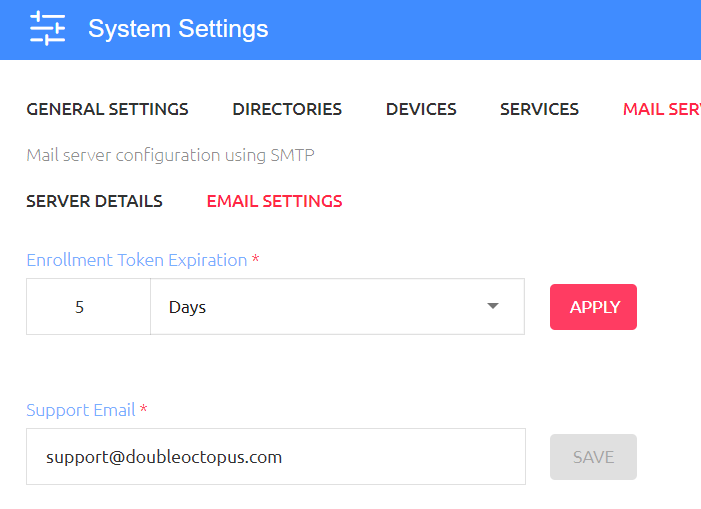
In the MC console you can change the invitation expiration period and the organization’s help-desk email address. These setting are under Main Server → Email Setting tab.
Changing/adjusting the text of the Octopus Authenticator invite
The file is stored in the following folder in the MC machine: “/opt/sdo/mcbackendsql/server/services/mail/templates/inviteUser/emailTemplate.html”
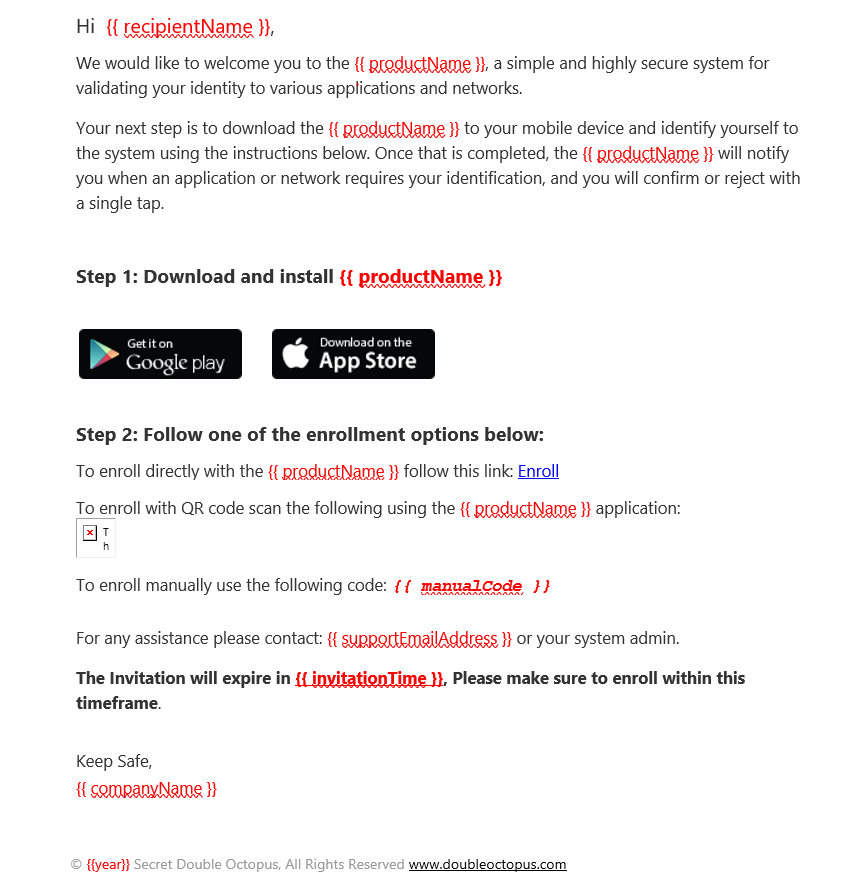
The file contains several sections headed by HTML tags and some tags within the the text. These tags can be easily identified as they’re encapsulated with double Squiggly brackets {{ }}. The admin can edit the free text. See screenshot below.
The admin should not edit or change any html tag, only the text. The red marked items in the below screenshot highlight the tags that shouldn’t be edited.
Using WinSCP download the file to a local machine and edit by an html editor. Preferably one capable of editing html files for email.
Changing/adjusting the text of the Fido Authenticator invite
The file is stored in the following folder in the MC machine: “/opt/sdo/mcbackendsql/server/services/mail/templates/fidoInviteUser/emailTemplate.html”
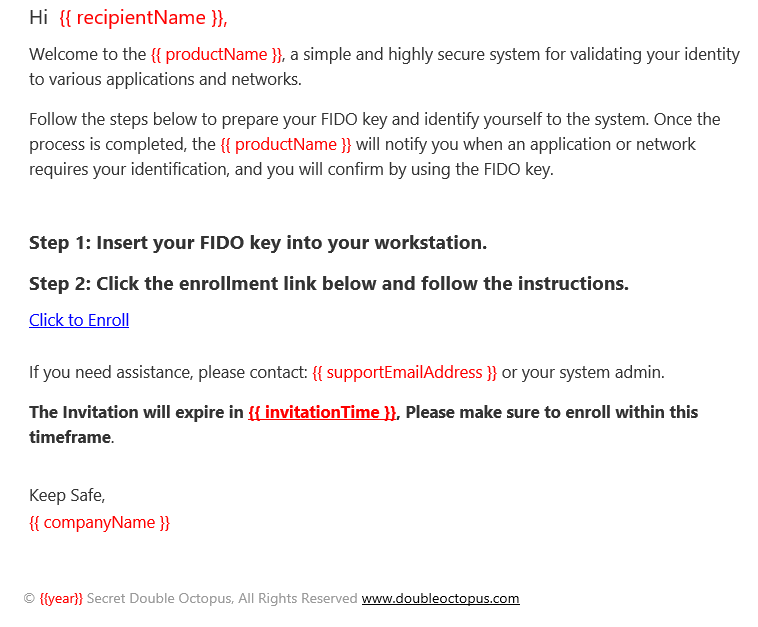
The same editing rules apply to the Fido invite!
The admin should not edit or change any html tag, only the text. The red marked items in the below screen highlight the tags that shouldn’t be edited.
Using WinSCP download the file to a local machine and edit by an html editor. Preferably one capable editing html files for email.
List of the available variables
- companyName
- recipientName
- productName
- enrollmentLink
- invitationTime
- supportEmailAddress
- year
- qrCid
- manualCode (edited)
These variables must be encapsulated with double squiggly (curly) brackets: {{ companyName }}