Octopus Tenant Manager Admin Guide
For extended configuration details, role explanations, and MSP onboarding workflow, download the latest version of the Admin Guide.
⬇ Download Admin Guide (PDF)The Tenant Manager is a tool that enables system administrators to manage multiple tenants within a Managed Service Provider (MSP). Every administrator authorized to access the Tenant Manager can have ONE of the following MSP roles:
MSP User: Monitors and manages assigned tenants via the Octopus Management Console (MC) of the relevant tenant. MSP Users have very limited permissions within the Tenant Manager tool, and generally use it only to access the MC of a tenant.
MSP User is the default MSP role in the Tenant Manager.
MSP Admin: In addition to access rights to MCs of assigned tenants, the MSP Admin has expanded permissions in the Tenant Manager tool. These users can update tenant status and details, perform administrative operations on other managers and view Tenant Manager audit records.
In addition, every system administrator added to the Tenant Manager tool (regardless of MSP role) is given a Tenant role that determines the extent of permissions within the Octopus Management Consoles of assigned tenants. Tenant roles (Admin, Helpdesk and Auditor) directly correspond to roles assigned to any user authorized to access the Management Console, and related permissions are the same.
For more information and examples of common role combinations, refer to Understanding Roles and Permissions.
The Tenant Manager is accessed using the Octopus Authenticator mobile app, as described in the procedure below. Before attempting to log in, make sure you have downloaded the Octopus mobile app and enrolled your device. (For full instructions, please refer to your enrollment invitation email.)
To access the Tenant Manager:
From your browser, enter the access URL provided for your tenant / enterprise and domain (e.g., https://acme.doubleoctopus.cc/mt).
You are redirected to the Login screen for the relevant tenant.
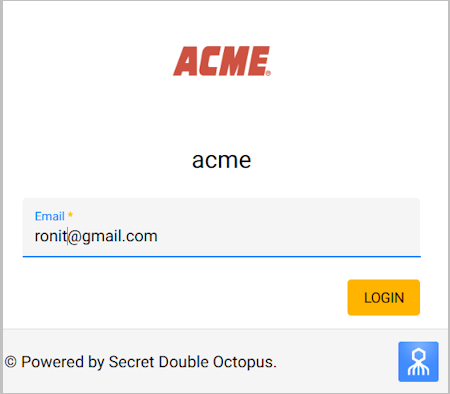
Enter the email address provided in your enrollment email. Then, click Login.
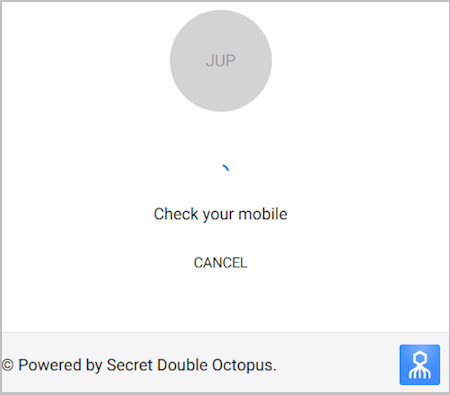
An authentication request is sent to your mobile device.
From your mobile device, tap Approve.
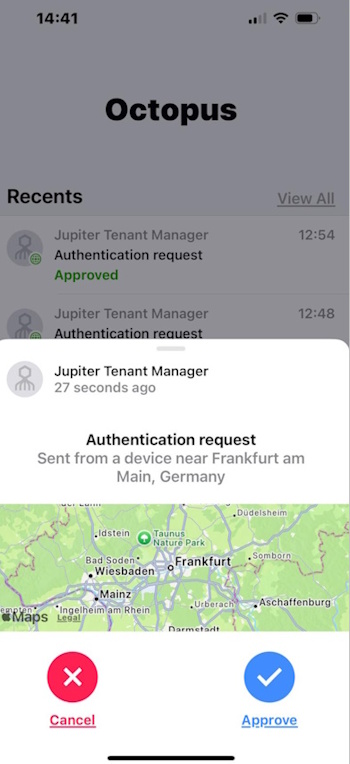
If you are prompted to provide a verification code, enter the digits displayed on your mobile device.
Following successful authentication, the Tenant Manager opens.
MSP Users should continue by accessing the Octopus MC of a tenant, as described below.
Follow these steps to access the Octopus MC of a tenant:
From the list of tenants in the Tenants menu, select the row of the relevant tenant.
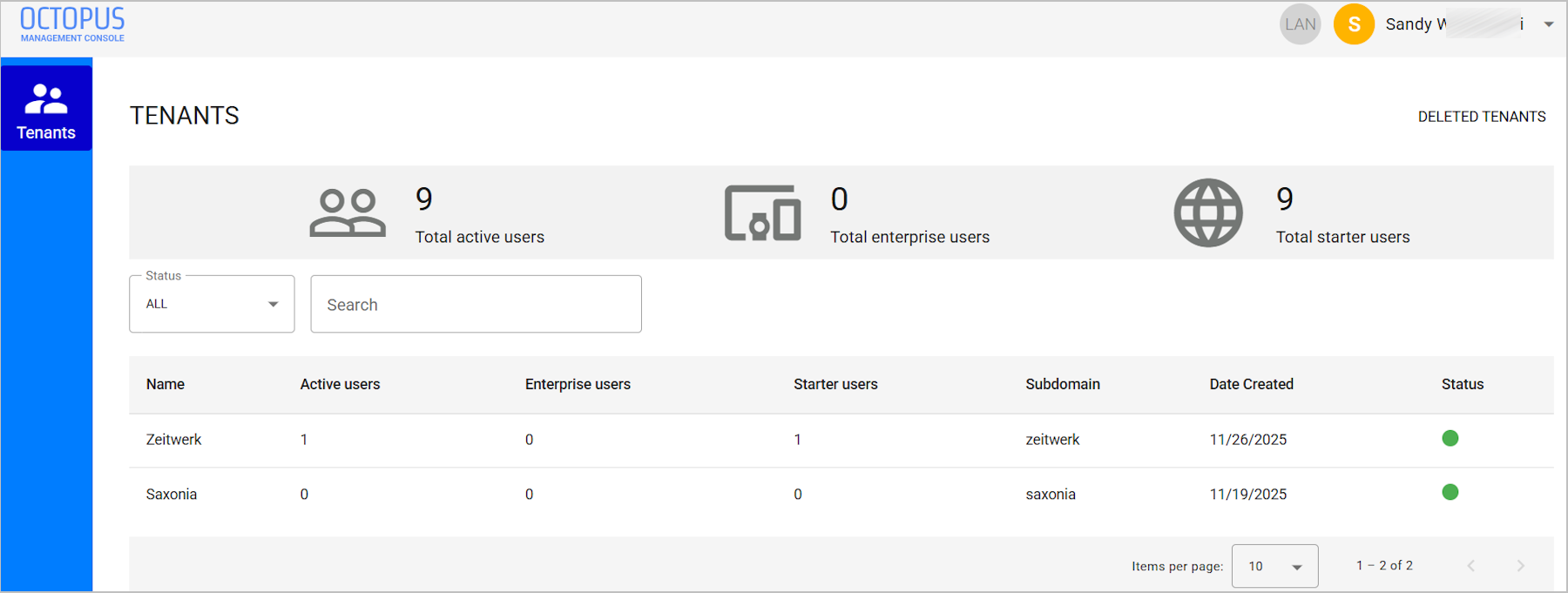
The Tenant details page opens.
At the bottom of the page, click the MC SSO Sign in link.
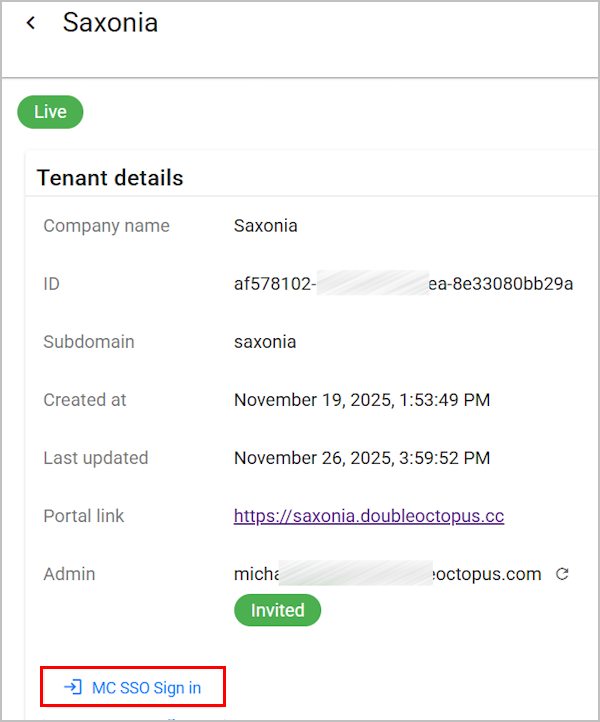
The Management Console of the selected tenant opens in a separate browser tab.
The main features and components that appear on most pages of the Tenant Manager tool are described in the table below the diagram.
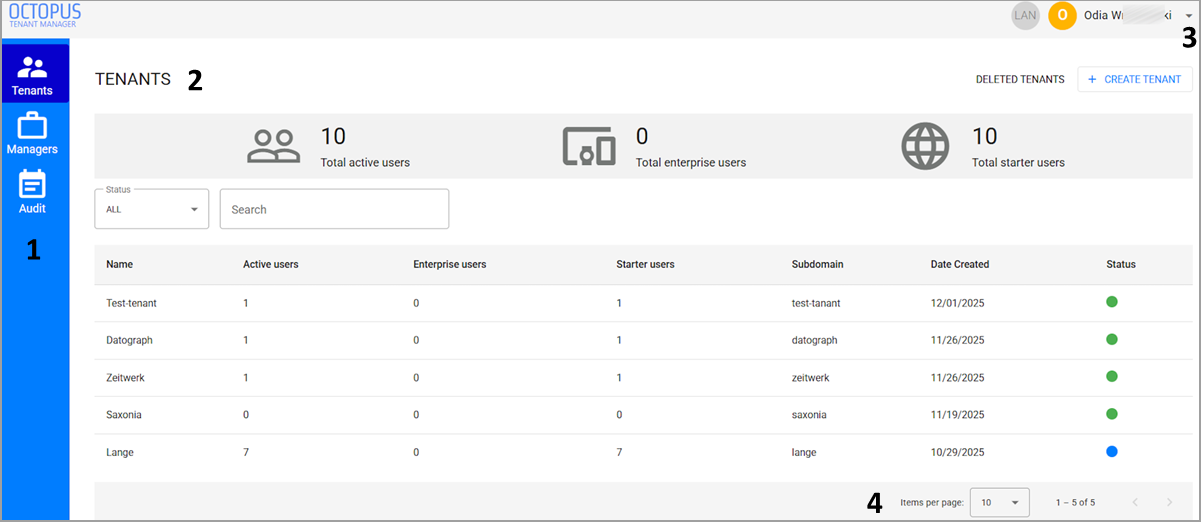
Number | Component | Description / Notes |
|---|---|---|
1 | Menu bar | Provides access to the various menus of the Tenant Manager. For more information, refer to Menu Bar. |
2 | Menu title | Name of the currently displayed menu. |
3 | Account options menu | Click the arrow next to your username and select Sign out to end your Tenant Manager session. |
4 | Navigation tools | Enable you to control the number of items displayed on the page (10, 20, 50 or 100) and scroll to other pages of the list. |
Menu Bar
The menu bar enables navigation between the following menus:
Tenants: Presents global statistics and displays information about all tenants in the MSP (both current and deleted).
Managers: Lists all users added to the Tenant Manager and provides access to related administrative operations.
Audit: Displays a log of every action performed by the system or by managers.
The MSP role-based access control (RBAC) system of the Tenant Manager uses a two-tier role model that separates MSP-level permissions from Tenant-level permissions. In this model, every user is assigned both an MSP role and a Tenant role. These two roles work together to determine user permissions across the MSP platform and within tenant environments.
- The MSP role is related to platform-wide permissions, and determines what a user is authorized to do across the MSP environment. Some MSP-related permissions are tenant creation and cross-tenant access.
- The Tenant role controls what a user can do inside specific tenants. The Tenant role assigned generally correlates to the user's position in the tenant organization (IT technician, compliance reviewer, etc.).
The following sections describe each role type in detail. For some use case examples of role assignments, refer to Role Combination Examples.
MSP Roles
The MSP role controls platform and tenant ownership access. A user's MSP role can be either MSP User or MSP Admin.
An MSP Admin has full control over the entire MSP environment. This role is usually reserved for MSP owners, directors, or primary administrators responsible for overall MSP operations.
Permissions include:
- Creating and managing tenants
- Adding and managing MSP Users and MSP Admins
- Logging into the Octopus Management Console of any tenant owned by the MSP with full administrative privileges
An MSP User does NOT have permissions to manage the MSP itself. MSP Users are not authorized to create new tenants or add / manage other MSP Users.
In order to access the Management Console of a tenant, an MSP User must be explicitly assigned to that tenant. Operational permissions inside the tenant are defined by the Tenant role (as described in the next section).
The chart below lists some common MSP-level permissions and shows the differences between the MSP roles.
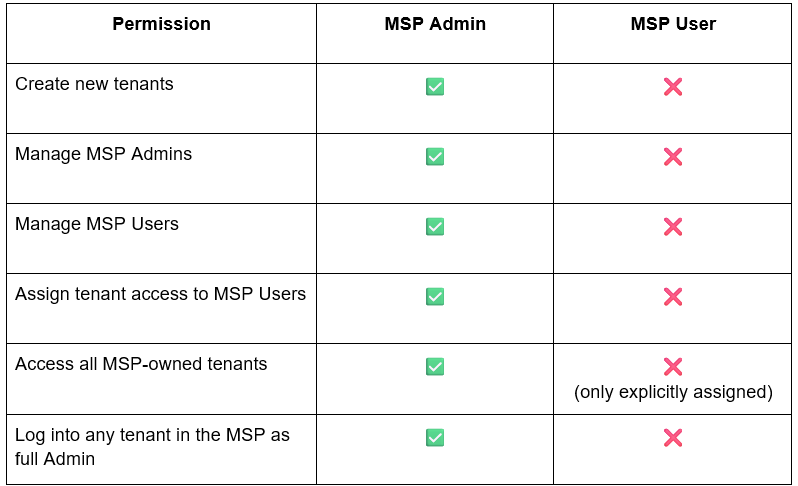
Tenant Roles
The Tenant role determine a user’s permissions within an individual tenant. An MSP User (or MSP Admin acting within a tenant) is assigned one of the following roles per tenant. (A user's Tenant role may differ from one tenant to another.)
| Tenant Role | Description / Notes | Permissions (examples) |
|---|---|---|
| Admin | Has full control within the tenant; authorized to perform all administrative actions. |
|
| Helpdesk | Has limited operational permissions for day-to-day support. This role is intended for support staff who need operational access without full administrative control. |
|
| Auditor | Read-only permissions within the tenant. Not authorized to modify any tenant settings or user data. |
|
The following chart lists some common tenant-level permissions and shows how authorization varies according to Tenant role.
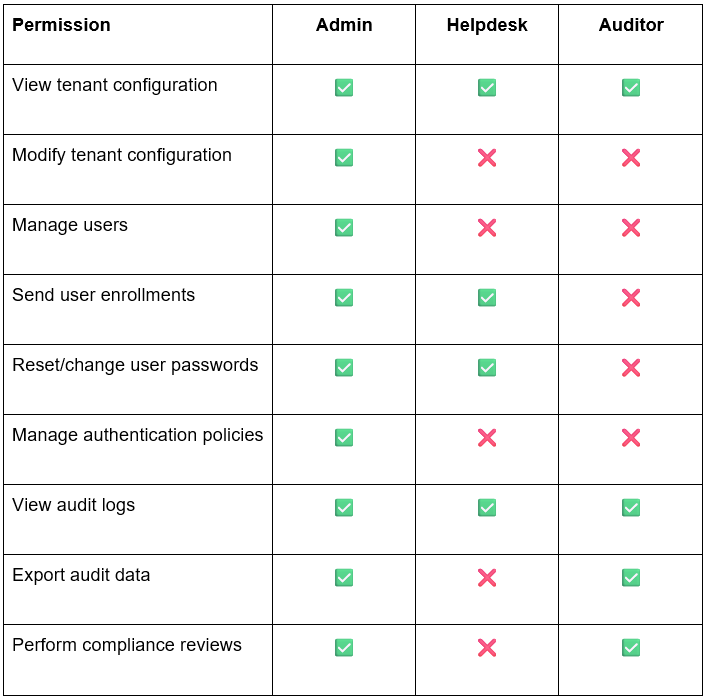
Role Combination Examples
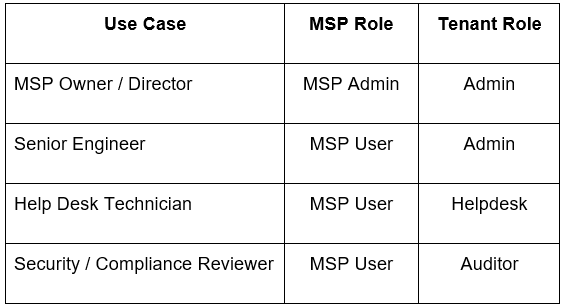
The chart below provides several use cases (according to organizational responsibility) and presents typical role combinations for each.
Viewing and Managing Tenants
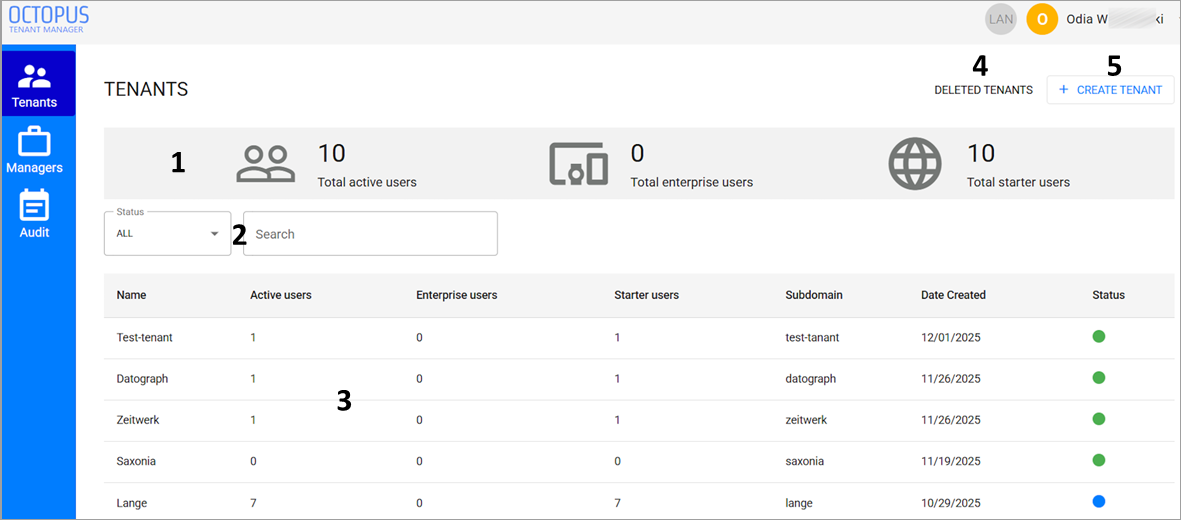
The Tenants menu displays information about tenants in the MSP and enables authorized managers to perform administrative actions related to tenants.
The main components of this page are described in the table below the diagram.
Number | Component | Description / Notes |
|---|---|---|
1 | Global statistics snapshot | Displays current number of users across all tenants, broken down as follows:
|
2 | Filtering tools | Allow you to filter the Tenants list according to status and/or tenant name (keyword search). For more information about tenant status, refer to Working with the Tenants List. |
3 | Tenants list | Displays general information about each tenant. For details, refer to Working with the Tenants List. |
4 | Deleted Tenants button | Provides access to information about tenants no longer in the system. For details, refer to Viewing Deleted Tenants. |
5 | Create Tenant button | Enables you to add a new tenant. |
The Tenants list provides general data about every tenant, such as user statistics, subdomain and more. The list can be sorted in ascending or descending order according to tenant name, Active / Starter users, or tenant creation date.
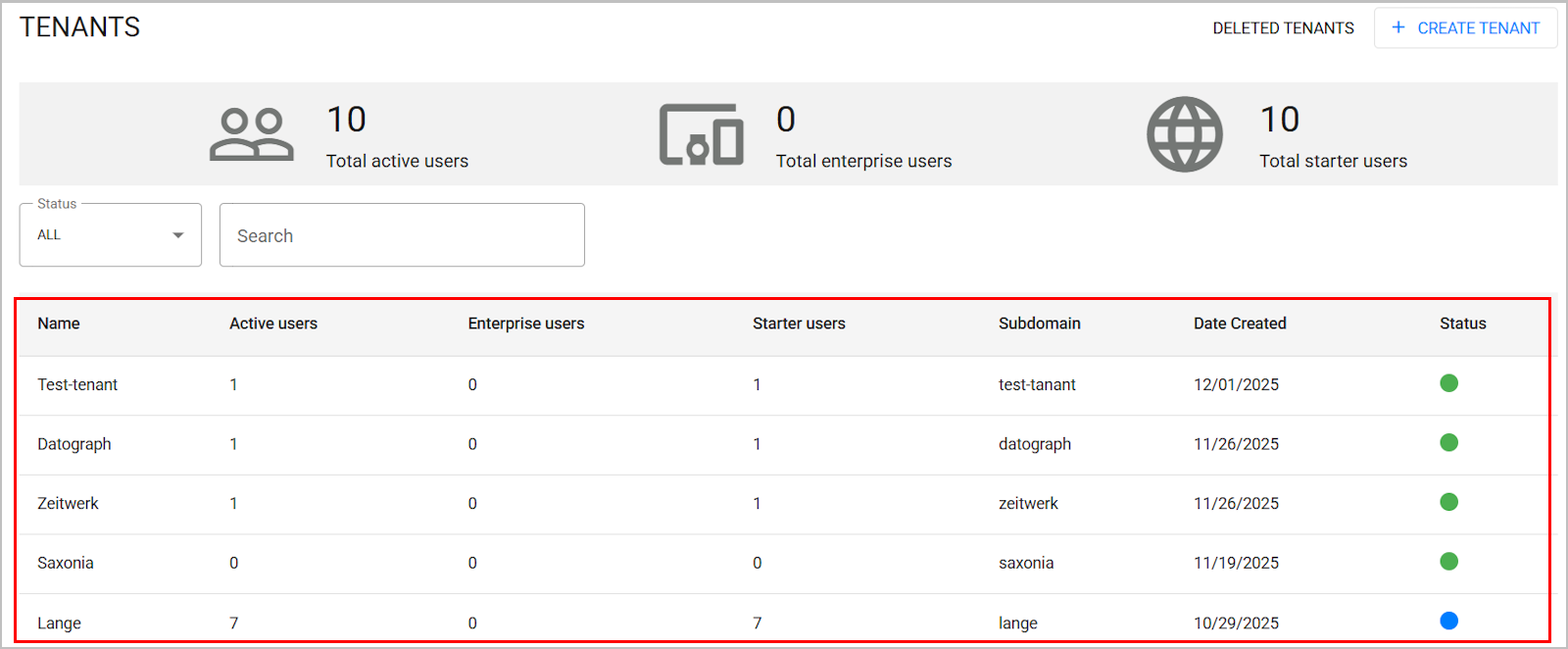
Tenant status can be one of the following:
Live (green indicator): The tenant is enrolled, connected and enabled.
Suspended (gray indicator): The tenant is temporarily disabled (Suspending Tenants).
Error (red indicator): The tenant has invalid parameters or connection failures.
A blue indicator appears in the row of the Primary tenant of the MSP. This tenant, which generally has the same name as the MSP itself, has the unique authority to manage itself as well as all other tenants. Every administrator integrated with the Tenant Manager tool must therefore be a Primary tenant user. (For more details, refer to Adding Managers to the MSP.)
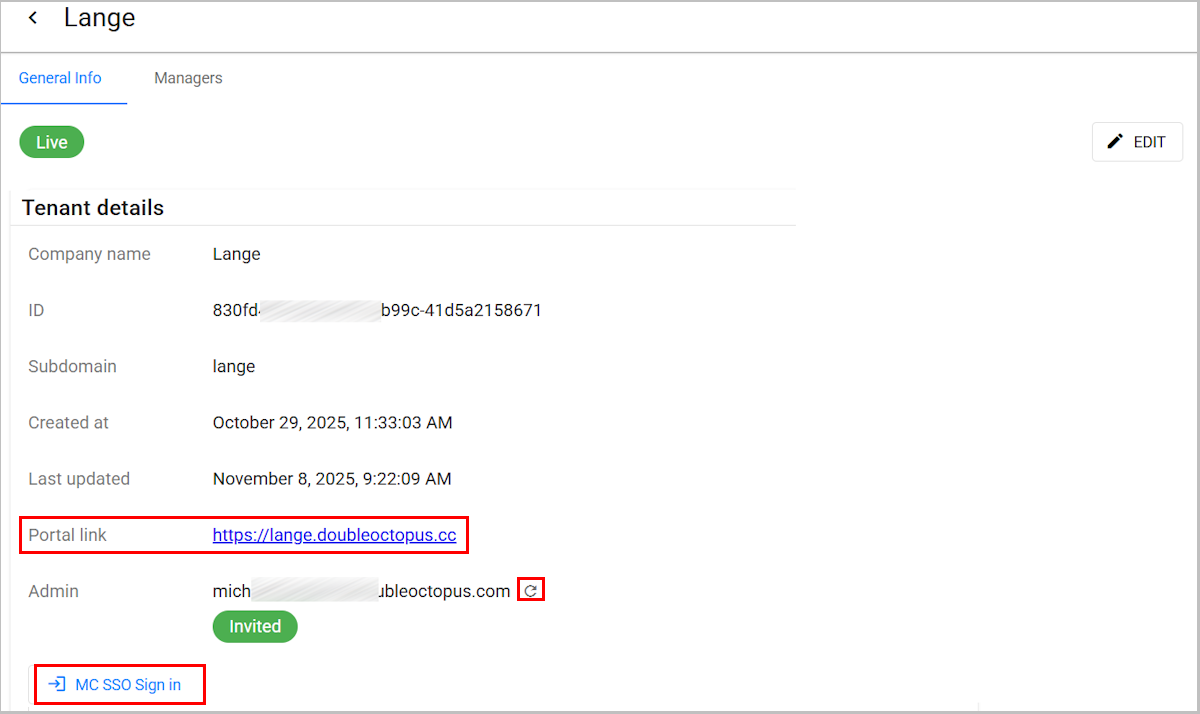
Selecting a row in the Tenants list opens the General Info tab, which displays the tenant details. From this page you can perform the following actions:
Access the Octopus User Portal by clicking the Portal link
Resend an enrollment invitation to the tenant Admin
Access the Octopus Management Console (when the MC SSO Sign in button is available)
To update tenant details, click the Edit button in the upper right corner of the page. The following actions are available in Edit mode:
Change the company (tenant) name
Add and remove tenant administrators (managers)
Enable / Disable the SSO Login toggle
When the toggle is disabled, the the MC SSO Sign in button does not appear on the Tenant details page.
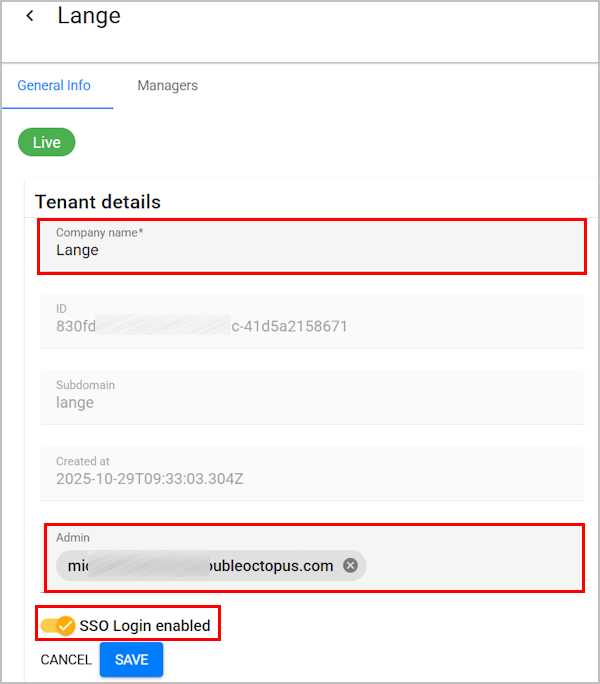
After updating tenant details, click Save.
Suspending and Deleting Tenants
When required, you can perform the following actions on a tenant:
Suspend: Temporarily inactivates the tenant
Delete: Removes the tenant from the Tenants list
To suspend or delete a tenant:
From the Tenants list, open the Tenant details page by selecting the relevant tenant.
At the upper right corner of the page, click Edit to open Editing mode.
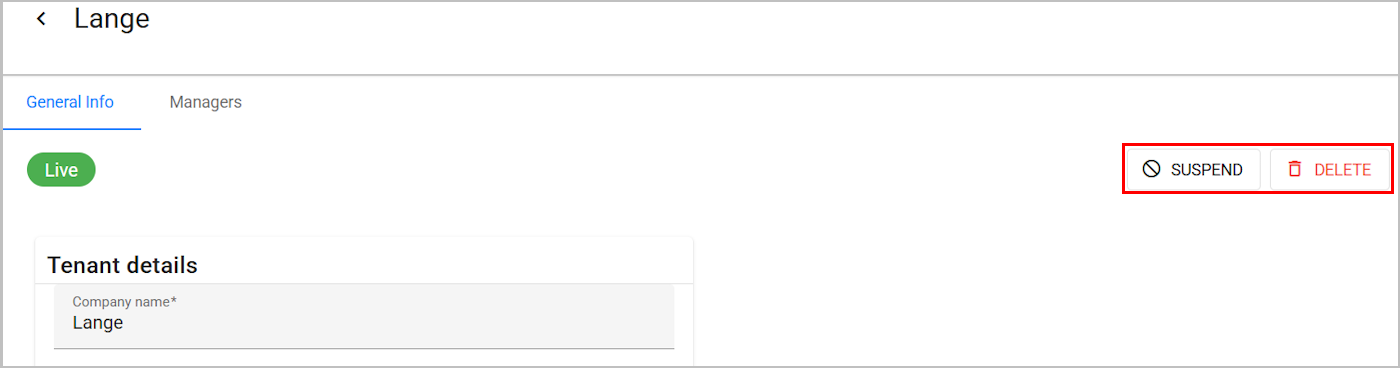
The Suspend and Delete buttons appear at the upper right corner of the page.
Perform one of the following flows:
To suspend the tenant, click Suspend. Then, in the confirmation popup, click Yes.
The tenant is inactivated. To reactivate the tenant, follow the procedure above and click Restore.
To delete the tenant, click Delete. Then, in the confirmation popup, type the word DELETE and click Yes.
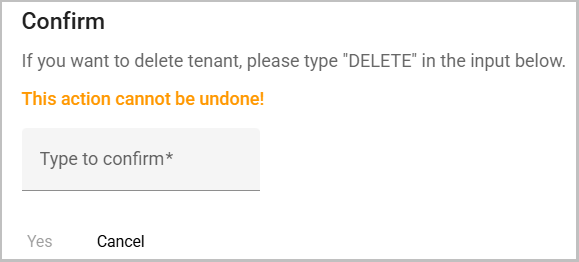
The tenant is removed and added to the Deleted tenants list.