How to Install and Configure Octopus Remote AD Agent
This guide covers creating a Managed Service Account (gMSA/MSA), granting permissions, installing the Octopus Remote AD Agent, and syncing users from Active Directory.
Prerequisites
- Domain Admin (or equivalent permissions to create service accounts + manage group membership)
- Remote AD Agent server is domain-joined and can reach the Domain Controller
- Windows PowerShell on DC / management host
- Time is synced (Kerberos depends on it)
Stage 1 – Create a Managed Service Account (MSA)
1
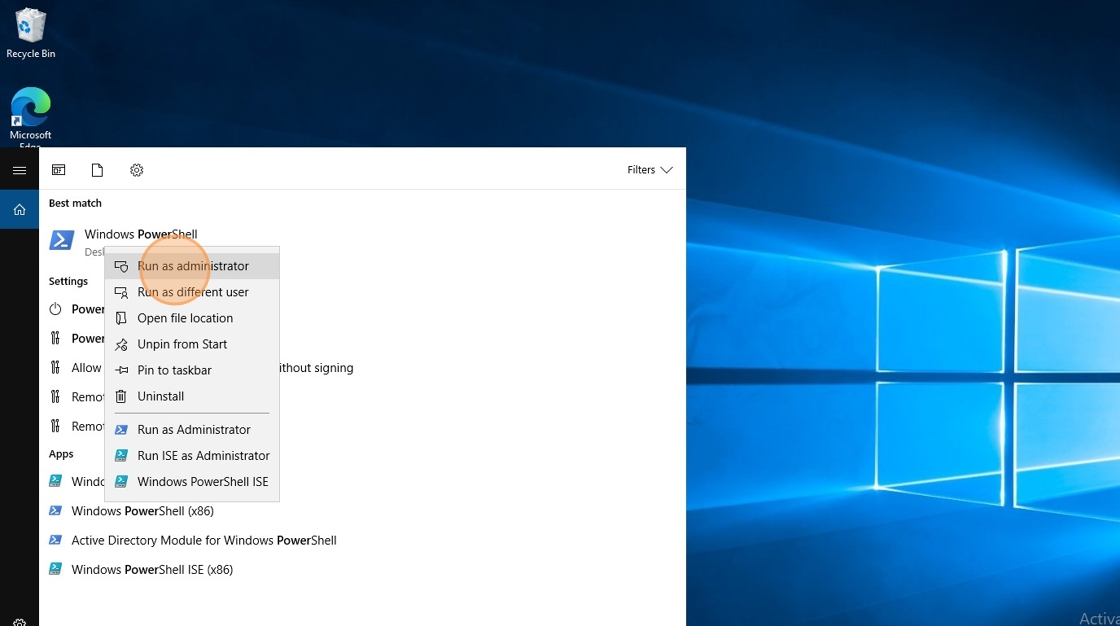
Open PowerShell as Administrator
Log in to a domain controller (or a management host with AD tools) and open Windows PowerShell as Administrator.
2
Create the Managed Service Account
Run the following command (example) to create the MSA. Adjust values to match your environment.
New-ADServiceAccount -Name sdoSVC -DNSHostName sdoSVC@ws-fedush.online -PrincipalsAllowedToRetrieveManagedPassword remotead$ -ManagedPasswordIntervalInDays 1
⚠️ Make sure
remotead$ is the computer account of the server that will run the Remote AD Agent.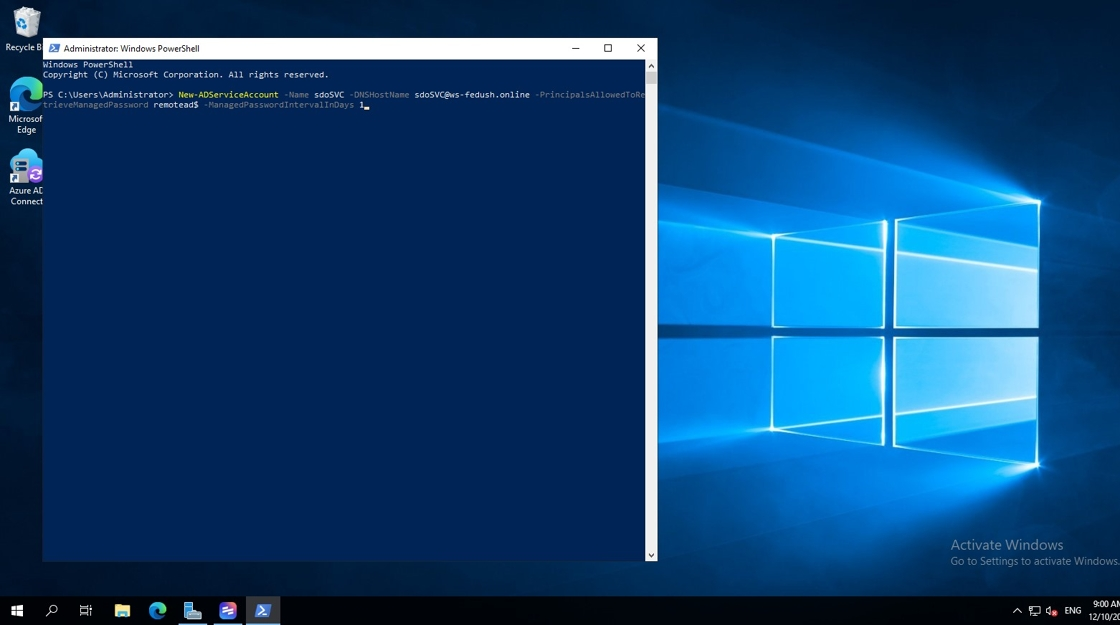
Stage 2 – Grant Required Permissions
3
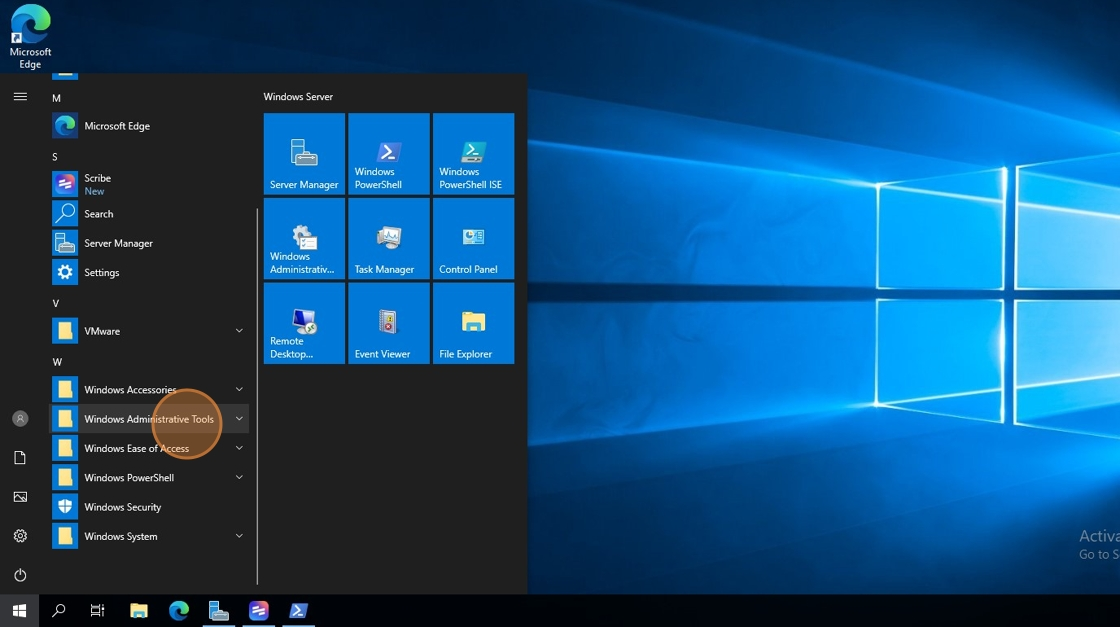
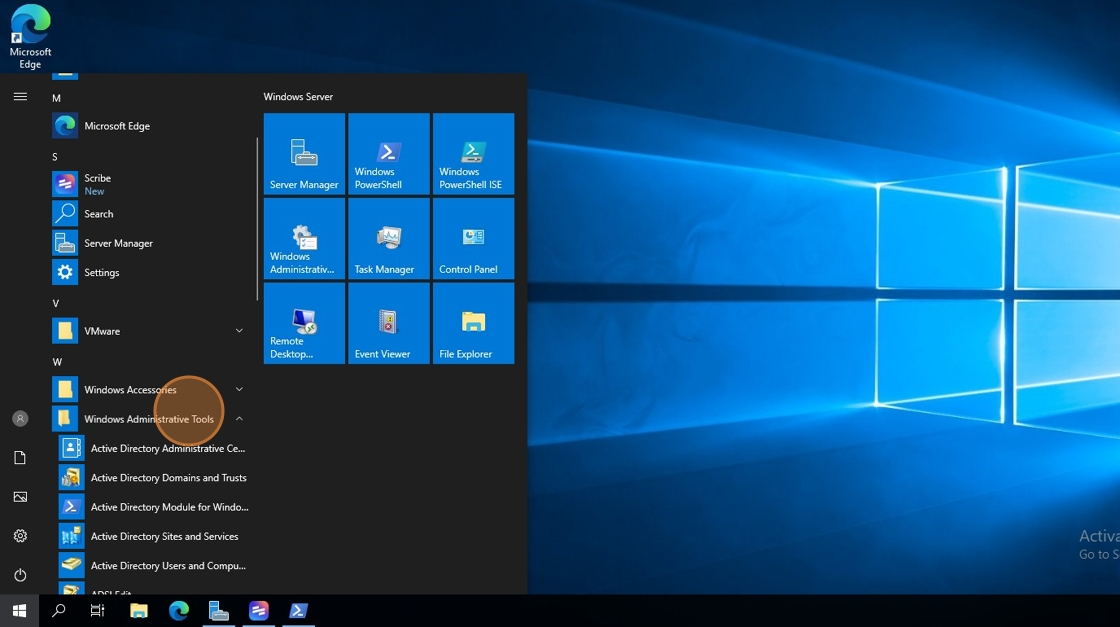
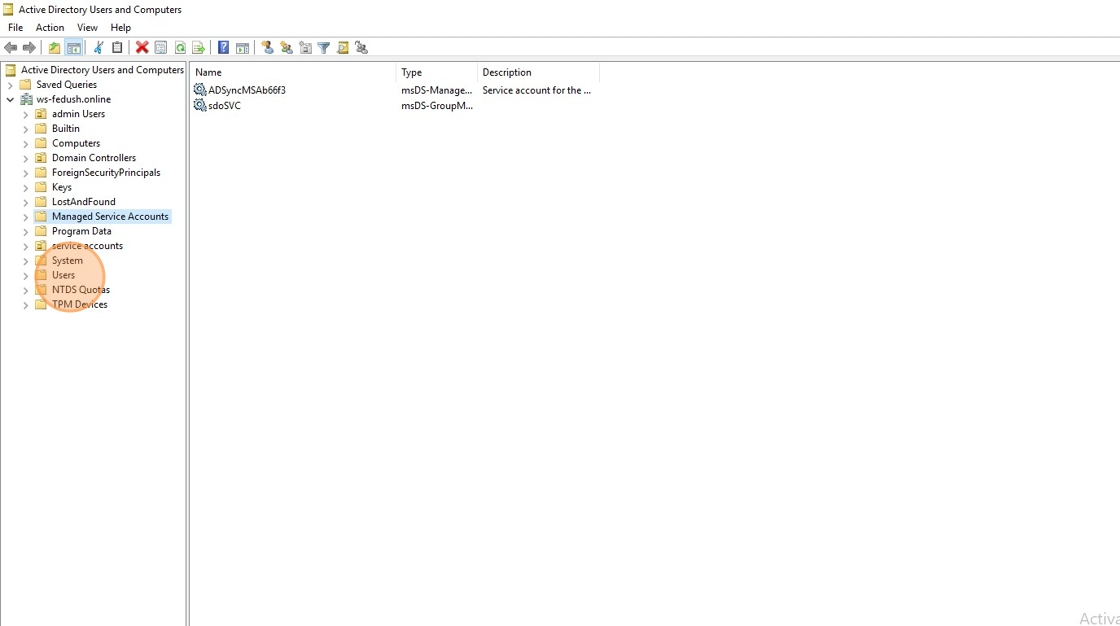
Open Active Directory Users and Computers
- Open Windows Administrative Tools
- Click Active Directory Users and Computers
- Go to Users
4
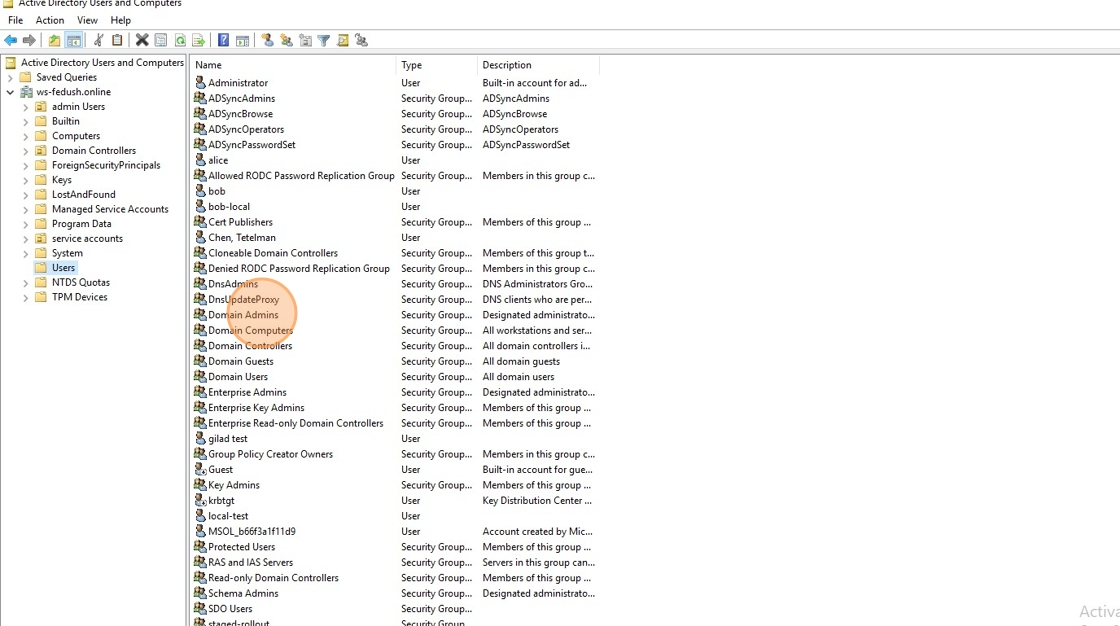
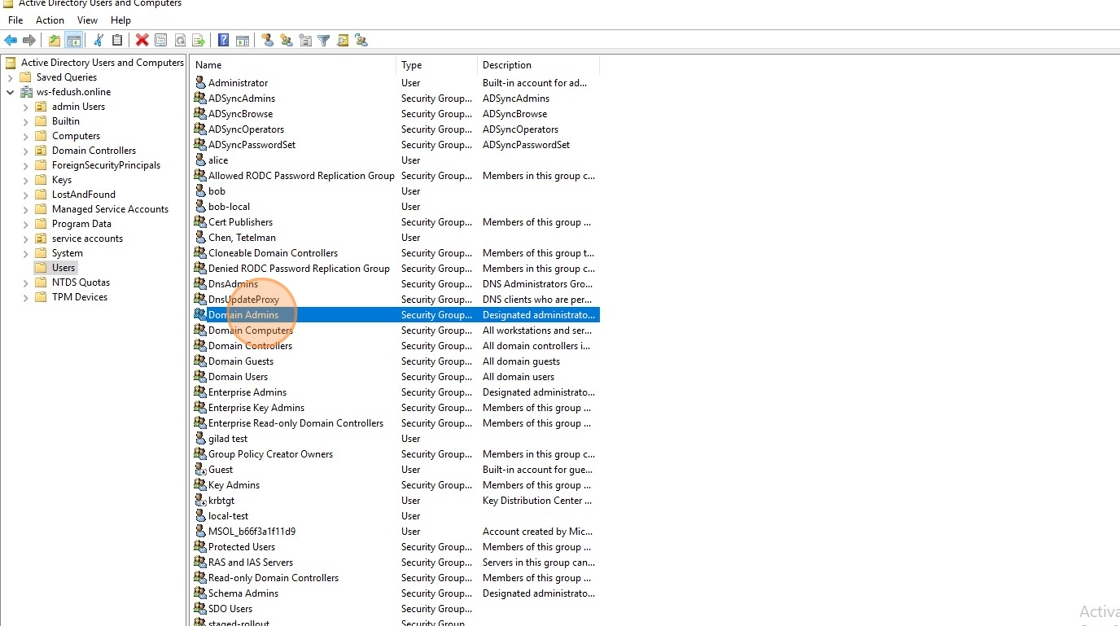
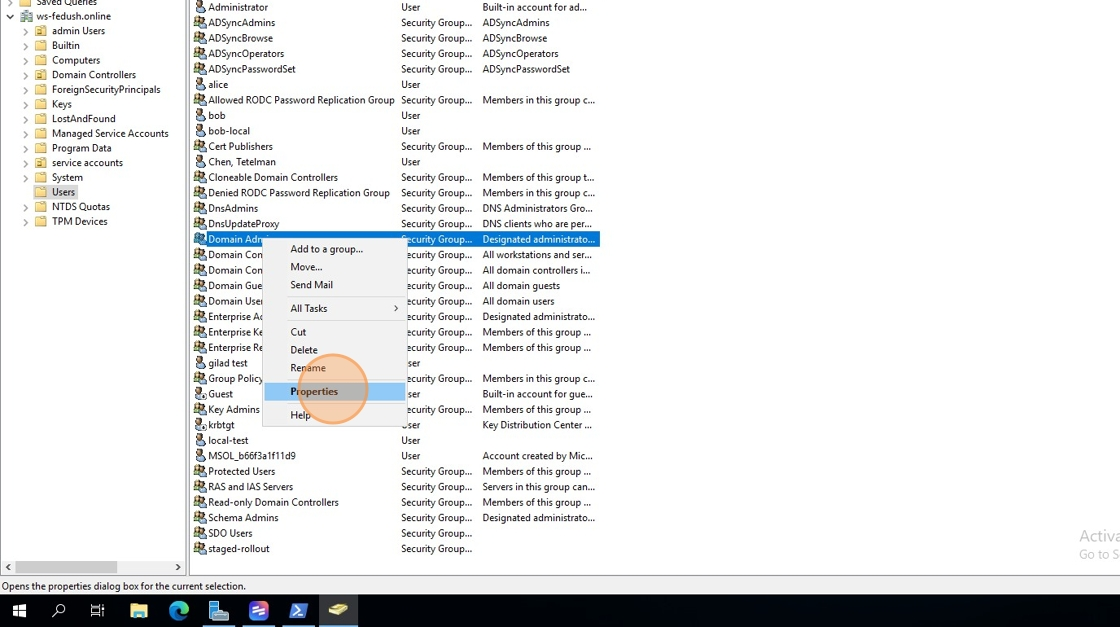
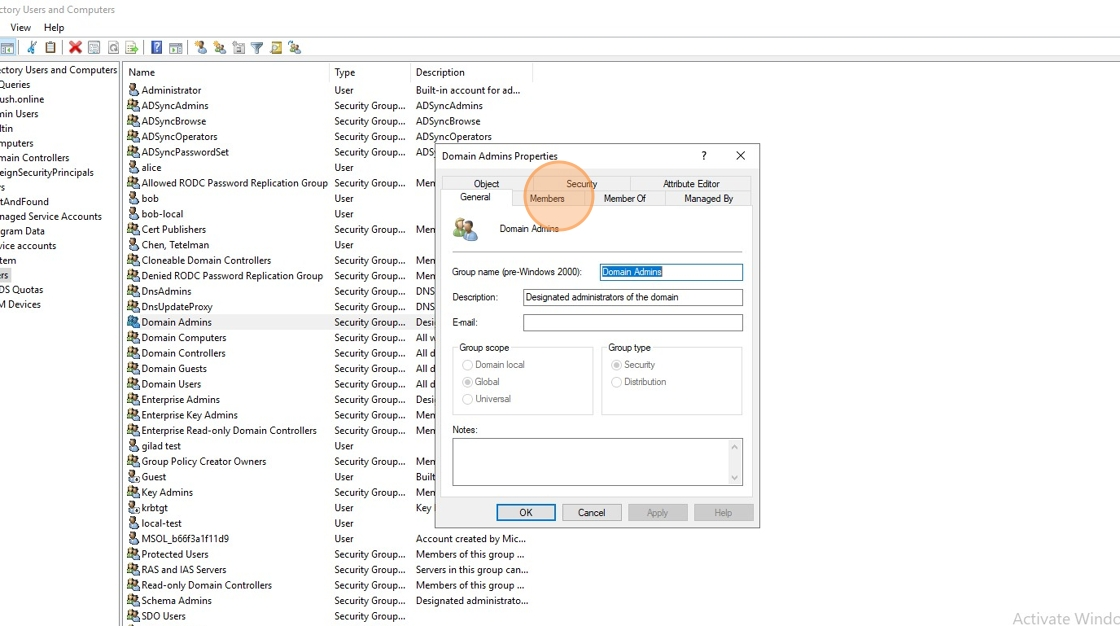
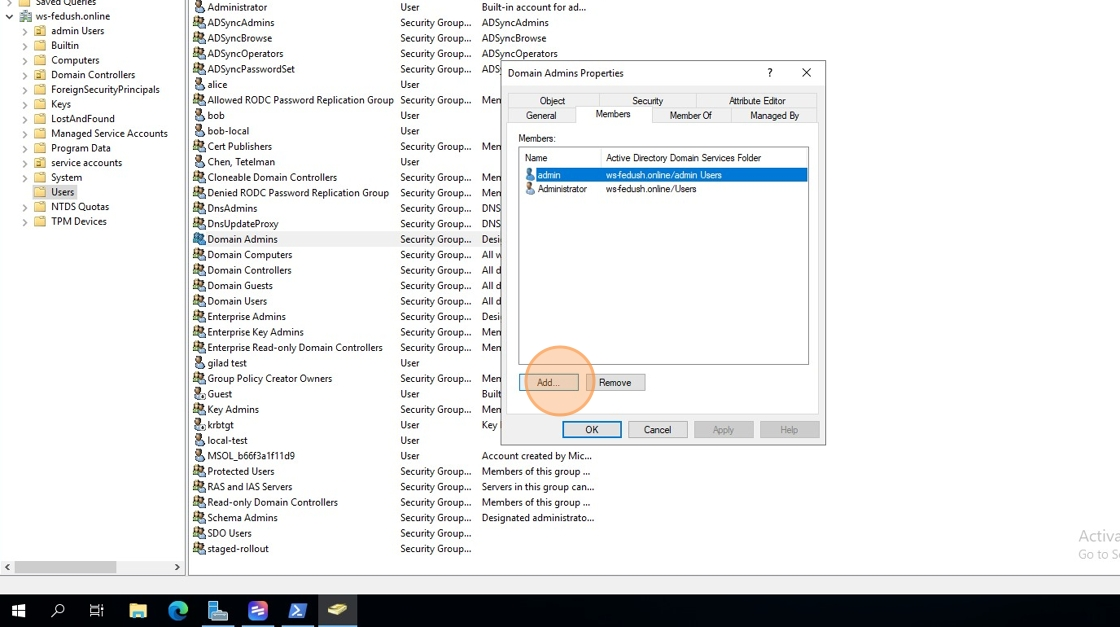
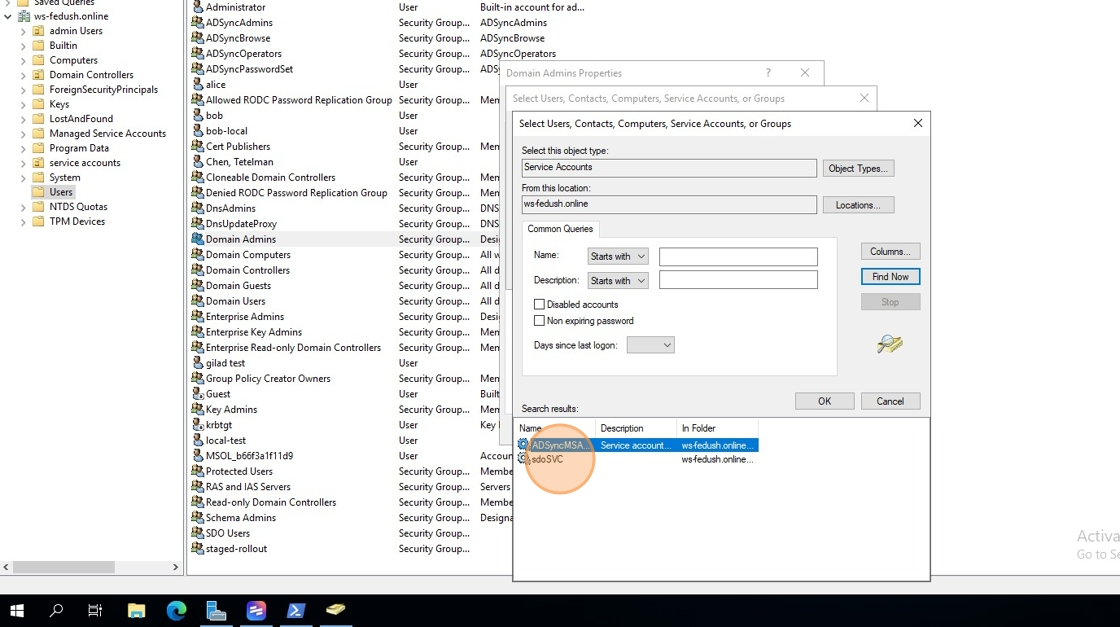
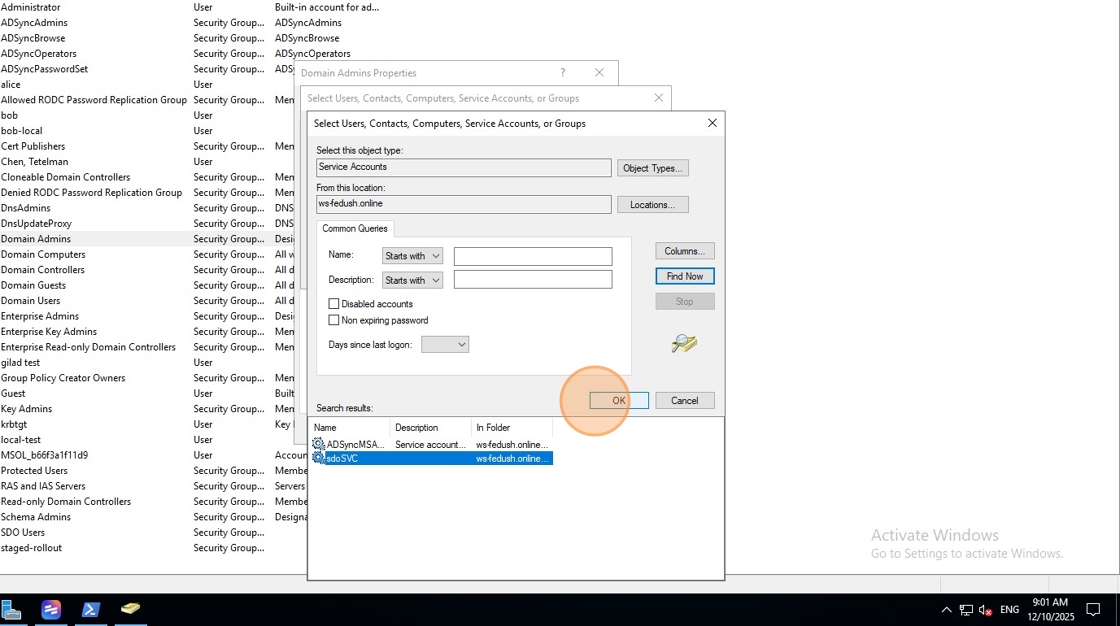
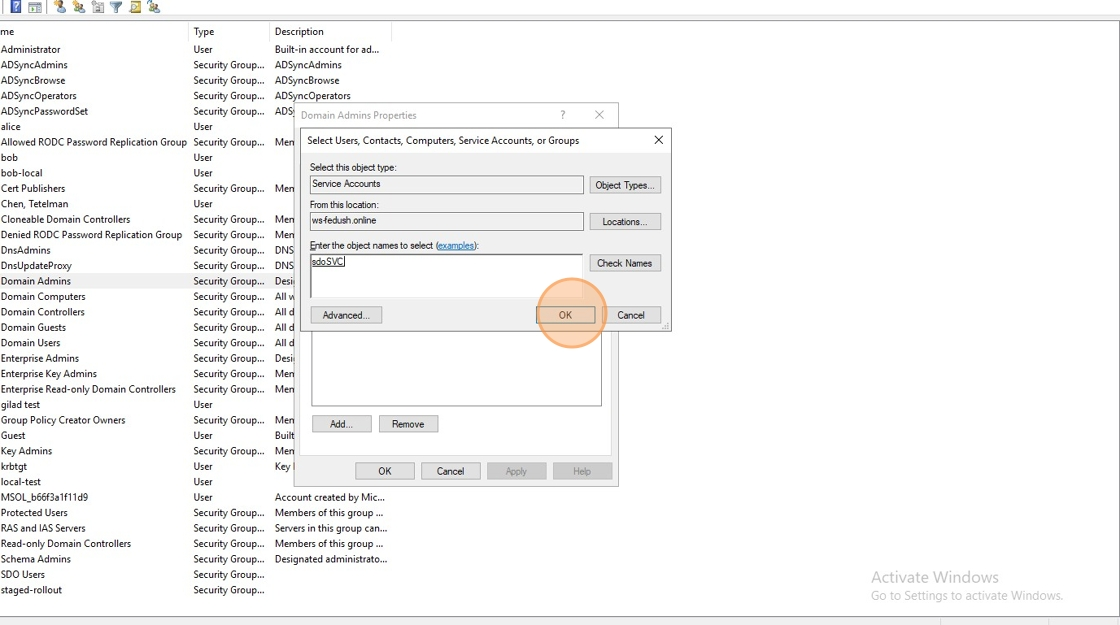
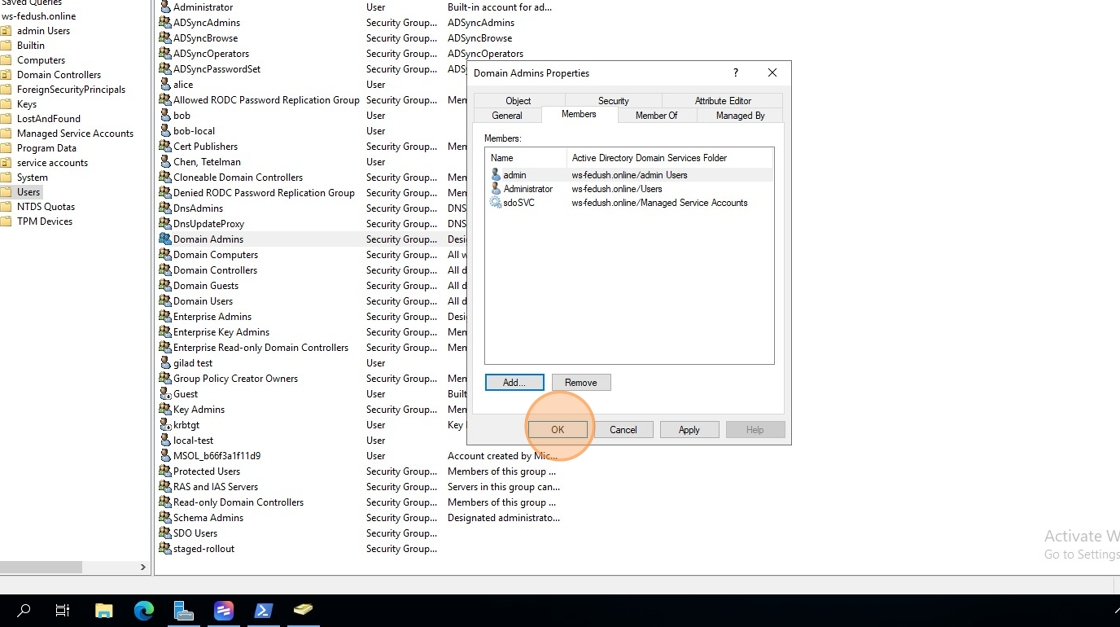
Add the MSA to Domain Admins
- Open Domain Admins → Properties
- Go to Members
- Click Add and add the Managed Service Account you created
- Click OK until all dialogs are closed
✅ This matches the steps in your MSA procedure document.
Stage 3 – Install Octopus Remote AD Agent
5
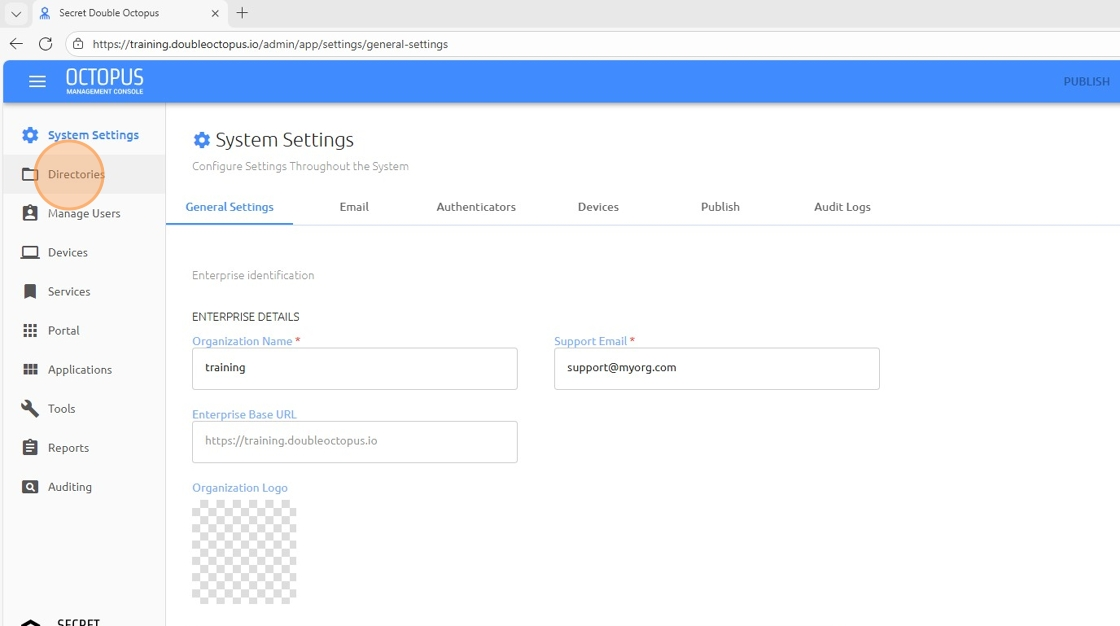
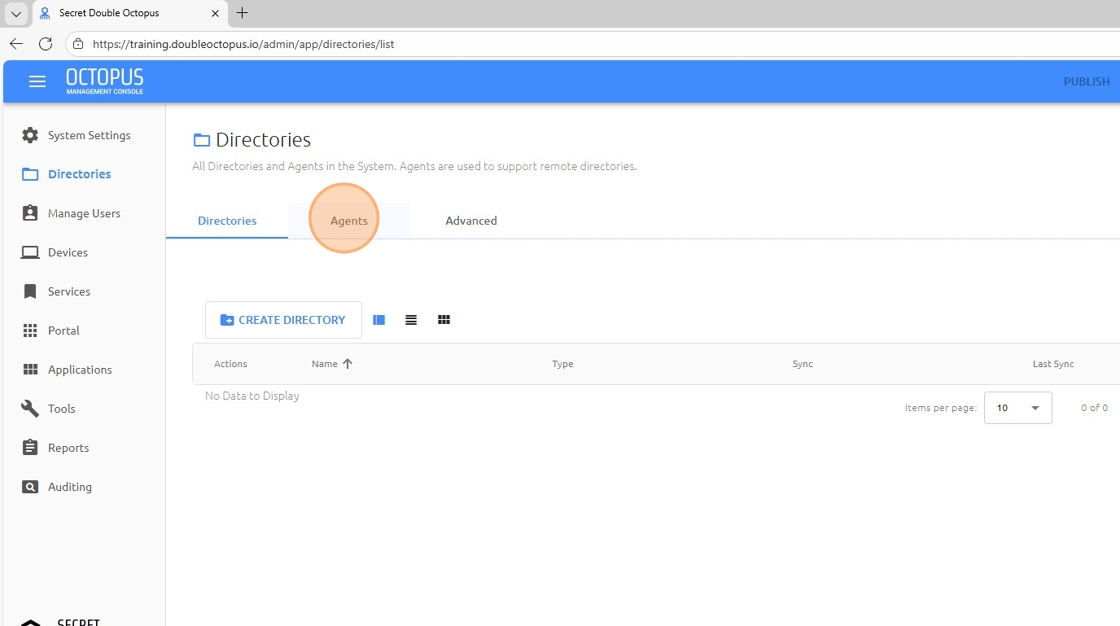
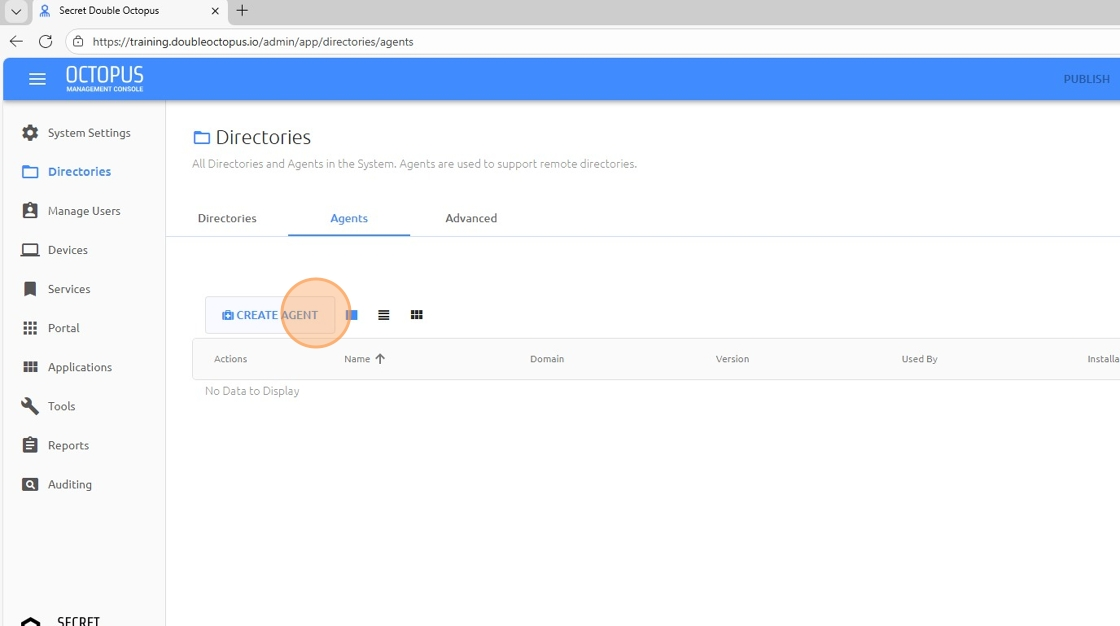
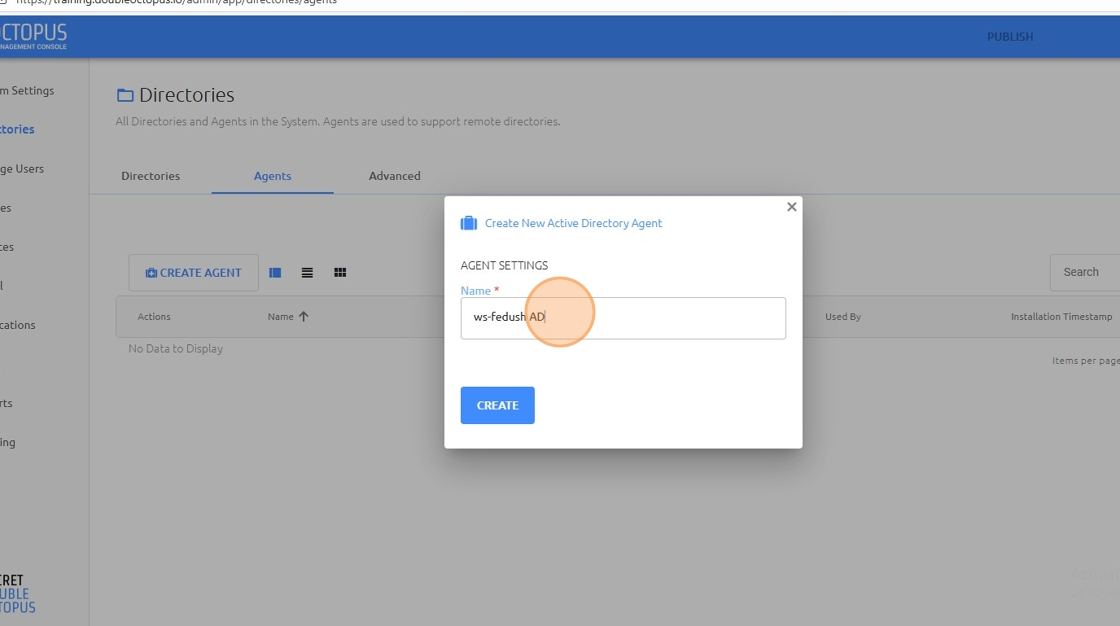
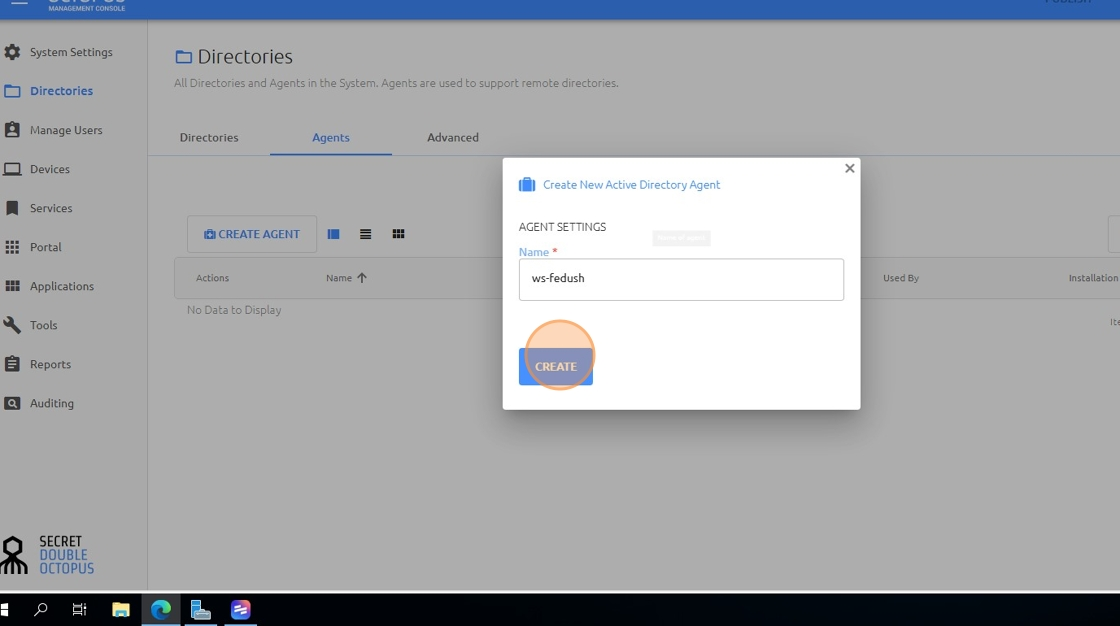
Create a new Remote AD Agent in the Admin Portal
- Click Directories
- Click Agents
- Click CREATE AGENT
- Give the agent a name
- Click CREATE
6
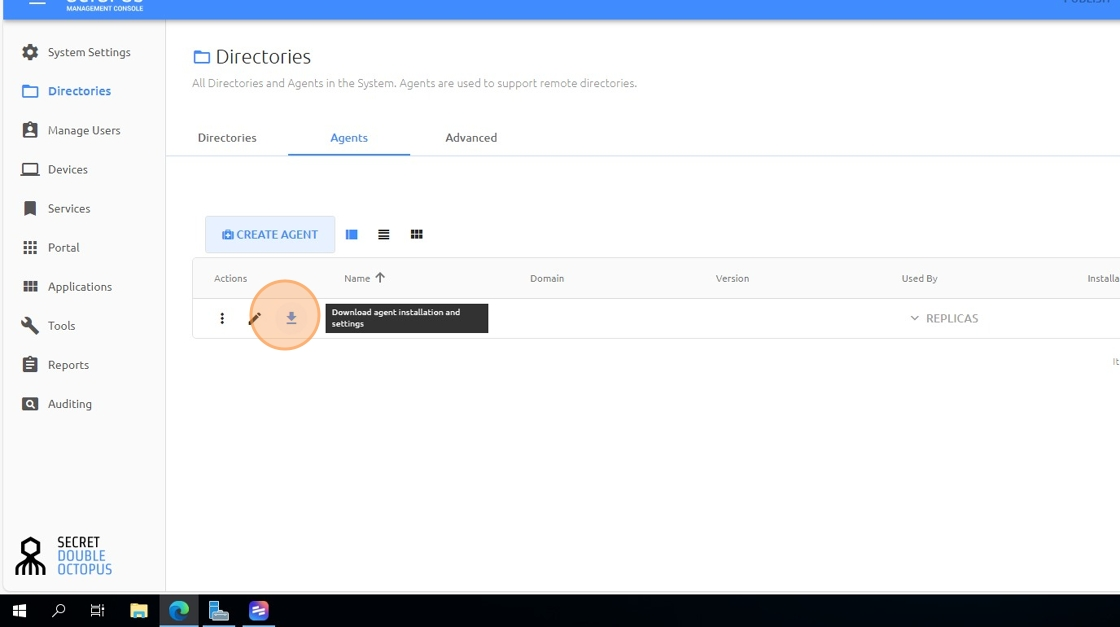
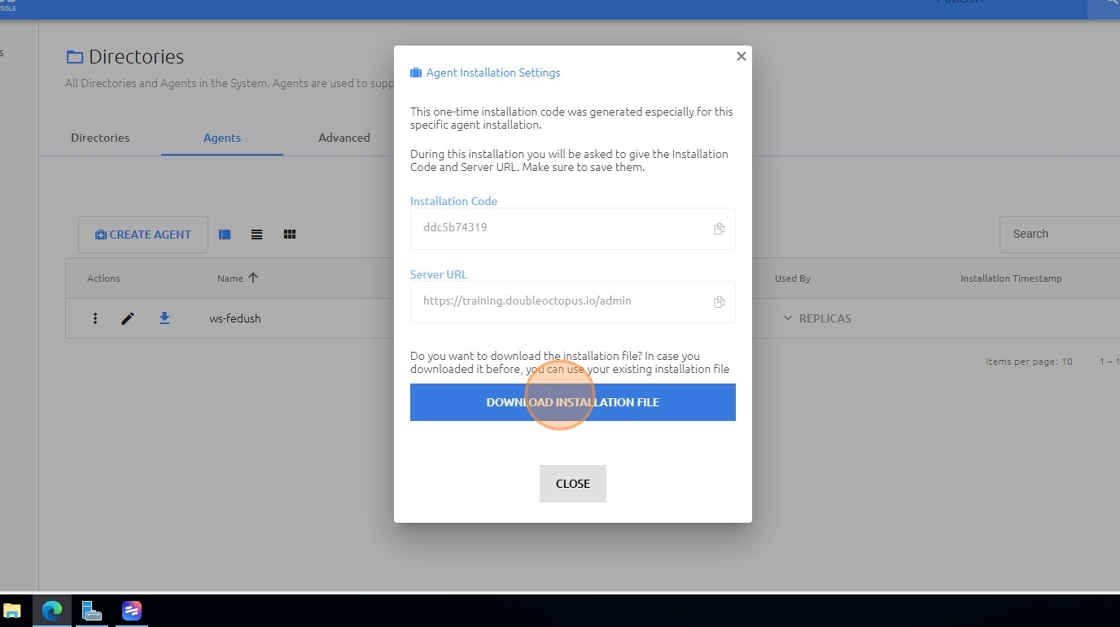
Download the installation file
- Click the Download icon next to the agent
- Click DOWNLOAD INSTALLATION FILE
7
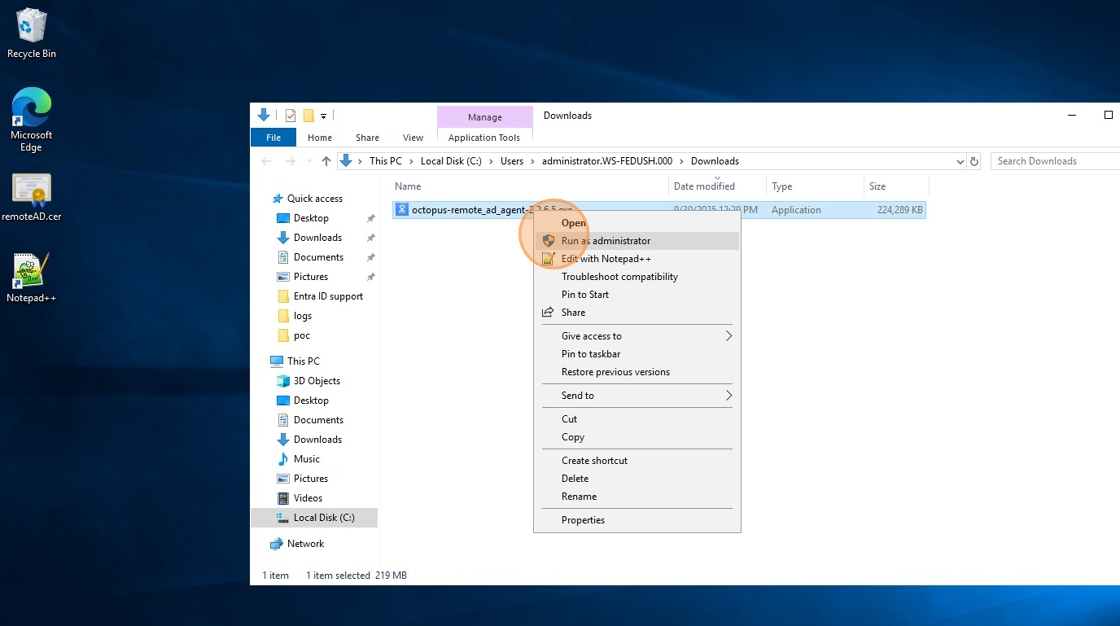
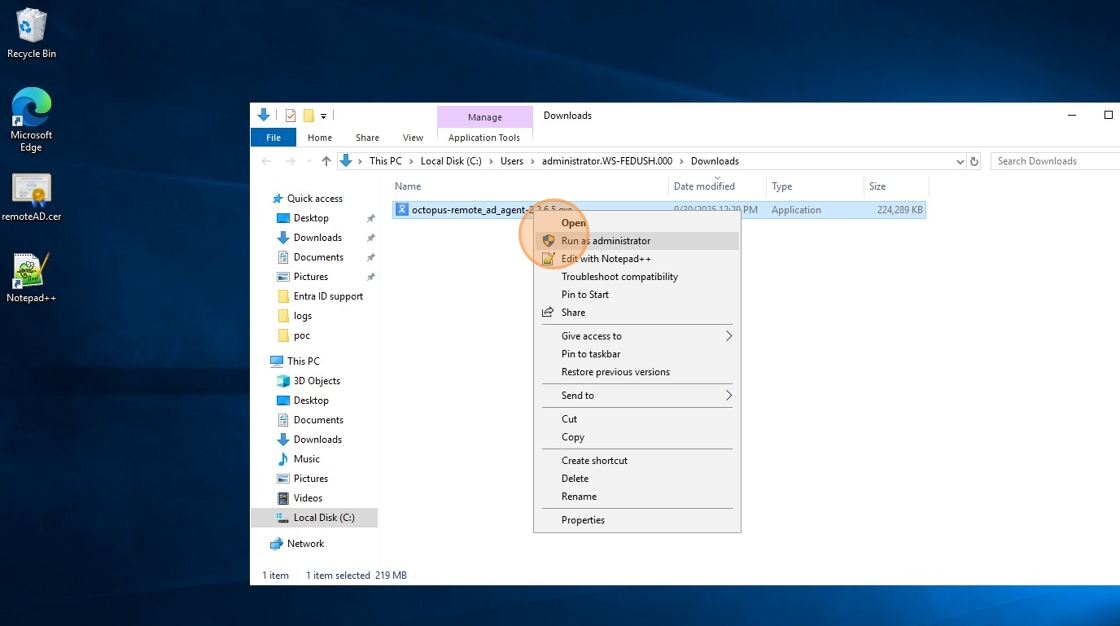
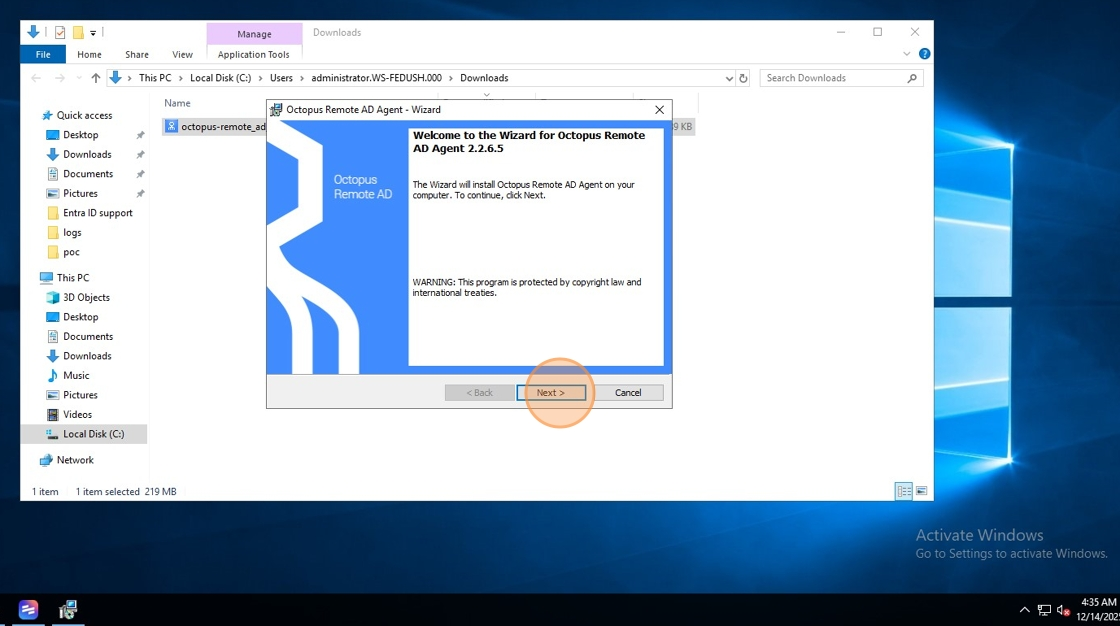
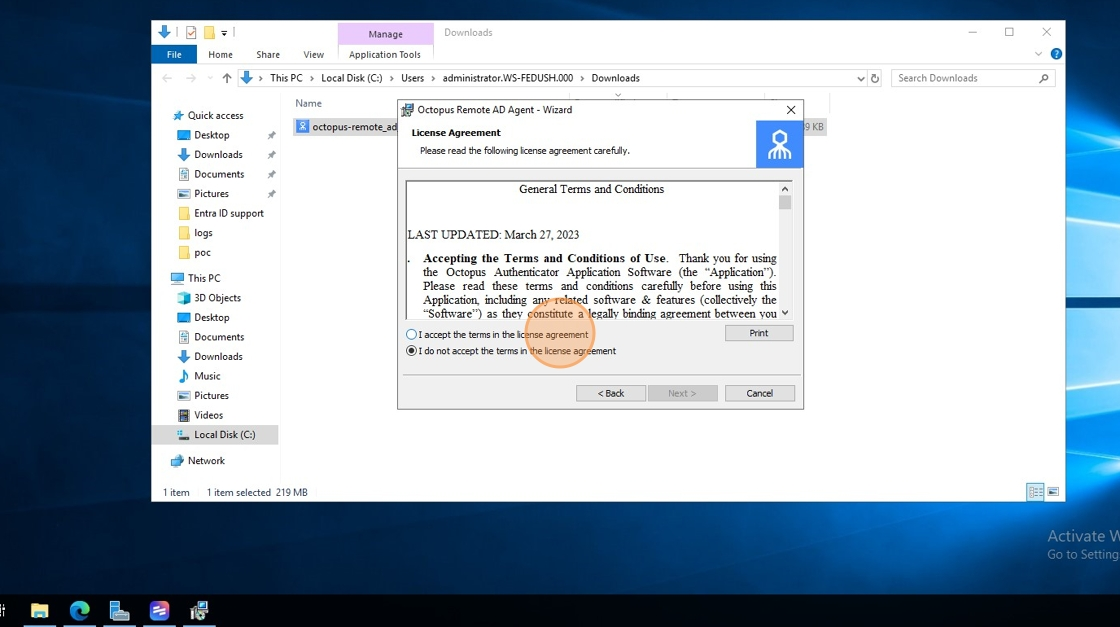
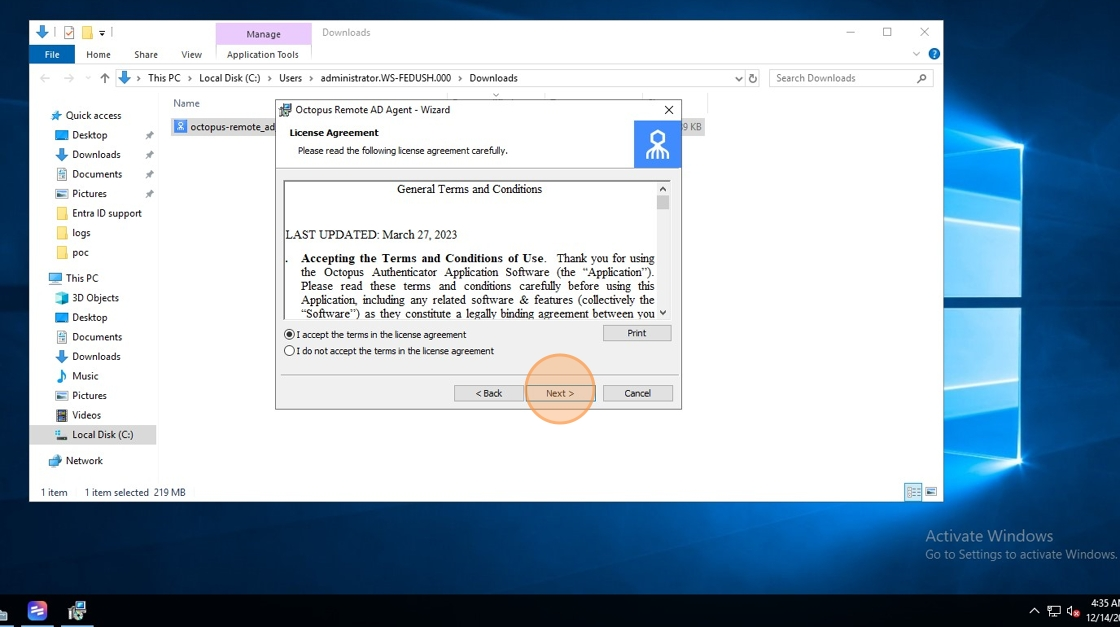
Run the installer and enter the installation details
- Run the installer as Administrator
- Click Next
- Accept the license agreement and click Next
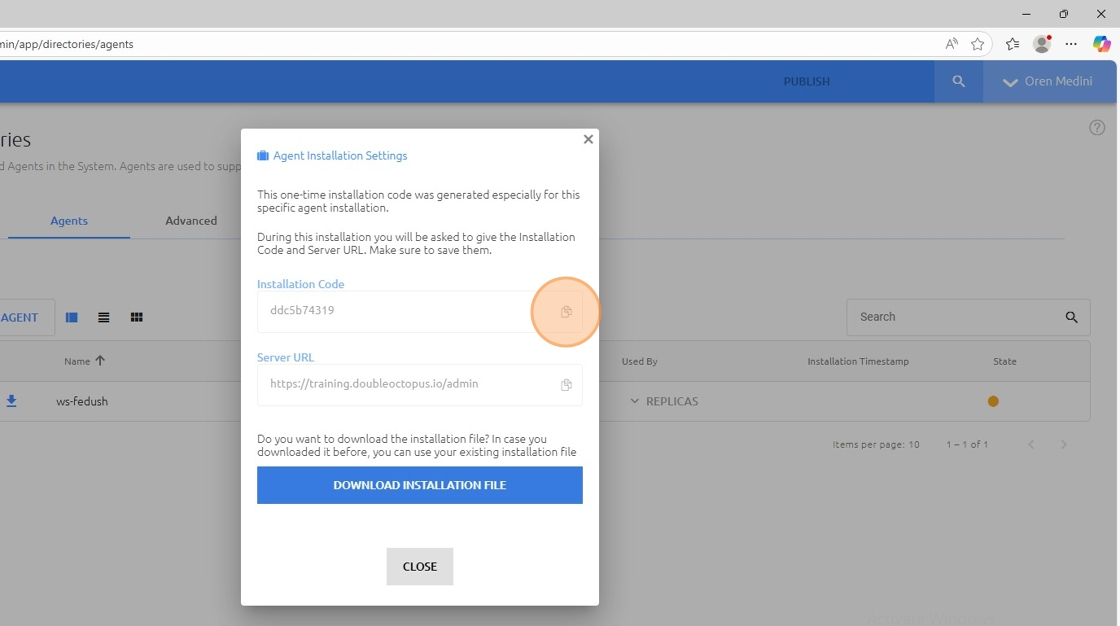
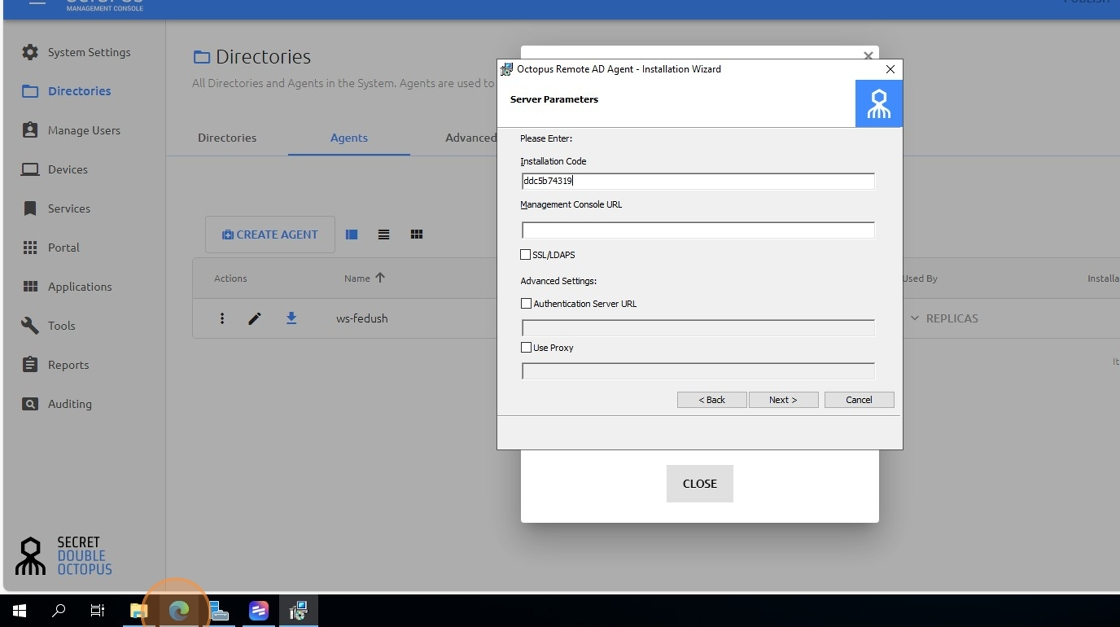
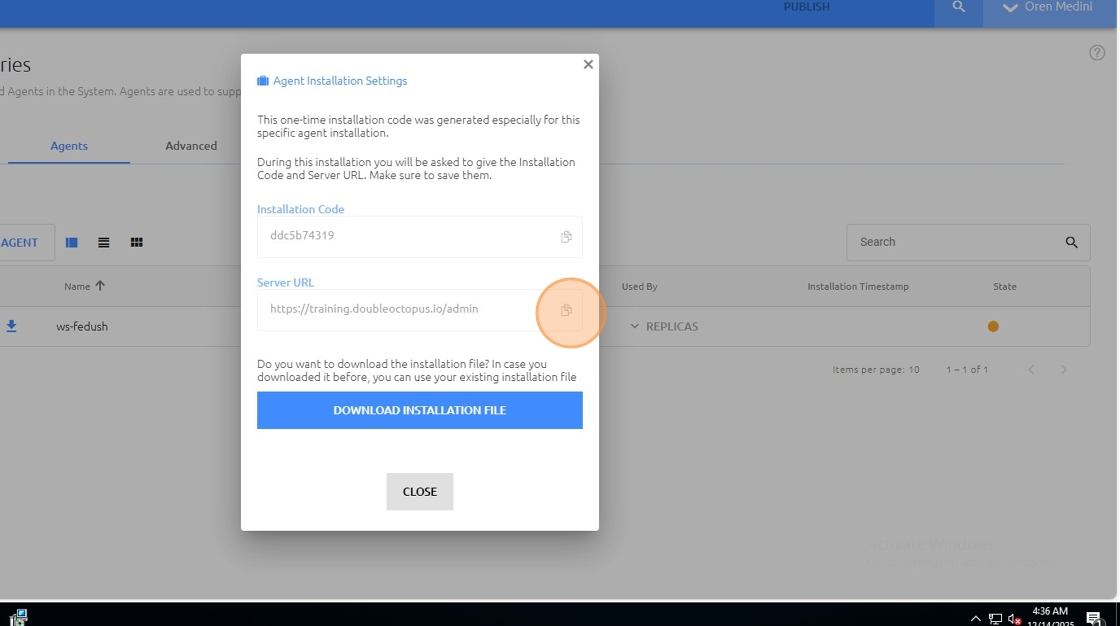
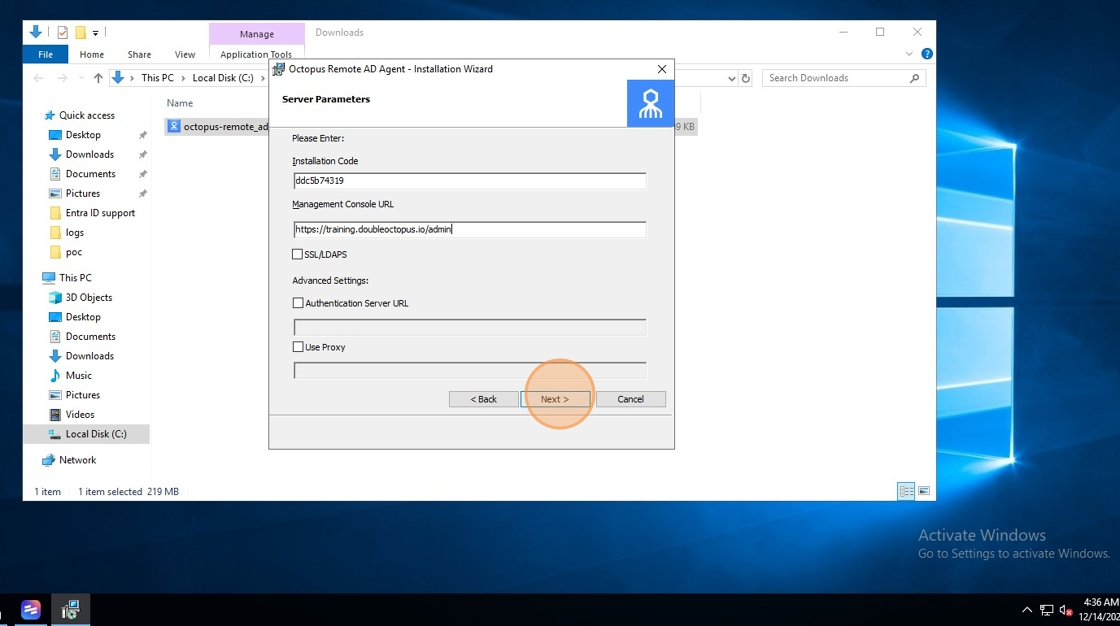
- Copy the Installation Code from the portal and paste it into the installer
- Copy the Server URL from the portal and paste it into the installer, then click Next
⚠️ Make sure you copy the Installation Code and Server URL from the Agent page in the portal.
8
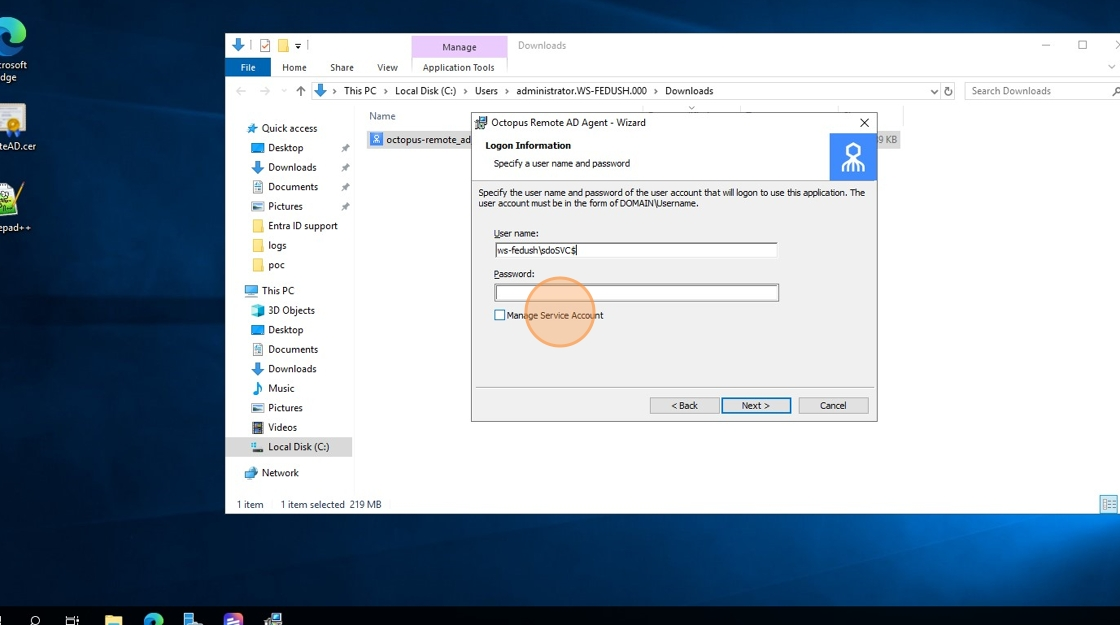
Configure the agent service account (Managed Service Account)
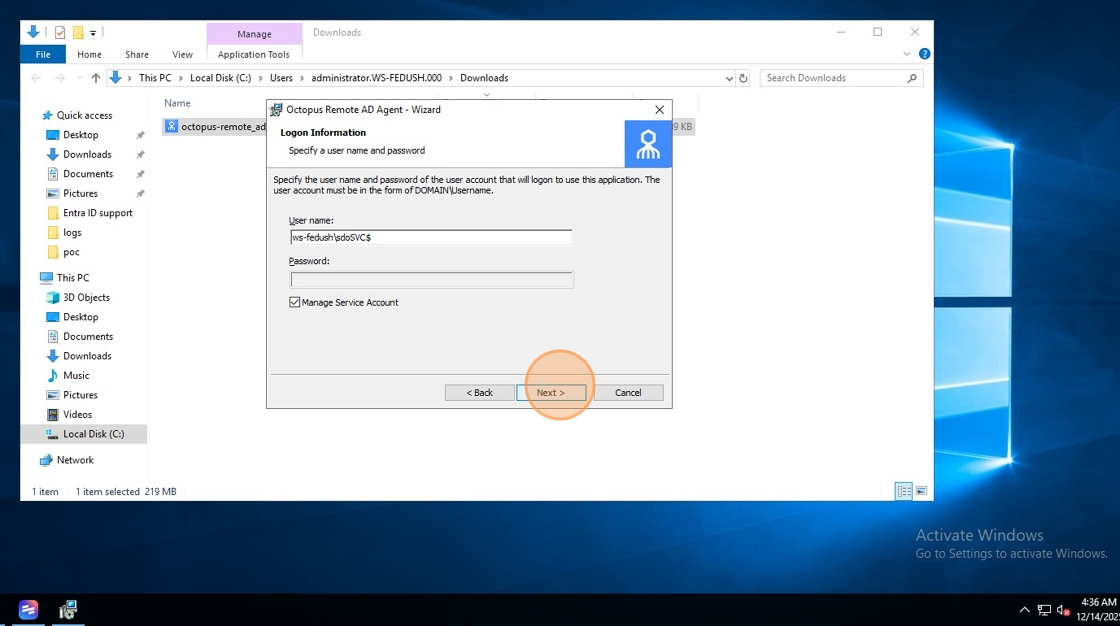
- Type the Managed Service Account in this format:
domain\MSA$
- Check Manage Service Account
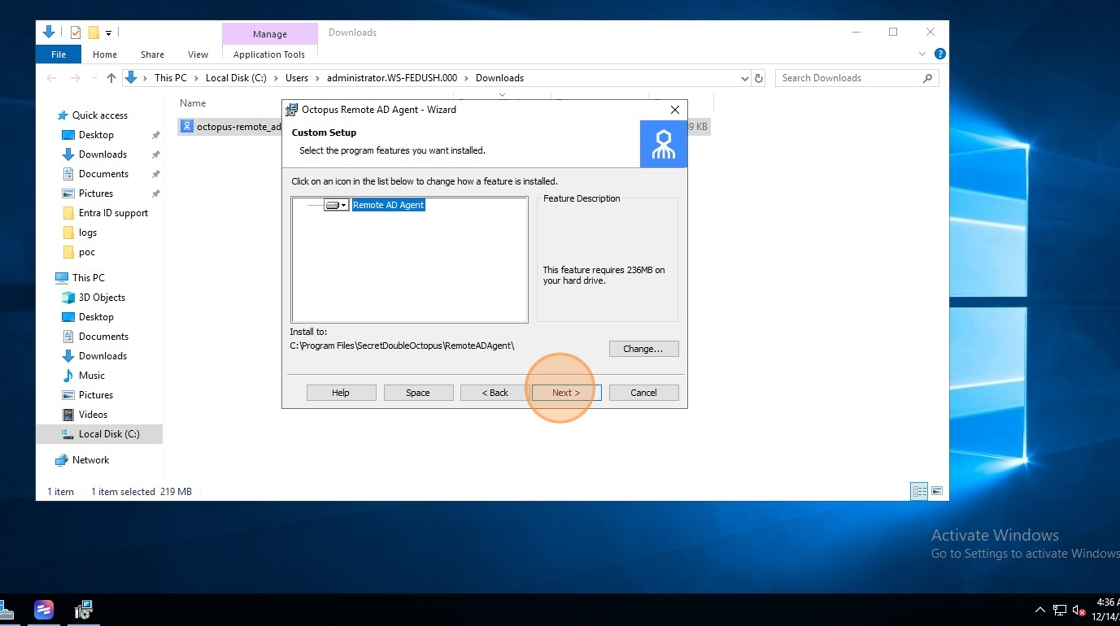
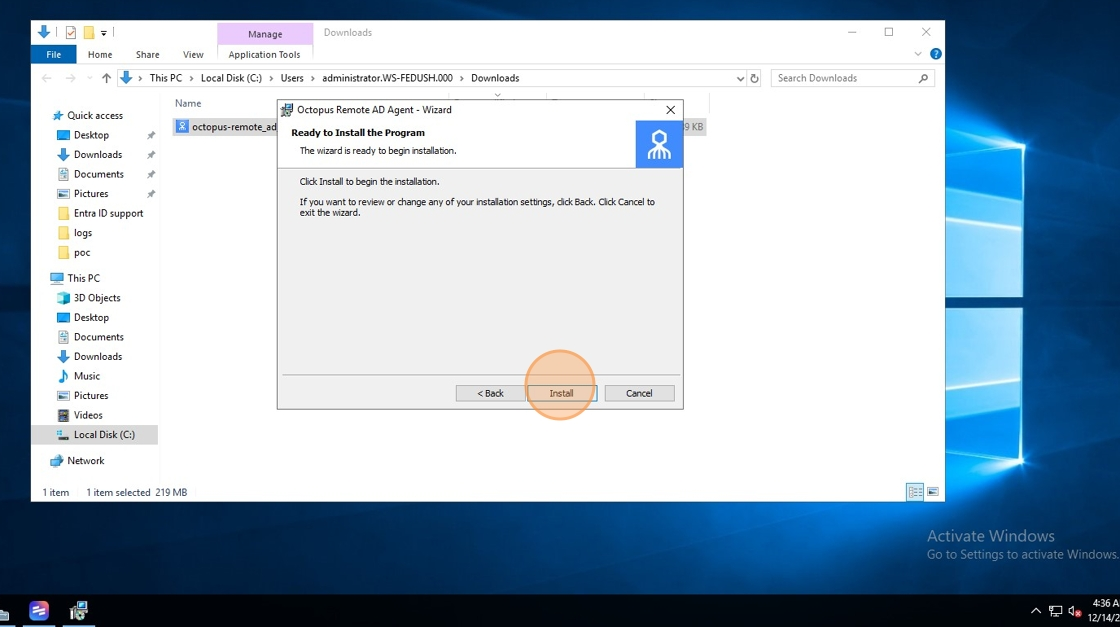
- Click Next → Next → Install
Stage 4 – Sync Users from Active Directory
9
Authenticate with Octopus Authenticator
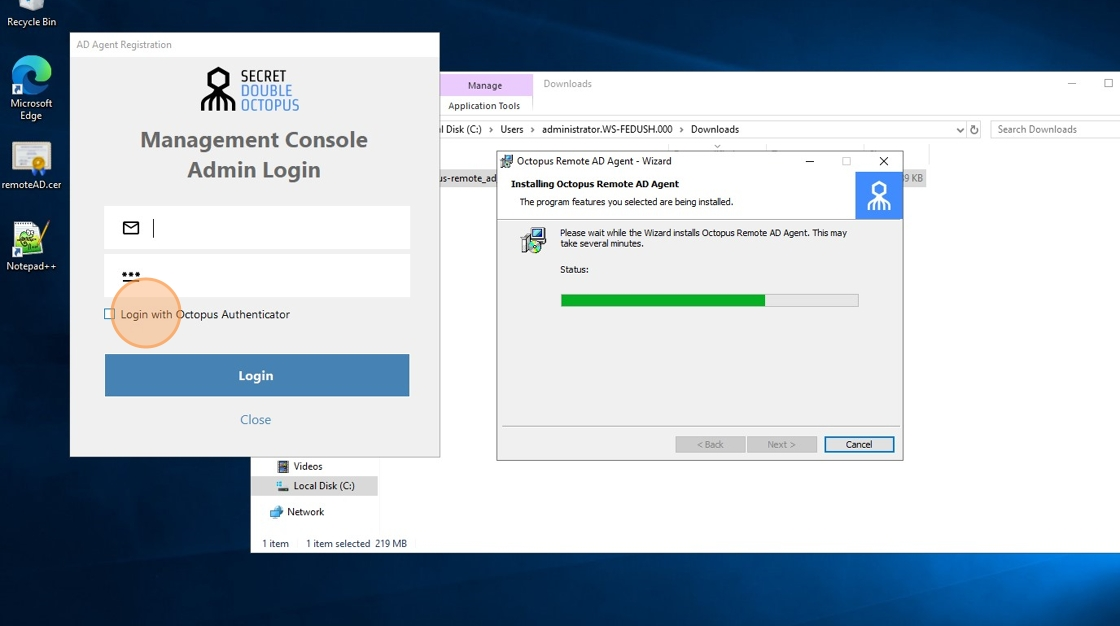
- Click Login with Octopus Authenticator
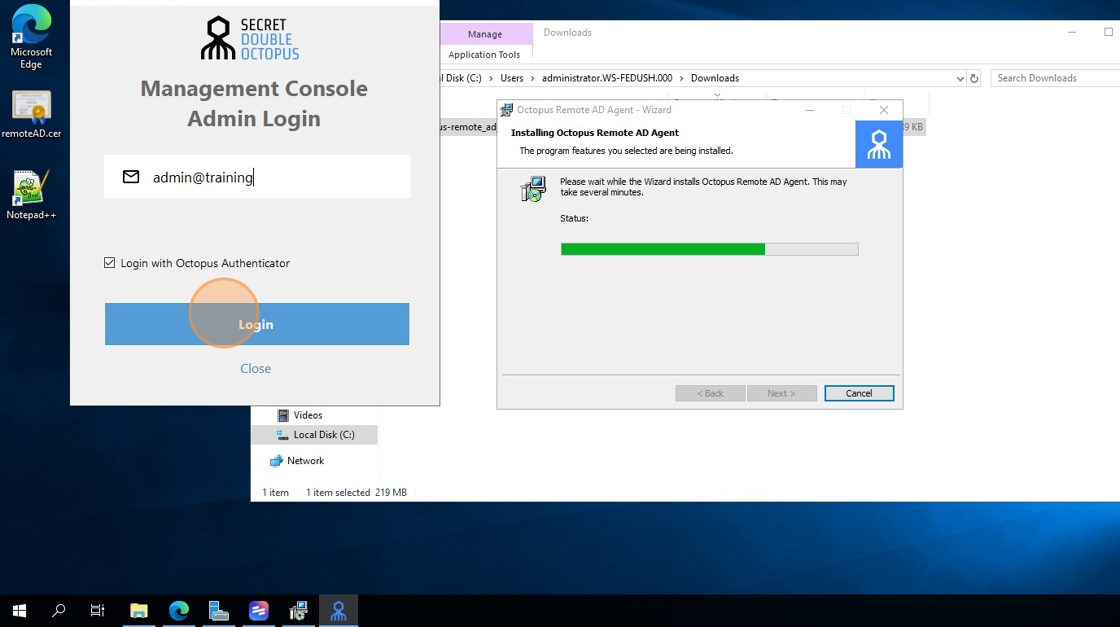
- Type the admin username, click Login, and approve the authentication from the mobile device
10
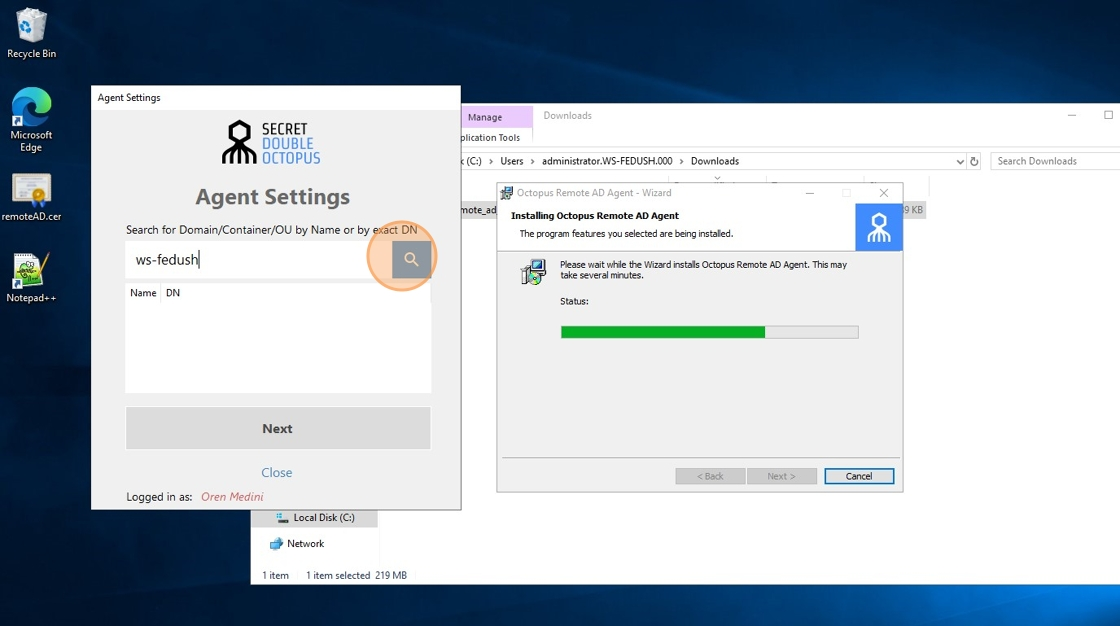
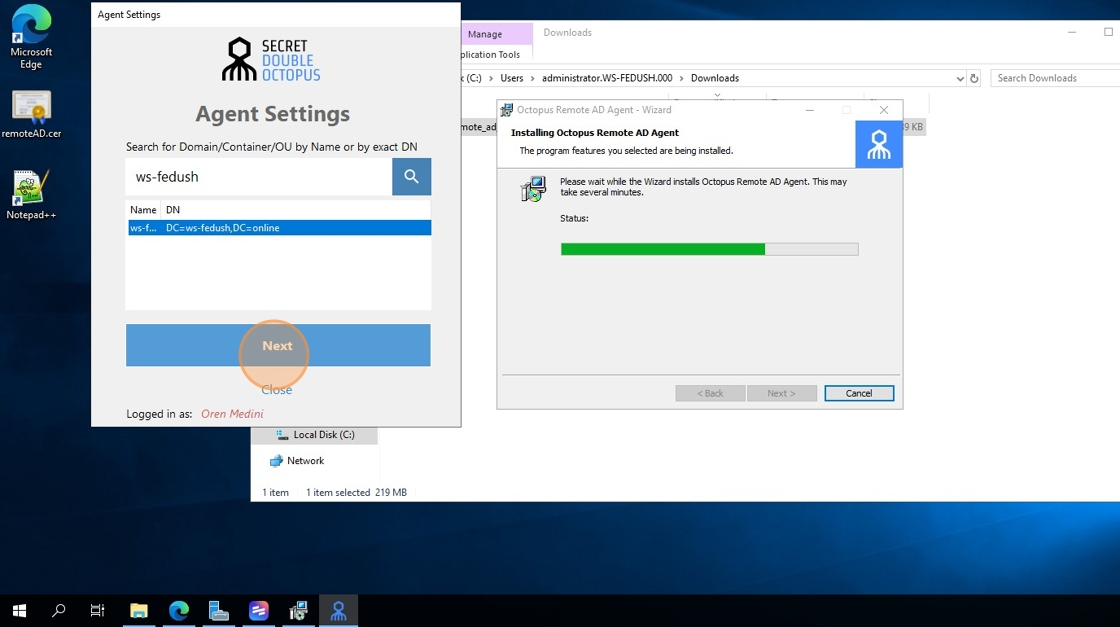
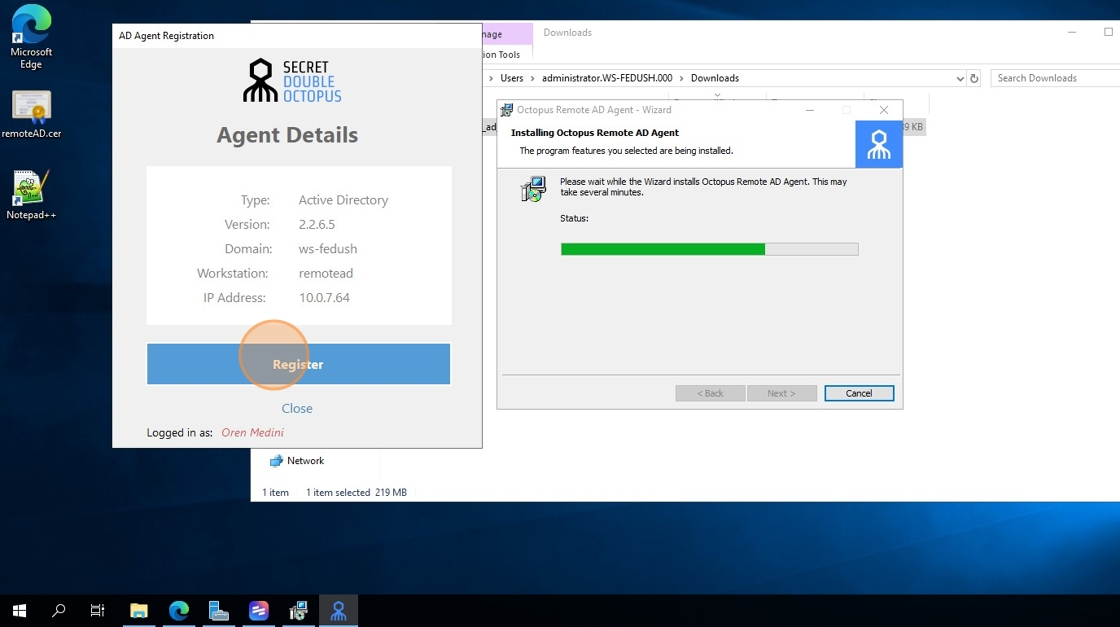
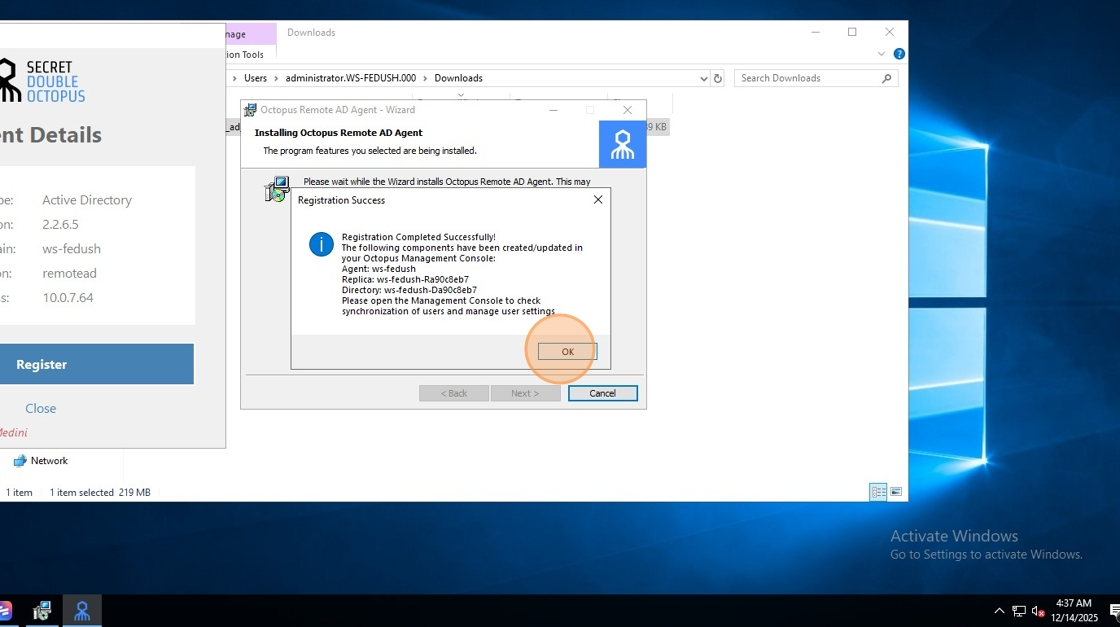
Select Domain / OU and register
- Type the Domain or OU and click Search
- Select the Domain/OU and click Next
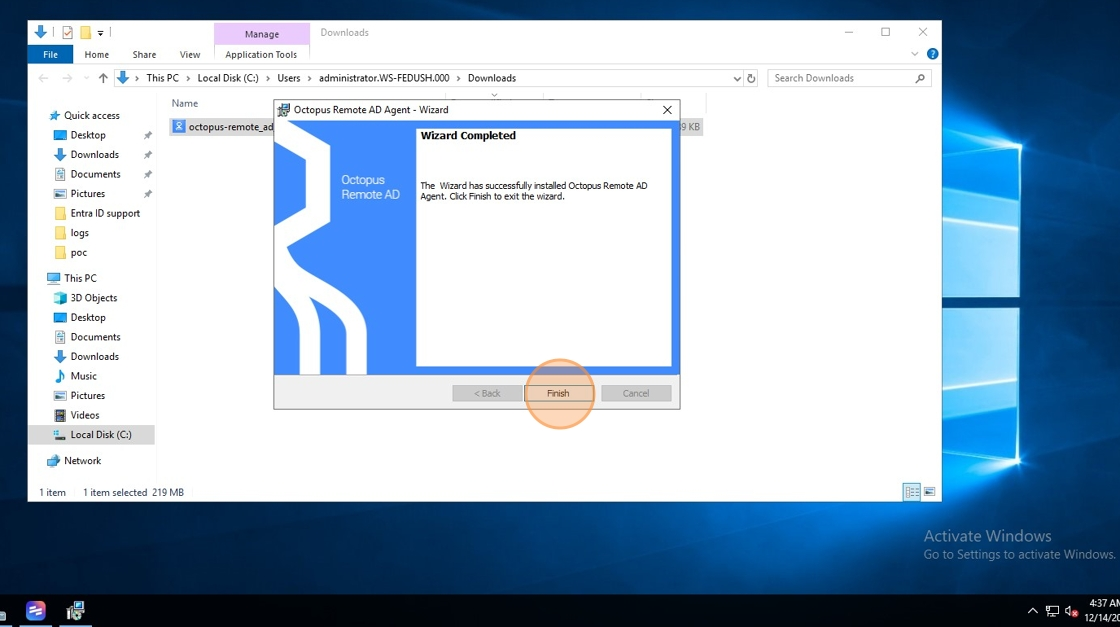
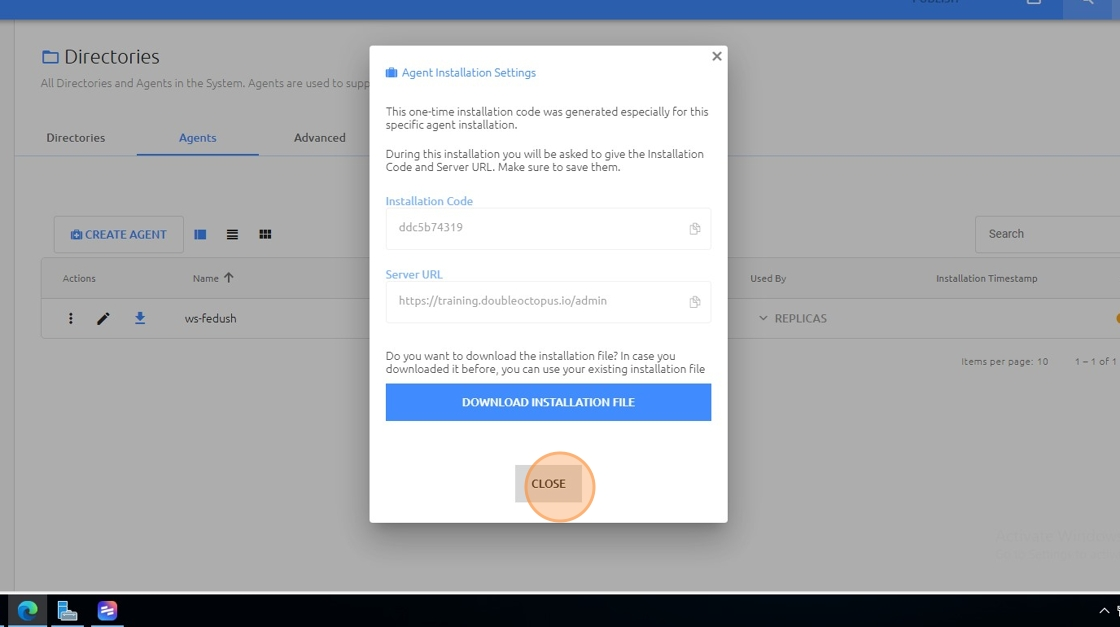
- Click Register → OK → Finish → CLOSE
11
Verify connection, sync, publish, and validate users
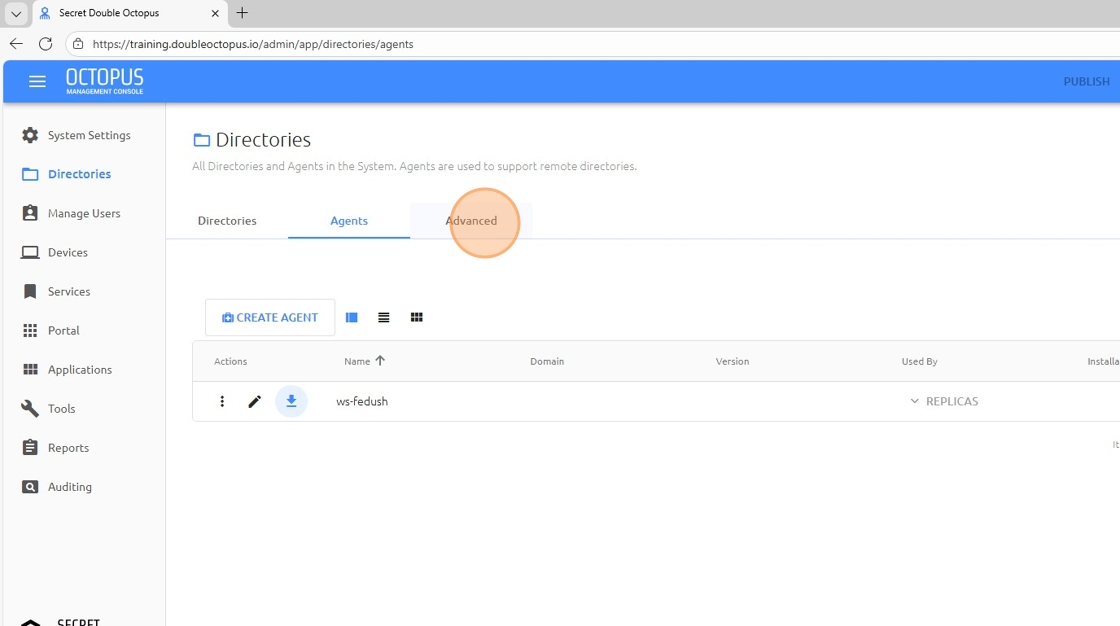
- Click Advanced
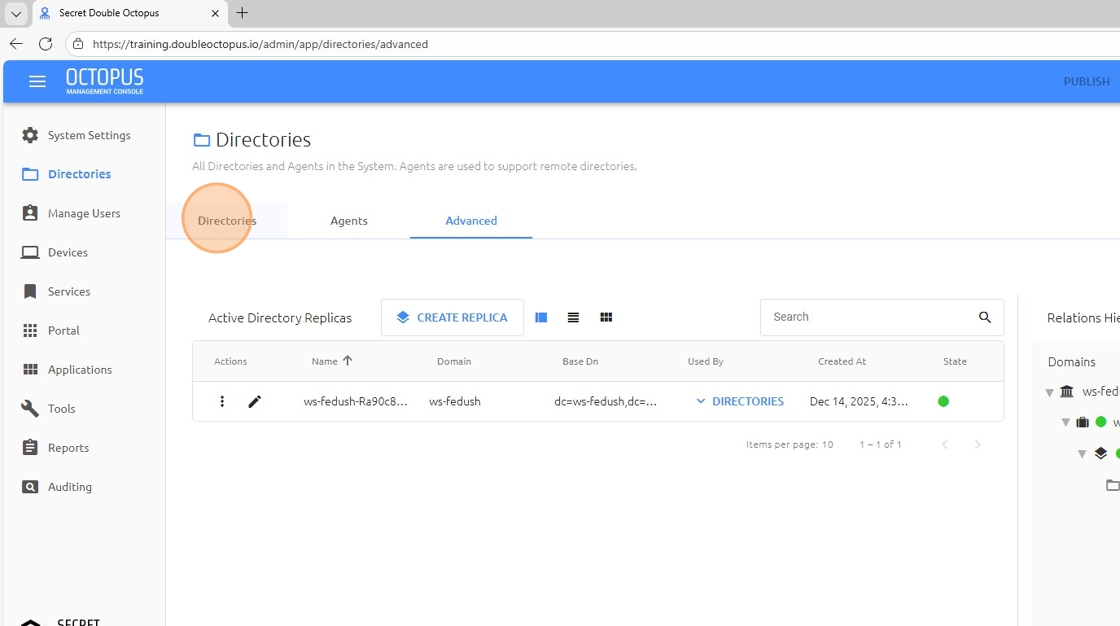
- Verify that the connection is in Green state and return to Directories
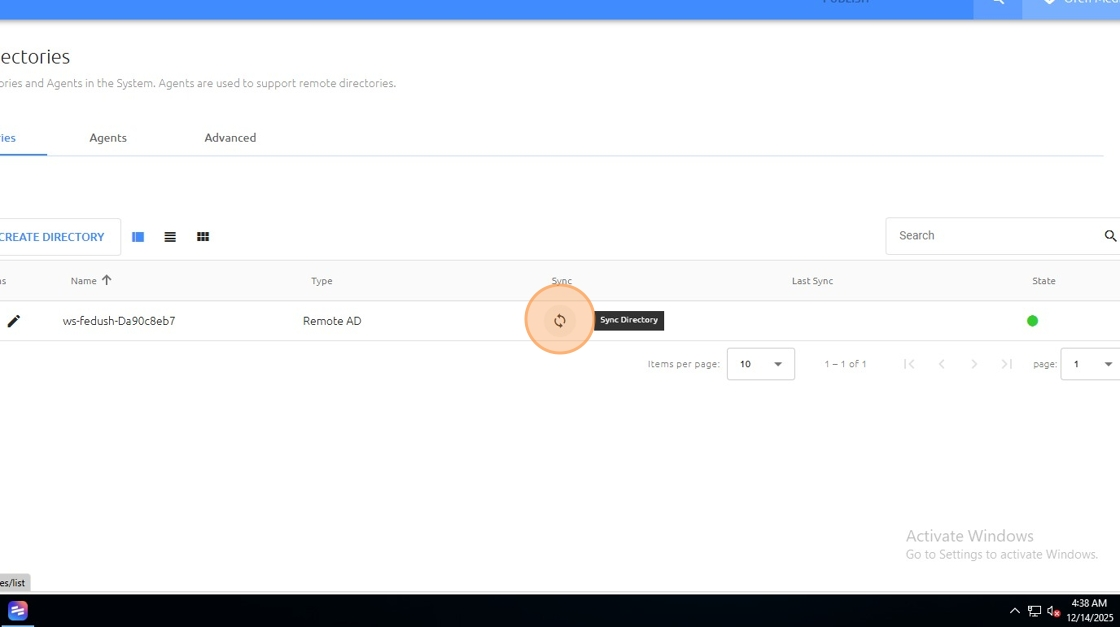
- Click sync
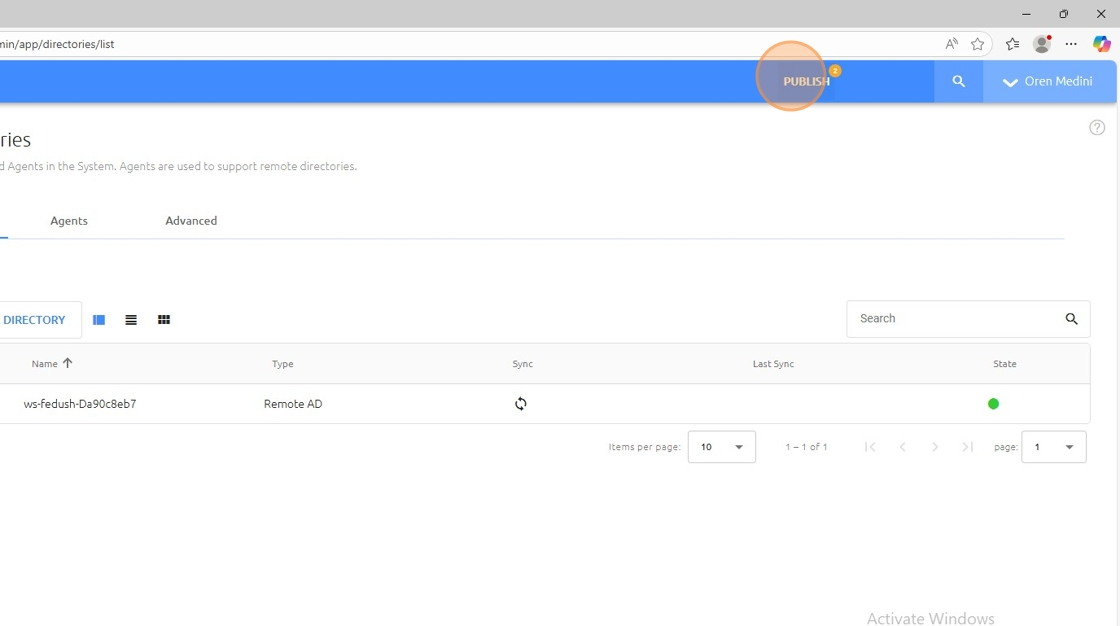
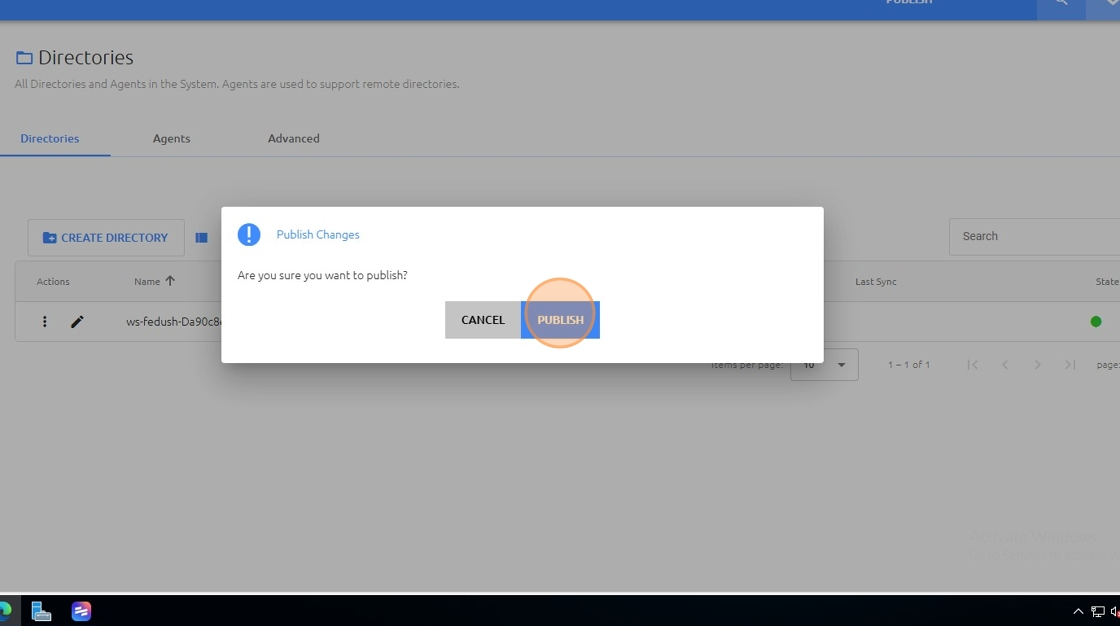
- Click PUBLISH twice (publish + confirmation)
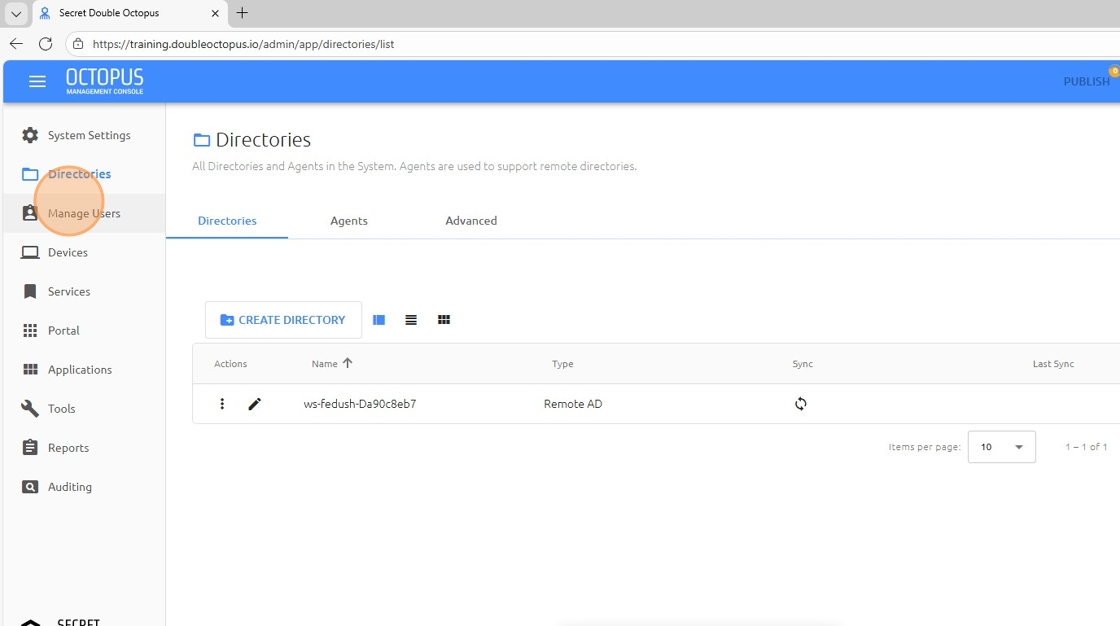
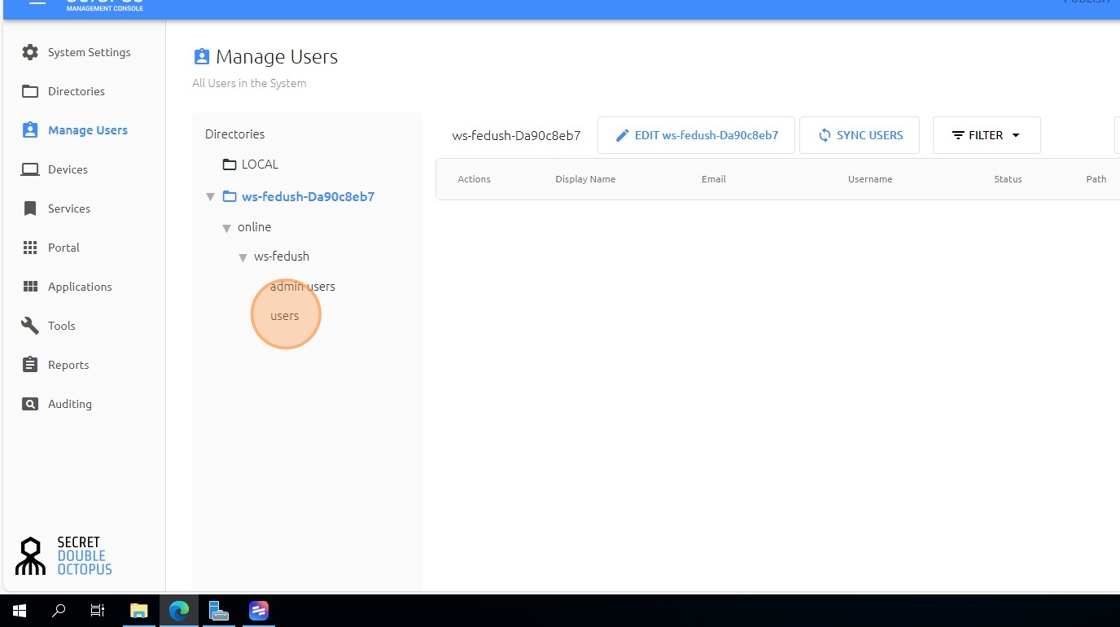
- Click Manage Users and confirm that the users are synced
✅ Green status confirms the agent is connected and ready to sync.
Validation Checklist
Use the checklist below to confirm the Remote AD Agent is installed correctly and that directory synchronization is working as expected.
| ✅ | Remote AD Agent service is running |
| ✅ | Test-ADServiceAccount succeeds on the agent server |
| ✅ | Directory sync completes successfully |
| ✅ | Users appear in Octopus and match the expected OU scope |
Troubleshooting
MSA fails to work on the agent server
Confirm the agent server computer account matches the one allowed to retrieve the managed password (
Confirm the agent server computer account matches the one allowed to retrieve the managed password (
remotead$ in the example), and check DNS + time sync.Sync is empty / missing users
Verify the selected OUs, and ensure the users exist in those OUs. Re-run sync after changing scope.
Verify the selected OUs, and ensure the users exist in those OUs. Re-run sync after changing scope.
Agent can’t reach the portal
Check outbound connectivity, proxy requirements, and TLS inspection policies.
Check outbound connectivity, proxy requirements, and TLS inspection policies.