Secret Double Octopus conducts strong authentication without passwords, thereby eliminating user frustration (caused by using complex passwords) and reducing support costs around password changes. Organizations gain the benefits of high assurance and credential control across domain accounts, VPN, cloud applications and legacy apps.
This document describes the procedures and functionalities for installation and operation of the Octopus Authenticator Mobile App, including:
Secret Double Octopus Mobile Authentication
The mobile device appears to be an ideal authenticator. However, first generation attempts at mobile authentication suffered from a single point of failure. One example was the reliance on SMS for authentication, which was proven to be easily hackable. Furthermore, the same held true for other approaches (keys, push notifications, etc.).
Secret Double Octopus introduced the industry’s first authenticator with multi-shield authentication for devices and users. The solution is flexible enough to support any desktop, backend application, VPN or cloud services, and focuses on the most seamless user experience possible.
Security benefits of the Secret Double Octopus solution include:
Resilient, multi-shield device authentication: Secret Double Octopus presents a unique Secret Sharing cryptographic algorithm, resilient to unlimited computing power. The device is authentication through multiple routes, thus avoiding a single point of hacking.
Complete multi-factor with biometrics: The Octopus Authenticator utilizes biometric systems such as Touch ID and FIDO, as well as identity access management systems like Active Directory to conduct complete multi-factor verification in a single solution.
Avoidance of MiTM Attacks and SSL manipulations: A random AES256 key is delivered to the device using Secret Sharing for symmetric encryption, eliminating MITM and eavesdropping attacks.
Hardened Mobile App: The Octopus Authenticator Mobile App includes the following protections against cyber-attacks:
Binary obfuscation
Root/Jailbreak detection
Anti-Tampering
Code injection protection
Device ID pinning
MiTM protection
Backup protection
Encrypted file system
The Octopus mobile solution supports the following authentication methods:
Push authentication
Secure OTP authentication
Apple Watch authentication (Push + OTP)
BLE authentication (for offline scenarios)
AAL3 BLE authentication
Show Credentials (in the event that no other options are available, users can enter the temporary password)
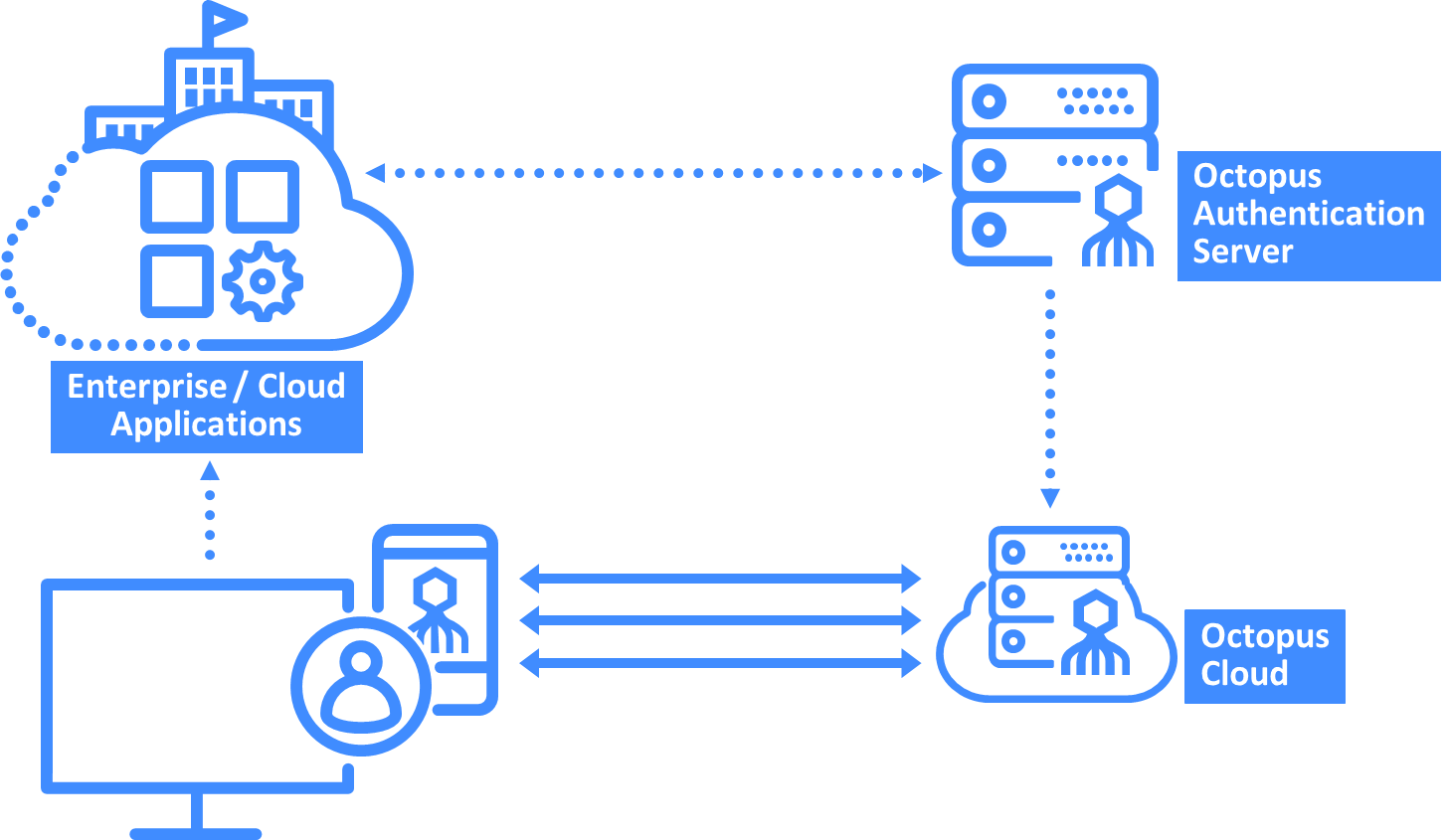
System Architecture
The solution architecture is outlined in the following diagram:
 |
The Octopus Authenticator Mobile App can be downloaded from the Apple App Store or Google Play.

Supported Devices
iOS mobile devices with iOS 15 and above (iPhone 7 or later)
Apple Watch (with iOS 10 and above)
Android devices with Android 11 and above
The Octopus Authenticator App requires pre-enrollment to enable users to authenticate and approve transactions. The process of enrolling a user with a specific device is simple and secured.
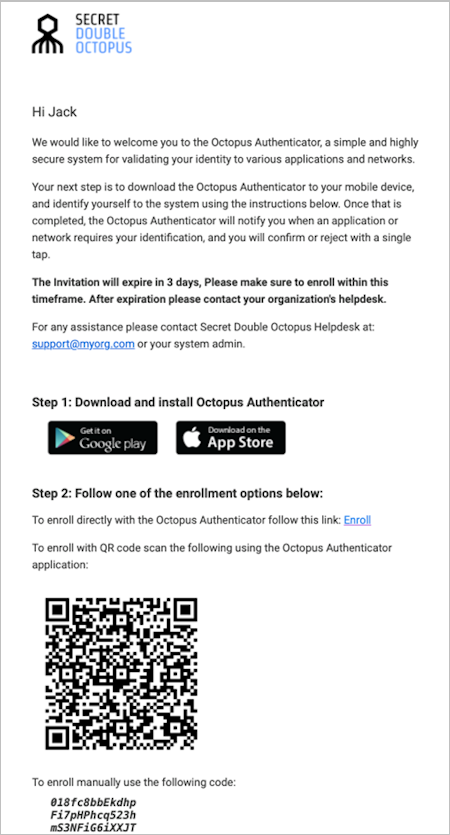
The user performs enrollment via an invitation email that is generated by the system admin. This email includes a welcome message and the following items:
Link to download the application (from the App Store / Google Play)
Enrollment QR code
Manual code
Enrollment link (for use only when clicking on mobile email)
 |
Users can enroll using any of these enrollment options:
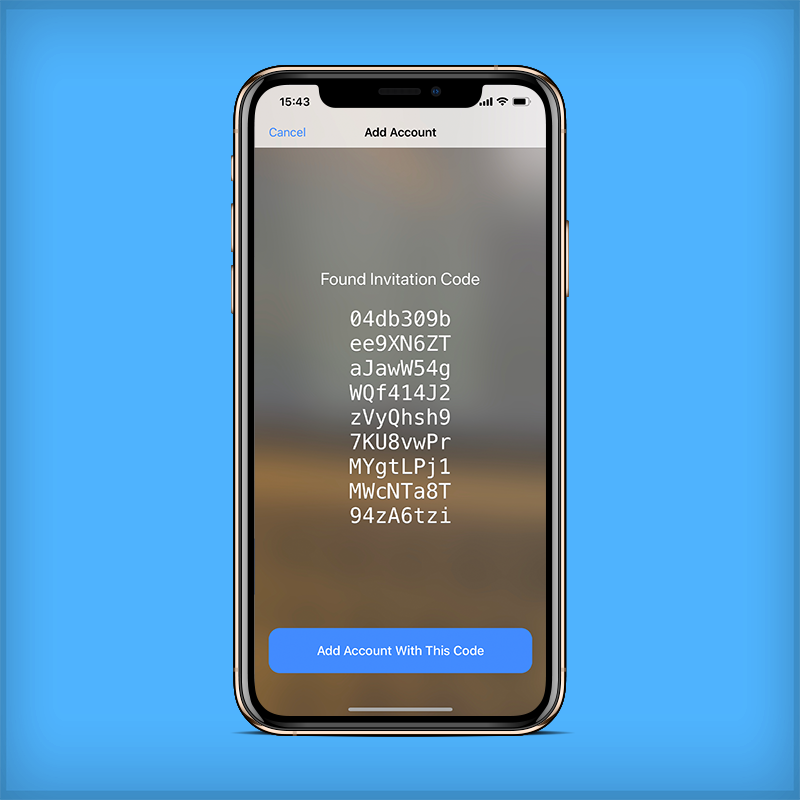
Enroll with the QR code: Users scan the QR code using the Octopus Authenticator App.
Enroll manually: Users enter the manual code using the Octopus Authenticator App.
Enroll using the enrollment link: Users open the invitation email on the mobile and click the Enroll link. This redirects to the Octopus Authenticator, where users can enroll.
Users receive a confirmation notification upon the first successful enrollment.
Note: For security reasons, the enrollment code expires within a certain timeframe. If the code expires before enrollment, users should contact your organization’s helpdesk or support team for a new enrollment code.
The procedure below shows the sequence for user enrollment using the one-time password (OTP) enrollment method. (Users enrolling with Passwordless authentication will not be asked for an OTP.)
To enroll in the system (using OTP):
From your PC, open the invitation email from Secret Double Octopus and click the enrollment link.
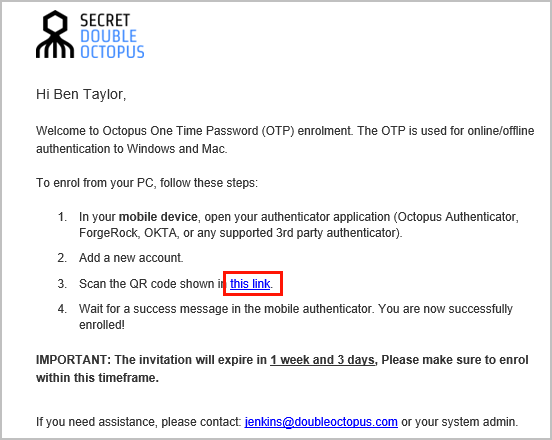
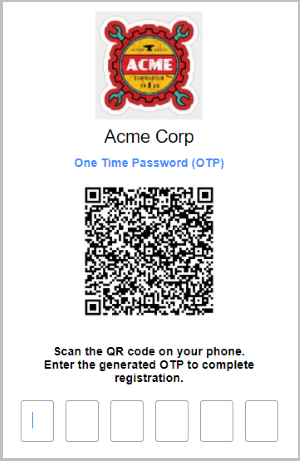
You will be redirected to OTP Authentication Registration in the User Portal.
Click Register.
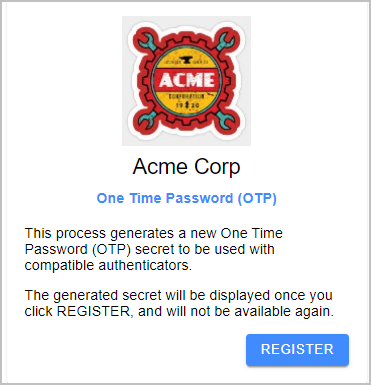
A QR code is displayed in the browser.
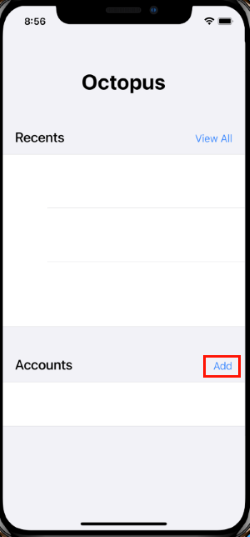
Open the authenticator application on your mobile device. (In this example, we use Octopus Authenticator.) On the Home screen, tap Add.
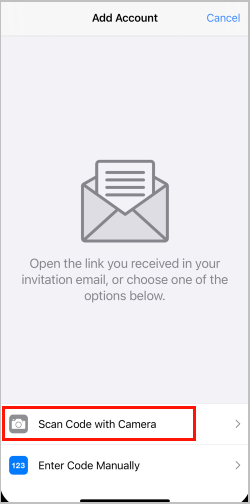
On the Add Account screen, tap Scan Code with Camera, and then scan the QR code displayed in your browser.
A confirmation message appears on the Add Account screen.
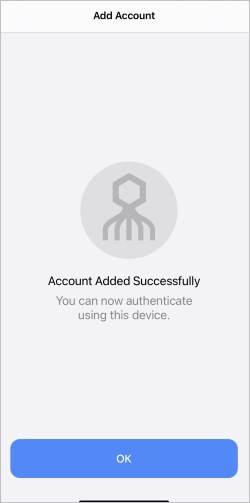
To close the Add Account screen, click OK.
The newly added account is listed on the Home screen, with the OTP displayed.
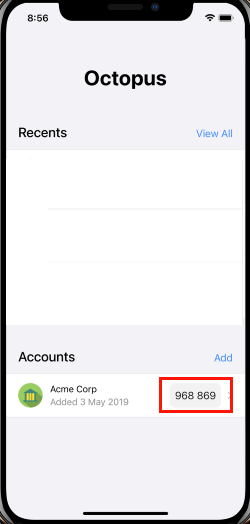
Go back to your browser and enter the digits of the OTP code.
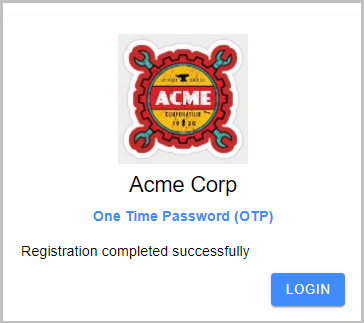
After you successfully complete registration, a confirmation message appears, and you can continue with login to the User Portal.
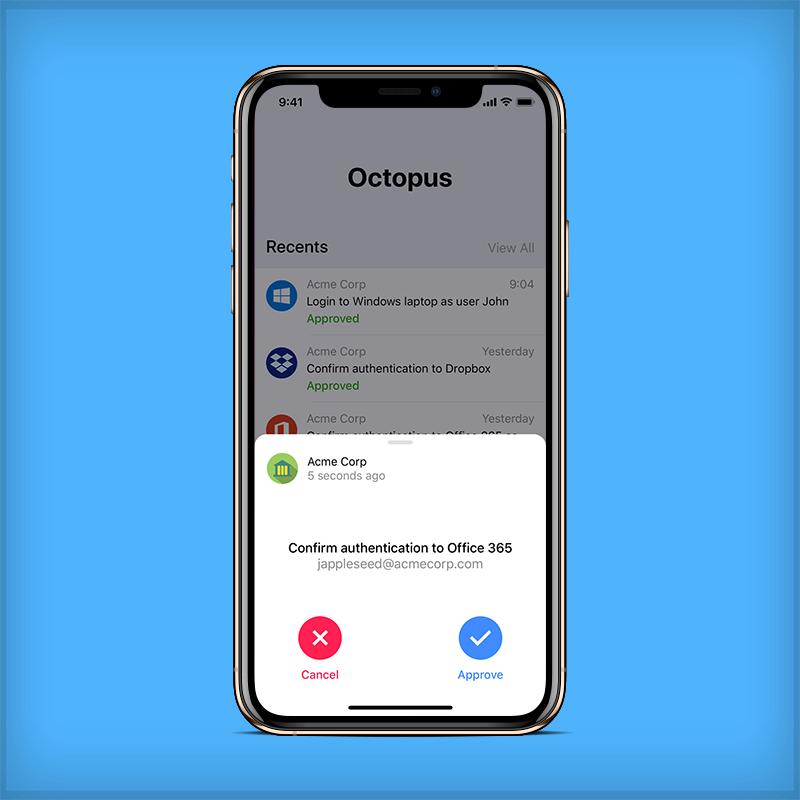
Enhancements in recent versions have made handling authentication requests simpler and quicker. The requests now appear on top of whatever screen is open, and the action buttons are easily reachable with the thumb. In addition, the "loading" time before users can approve the authentication request has been shortened.
Once customers upgrade their Authentication Servers to the latest version, "loading" time is completely removed and users are able to approve authentication requests immediately.
Proximity authentications to Windows/Mac over Bluetooth use the same interface as push authentications and are listed in the authentication History screen.
 |
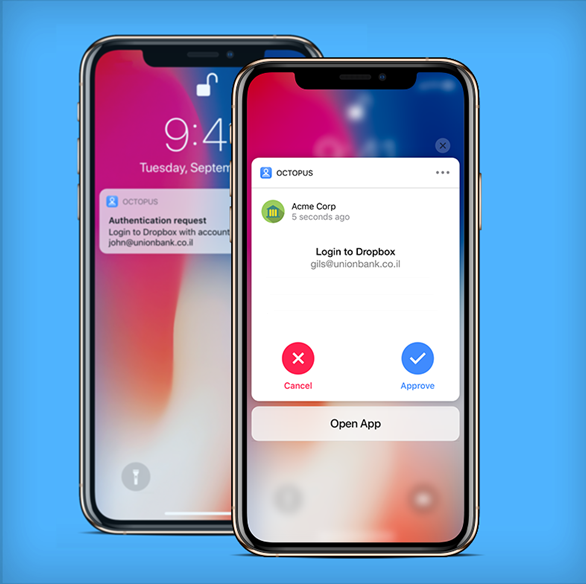
When the mobile app is not open, authentication requests can be handled directly from the push notification by force touching (or long pressing) on the notification bubble. This time-saving feature improves the perceived performance of the app.
 |
After users tap Approve, they are prompted to complete the authentication process by providing a fingerprint, face ID, or the code / pattern set used to unlock the phone. If more than one identification method is configured, users may choose which method to use.
Note: If an authentication request is received immediately after the phone has been unlocked (within approximately 15 seconds), users are not prompted to provide additional identification.
If the phone is locked and pairing with an Apple Watch (iOS only) has been done, the authentication request is automatically sent to the watch. For example:
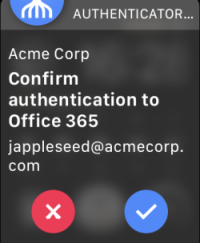 |
If the authentication request requires a verification code (e.g., OTP), the code is displayed on the Apple Watch.
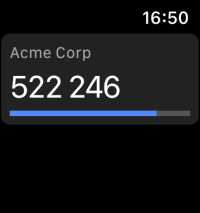 |
QR Code Authentication
Newer versions of Octopus Authentication Server (6.8 and higher) support the option to authenticate to the User Portal and web services using a QR code displayed on the Login page for the service. Services supporting QR code authentication include all SAML services, Entra ID, WS-Fed and OIDC services.
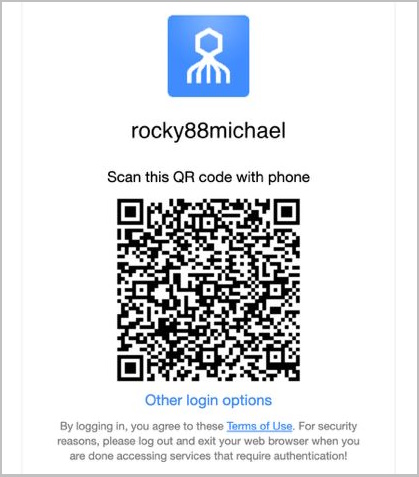
IMPORTANT: Login to Windows / Mac with QR code authentication is not currently supported.
To log into a service, scan the QR code using your enrolled mobile device. The new QR icon allows you to easily enable your camera directly from the mobile app.
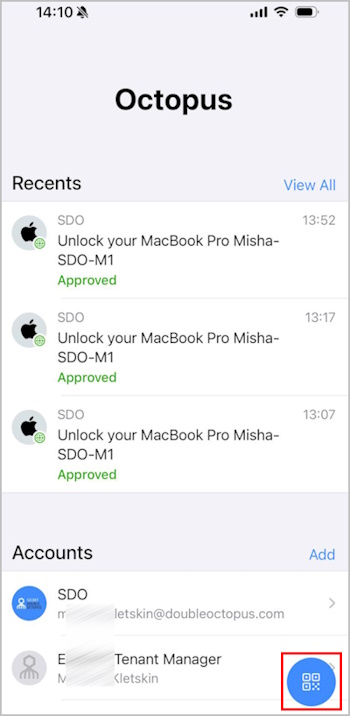
Recent versions of Octopus Authenticator support Adaptive Authentication, a feature to help prevent user identity hijacking by requiring stronger authentication for login attempts from devices not previously used for Octopus Authentication.
When Adaptive Authentication is enabled, users authenticating for the first time from a unrecognized device (browser/workstation) are required to enter the verification code that is generated and displayed in the Octopus Authenticator mobile app. The verification code is presented immediately after successful authentication.
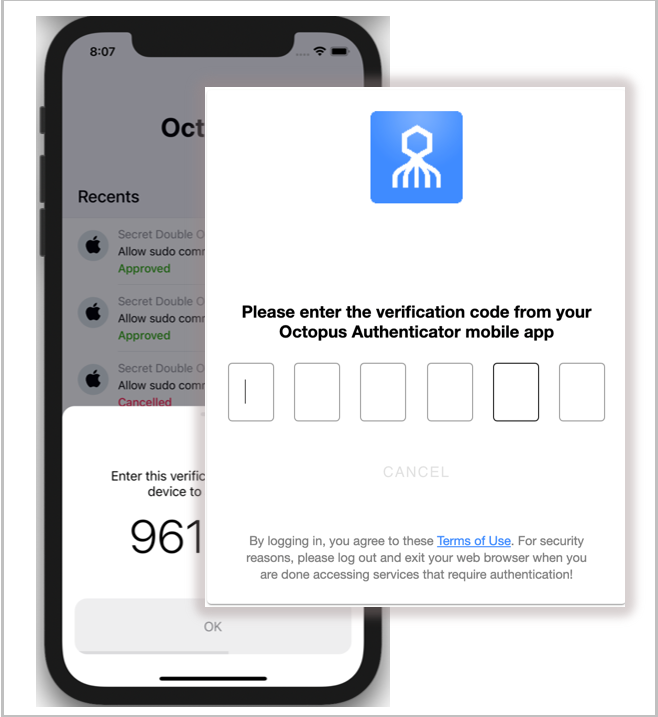 |
Following the first successful authentication, users are no longer required to enter a code if the browser or workstation is designated as a Trusted device.
Octopus Authenticator works with the Octopus Authentication Server to implement end-to-end encryption of all communications between the end user’s Octopus app and the Authentication Server.
The encryption mechanism ensures that the Octopus cloud infrastructure is not able to intercept or modify any authentication data. As a result, potential damage in the event of any vulnerability or attack on the cloud servers is greatly reduced.
Note: End-to-end encryption is relevant for Octopus Authentication Server versions 4.6.4 and above.
 |
The interface and navigation options of the mobile app are designed to benefit the majority of end users, who generally have a single account (enrollment) and do not need to open the app on a regular basis.
Home Screen
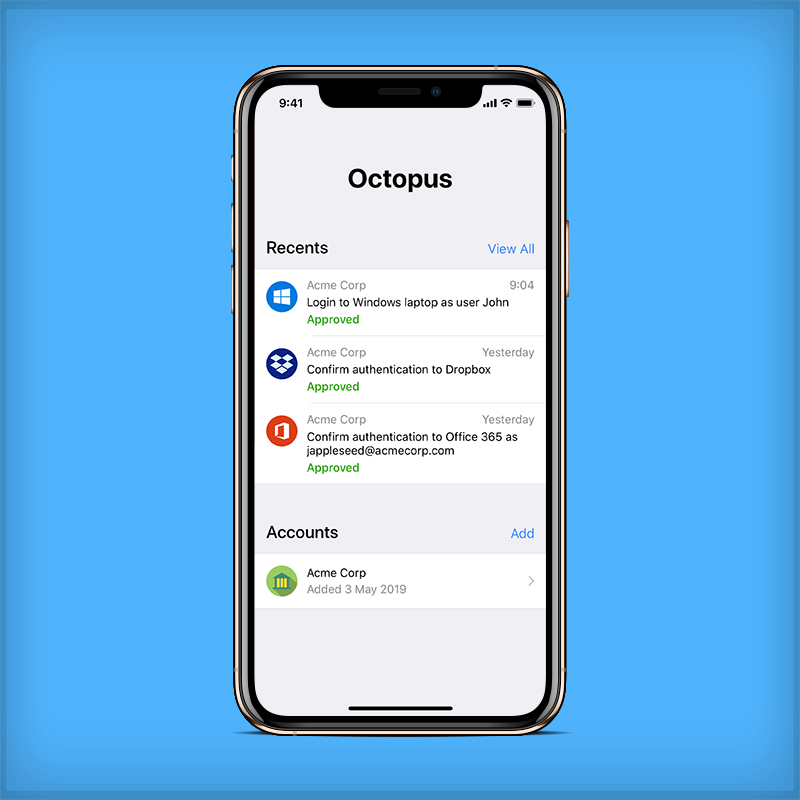
The Home screen opens by default when the app is launched. Most functionalities are available either directly on the Home screen, or are accessible with a single click.
The Home screen lets users easily view their most recent authentication requests as well as basic information about their accounts. Users can tap View All to open the History screen, which lists all previous authentication requests. Tapping an account opens another screen with additional account details and options.
 |
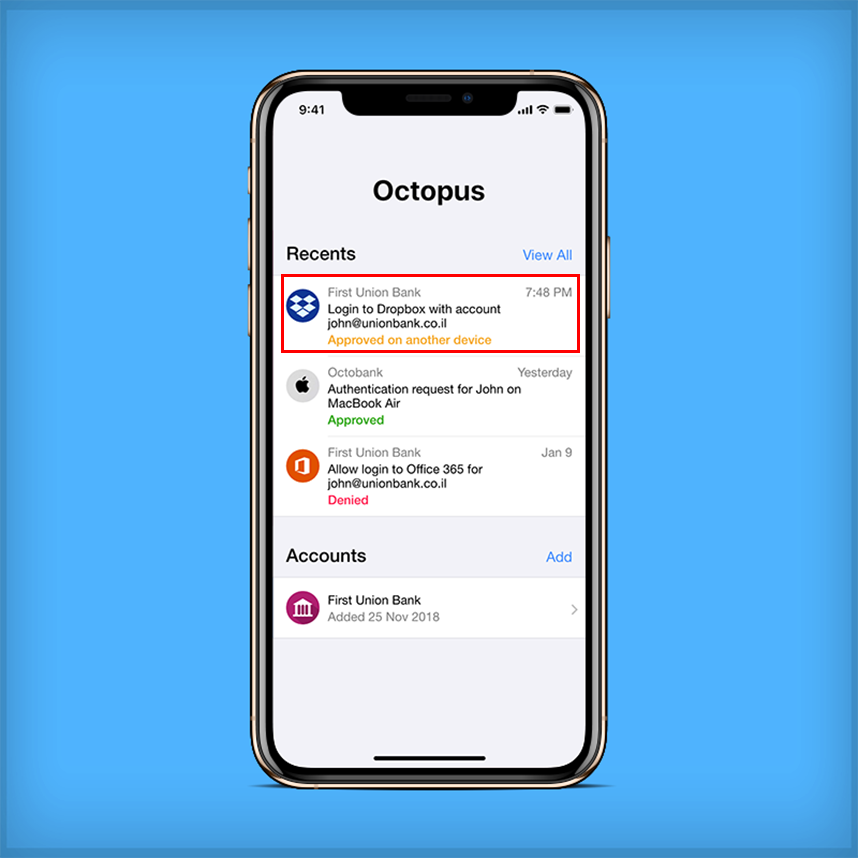
Approved on Another Device
If users have more than one device, the mobile app is immediately updated when an authentication request is approved or denied on another device.
 |
Viewing Account Credentials
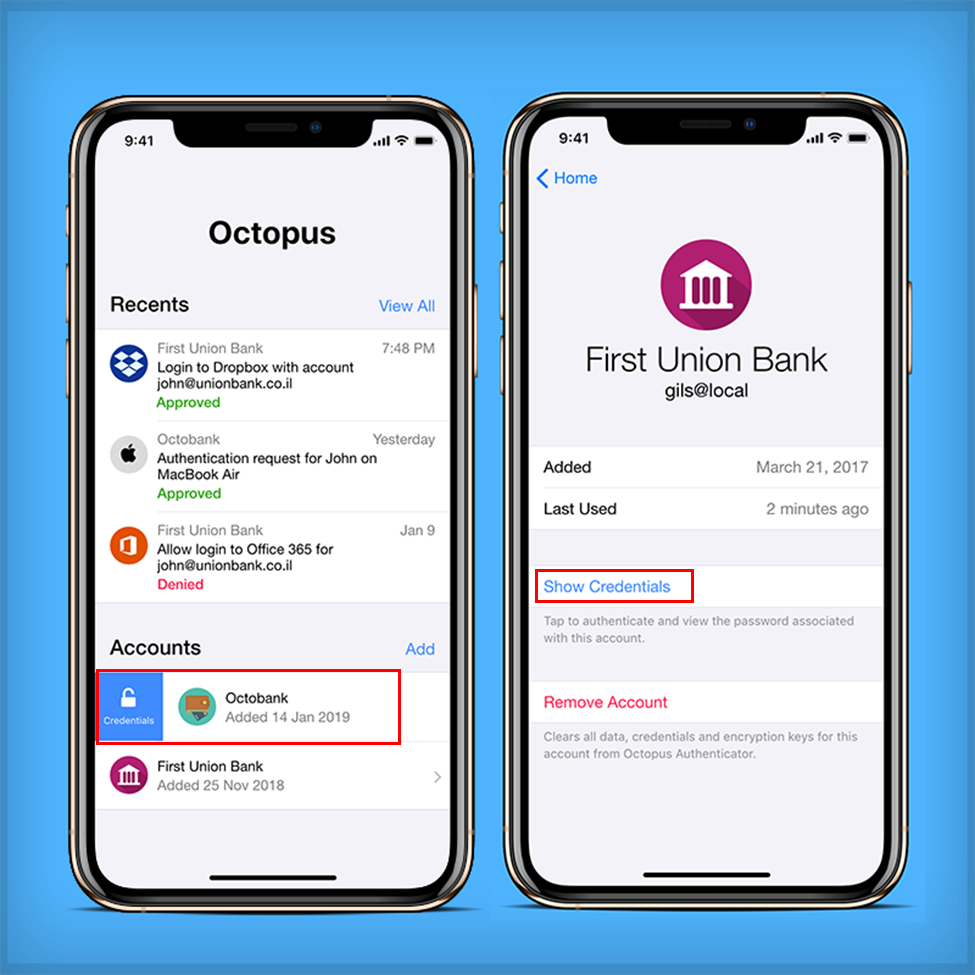
The Credentials popup enables users to view and work with passwords and tokens that have been generated for their account(s). The popup is opened from the Home screen by right-swiping across the row of the account and then tapping Credentials.
Alternatively, users can open the popup by tapping the row of the account (to open the Account details page) and then tapping Show Credentials.
 |
The Account Details page opens when users tap an account in the Accounts list (on the Home screen). This page displays more information about the selected account, as well as options to open the Help screen, open the Credentials popup, and remove the account.
To assist communication with support teams and facilitate rapid resolution of any issues that users encounter, the Help screen displays the Octopus Authenticator version and various account details.
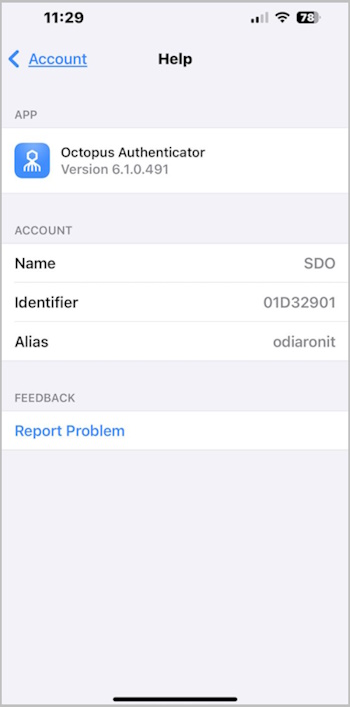
The Feedback portion of the Help screen allows users to easily report issues. When users tap Report Problem, a report which includes account details and a log file, is automatically generated. When users send the report by email, the subject line is prefilled and the company support email appears automatically in the CC list.
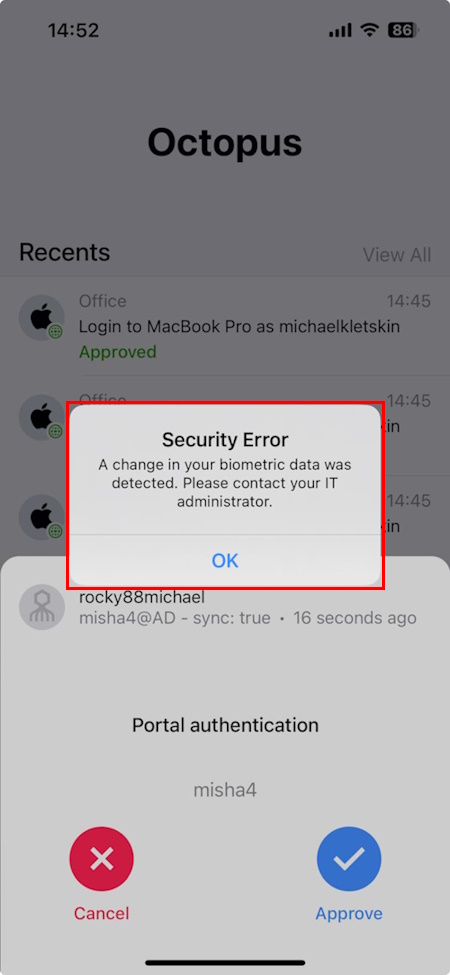
When the system admin activates monitoring of biometrics data, the Octopus app checks for changes in biometrics with every authentication request. If the mobile authenticator is configured to lock the account when changes are detected (e.g., Face ID added), authentication is blocked and users are presented with the following error message:
 |
In addition, the mobile authenticator is immediately disabled, and the user is unable to work with the account.
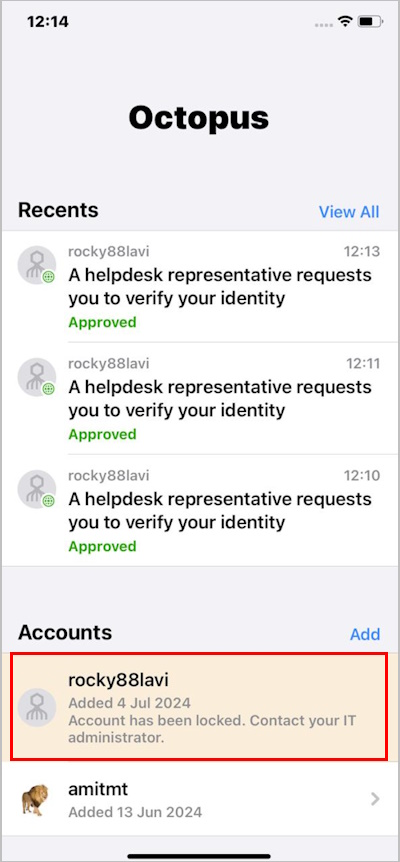 |
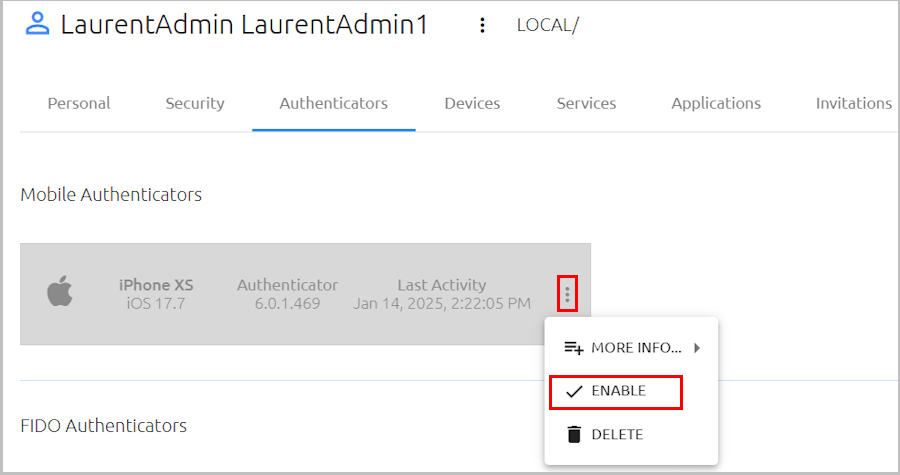
Following clarification of the issue, the system admin can re-enable the mobile authenticator by changing the setting in the Octopus Management Console (Authenticators tab of the user details).
Users who obtain a new phone to replace an old device need to transfer their account to the new device. Transferring an account is done in one of the following ways:
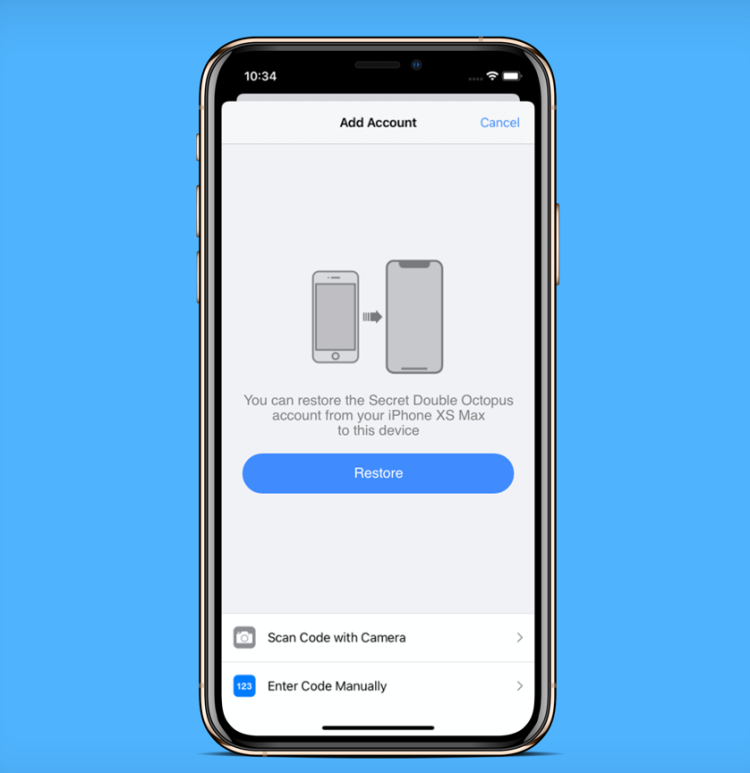
If the Restore Account feature is supported by the user’s organization, the Restore button appears on the Add Account page. Tapping Restore transfers the user’s account to the new device. (The account on the old device is deleted.)
 |
If the Restore Account feature is not supported, users need to obtain a new enrollment link from their IT representative and add an account to the new device.