Overview
A FIDO2 security key allows you to securely authenticate to your corporate environment using a physical hardware key instead of a password. Enrollment is required before you can use your FIDO2 key to log in or unlock your workstation.
Prerequisites
- A FIDO2 security key issued by your organization
- A workstation with an available USB port (or NFC/Bluetooth, depending on key type)
- Access to your corporate email
- Enrollment link provided by your IT team
Step 1 – Locate Your Enrollment Email
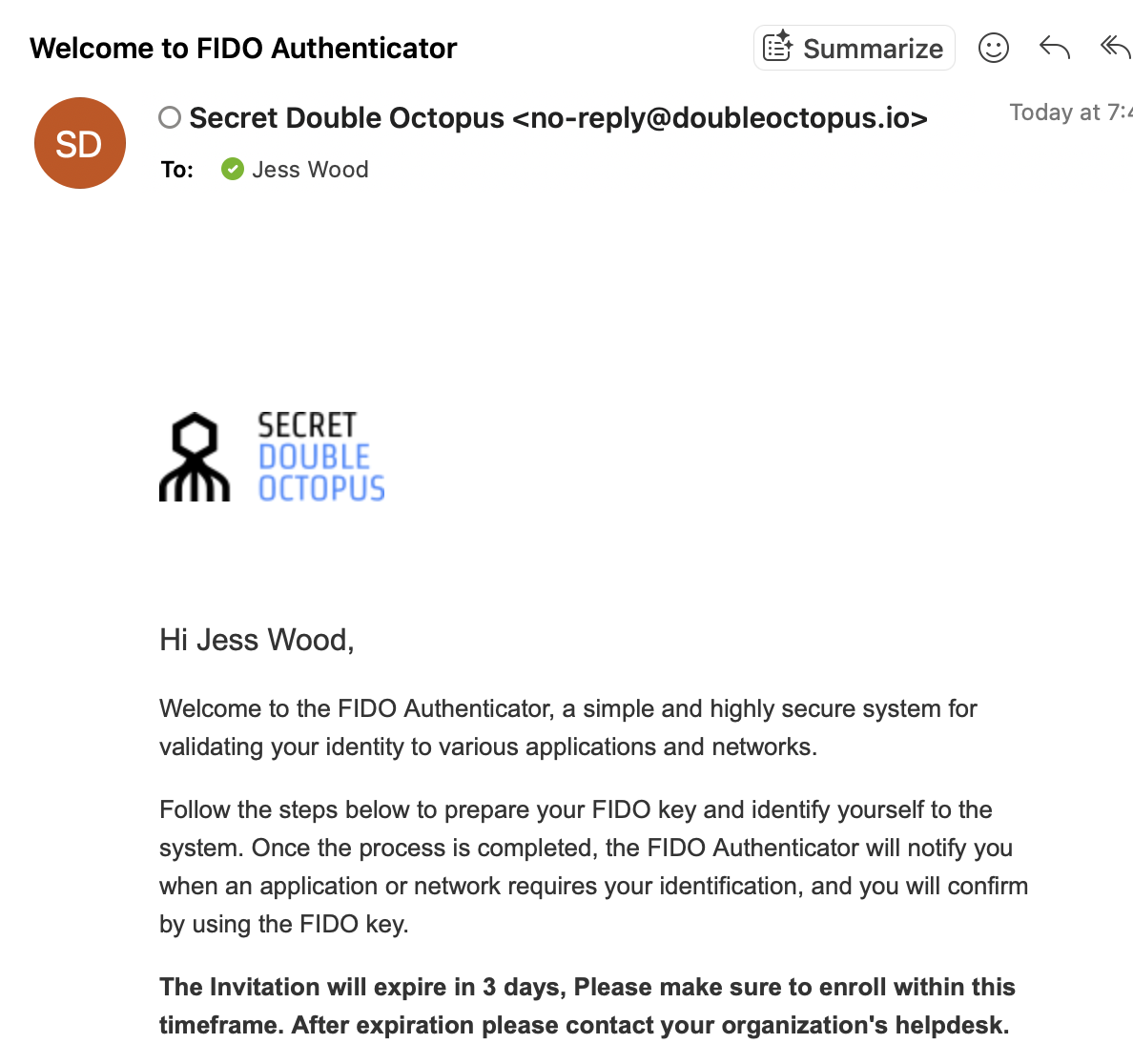
Check your inbox for an email with the subject line "Welcome to FIDO Authenticator". This email contains your enrollment link.
Step 2 – Insert Your FIDO Key
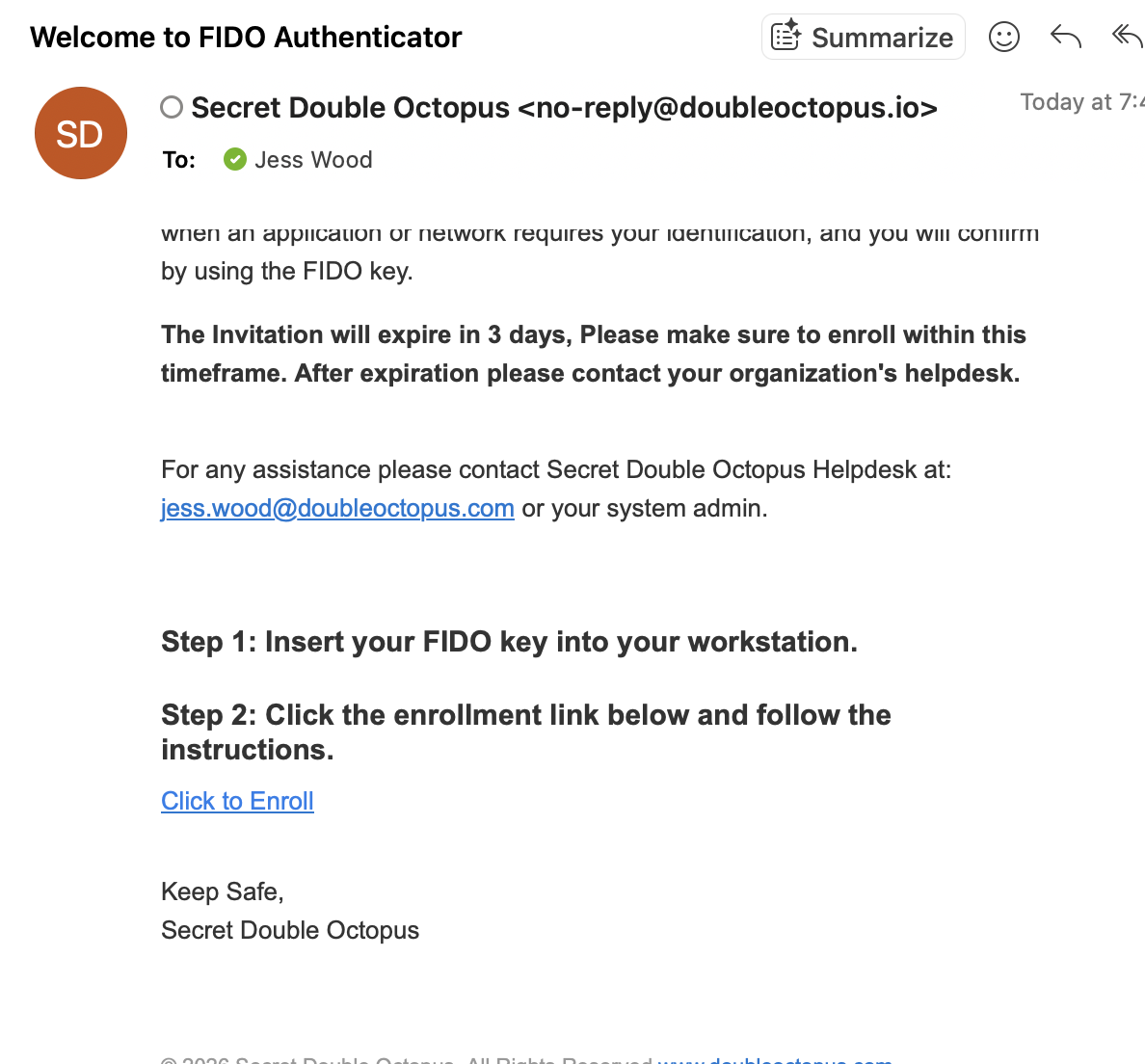
Per email you'll see instructions at the bottom to insert your FIDO key into your workstation. Make sure it is fully connected before continuing.
Step 3 – Open the Enrollment Link
Click the enrollment link in the email and follow the on-screen instructions to begin the enrollment process.

Step 4 – Register Your Key
When the enrollment page opens, you will be prompted to register your key. Click Register to continue.

Step 5 – Verify and Enter PIN
Your FIDO security key should be inserted (if not already). When prompted, enter your PIN code to verify your identity.
Step 6 – Confirm Tenant Selection
If prompted, confirm your tenant selection to complete the enrollment process.

Enrollment Complete
You have successfully enrolled your FIDO2 security key. You can now securely authenticate without passwords.