Overview
The Octopus Authenticator Mobile App allows you to securely authenticate to your corporate environment using your mobile device. Enrollment is required before you can approve login or unlock requests.
Prerequisites
- A mobile device running iOS or Android
- Internet connection
- Enrollment link or QR code provided by your organization
Step 1 – Install the Octopus Authenticator App
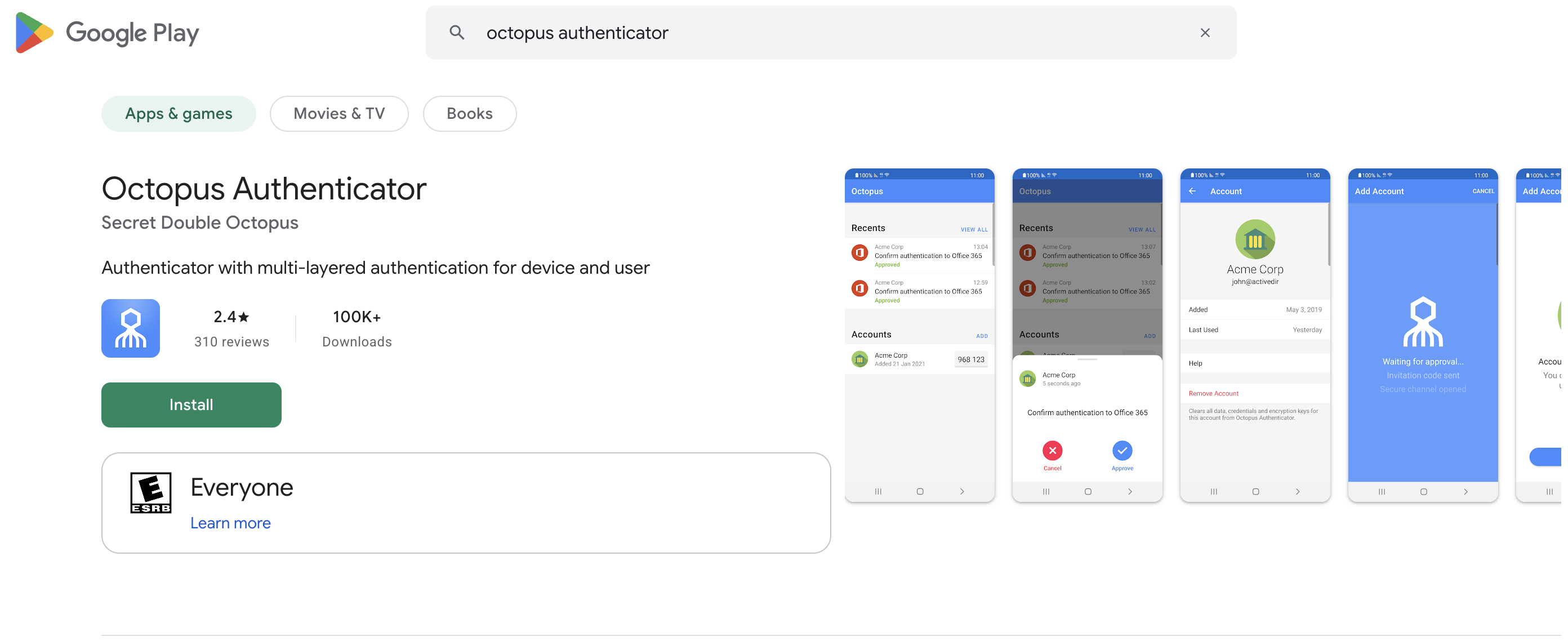
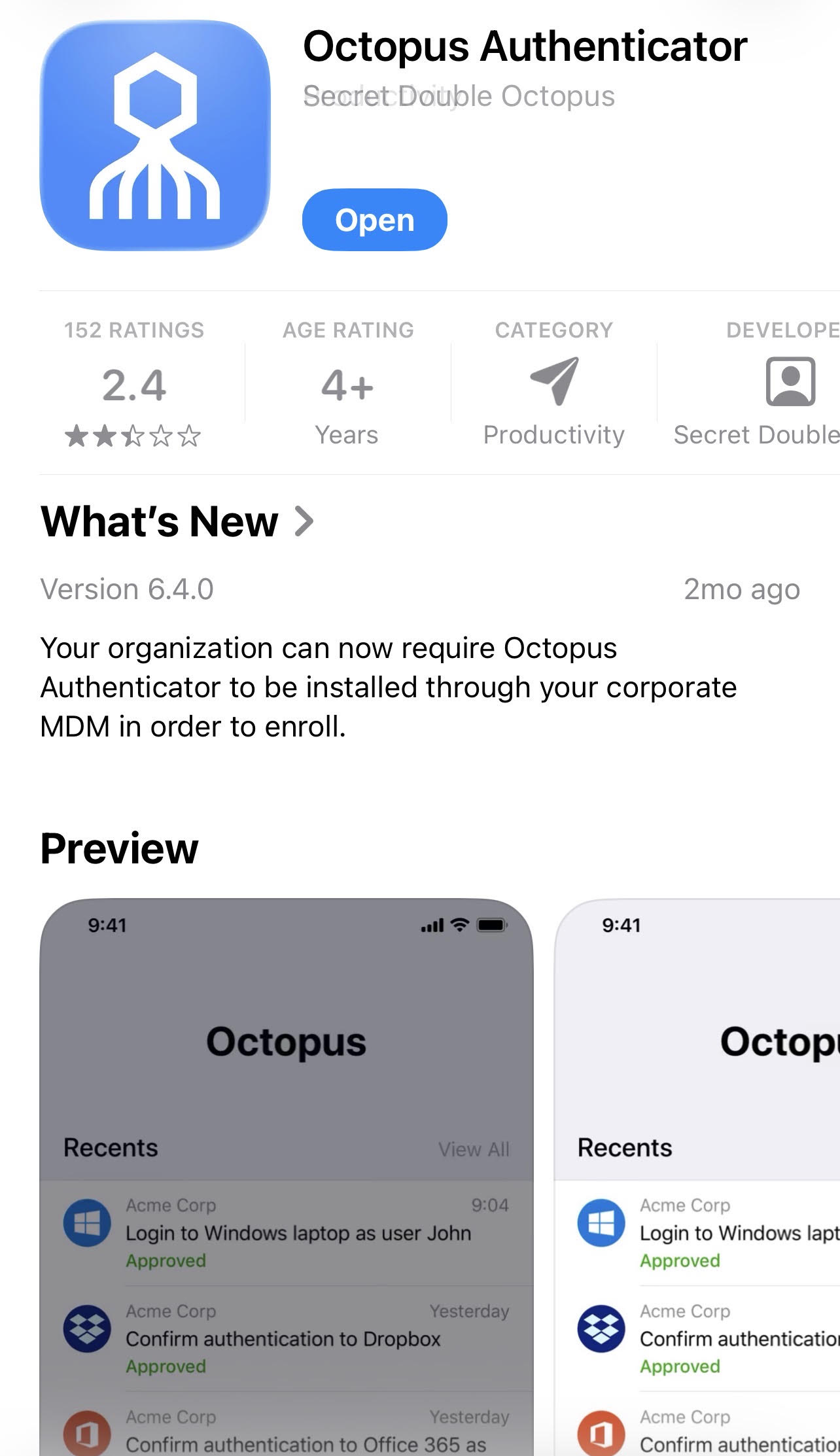
Open the App Store (iOS) or Google Play Store (Android) and search for Octopus Authenticator and install.
Step 2 – Launch the App
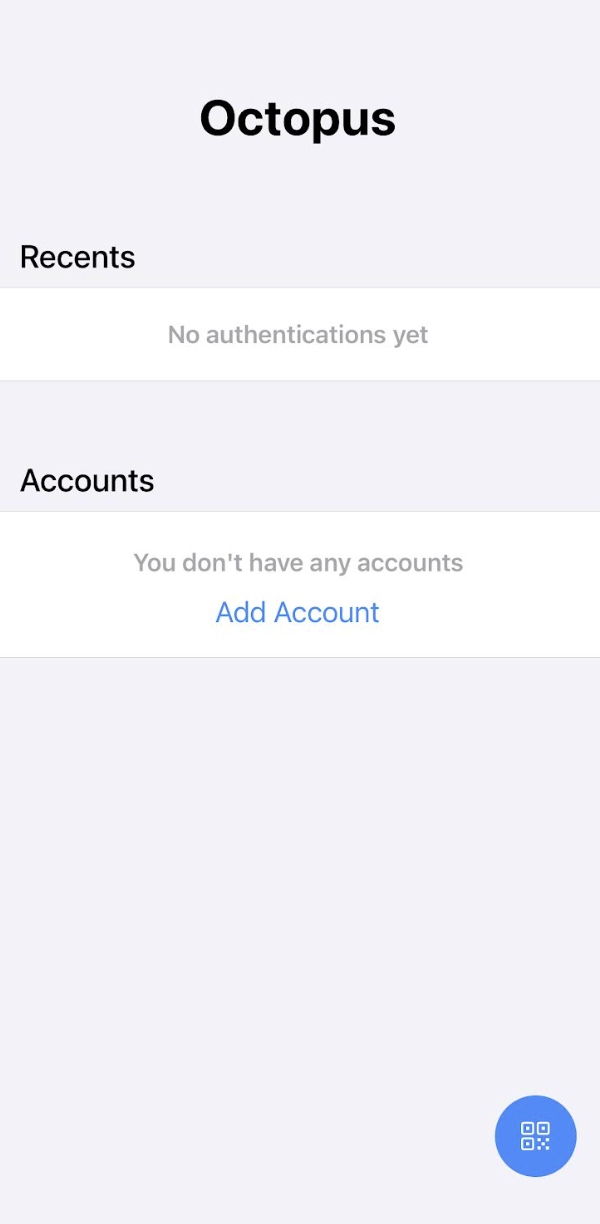
Open the Octopus Authenticator app on your device. On first launch, you will be prompted to begin the enrollment process. Click Add Account.
Step 3 – Start Enrollment
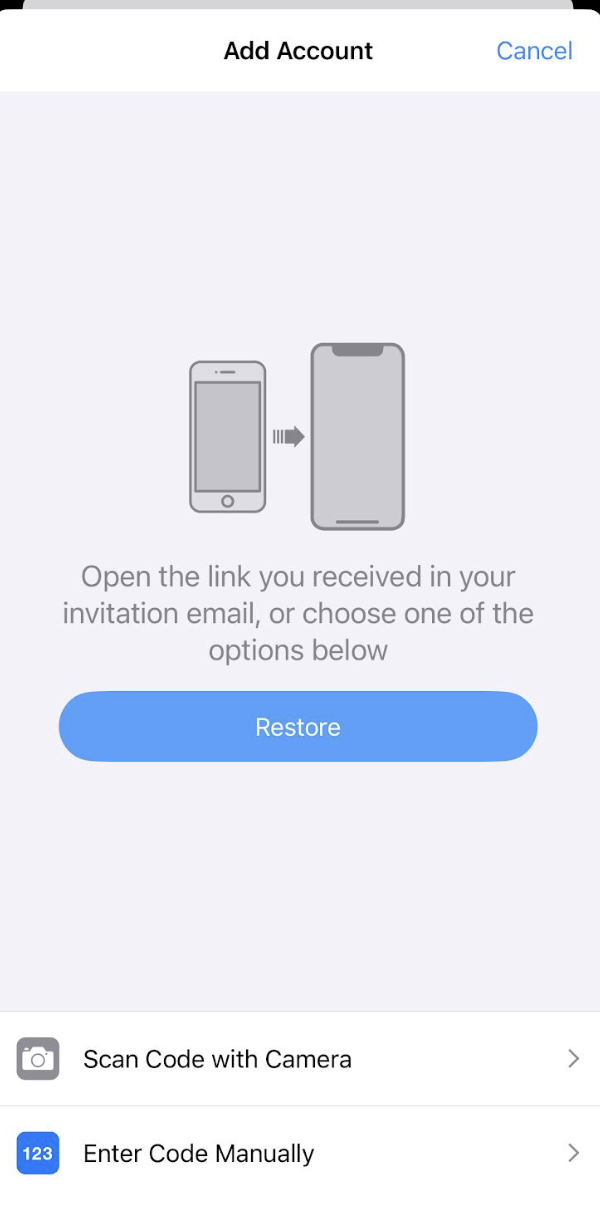
Tap Enroll or Add Account to begin. You may be asked to scan a QR code or open an enrollment link provided by your IT team.
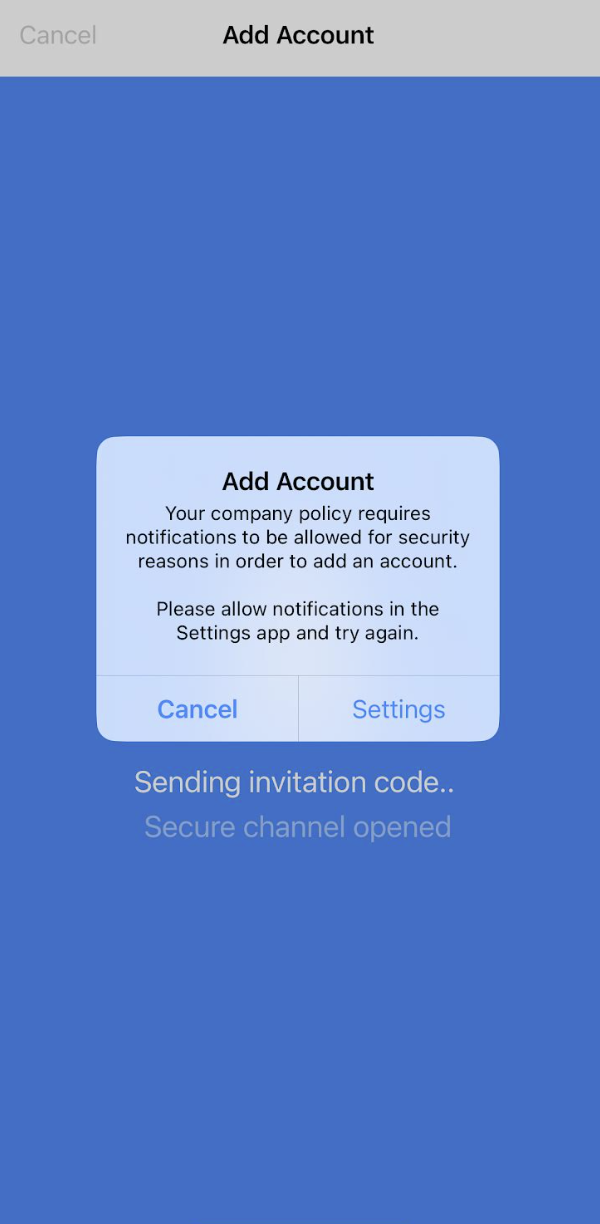
Step 4 – Grant Permissions
When prompted, allow the required permissions (such as notifications or biometric access). These permissions are necessary to approve authentication requests.
Step 5 – Complete Enrollment
Once enrollment is complete, your account will appear in the app. Your device is now ready to approve login or unlock requests.
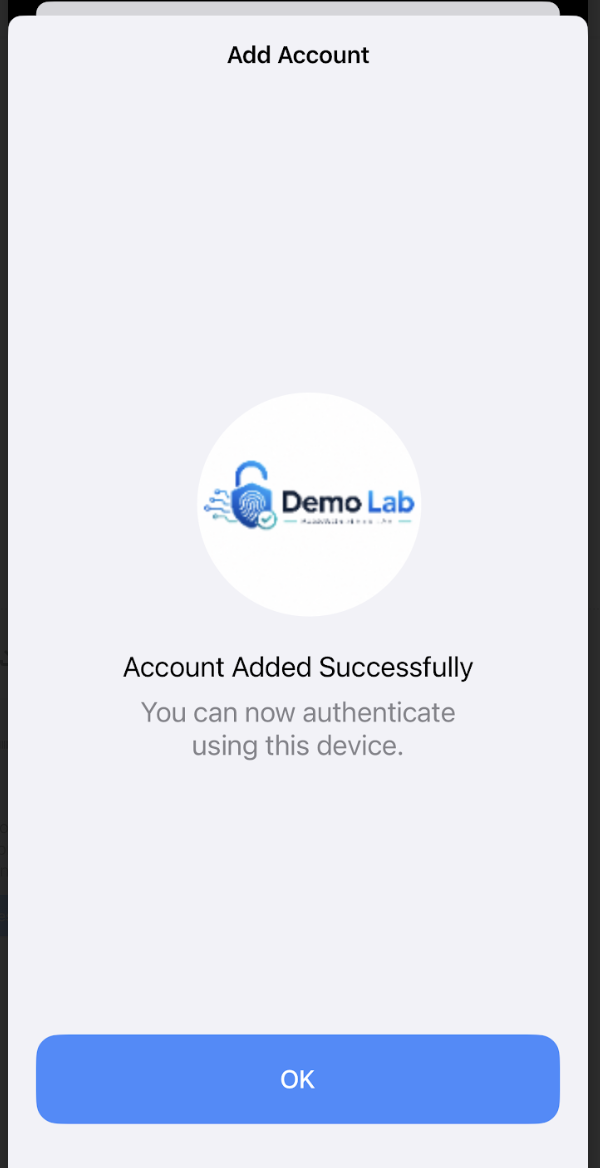
Enrollment Complete
You have successfully enrolled the Octopus Authenticator Mobile App. You can now securely authenticate without passwords.