This article provides guidelines for understanding the audit records and for handling issues that you may encounter when working with Octopus Desk for Windows.
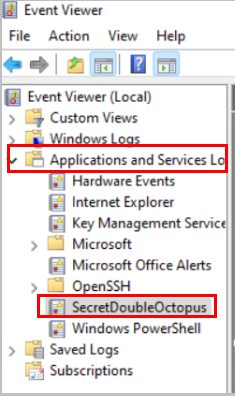
You can view the Windows Agent logs at any time (there is no need to stop the service). To view events, open the Windows Event Viewer and navigate to Applications and Service Logs > SecretDoubleOctopus.
IMPORTANT: Administrator permissions are required to open the Windows Event Viewer.
.
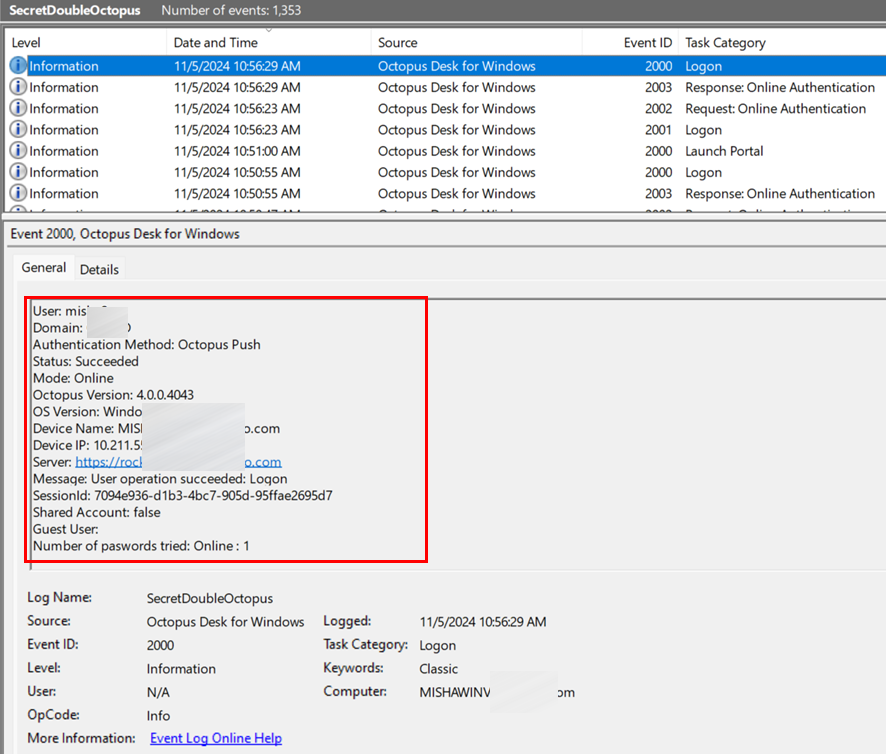
The upper portion of the Event Viewer shows a summary of the events associated with each authentication session. The ID (code) and category of each event are clearly displayed, enabling you to quickly and easily follow the authentication flow.

Clicking a row allows you to view additional details about the selected event, including status, device info, and Session ID.
The following figures show an example of unsuccessful online authentication (due to a network issue) followed by successful offline BLE authentication. Note the identical Session ID for the online and offline flows.
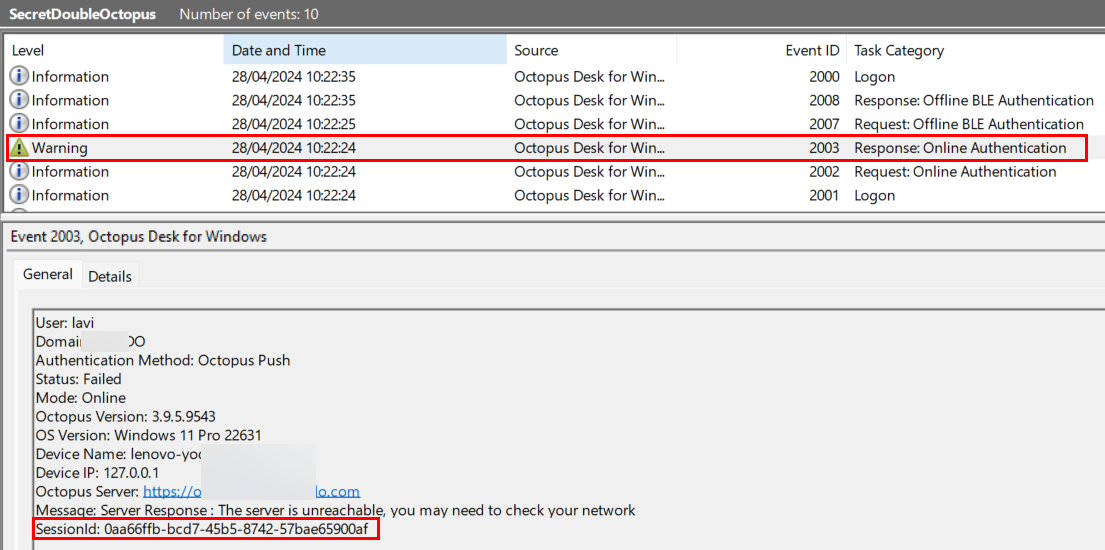
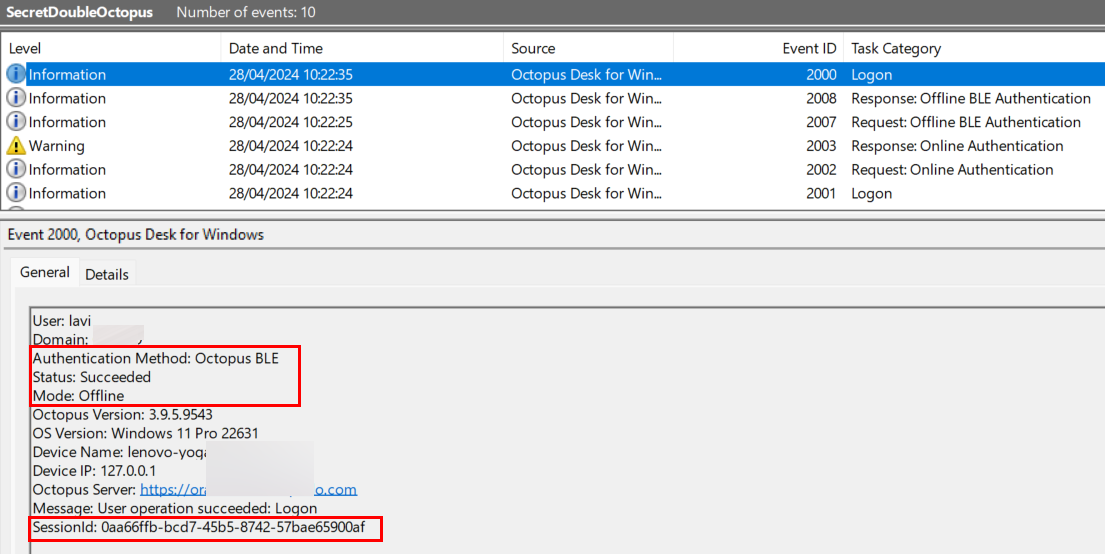
Typically every user session starts with Event ID 2001 (User action initiated). User sessions generally end with either:
Event ID 2000 (Action succeeded)
An error code (see List of Event ID’s for Agent Errors)
The Task Category for both the opening and the closing event reflects the specific action the user intended to perform (Logon, Unlock, etc.).
In most cases, additional events are listed in the audit record between the opening and closing events. The nature of these events vary according to the specific authentication flow involved. Examples of these events include:
Communication with the Octopus Server, e.g., 2002 (Initiating Octopus Server call) and 2003 (Octopus Server call result)
Communication with the Octopus Authenticator mobile app over BLE (Event IDs 2007 and 2008)
All events within a user session (opening, closing, and events in between) have an identical Session ID.
Event Status indicates whether the event represents a successful or failed action and may have the following values:
Succeeded
Failed
Information (neutral action)
Octopus Desk for Windows audit events may have one of the following audit levels:
Error
Warning
Information
Unlike Event Status, audit levels reflect the significance of the event, regardless of whether the particular action succeeded or failed. For example, if user logon to the workstation fails, the audit level is Error. However, if an online authentication request to the Octopus Server is unsuccessful, the audit level is Warning, as the Octopus Agent may failover to BLE authentication.
Audit Level | Description | Examples |
|---|---|---|
Error | A user-initiated operation has failed Indication for certain system-initiated sessions | Workstation logon / unlock failure System Expiration Check |
Warning | A step in the authentication process has failed | Windows Agent unable to connect to Octopus Server Push notification denied by the user |
Information | All other events | Successful workstation logon Successful communication with the Octopus Server |
Event ID | Event Description | Task Category / Categories |
|---|---|---|
2000 | Action succeeded | All categories for Event Code 2001, plus:
|
2001 | User action initiated |
|
2002 | Initiating Octopus Server call |
|
2003 | Octopus Server call result |
|
2004 | Notification from Octopus Server | Password Changed by Server |
2005 | FIDO authentication request | Request: Offline FIDO Authentication |
2006 | FIDO authentication response | Response: Offline FIDO Authentication |
2007 | Request to Octopus Authenticator mobile app over BLE |
|
2008 | Response from Octopus Authenticator mobile app over BLE |
|
2009 | Offline certificate authentication | Offline Certificate Authentication |
2010 | User clicked on popup dialog | Adaptive Authentication |
2011 | Offline OTP authentication | Offline OTP Authentication |
2012 | Agent-initiated flow |
|
The following table lists the event IDs, descriptions and corresponding messages (if relevant). For additional resources and advanced troubleshooting guidelines, please visit the Secret Double Octopus Support Center.
Note: If you require more advanced troubleshooting and/or debugging, you may need to download the full Windows Agent logs. Please reach out to <support@doubleoctopus.com> for assistance with this download. Keep in mind that the process will require stopping the service.
Event ID | Event Description | Message to User |
|---|---|---|
1000 | Internal use | N/A |
1001 | Token is not valid | We cannot verify your identity. Please contact your administrator. |
1002 | System Error | System error. Please try again later or contact your administrator. |
1003 | Certificate Error | We cannot verify your identity. Please contact your administrator. |
1004 | Server Reject request | Authentication failed. Please try again later or contact your administrator. |
1005 | Empty Credentials | Authentication rejected because Credentials are missing. |
1006 | Registry error | Authentication failed. Please contact your administrator. |
1007 | Get Certificate Error | Authentication failed. Please contact your administrator. |
1008 | Network Error | Network error. Please make sure you are connected to the internet. If the problem persists, contact your administrator. |
1009 | BLE Error | Please verify that Bluetooth is enabled on your mobile and on Windows, and then try again. If the problem persists, use a different authentication method. |
1010 | BLE Client Reject request | Authentication failed. Try again and approve authentication on your mobile. |
1011 | User Denied request | Authentication failed. Try again and approve authentication on your mobile. |
1012 | User Bypass not allowed | Authentication bypass denied. Try again with a username and password. |
1013 | Internal use | N/A |
1014 | Internal use | N/A |
1015 | No Old Credentials Found | Error finding old credentials. Try again. |
1016 | FIDO2 Error | Authentication failed. Please check your FIDO token and try again. |
1017 | Username Password Error | You cannot log into this workstation with a username and password. |
1018 | Pin Required | Authentication failed. Please enter your FIDO Authenticator PIN. |
1019 | Timeout no response | Authentication failed. Please try again. |
1020 | Local Credentials Set Error | Set Local Credentials error. |
1021 | User Bypass not allowed | Authentication bypass denied. Try again with a username and password. |
1022 | WebAuthN Error | Authentication failed. Please try again. |
1023 | OTP passwordless is not allowed | A one time password cannot be used for passwordless authentication. |
1024 | OTP expired | Your one time password expired. Please authenticate online and renew your OTP token. |
1025 | Internal use | N/A |
1026 | Timeout no response | Authentication failed. Please try again. |
1027 | MFA Bypass not allowed | MFA Bypass not allowed. Please try again. |
1028 | NOMEMORY | Your computer needs more memory to run. Contact your administrator. |
1029 | Credentials Decrypt Error | Can't decrypt credentials. |
1030 | OTHER | Oops, something went wrong. Please contact your administrator. |
1031 | Lock for 1 minute | Your computer is locked for 1 minute. Please try again later. |
1032 | Lock for 30 minutes | Your computer is locked for 30 minutes. Please try again later. |
1033 | Lock for 1 hour | Your computer is locked for 1 hour. Please try again later. |
1034 | Locked | Your computer is locked. Please try again later. |
1035 | Reset Credentials is not set | Reset Credentials is not set. Please contact your administrator. |
1036 | Credentials are out of sync | Your credentials are out of sync. Please contact your administrator. |
1037 | Windows Error | Please try again or contact your administrator. |
1038 | ForgeRock Error | Please try again or contact your administrator. |
1039 | Okta Error | Please try again or contact your administrator, |
1040 | Server Reject request | Authentication failed. Please try again or contact your administrator. |
1041 | No Challenge from Server | Authentication failed. Please try again or contact your administrator. |
1042 | Internal use | N/A |
1043 | No OTP from Server | Can't retrieve OTP from Server. Please try again later or contact your administrator. |
1044 | Reserved / Internal | N/A |
1045 | Certificate Error | Certificate Error. Please try again or contact your administrator. |
1046 | Sign-in method isn't allowed | Sign-in method isn't allowed. Please try again or contact your administrator. |
1047 | Offline Login Error | Offline Login Fail. Please try again or contact your administrator. |
1048 | Your account is restricted | Your account is restricted. Please contact your administrator. |
1049 | Bypass token not supported | Bypass token not supported. Please contact your administrator. |
1050 | Wrong user format | Azure Login Wrong User Format. Please use UPN. |
1052 | Fingerprint error | Can't read fingerprint. Please try again. |
1053 | Enhanced Assurance Server error | Server returned wrong info for Enhanced Assurance. Please contact your administrator. |
1054 | Enhanced Assurance Server error | Mobile returned wrong info for Enhanced Assurance / Not found. Please contact your administrator. |
1055 | FIDO key not found error | FIDO key not found. Please insert your FIDO device. |
1056 | No Radius Token | Radius Token not found. Please contact your administrator. |
1057 | Offline Radius Token error | Cannot Retrieve Radius Token in Offline. Please try again with network connection. |
1058 | OTP Offline Error | Cannot Retrieve Credentials for OTP Offline. Please try again with network connection. |
1059 | Clipboard Error | Failed to set Clipboard. |
1060 | Clipboard Error | Failed to clear Clipboard. |
1061 | Lock Error | Can't lock workstation. |
1062 | Check Error | Credentials check failed. |
1063 | Credential Error | Wrong user name or password. |
1064 | Code Error | The user did not enter a verification code. |
1065 | SSO Error | Failed to launch SSO. |
1066 | SSH Error | Failed to launch SSH. |
1067 | OTP Error | Wrong OTP. Please try again. |
1068 | session id | |
1069 | VPN Error | Launch VPN error. |
1070 | Bad Application Token Error | Bad Application Token. Please try again. |
1071 | Offline Error | Cannot use Offline Login. Please login online before trying again. |
1072 | No Network Error | No Network error. Please make sure you are connected to the network. If the problem persists, contact your administrator. |
1073 | Server Error | Server error. Please try again later or contact your administrator. |
1074 | Secure Server Error | Secure Server error. Please use HTTPS in server address. |
1075 | Application Disabled Error | Application Disabled. Please contact your administrator. |
1080 | FIDO2 in Bypass Warning | This code appears in the audit records when FIDO users are in bypass mode and are prompted to provide a temporary token in order to authenticate. |
This section presents several examples of online authentication errors and explains how the audit messages can help you facilitate efficient troubleshooting. For illustration, all sessions described below start with a workstation Unlock user action. However, other user-initiated events, such as logon, systray actions, etc. involve similar audit flows.
When analyzing an authentication error, best practice is to review the audit record for all events involved in the session. (They will all have an identical Session ID.) It is especially useful to look at the following lines:
Event ID for the session error: This message describes the final error summarizing the entire session. For example:
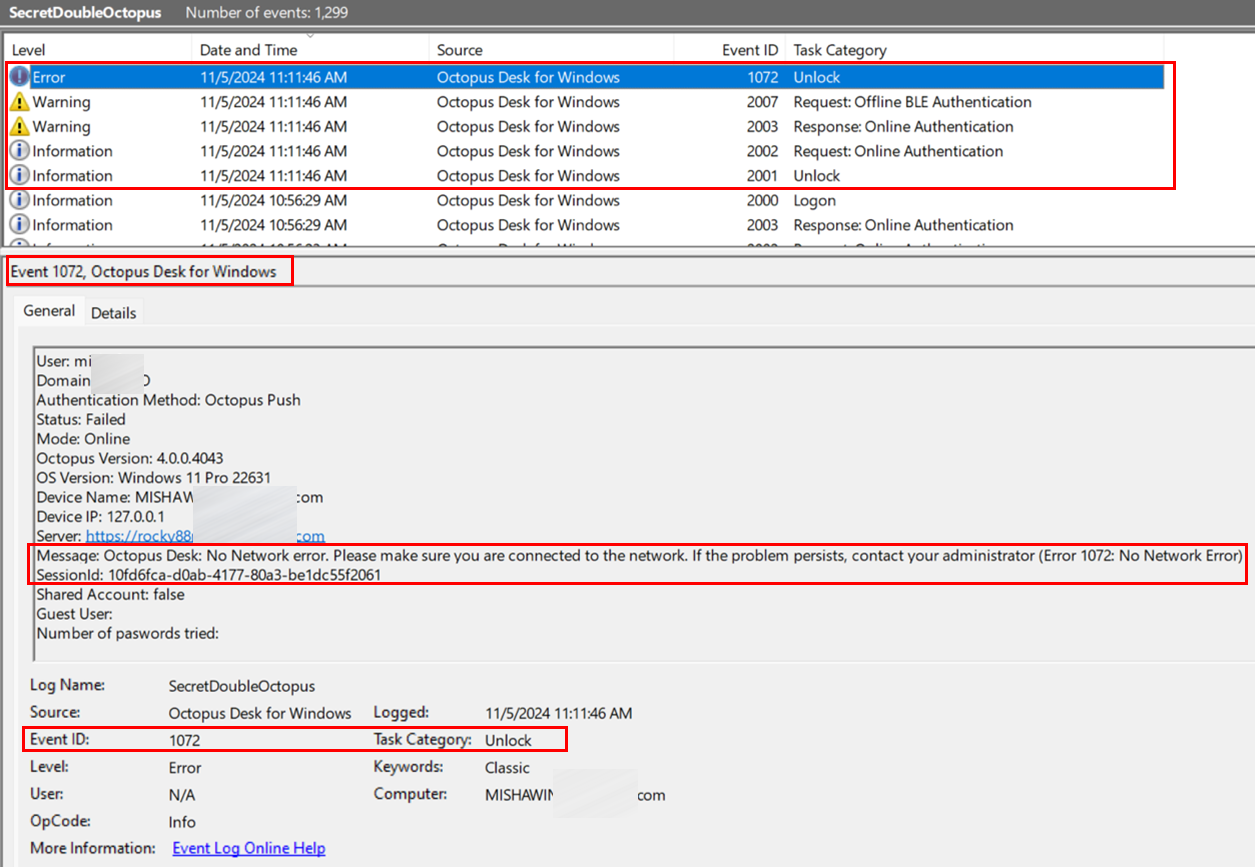
For a complete list of possible errors, refer to Event IDs for Agent Errors.
Event ID for the server response: This message describes the result of the call to the Octopus Server. For example:
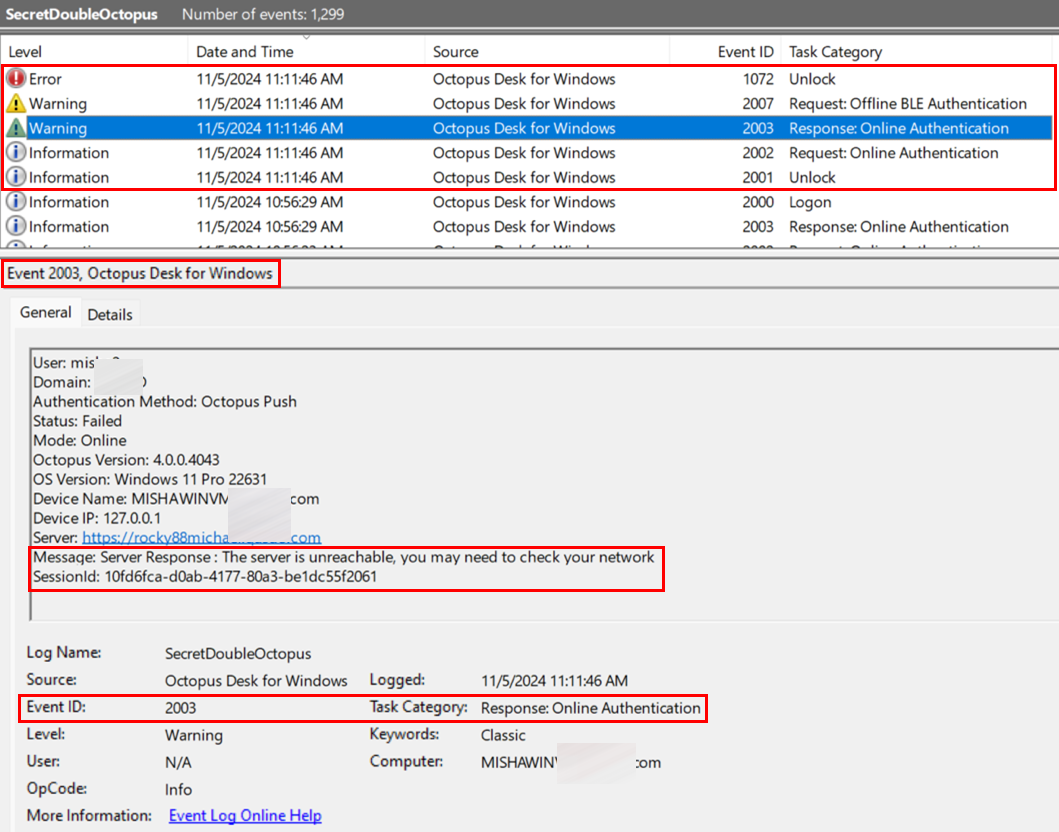
The combined information from these two messages can be used to clarify the cause of the error and pinpoint the direction for troubleshooting and resolving the issue.
The table below presents several common use case scenarios and shows how the audit messages complement one another to provide a more complete understanding of the cause for the authentication failure. For each use case, the table shows the Event ID and Message for the final Error summarizing the session, and the corresponding Octopus Server call result event.
Use Case #1: No network. The Agent does not attempt to establish a connection with the Octopus Server.
Use Cases #2 and #3: Connection failure. Note the WinHTTP Error in the Server Response message. Connection failure (as above). For more details about WinHTTP errors, please go to this Microsoft documentation.
Use Cases #4 and #5: The user either declined or ignored the authentication request on the mobile.
Use Cases #6 and #7: The Octopus Server rejected the authentication request. The Reason Code is included in the Server Response message.
The complete list of Reason Codes is provided in the Octopus Management Console Admin Guide, Appendix B: Authentication Event Codes and Reject Reasons.
Use Case / Example | Error Event ID | Session Error Message | Server Response Event ID | Server Response Message |
|---|---|---|---|---|
Use Case #1: Ethernet adapter disabled | 1072 | Octopus Desk: No Network error. Please make sure you are connected to the network. If the problem persists, contact your administrator (Error 1072: No Network Error). | 2003 | The server is unreachable, you may need to check your network. |
Use Case #2: Incorrect URL (Server name unresolved) | 1008 | Octopus Desk: Network error. Please make sure you are connected to the internet. If the problem persists, contact your administrator (Error 1008: Network Error). | 2003 | The server is unreachable, you may need to check your network (WinHttp Error 12007: The server name or address could not be resolved). |
Use Case #3: Auth Server processes down | . 1008 | Octopus Desk: Network error. Please make sure you are connected to the internet. If the problem persists, contact your administrator (Error 1008: Network Error). | 2003 | The server is unreachable, you may need to check your network (WinHttp Error 12029: A connection with the server could not be established). |
Use Case #4: Authentication request declined | 1011 | Octopus Desk: Authentication failed. Try again and approve authentication on your mobile (Error 1011: User Denied request). | 2003 | Deny, Code = 1011 |
Use Case #5: No user response | 1026 | Octopus Desk: Authentication failed. Please try again (Error 1026: Timeout no response). | 2003 | Timeout, Code = 1019 |
Use Case #6: User is blocked | 1004 | Octopus Desk: Authentication failed. Please try again later or contact your administrator (Error 1004: Server Reject request). | 2003 | Reject Reason: User is blocked Session ID: 7D4F0FCE Reason Code: 3006 |
Use Case #7: User is not assigned to an SDO AD Authentication service | 1004 | Octopus Desk: Authentication failed. Please try again later or contact your administrator (Error 1004: Server Reject request). | 2003 | Reject Reason: Login key not found Session ID: FE2892CB Reason Code: 3018 |
Check Point Harmony users may encounter difficulty when attempting to open the VPN from the Windows systray. This issue can also occur when your VPN is installed in multiple locations.
To resolve this issue, check the configurations described below.
MSIUpdater Configuration
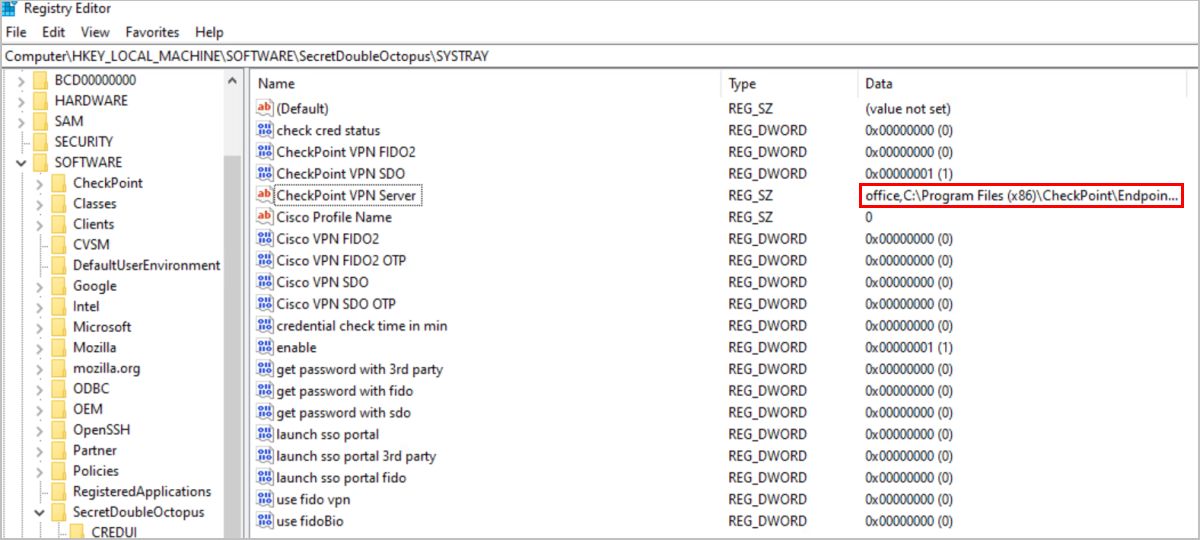
In the Systray tab of the MSIUpdater, verify that the site / profile name of the VPN is followed by a comma and the full path of the VPN client. The correct format can be viewed in the Registry Editor. For example:
 |
Endpoint Security Configuration
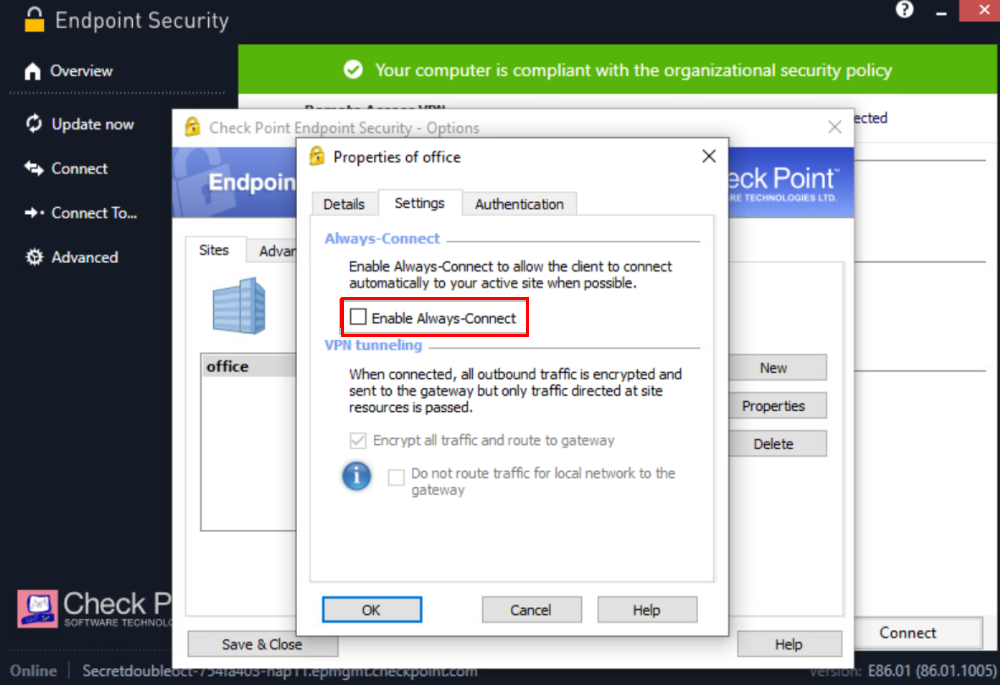
In the properties of your VPN Server, make sure that the Enable Always-Connect checkbox is NOT selected.
 |