Adding a Manager to Your SDO Tenant
Learn how to add an existing directory user as a manager in your SDO tenant using the MSP Console.
Estimated time: 1–2 minutes
This article explains how to assign manager access to an existing user from your directory. Use this flow when the user already exists in the connected directory and needs access to manage the tenant.
Before You Begin
- You have access to the MSP Console / Tenant Manager.
- The user already exists in the connected directory.
- You have sufficient permissions to manage tenant administrators.
Add a Manager – Step-by-Step
1 Navigate to your Tenant Manager URL and sign in with your admin account.
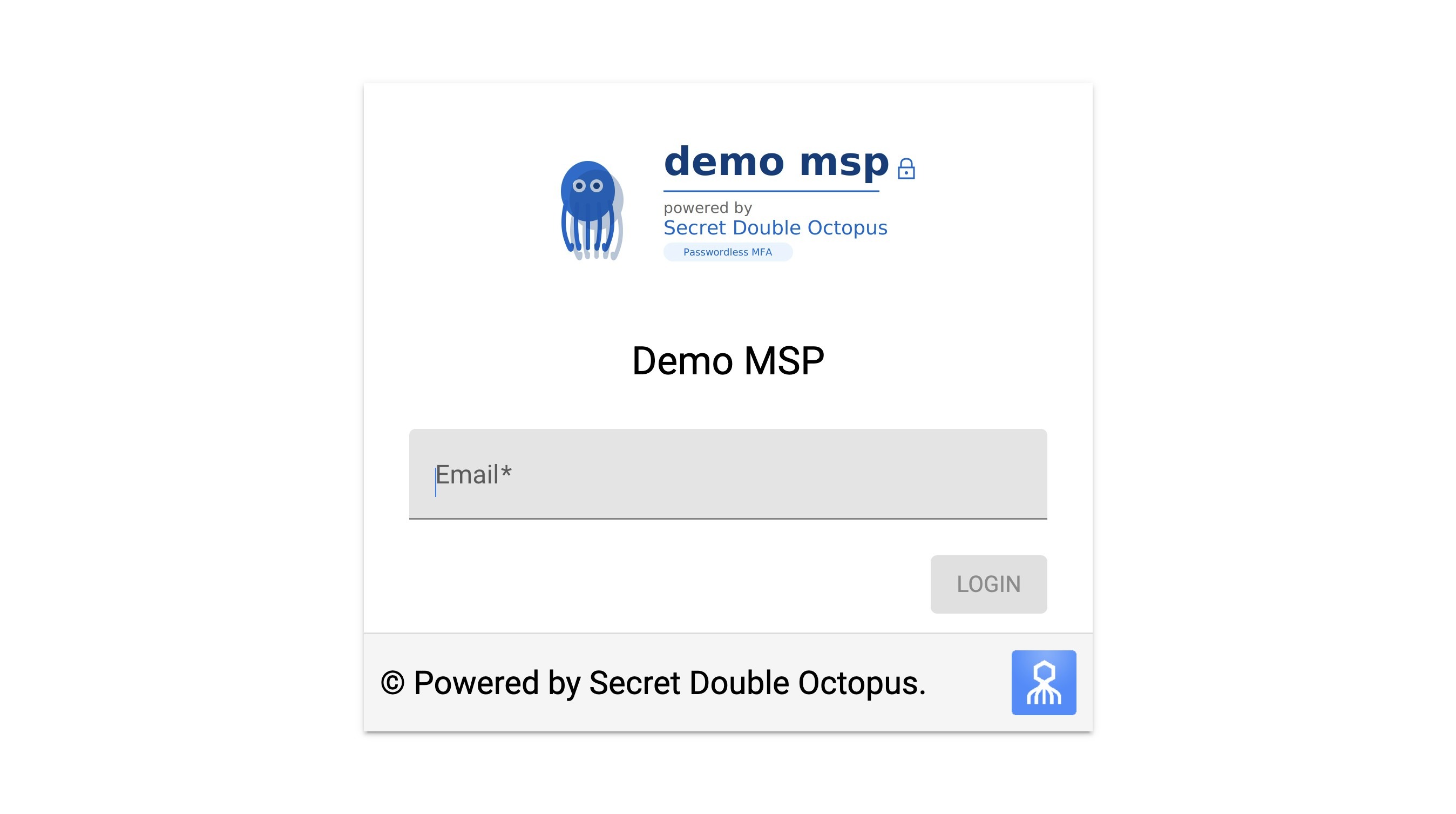
Example Tenant Manager login page
2 Open the relevant tenant, then click Managers.
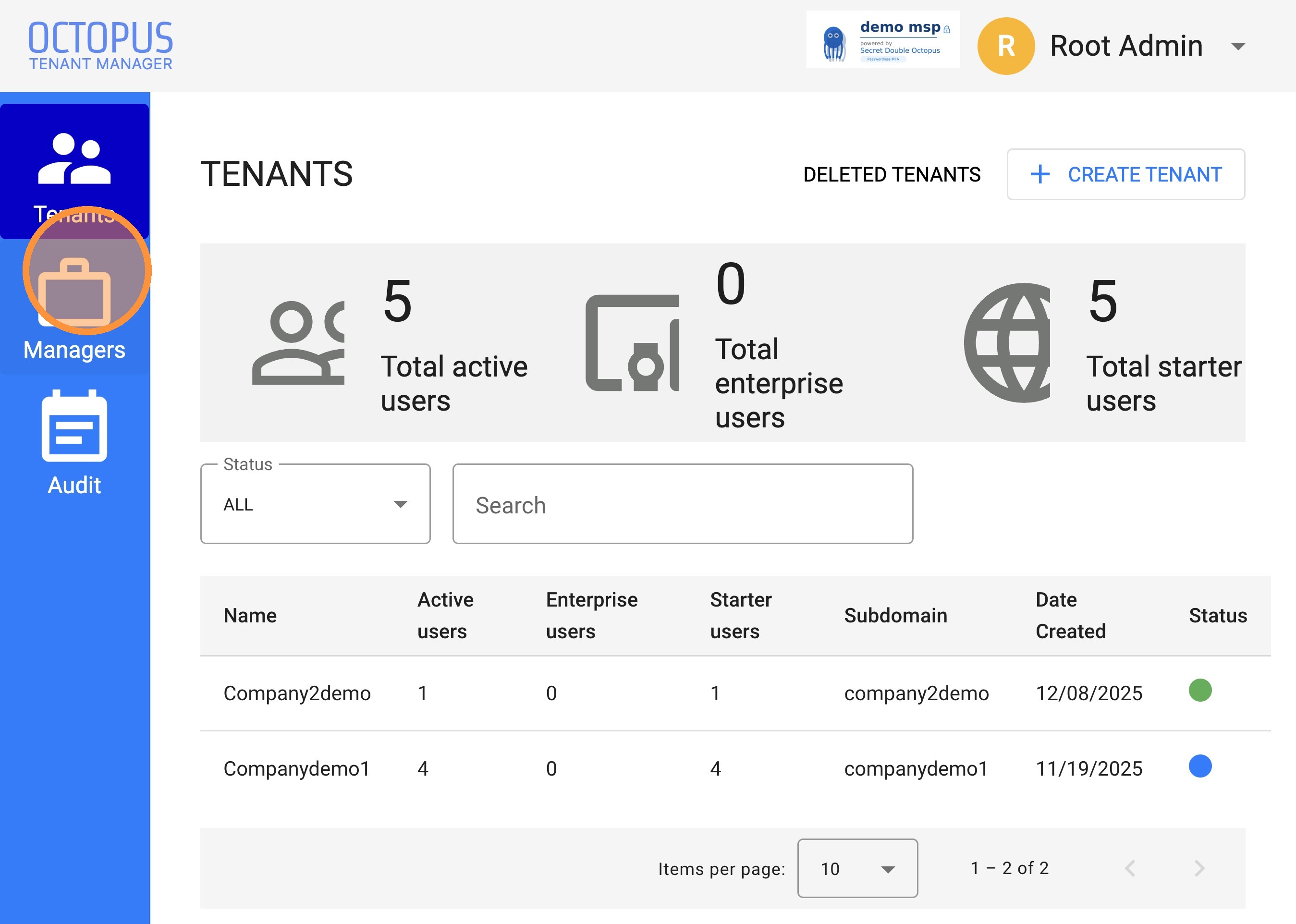
Open the Managers section for the selected tenant
3 Click ADD MANAGERS.
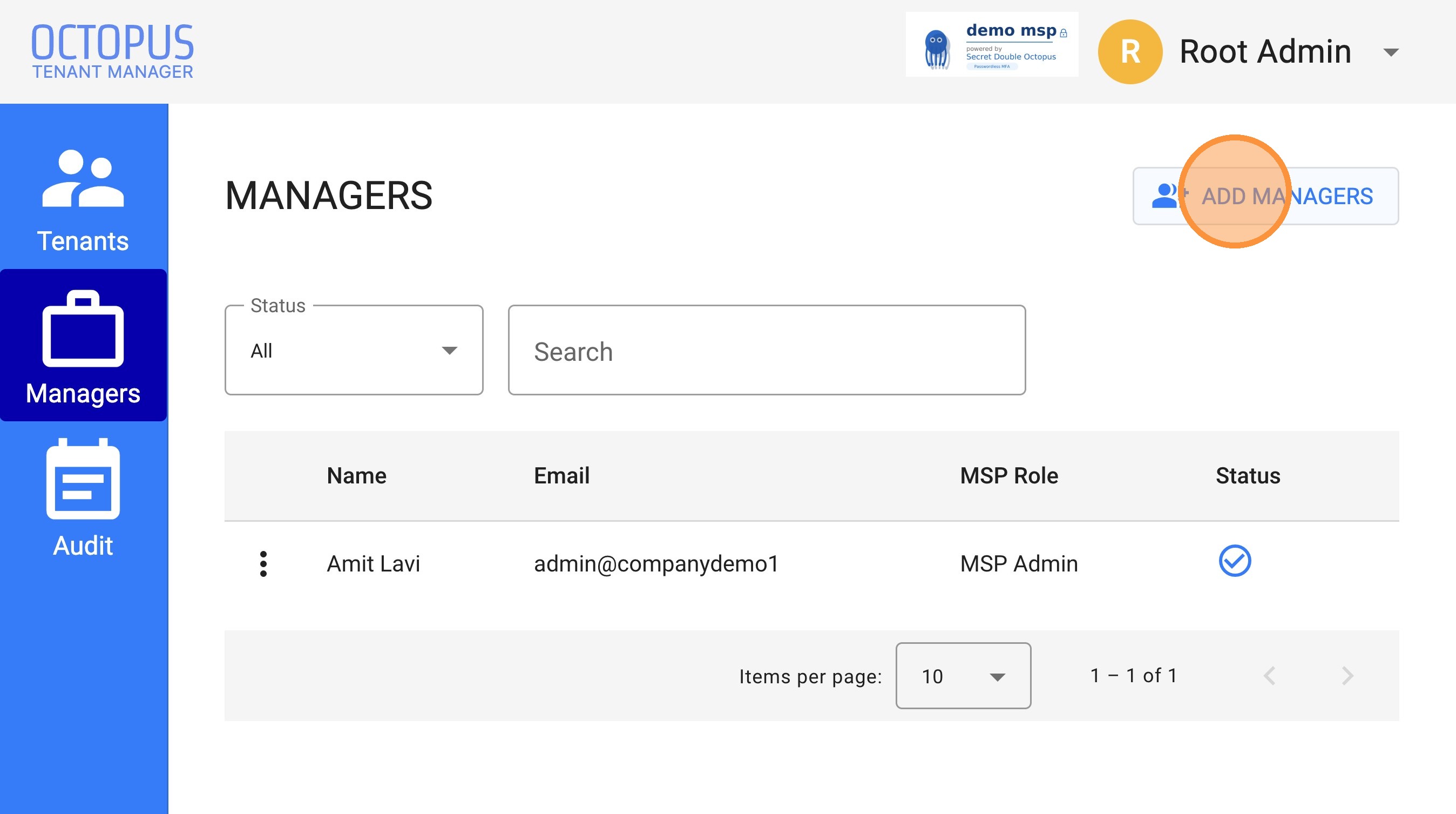
Use the Add Managers option to assign an existing user
4 Select the directory and search for the user you want to add.
- Select the relevant directory
- Click Search
- Locate the required user
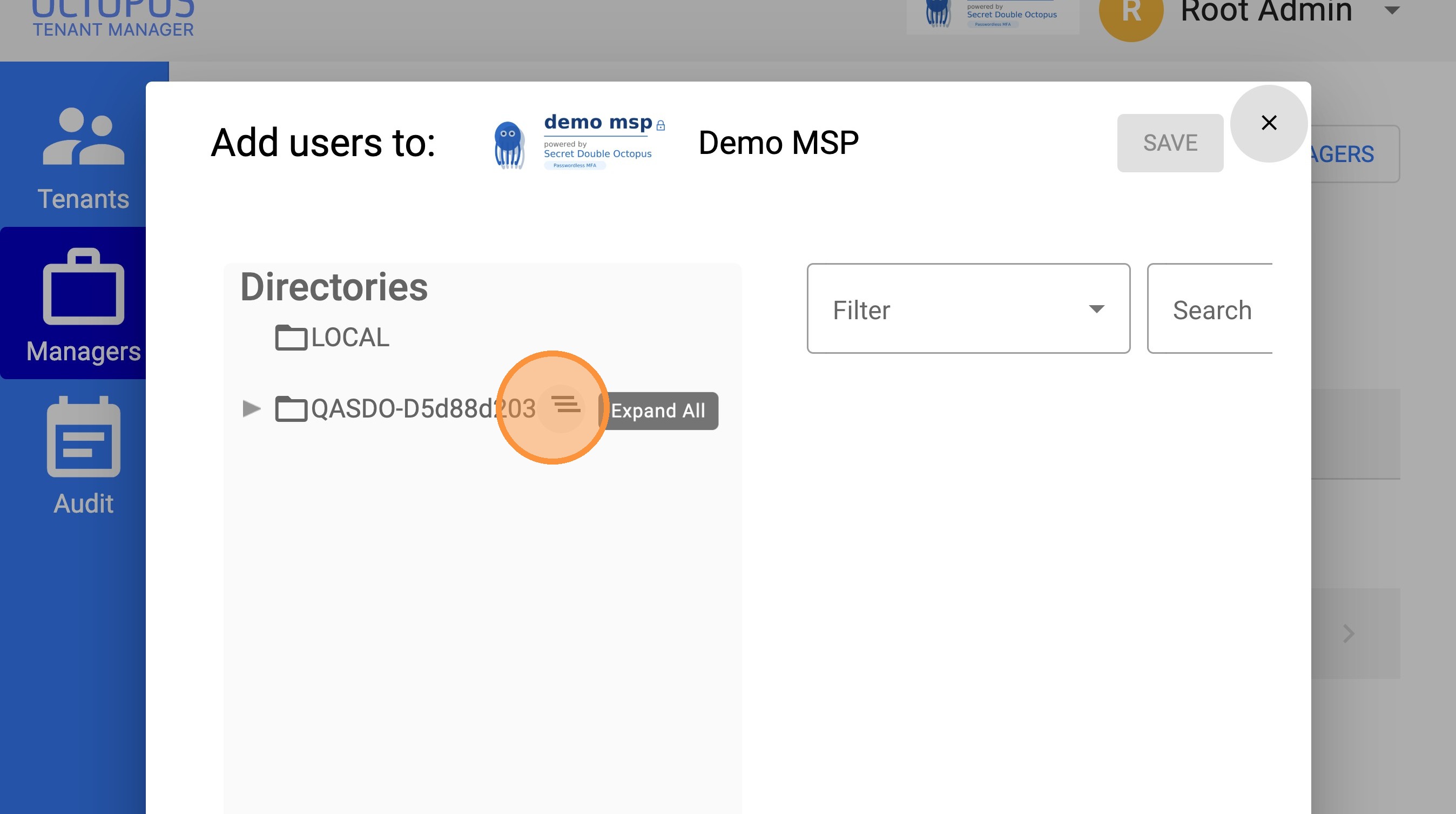
Choose the directory source before searching
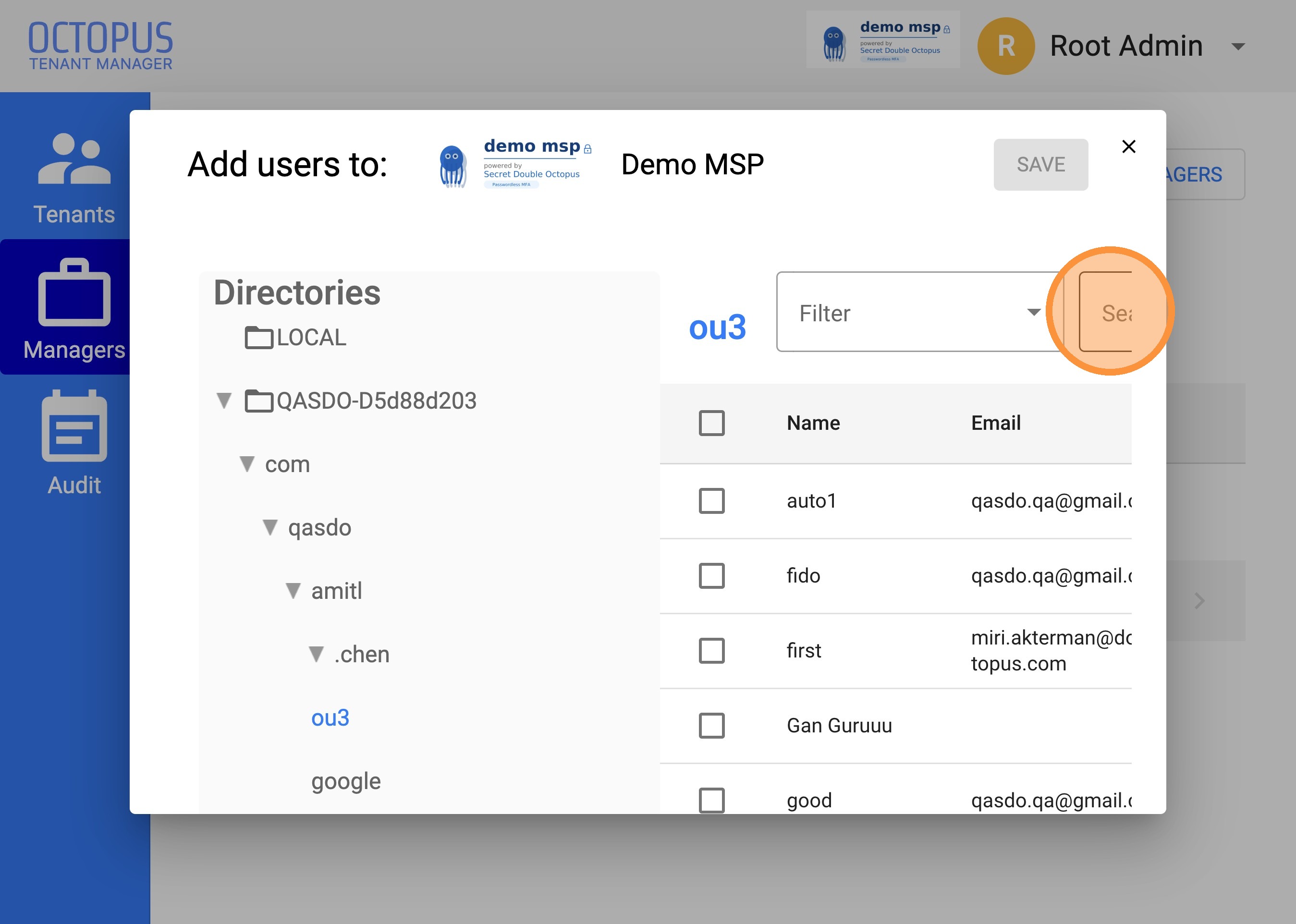
Search for the user you want to assign
5 Select the user using the checkbox.
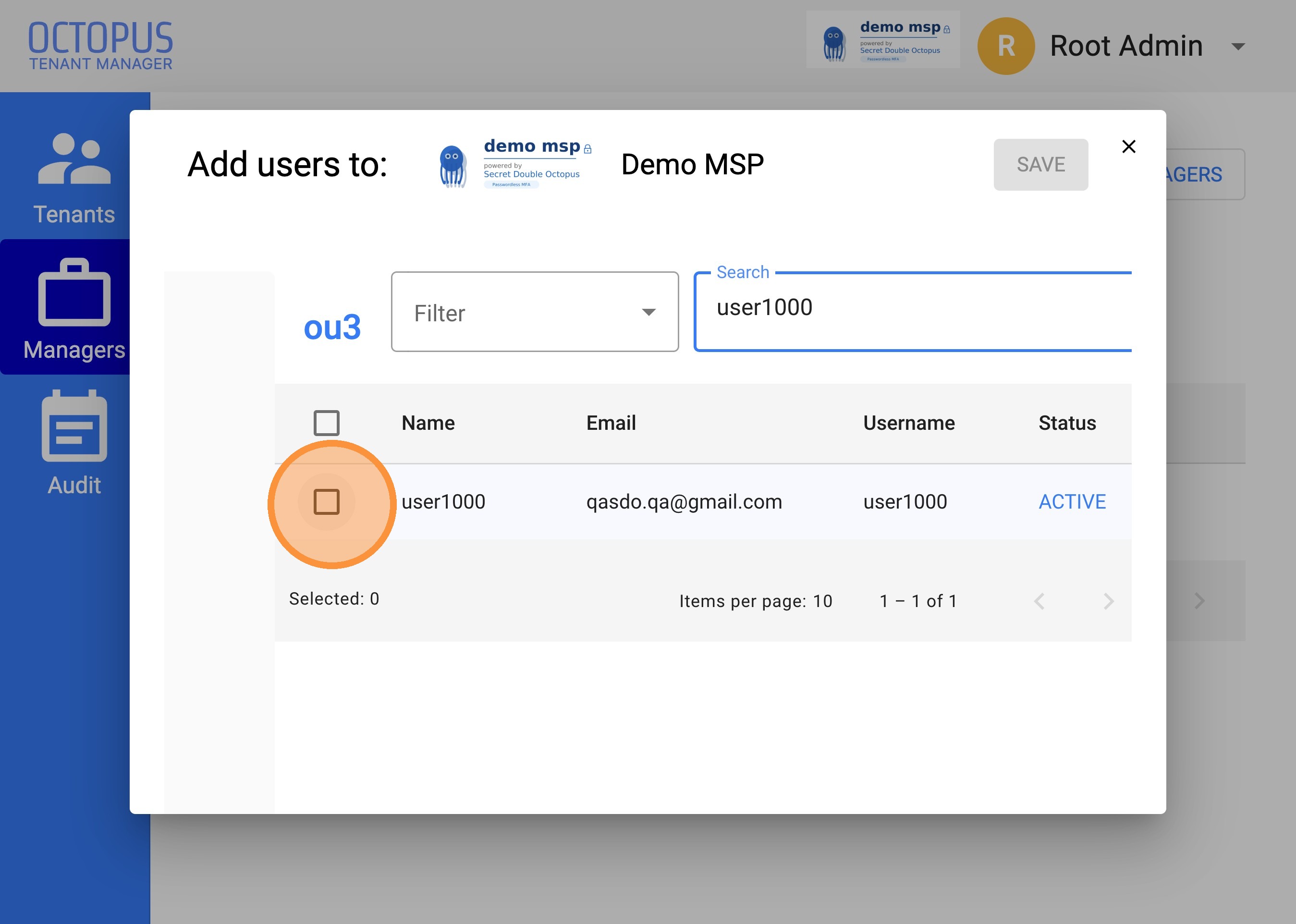
Mark the user you want to add as a manager
6 Choose the appropriate role and permissions for the manager.
- Admin – full administrative access
- Helpdesk – support-focused management access
- Auditor – read-only or audit-related access
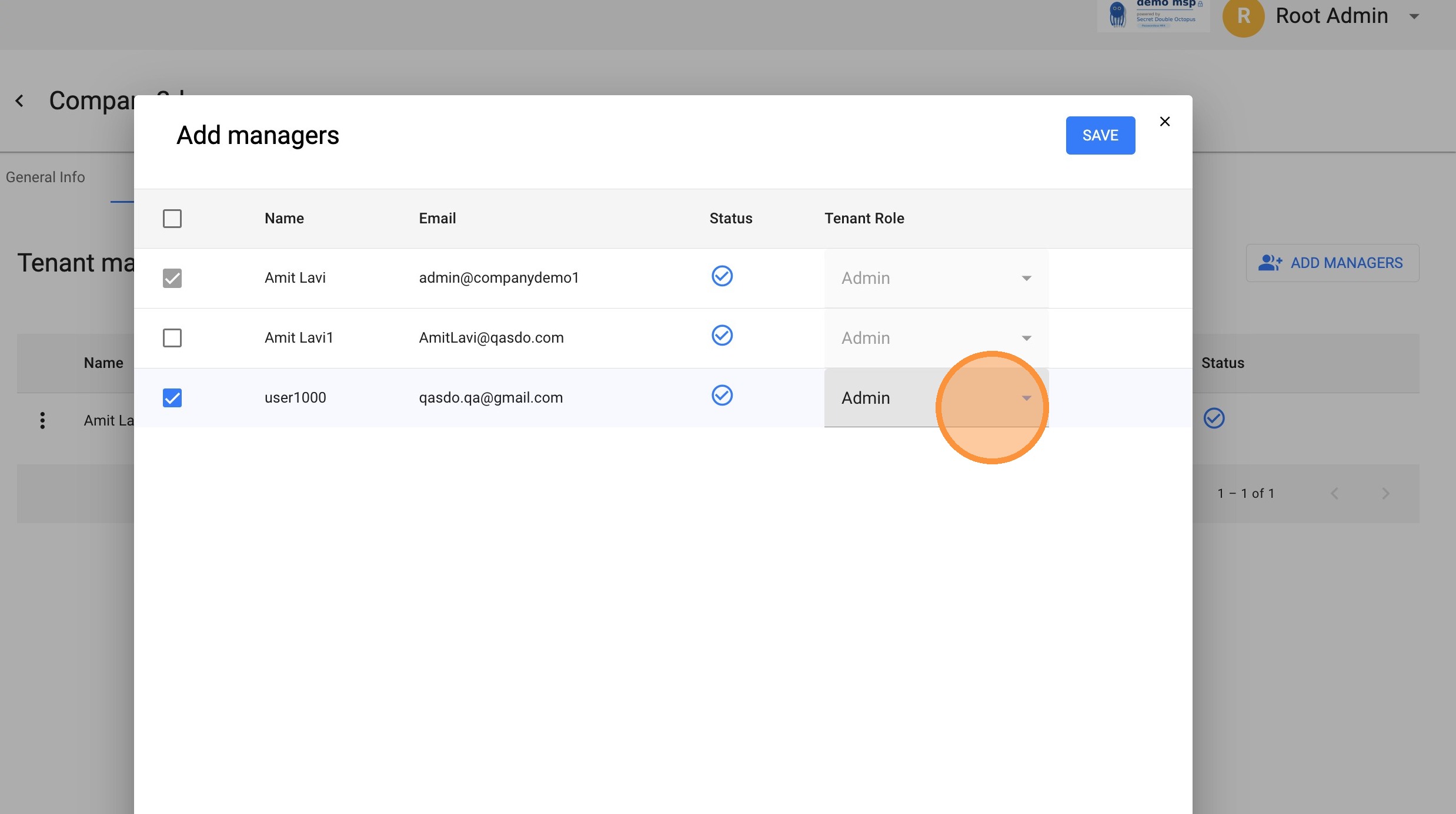
Example role selection
7 Click SAVE to apply the change.
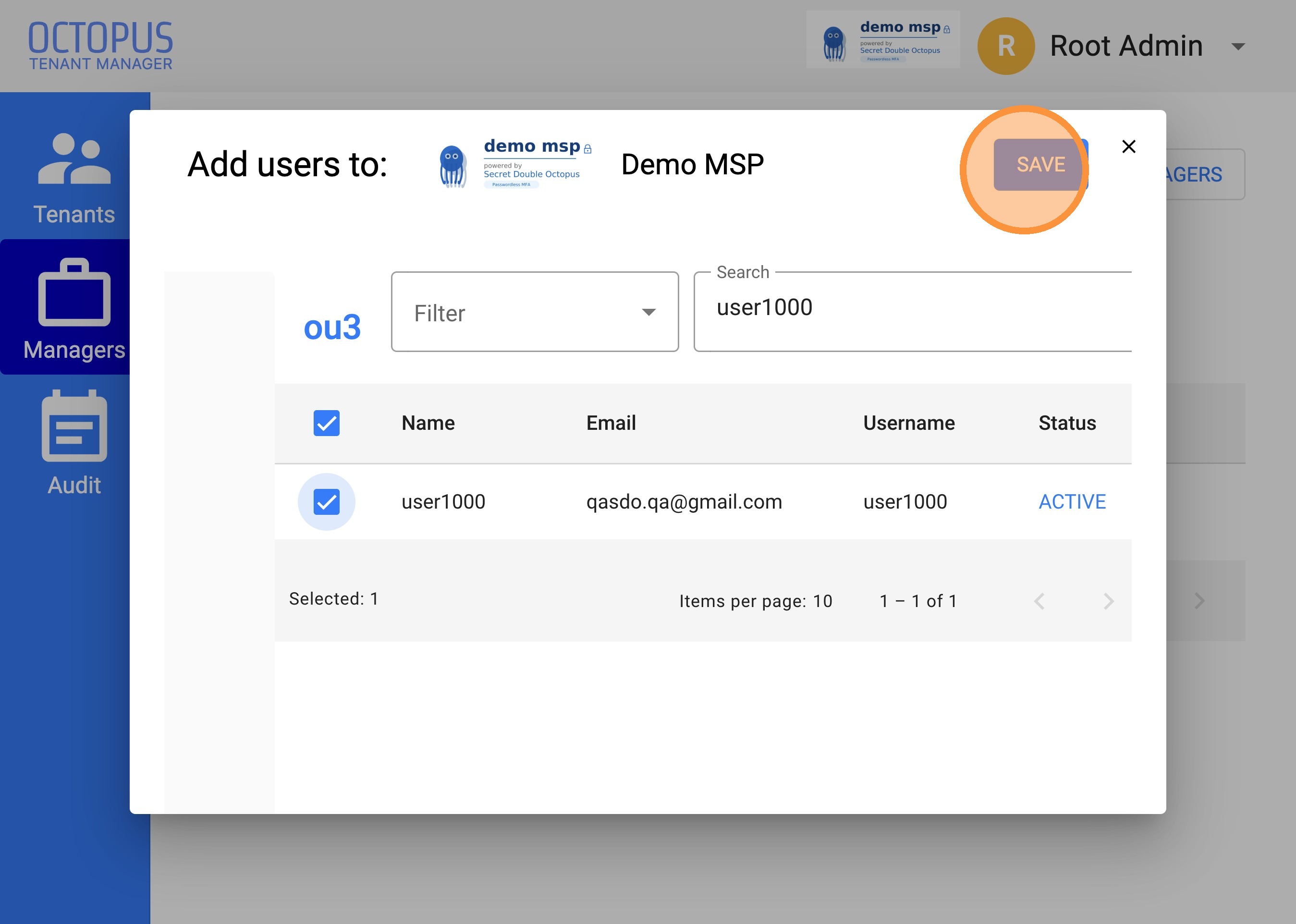
The user is added after you save the configuration
Notes
- This flow adds an existing directory user as a manager.
- No email invitation is required for this method.
- Available roles may vary based on your tenant configuration.
- You can repeat the same process to add additional managers.
Troubleshooting
Cannot find the user in search results?
- Verify that the correct directory is selected.
- Confirm the user exists in the connected directory.
- Try searching by full name or email address.
Role options are missing?
- Your own admin role may not allow assigning all permission types.
- Contact your SDO administrator if you need broader access rights.
✔ Manager assignment completed successfully.