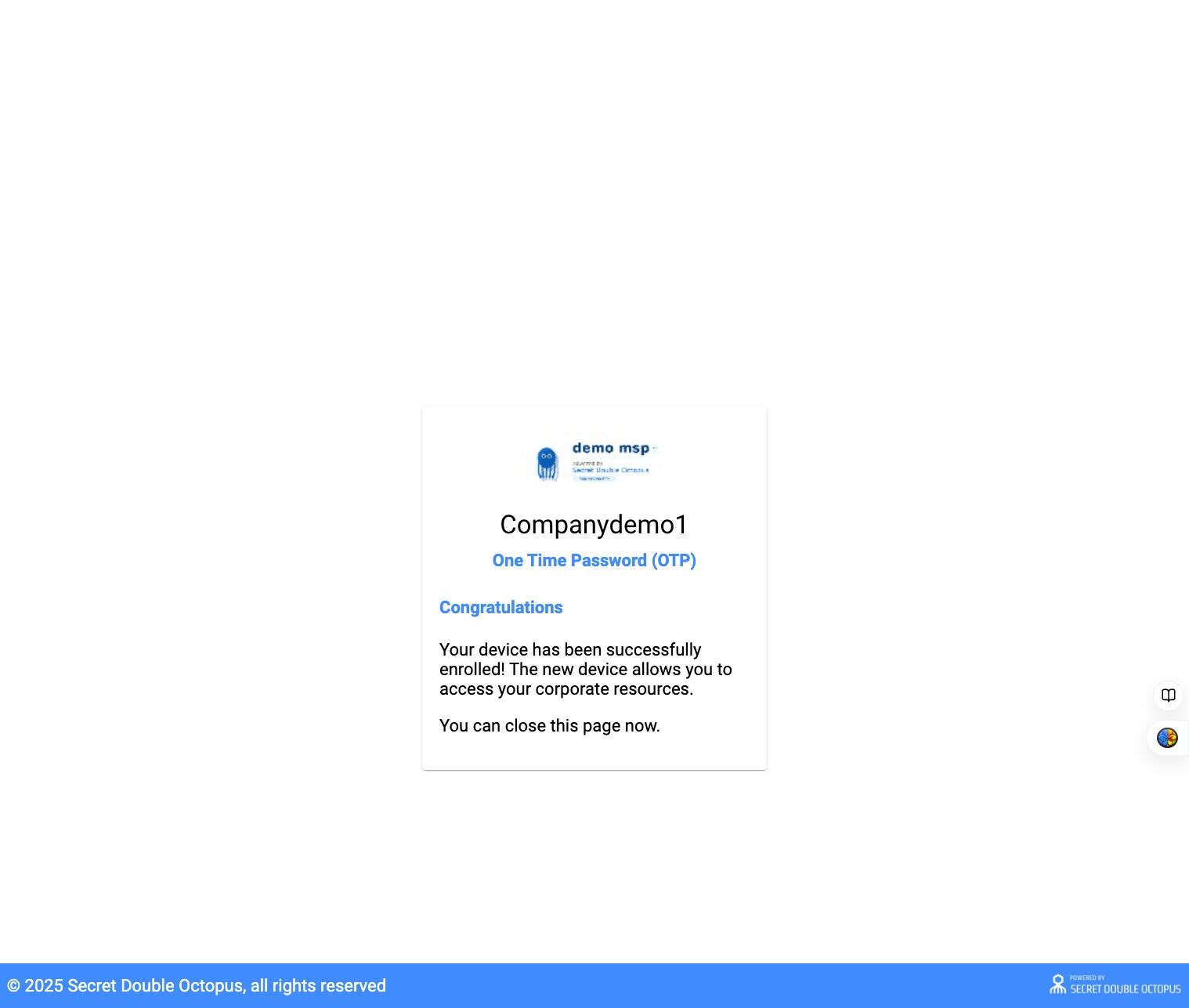
OTP Enrollment
Enable and enroll One-Time Password (OTP) authentication as an additional authentication method in Secret Double Octopus.
This guide explains how to enable OTP on a directory, invite users, and complete OTP enrollment using the Octopus Authenticator application.
1. Login to your company portal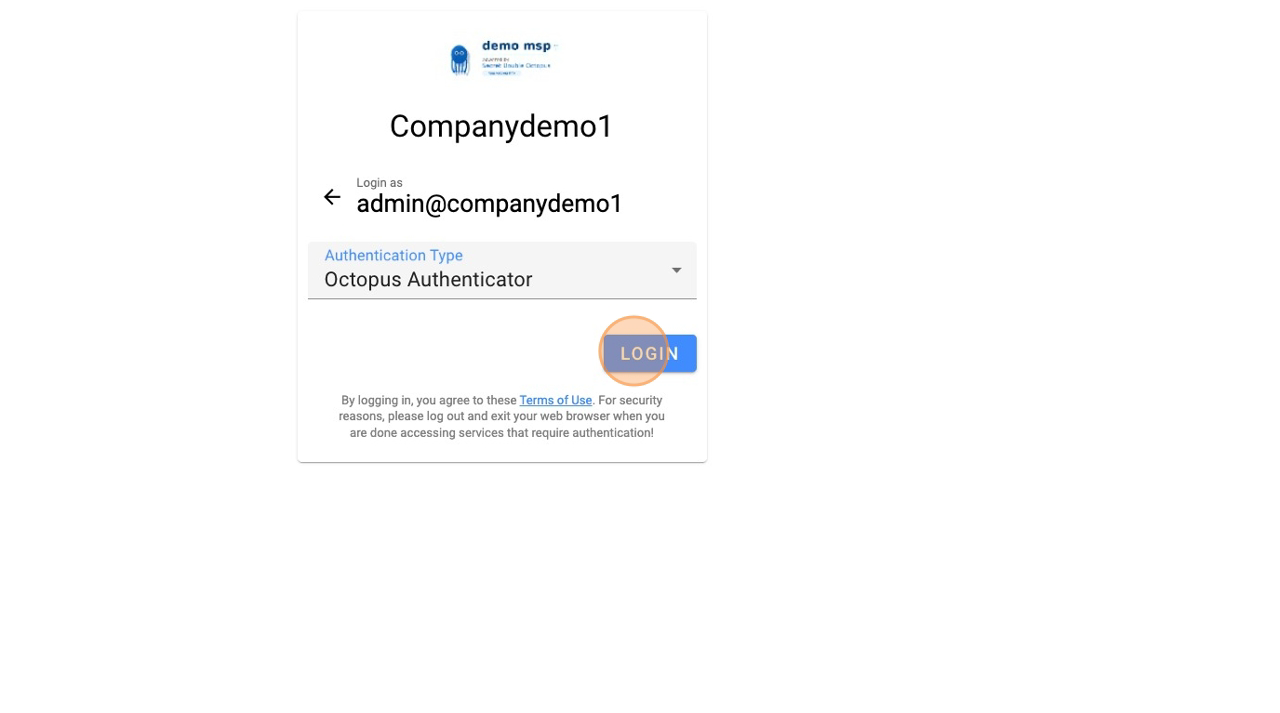
2. Authentication approved
3. Open Management Console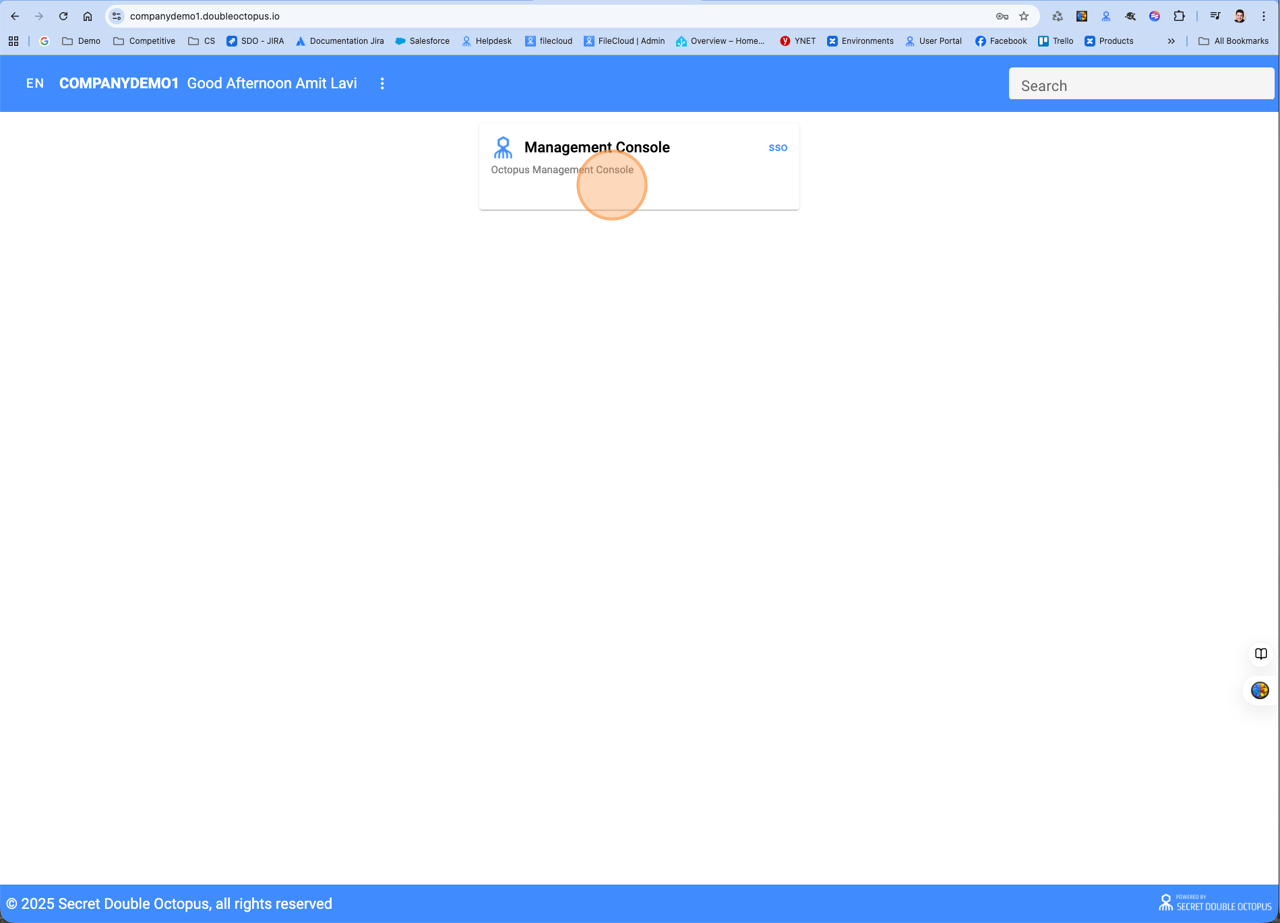
4. Select Directories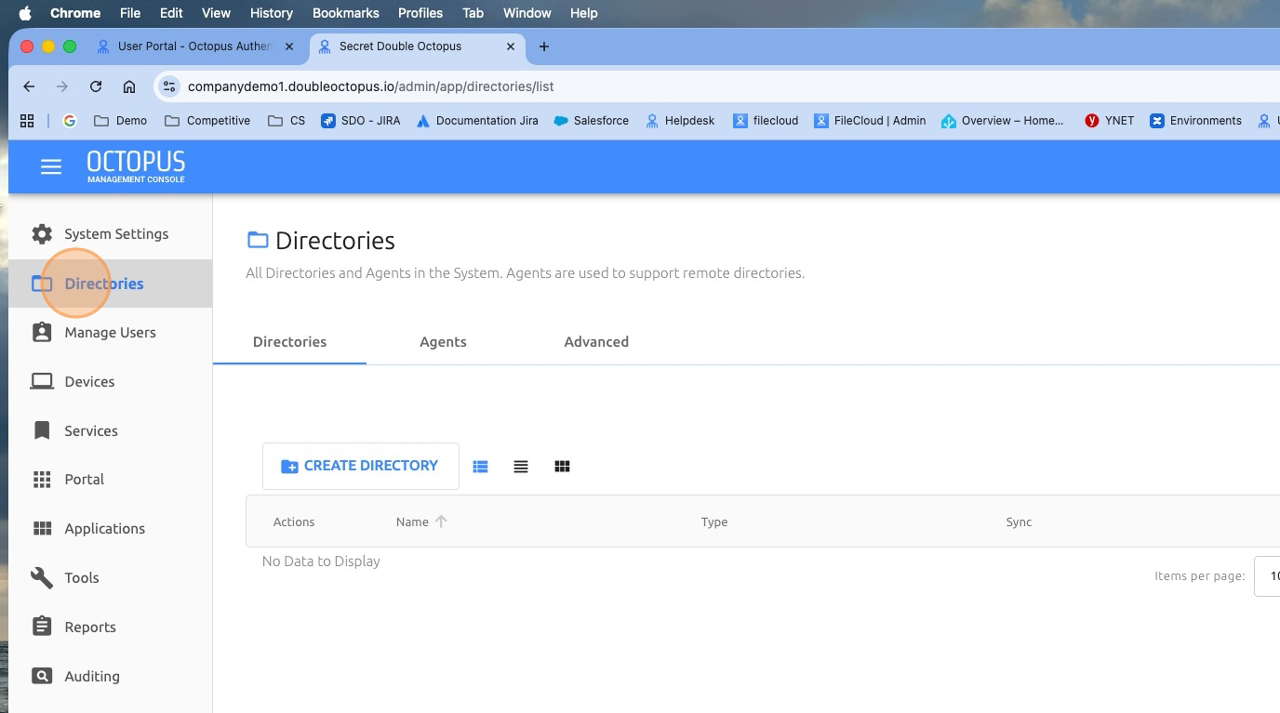
5. Select the directory you wish to add OTP option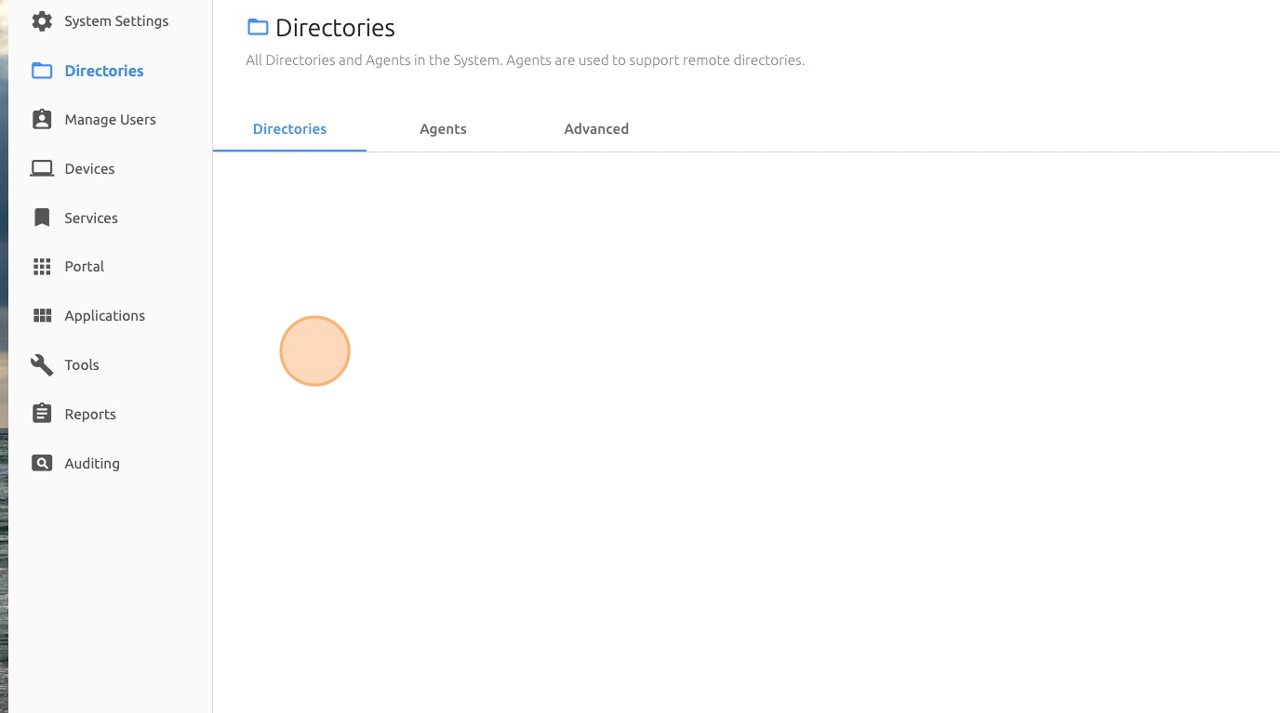
6. Click Authentication tab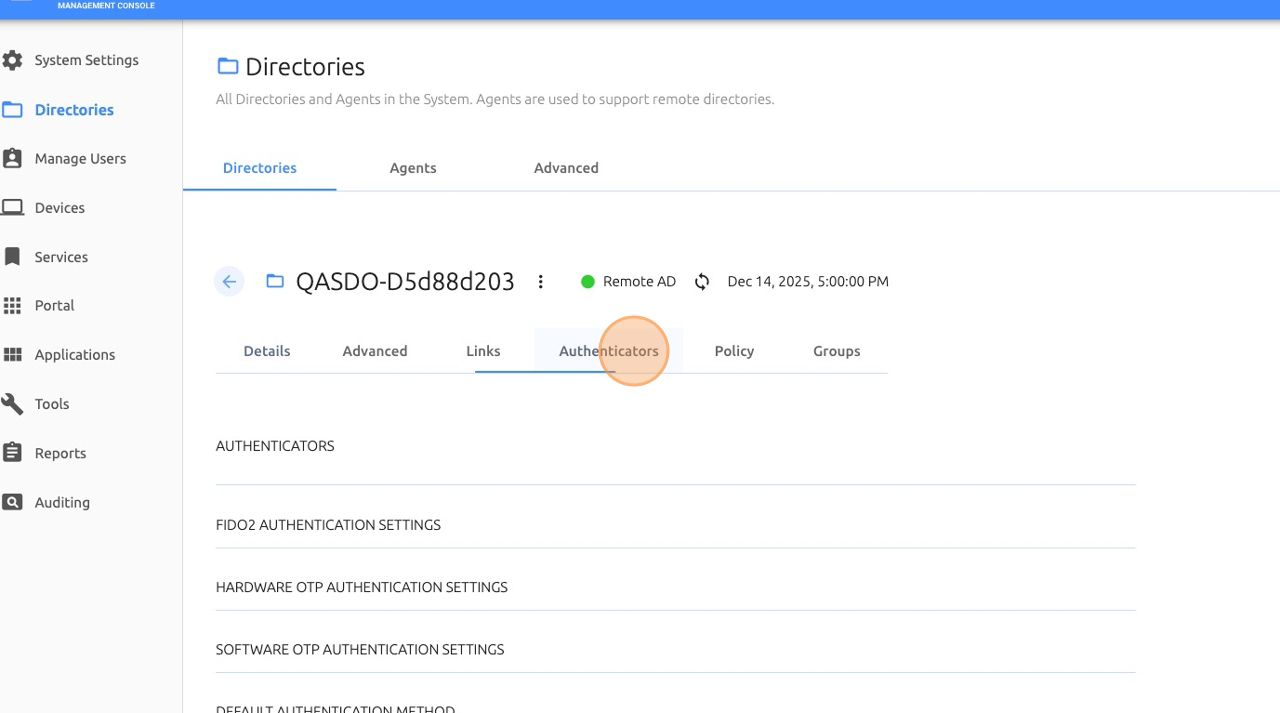
7. Enable OTP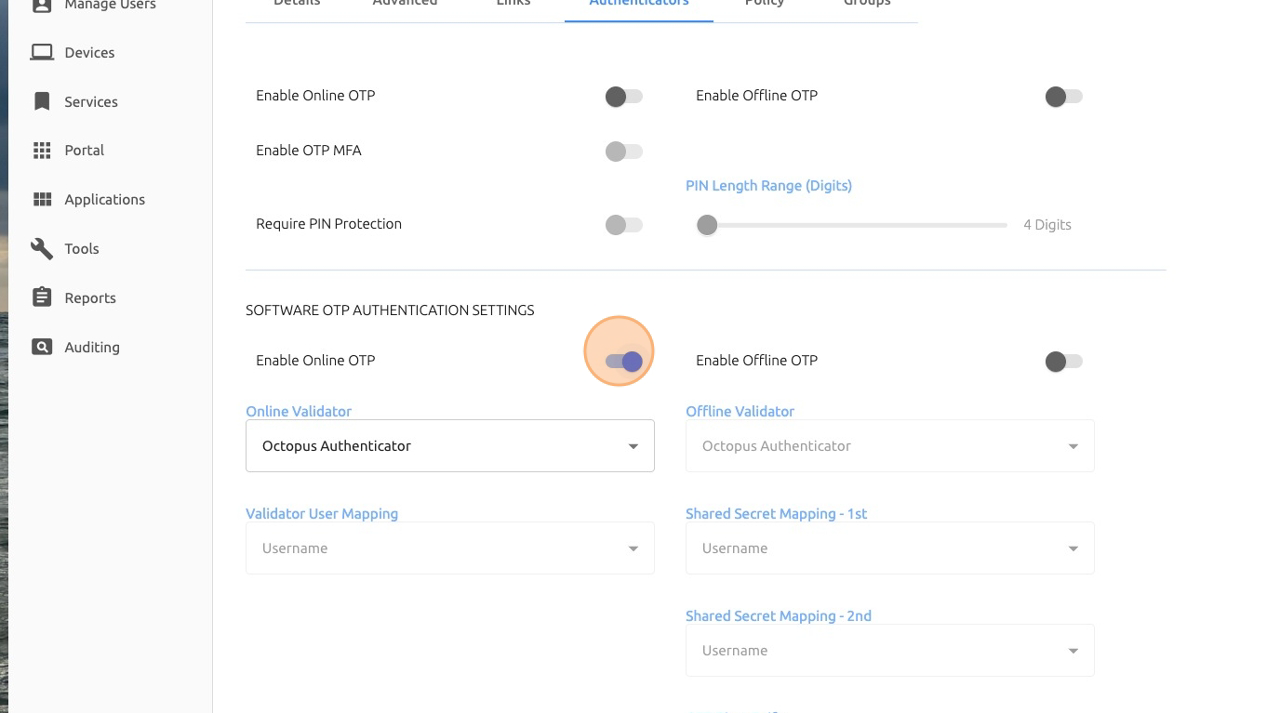
8. Enable OTP Offline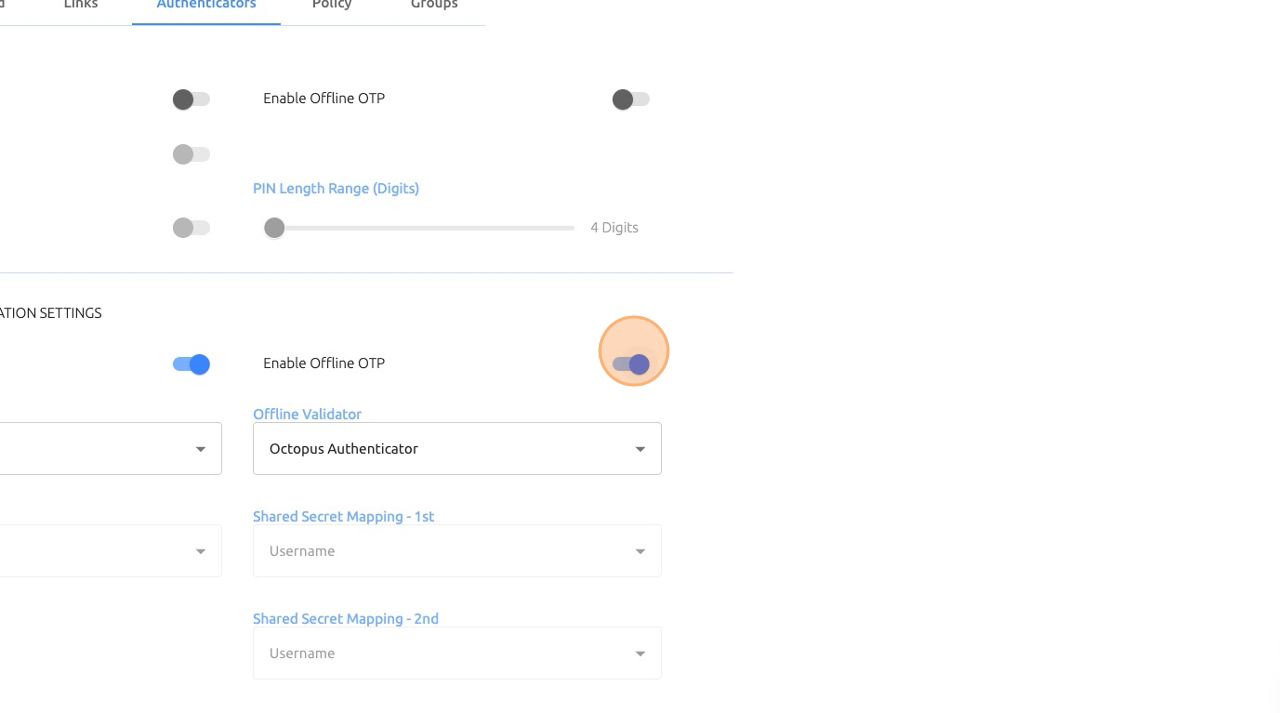
9. Click Save
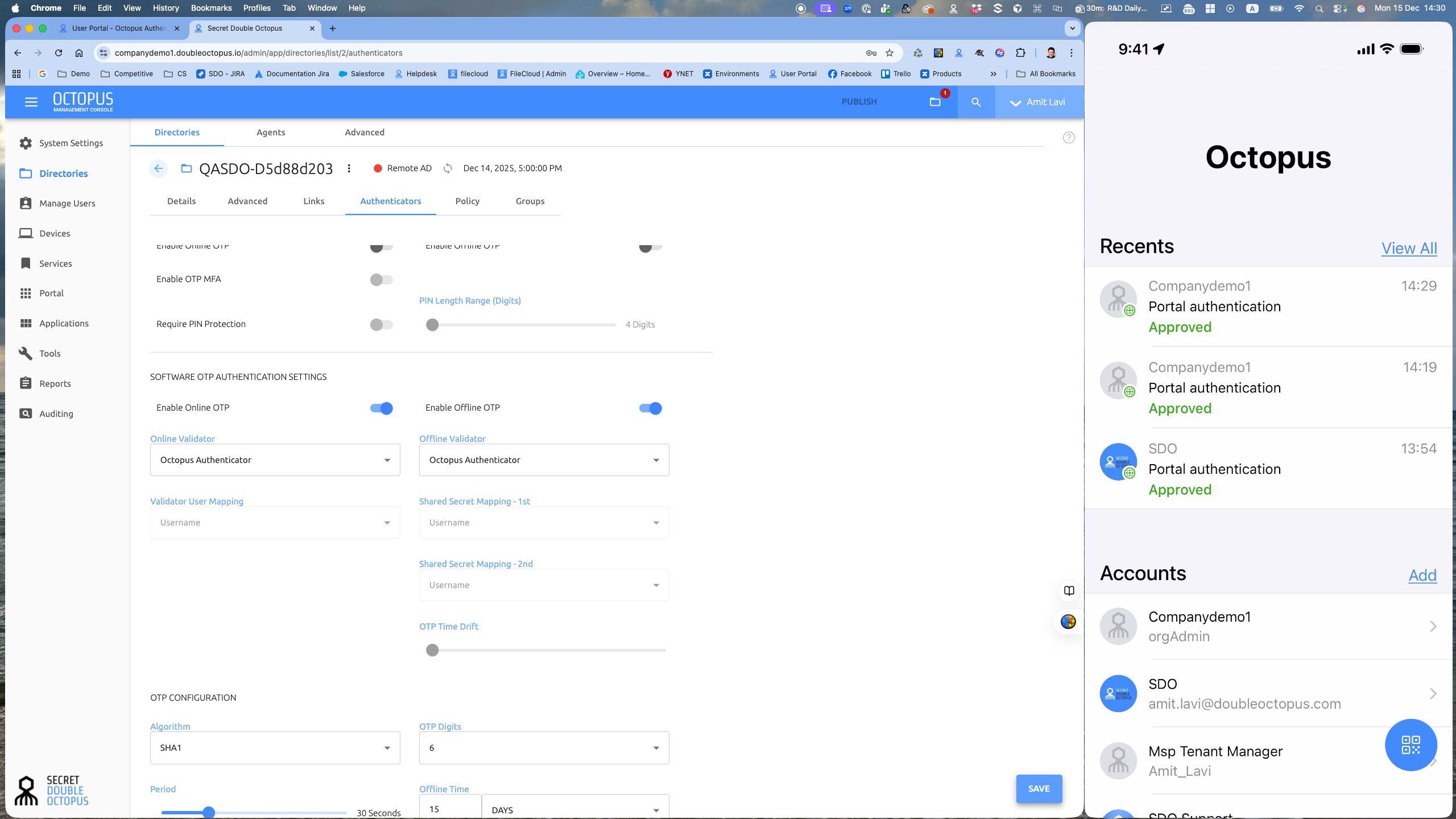
10. Click Publish
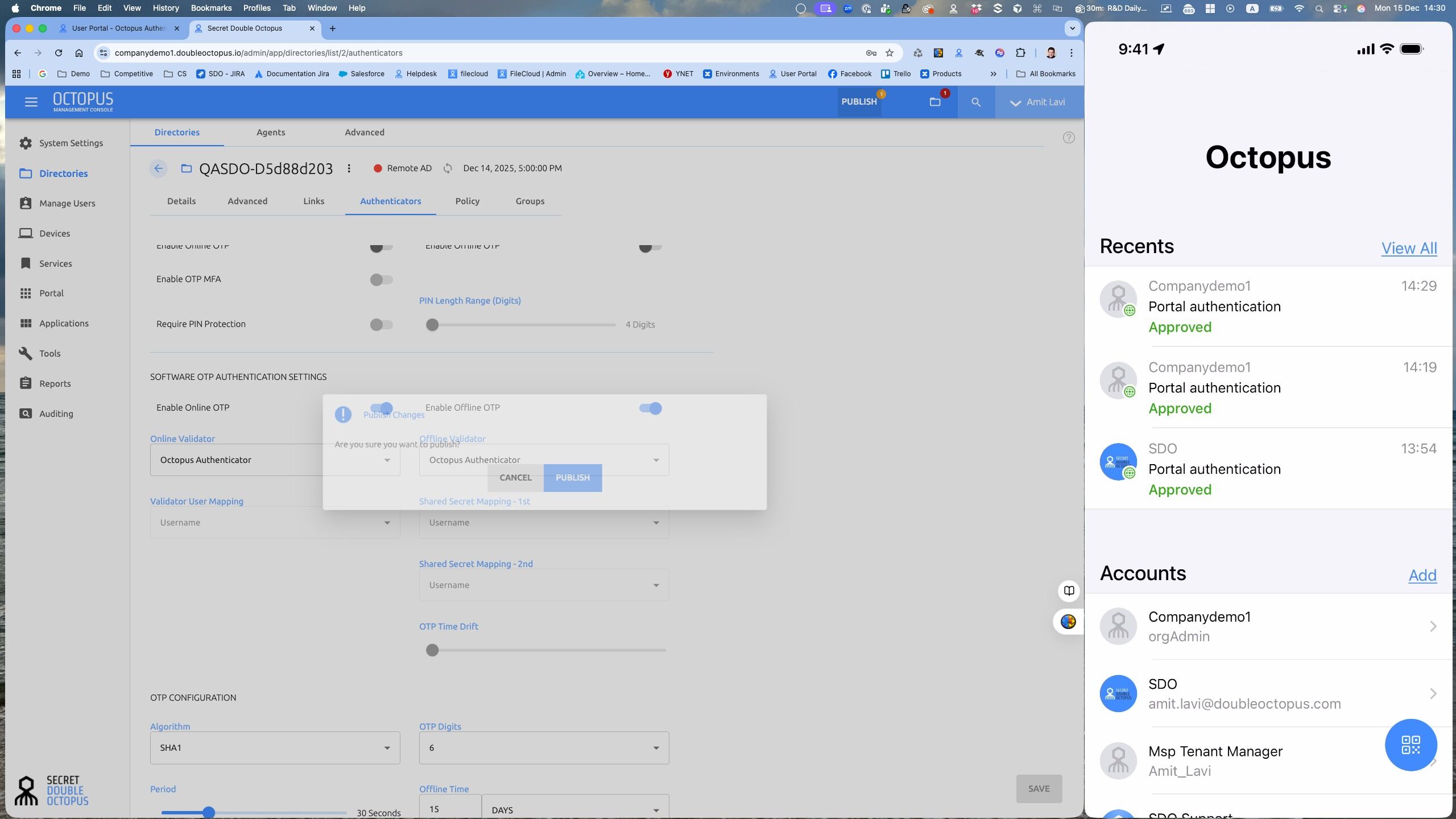
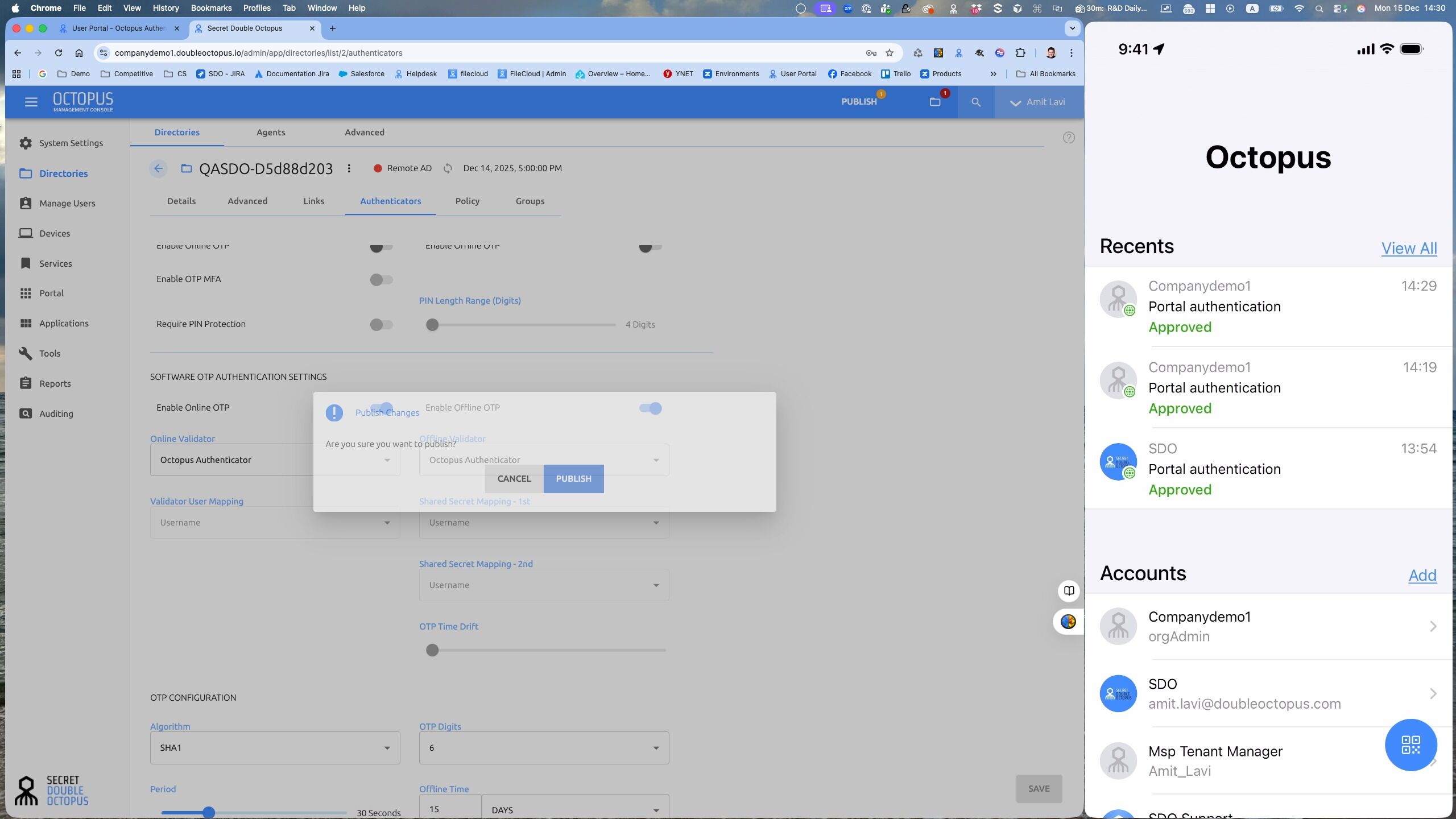
11. Confirm Publish
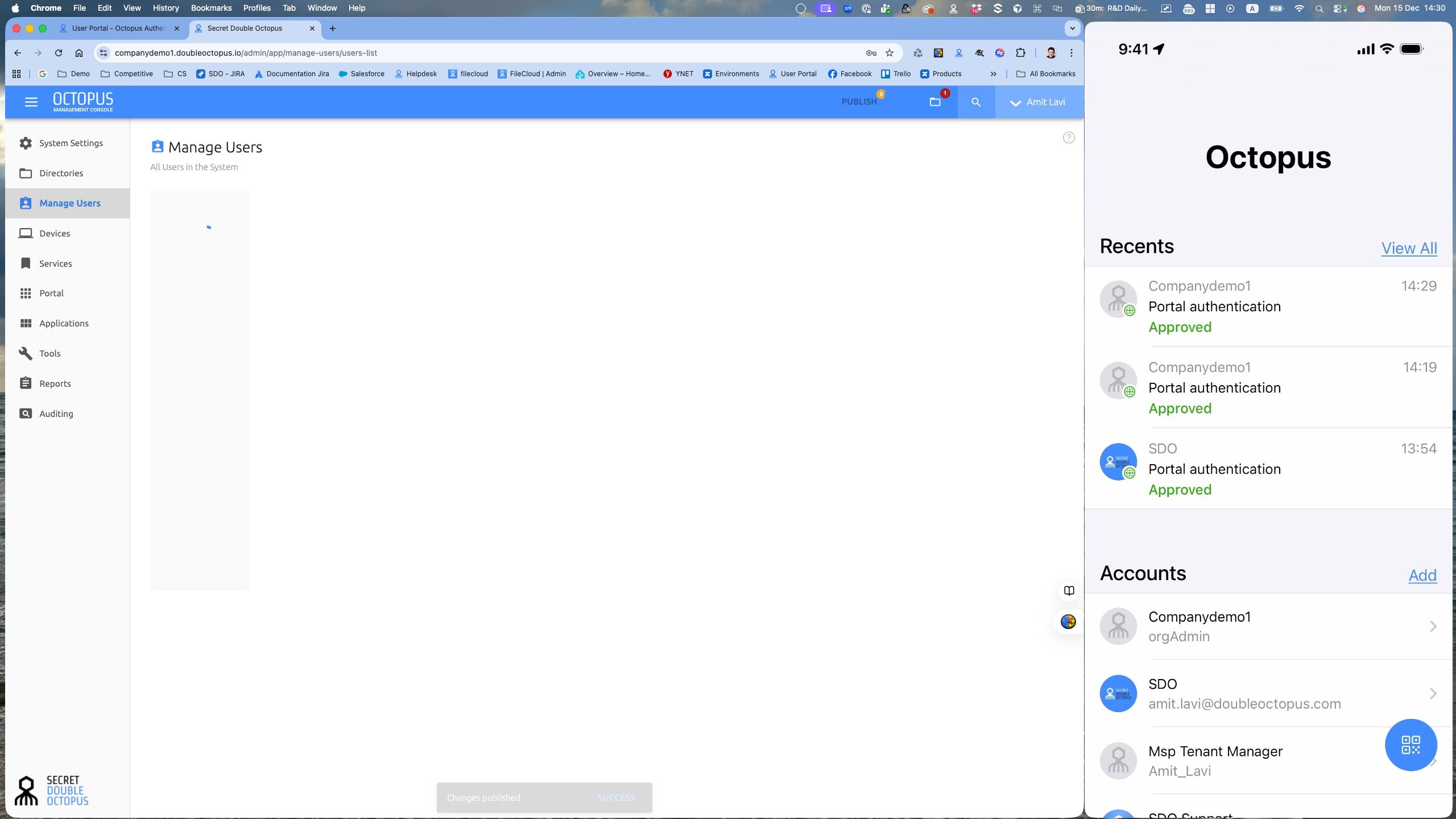
12. Click Managed Users
13. Click user options
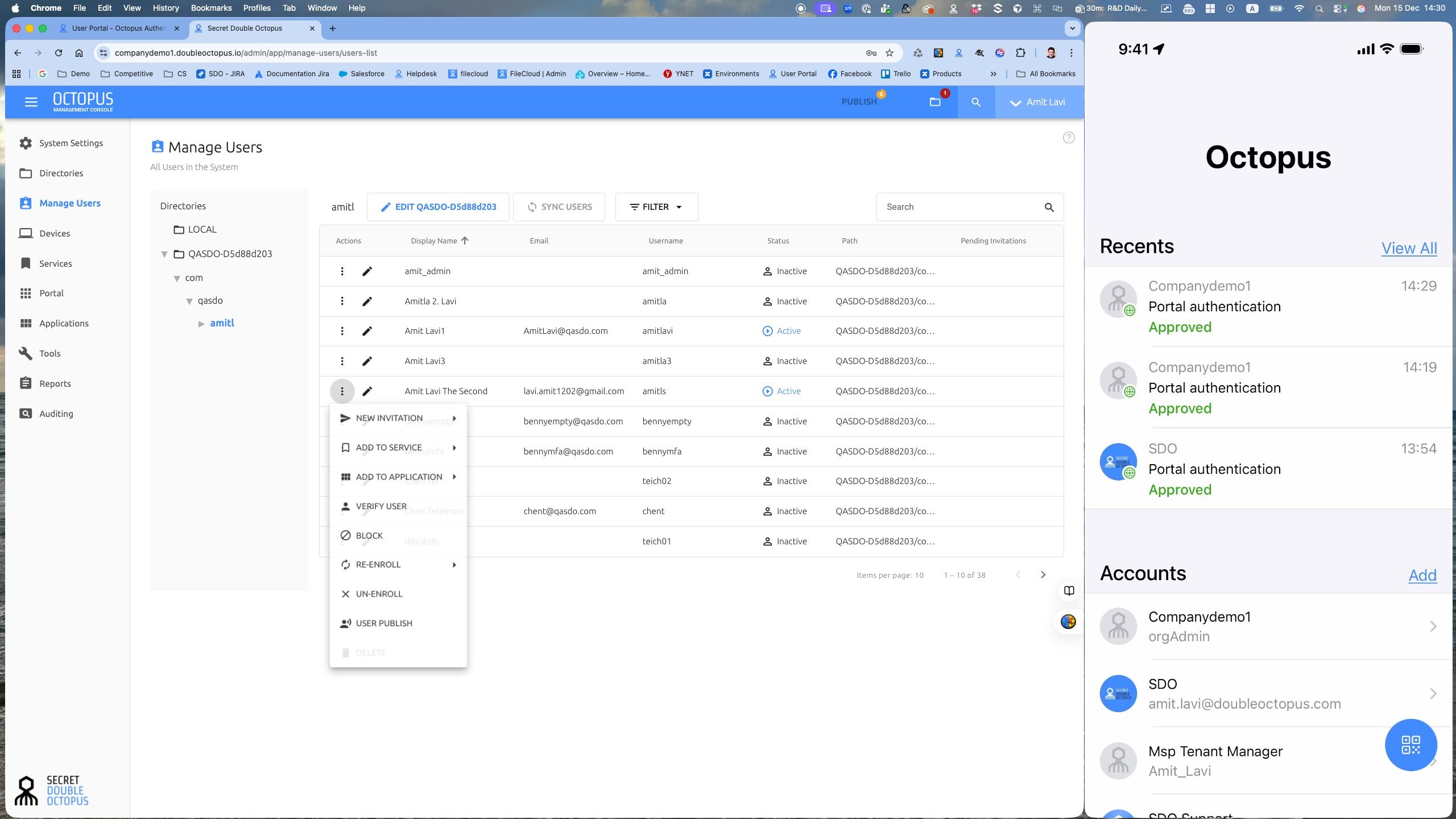
14. Click Send OTP Invitation
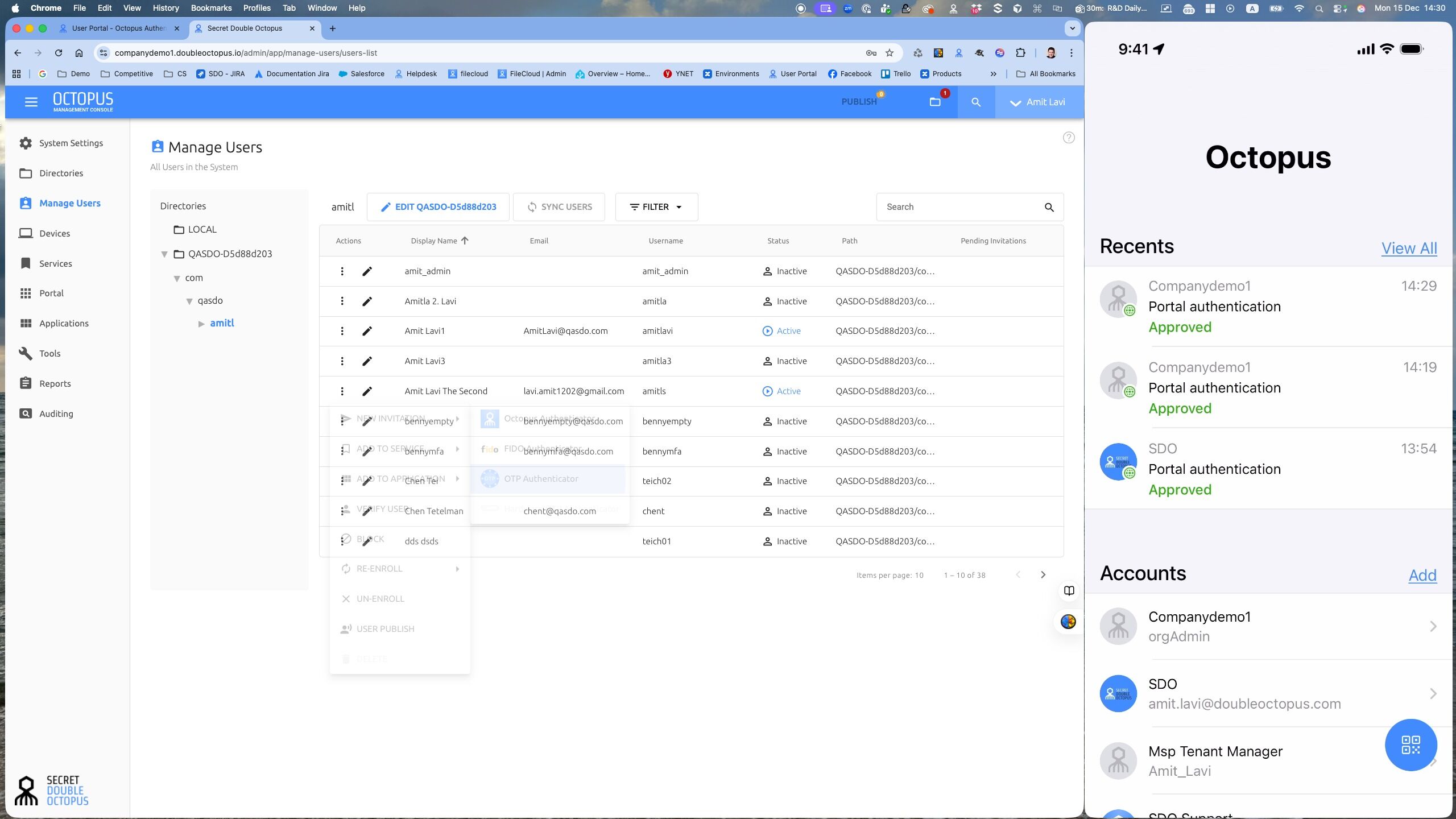
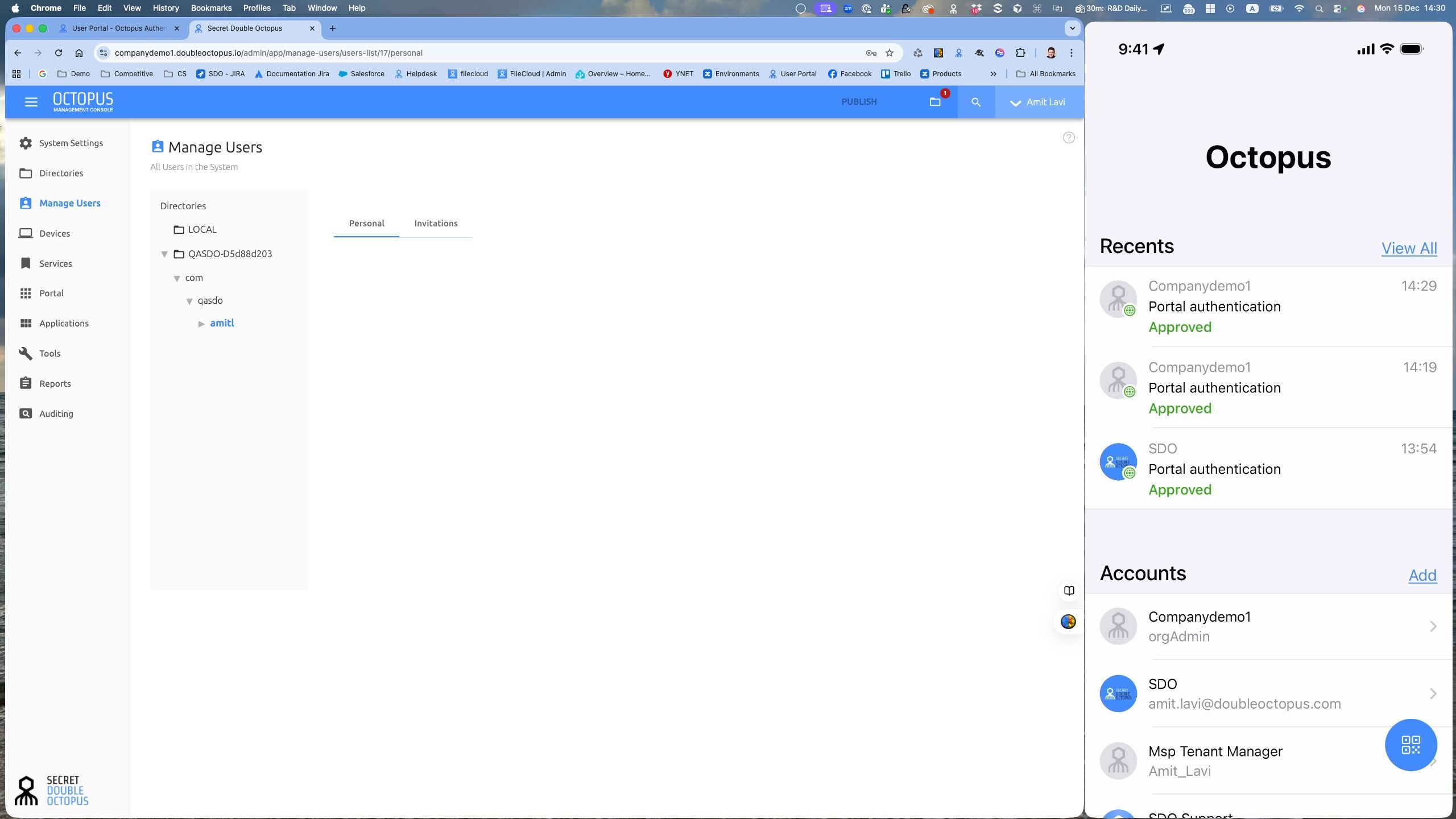
15. Click Edit User
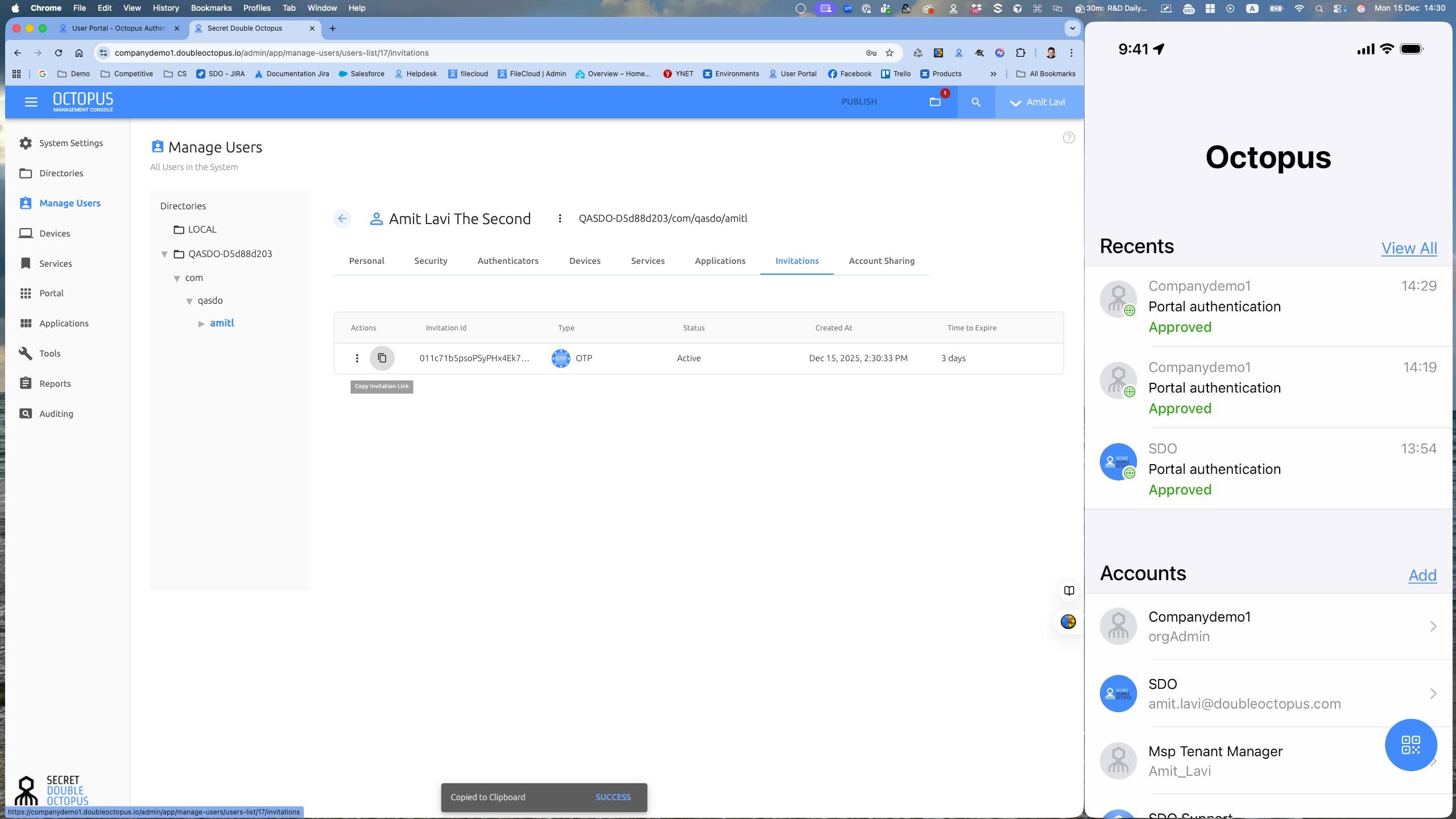
16. Click Invitation tab
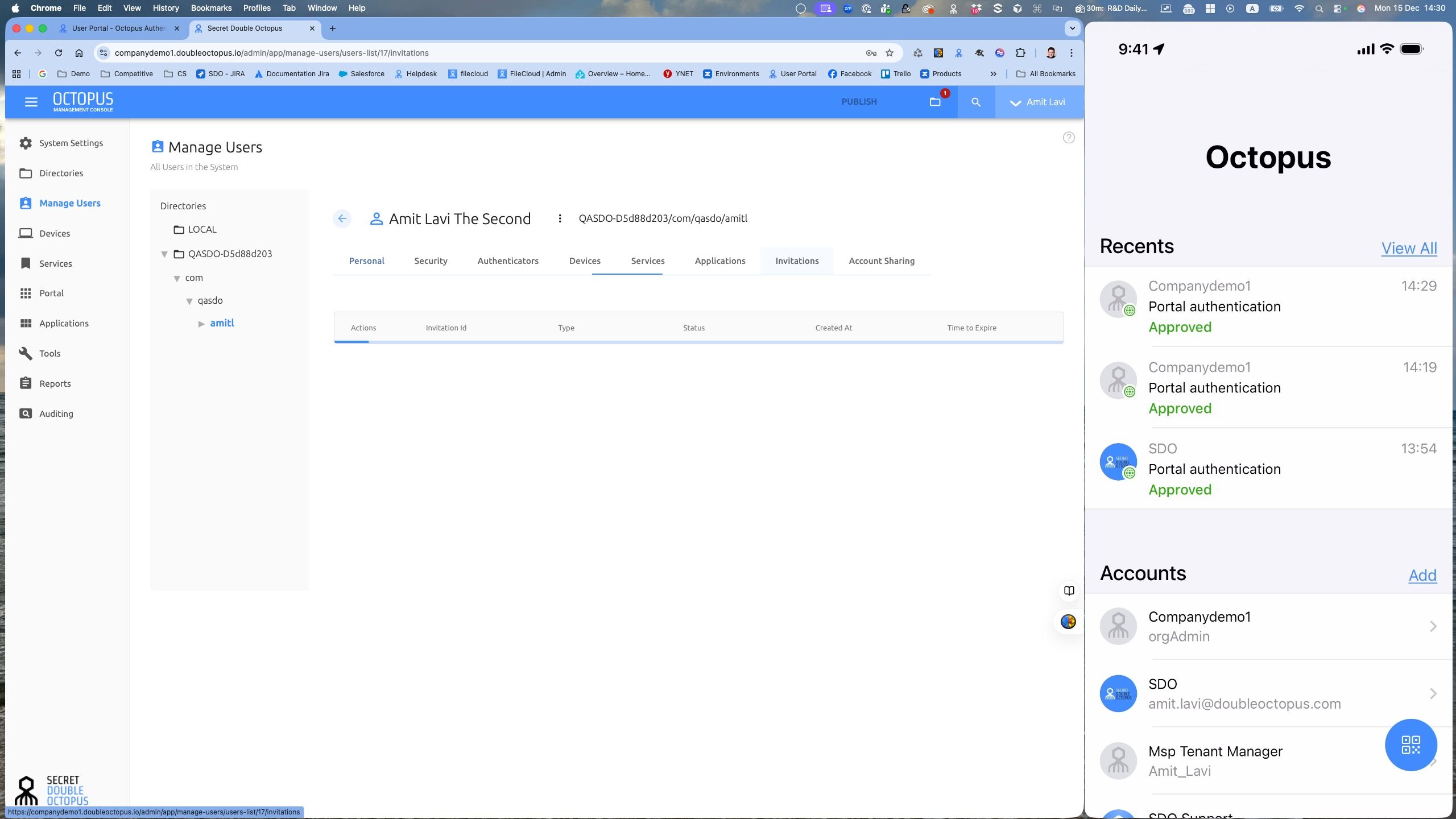
17. Click Copy Invitation Link
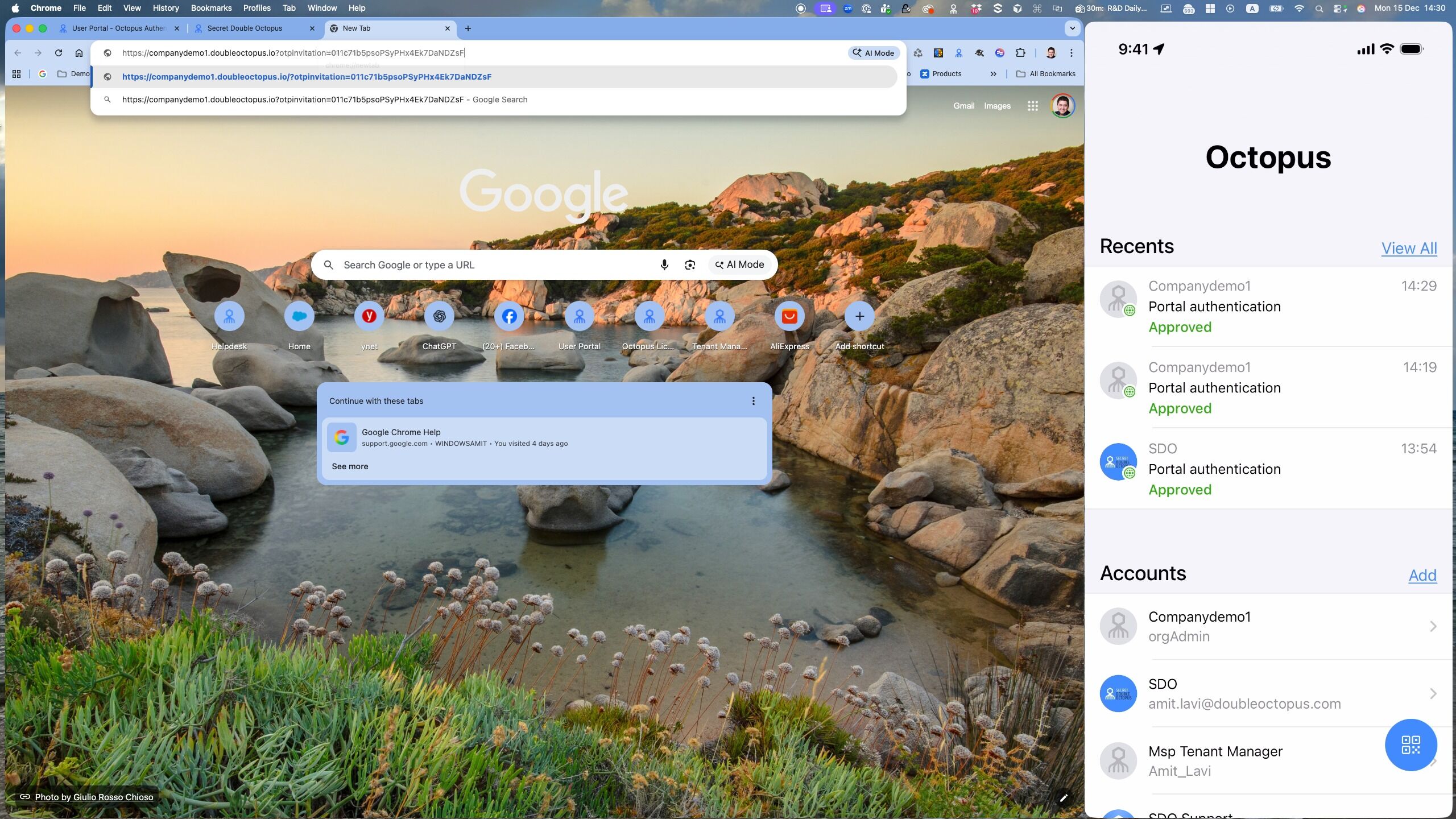
18. Open a new tab and paste the link
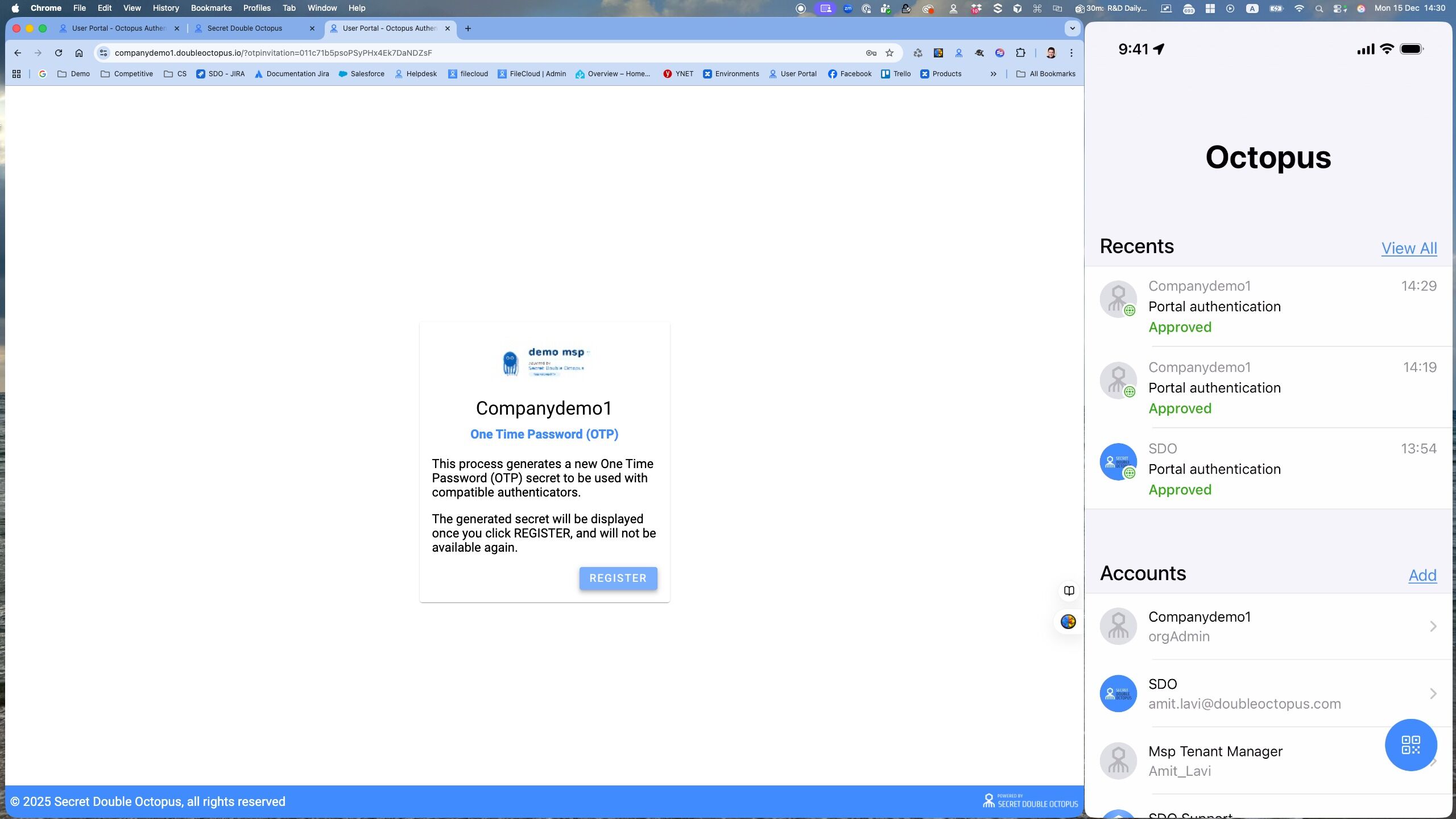
19. Click Register
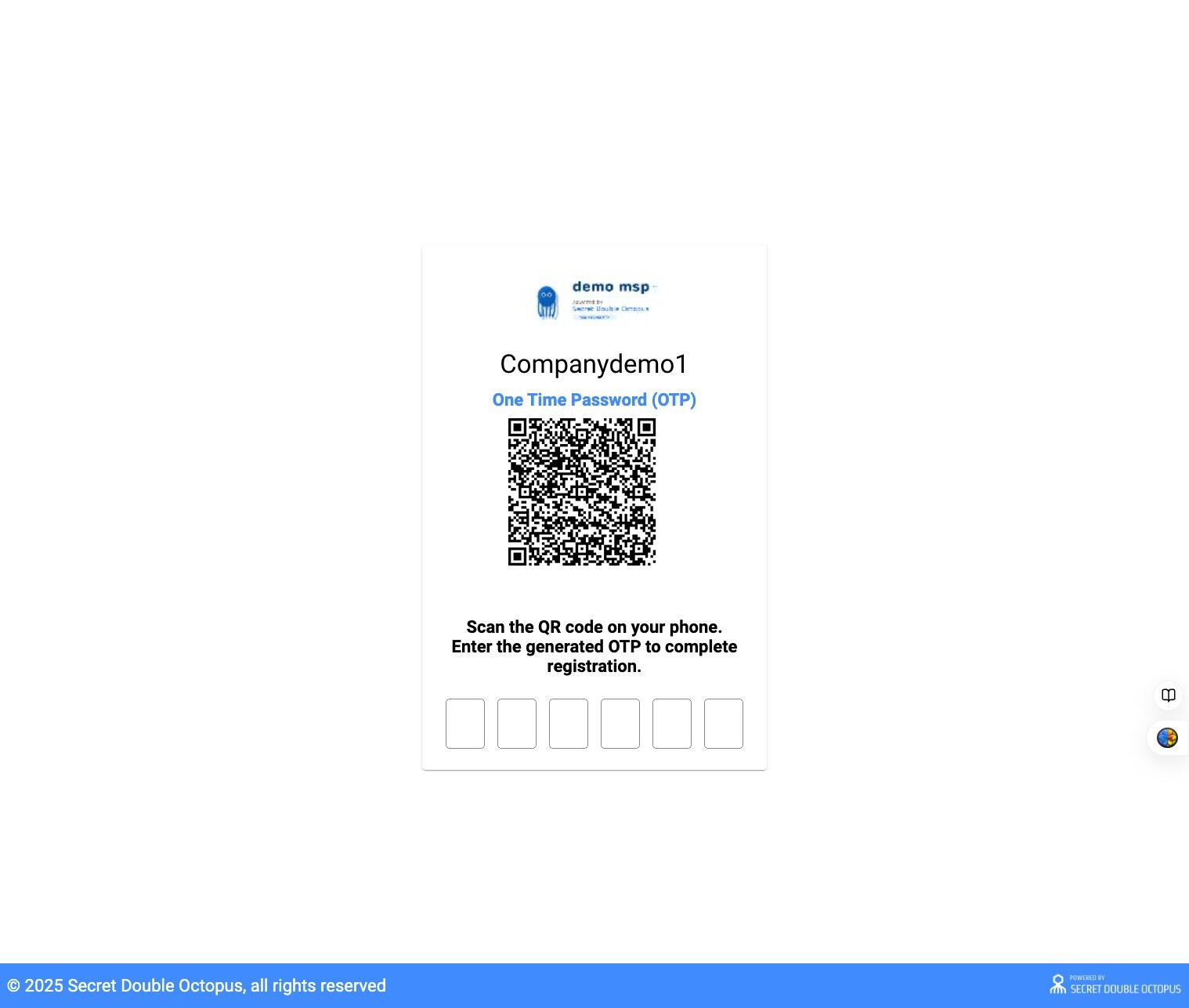
20. Open Octopus App and scan the QR Code
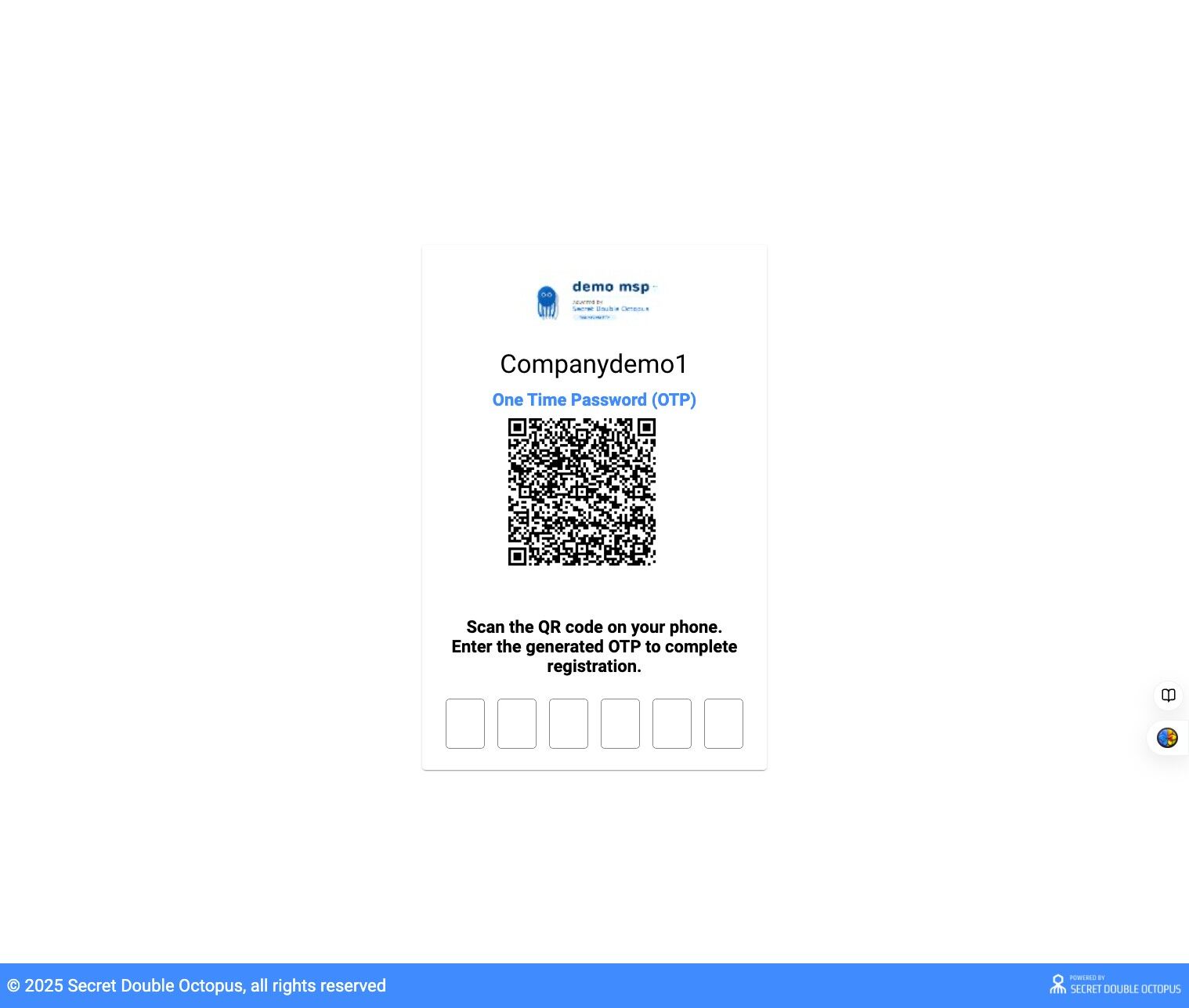
21. Enter the 6-digit OTP code
22. OTP enrollment completed