Unlock macOS using Octopus Authenticator
Securely unlock your Mac by approving the request from your mobile device
Prerequisites
- Octopus Authenticator installed on your mobile device
- User account enrolled with Secret Double Octopus
- Mac paired with your user account
- Biometric authentication enabled on your phone
Step 1 – macOS is locked
The Mac screen is locked, either automatically by policy or manually by the user.
Step 2 – Lock the system (manual example)
In this example, the system is manually locked by the user.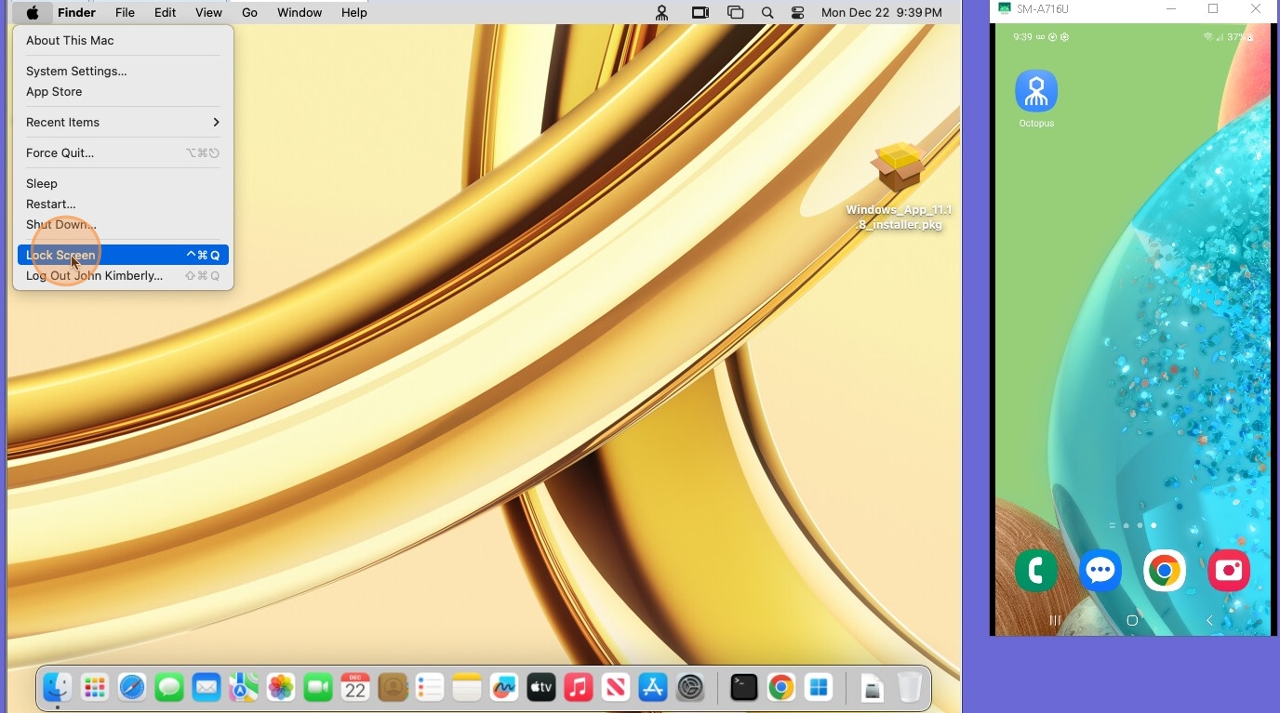
Step 3 – Select the user account
From the macOS lock screen, select the user account you want to unlock.
Step 4 – Trigger the push notification
In the Enter Password field, press ENTER without typing a password. A secure push notification will be sent to your mobile device.
Step 5 – Approve the unlock request
On your phone, open the Octopus Authenticator notification and tap Approve.
Step 6 – Verify using biometrics
Authenticate using your configured biometric method (Face Recognition or Fingerprint).
Step 7 – macOS unlocks
After successful verification, your Mac unlocks automatically and grants access to your desktop.
Security Notes
- No passwords are entered or exposed
- Each unlock requires a time-bound approval
- Unlock requests expire automatically if not approved
© Secret Double Octopus · End User Guide · Version 1.0