This document describes the configuration and settings required to create a profile and override the privacy policy required for Octopus Desk for Mac. This profile can be run from any MDM and reduces the number of popups that open during installation of Octopus Desk for Mac.
In addition to describing the profile setup, the document provides instructions for automatically installing Octopus Desk using a Jamf policy.
Follow the steps below to create the new profile in Jamf.
To set up the profile in Jamf:
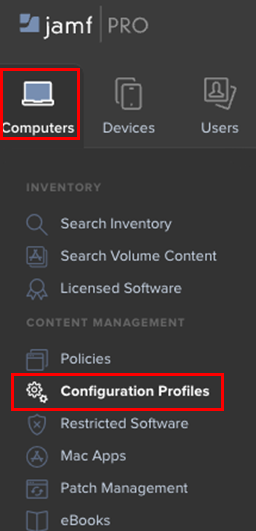
Open Jamf and navigate to Jamf PRO > Computers >Configuration Profiles.
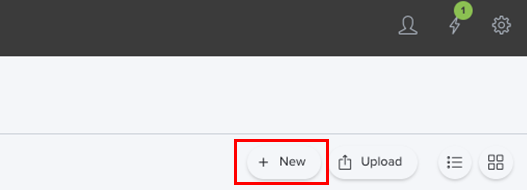
Then, in the right upper corner of the page that opens, click New.
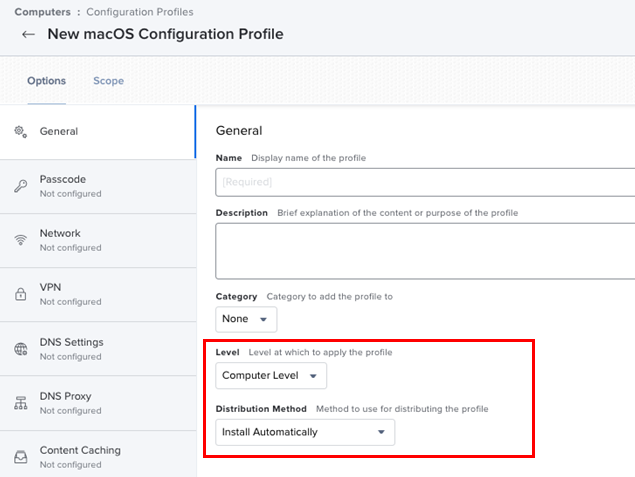
In the General tab, configure the following settings:
Setting
Description / Notes
Name
Display name fo the profile (e.g., Octopus Desk)
Description
Notes about the profile
Level
Select Computer Level
Distribution Method
Select Install Automatically
On the left side of the screen, scroll to Privacy Preferences Policy Control and click Configure.
Configure the following settings:
Setting
Value / Notes
Identifier
com.doubleoctopus.mac.app
Identifier ID
Select Bundle ID
Code Requirement
anchor apple generic and identifier "com.doubleoctopus.mac.app" and (certificate leaf[field.1.2.840.113635.100.6.1.9] /* exists */ or certificate 1[field.1.2.840.113635.100.6.2.6] /* exists */ and certificate leaf[field.1.2.840.113635.100.6.1.13] /* exists */ and certificate leaf[subject.OU] = "6JGC***JYQ")
In the App Or Service section, click Add.
From the dropdown lists, select SystemPolicyAllFiles and Allow, and then click Save.
Click Add to create a new line.
From the dropdown lists, select Accessibility and Allow, and then click Save.
In the App Access section, click + and configure the following settings:
Setting
Value / Notes
Identifier
/Library/PrivilegedHelperTools/OctopusHelper
Identifier ID
Select Path
Code Requirement
anchor apple generic and identifier OctopusHelper and (certificate leaf[field.1.2.840.113635.100.6.1.9] /* exists */ or certificate 1[field.1.2.840.113635.100.6.2.6] /* exists */ and certificate leaf[field.1.2.840.113635.100.6.1.13] /* exists */ and certificate leaf[subject.OU] = "6JGC***J")
Repeat Steps 5 and 6 for the new App Access.
Select the scope of the installation (specific users, computers, etc.).
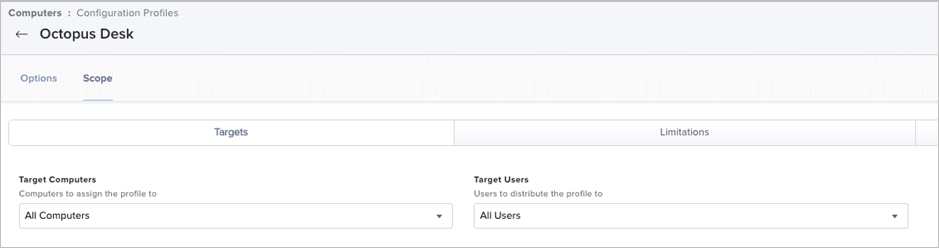
Once completed, the profile will be automatically installed on the target computers.
The procedure below describes how to create a Jamf policy that provides the ability to install the Octopus Desk PKG file.
Before you begin, you need to create a new PKG file using Jamf Composer (or other tool to combine the Octopus Desk PKG and the related XML. For instructions, refer to Appendix A: Generating a PKG File Using Jamf Composer.
To create the Jamf policy:
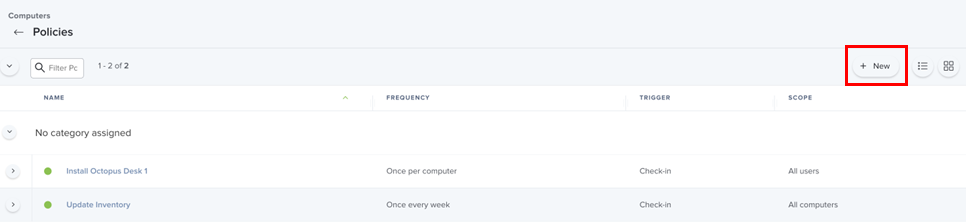
Open Jamf and navigate to Jamf PRO > Computers > Policies.
Then, in the right upper corner of the page that opens, click New.
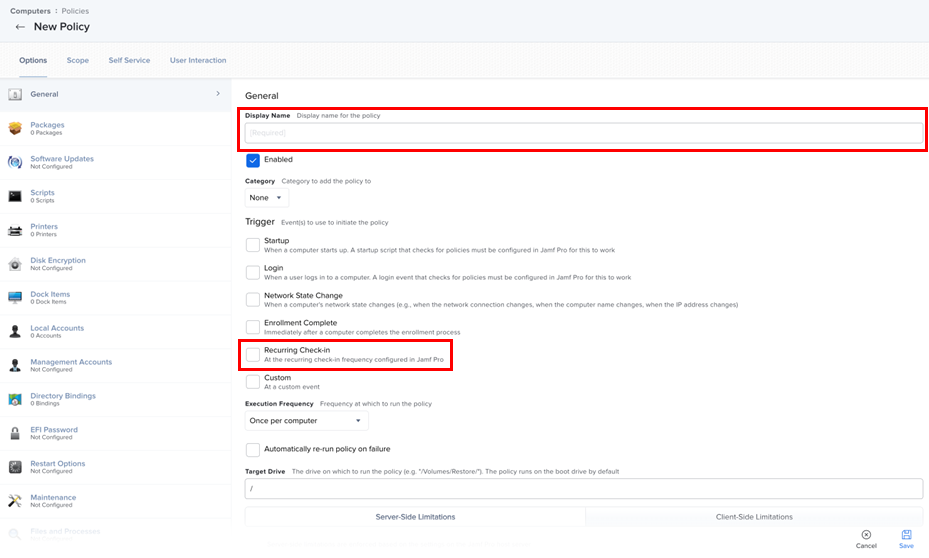
At the top of the page, enter a name for the policy. Then, under Trigger, select the Recurring Check-in checkbox.
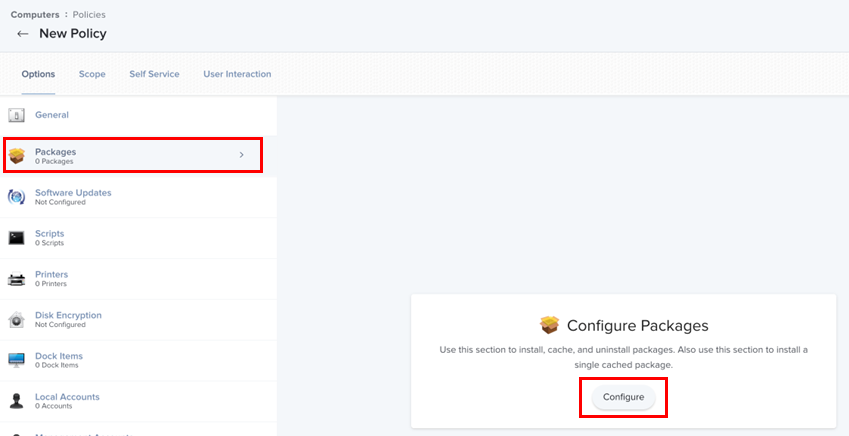
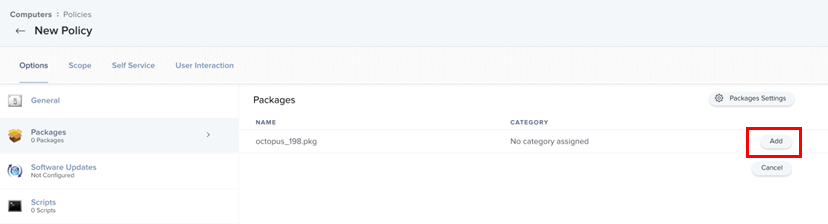
On the left side of the page, select Packages and click Configure.
On the page that opens, in the row of the relevant package, click Add.
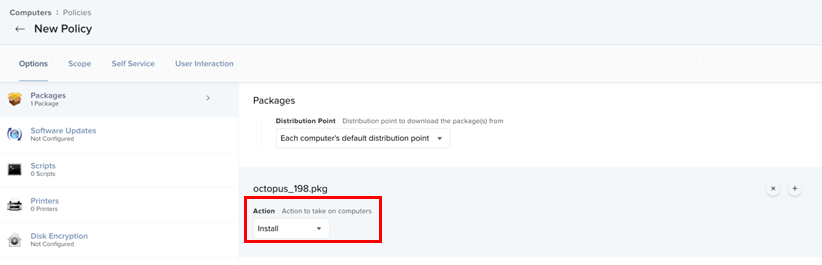
Then, from the Action list, select Install.
On the left side of the page, select Scope and specify the scope of installation (e.g., all computers and all users).
At the right lower corner of the page, click Save.
The Octopus app will be installed automatically upon user enrollment.
Follow the steps below to create the PKG file containing the Octopus Desk PKG and the related XML.
Before you begin, you need to:
Download Octopus Desk for Mac from the Octopus Support Center
Populate the XML with the Octopus parameters from the server
To generate the Octopus Desk PKG:
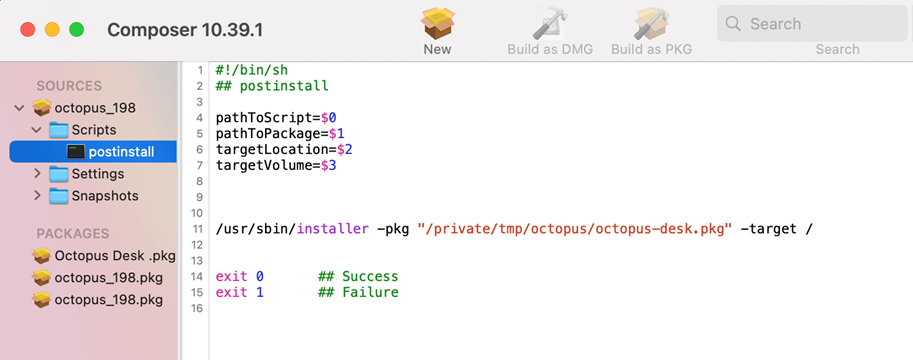
In Jamf Composer, create a directory containing BOTH files (Octopus-desk.pkg and Octopus-desk.xml).
Then, drag the folder to the sources on Composer.
Change the permissions to Read, Write (R, W, X).
Make sure to do this for BOTH files.
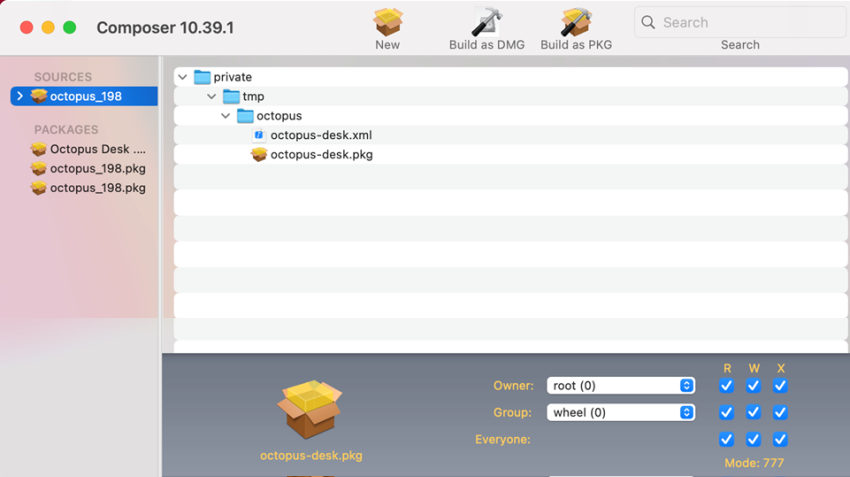
Open the package on the sources and navigate to Scripts.
Verify that the package will be copied to the required location, e.g., /private/tmp/octopus
When the location is confirmed, run the following command to install the package:
/usr/sbin/installer -pkg "/private/tmp/octopus/octopus-desk.pkg" -target /