Uninstalling Octopus Desk for macOS
Step-by-step guide to disable the enrolled user and fully remove Octopus Desk from a Mac workstation.
⚠️ Important
You must disable the currently enrolled user before uninstalling Octopus Desk. This prevents uninstall failures and ensures a clean removal.
✅ Prerequisites
- Local macOS administrator credentials
- Access to the user’s Octopus mobile app to retrieve the User Password
- Recommended: stable network connectivity
Uninstall procedure
1
Open the Octopus menu
Click the Octopus icon in the macOS menu bar.

2
Open preferences
Click “Open Octopus Desk for Mac preferences”.

3
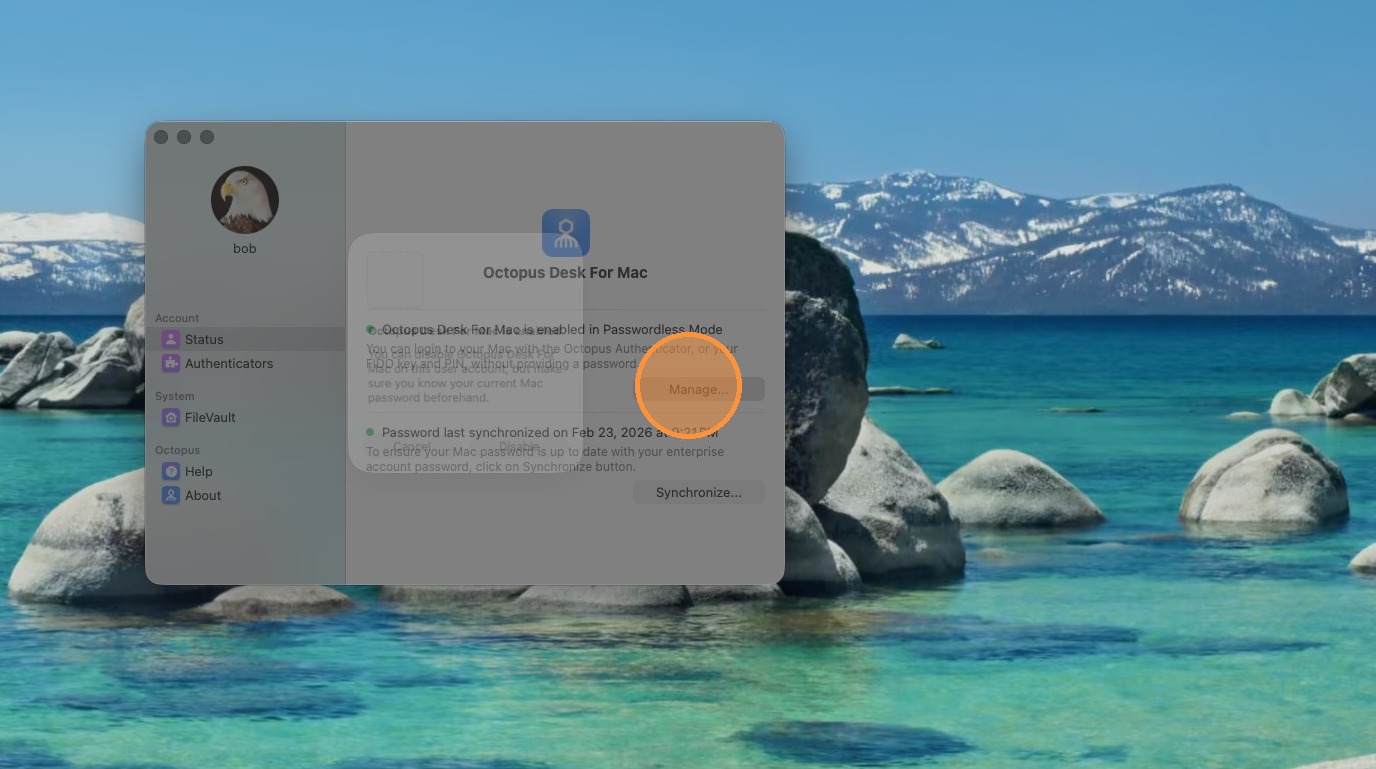
Go to Manage
First disable the active user. Click “Manage”.
4
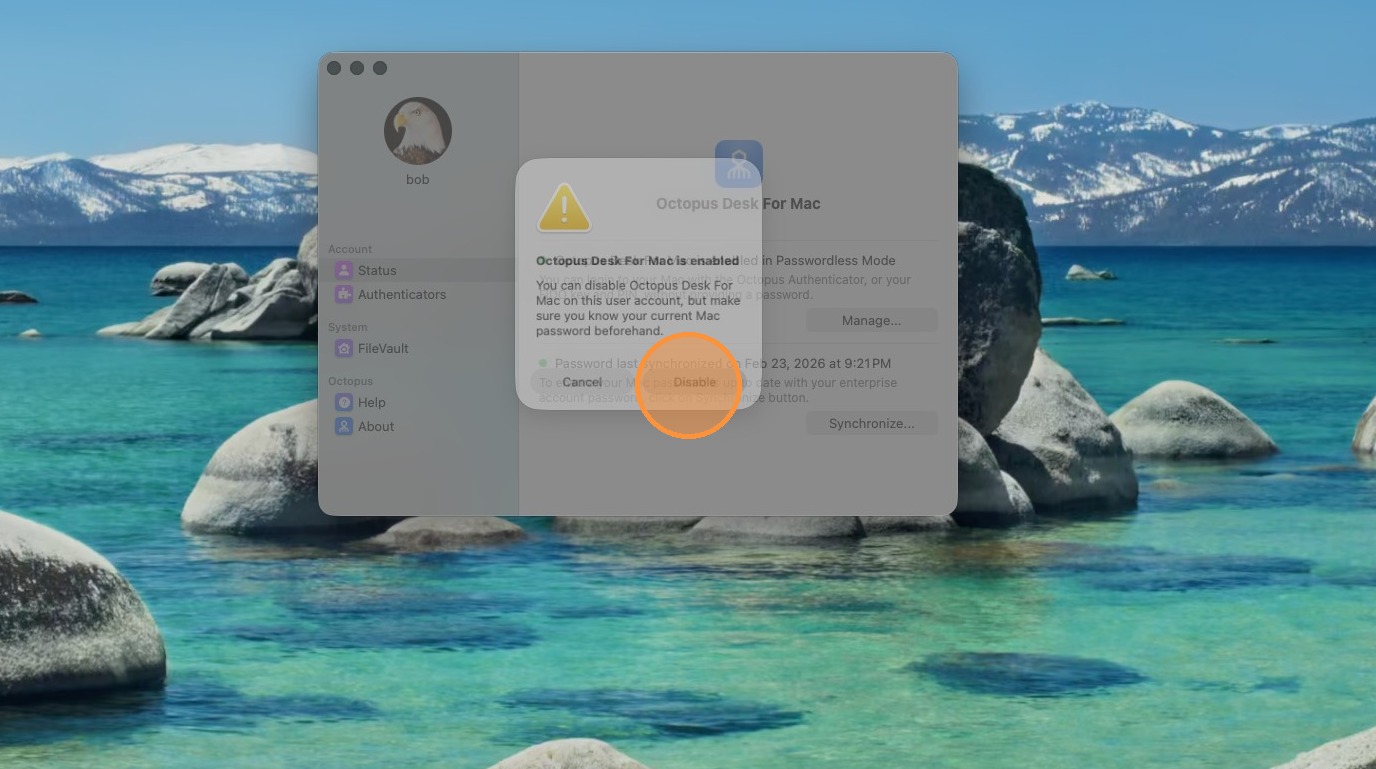
Disable the user
Click “Disable” to disable the active user.
5
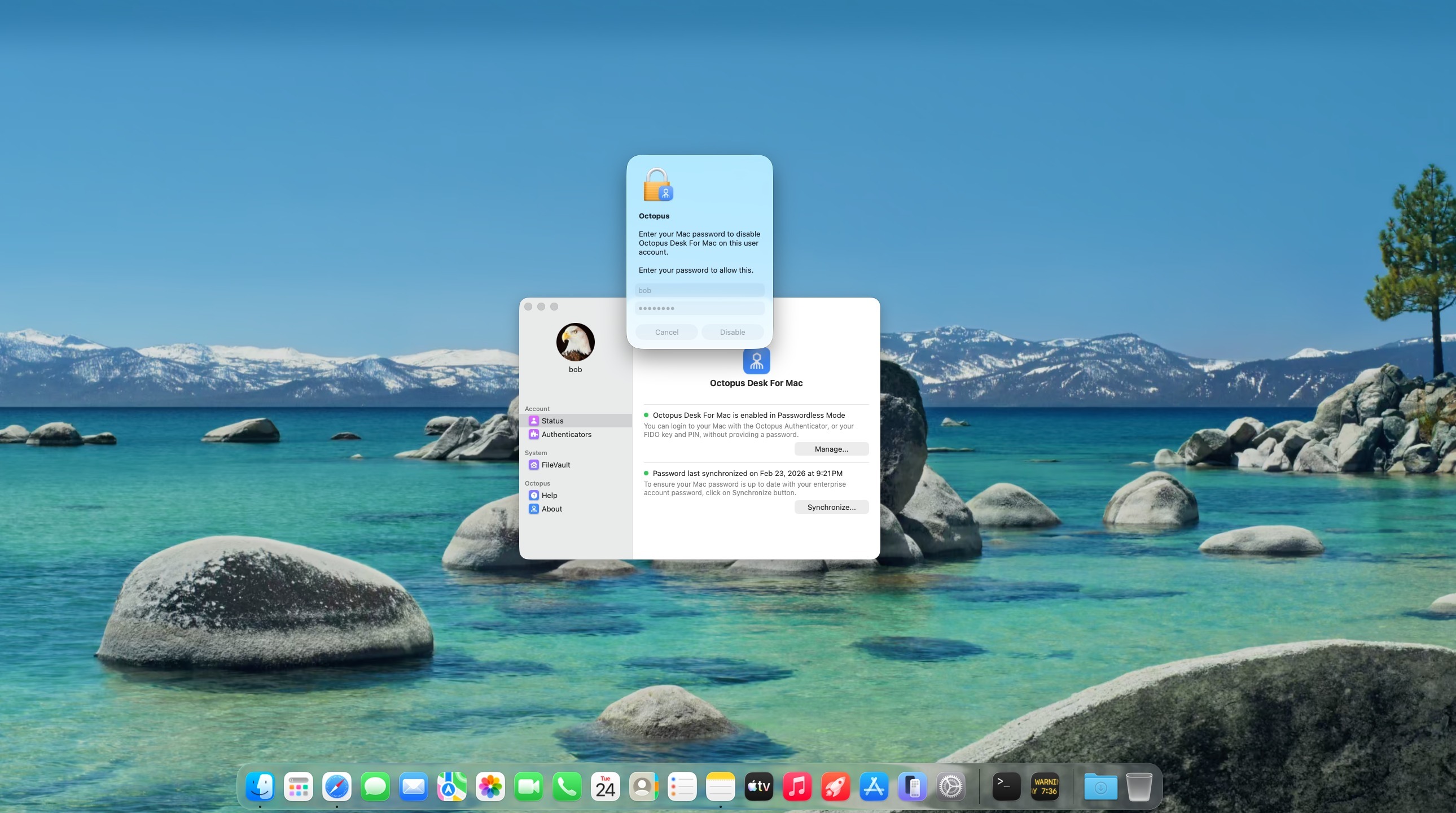
Enter User Password
Enter the “User password” from the Octopus mobile app.
6
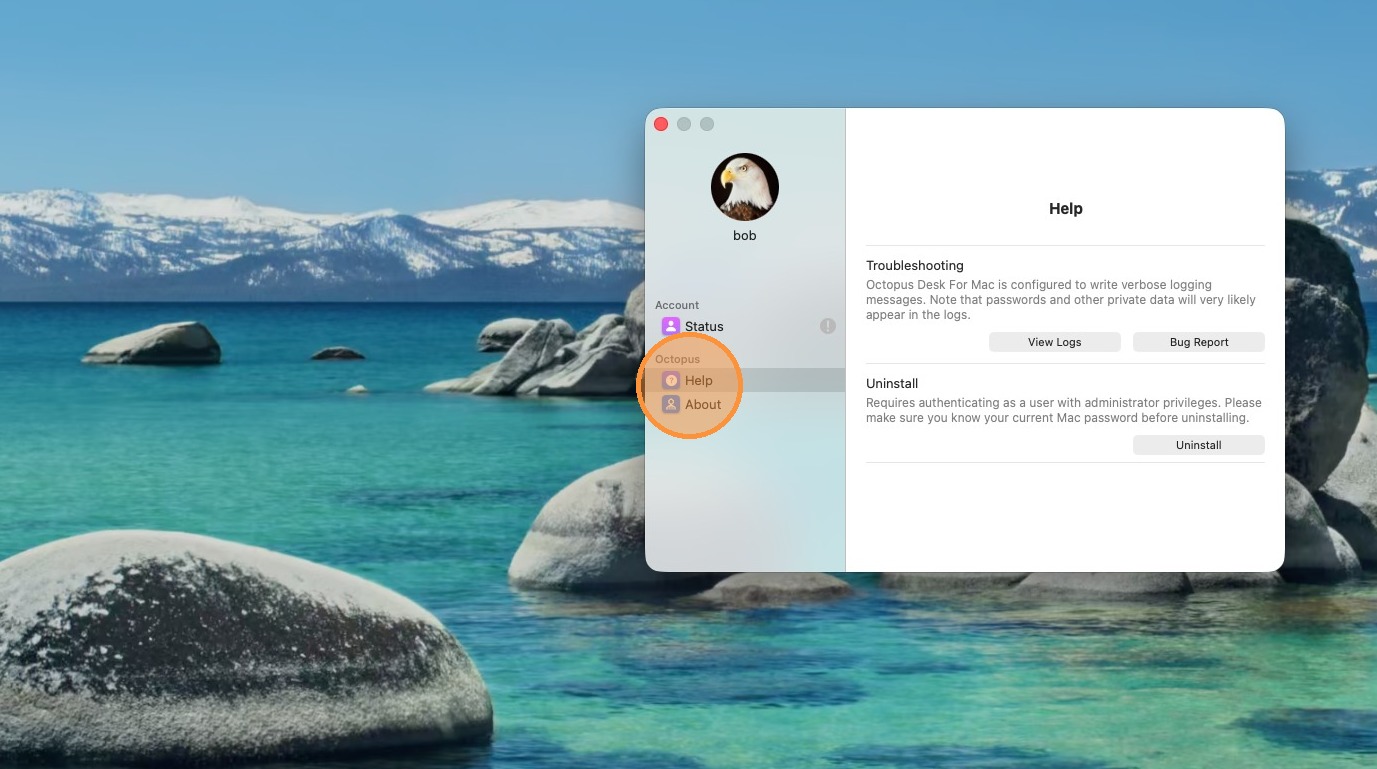
Open Help menu
Open the Help menu.
7
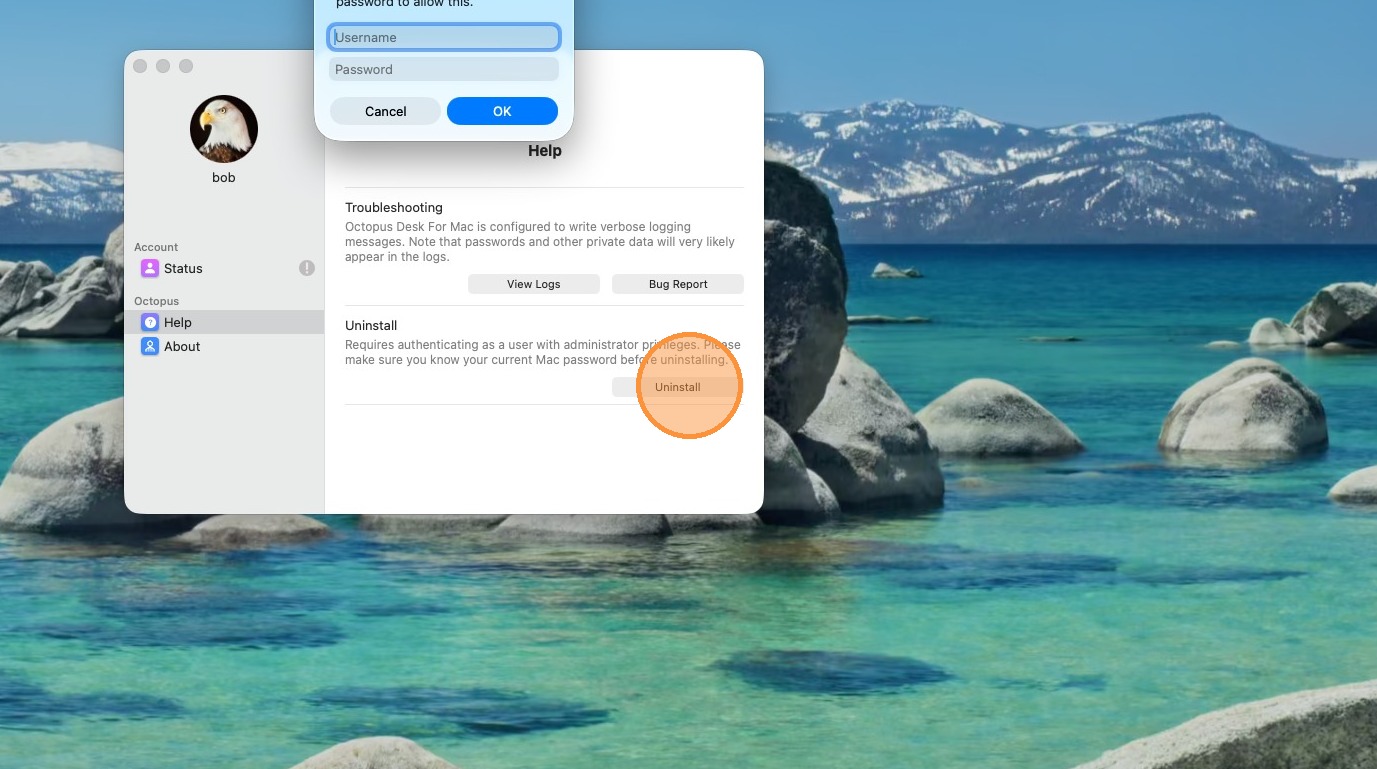
Uninstall
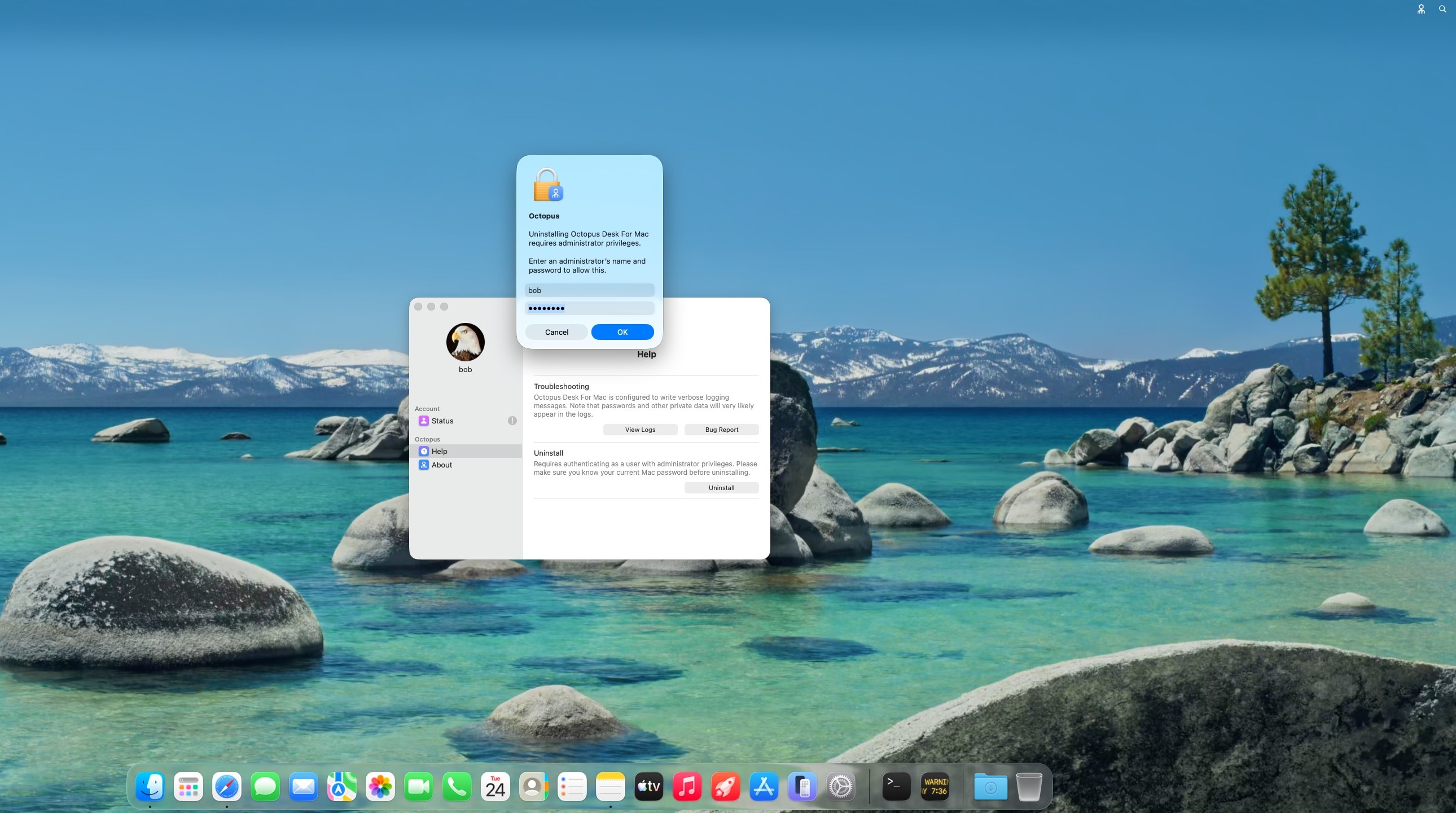
Click “Uninstall” and enter administrator username + password.
8
Completed
After approval, Octopus Desk is completely uninstalled from the Mac workstation.
Troubleshooting
What to check if uninstall fails
- Confirm the user was disabled in preferences (Manage → Disable).
- Verify the administrator username and password are correct.
- Restart the Mac and retry the uninstall.
- If the issue persists, contact your IT team or support.