MSP Operations
Guide
Deploy, operate, and support Secret Double Octopus across client environments — from initial deployment through ongoing operations.
Prefer an offline version? Download the complete MSP Operations Guide in PDF format.
Download MSP Operations Guide (PDF)Please make sure you have access to the Octopus Support Center (support.doubleoctopus.com). If you did not receive an enrollment invitation, please contact your Octopus SE or send an email request to support@doubleoctopus.com.
Program Overview
Introduction
This program enables MSP technicians to deploy, operate, and support Secret Double Octopus (SDO) across client environments without reliance on SDO support.
It aligns to the ZeroPassword™ MSP Support Center and reflects how SDO is delivered in practice, from initial deployment through ongoing operations.
How Technical Training is Organized
Technical training is structured across four role-based tracks aligned to MSP Operations:
| Technical Track | Primary Responsibilities |
|---|---|
| Implementation Specialist | Deploys SDO in client environments |
| Administrator | Manages users, policies, and ongoing configuration |
| Support Specialist | Resolves day-to-day authentication issues |
| End User Training | Drives user adoption and reduces support load |
Each track includes:
- Role-specific modules aligned to real workflows
- Direct links to ZeroPassword™ MSP Support Center guides
- ZeroPassword™ certification checklist
Recommended Training Flow
Technicians should complete the tracks in the following order to build practical expertise:
Technicians learn SDO by deploying it:
- Set up a new client tenant
- Create and install SDO Agents
- Enable initial client use cases
- On-board users and groups
Technicians learn to manage what they deployed:
- Manage users and groups
- Configure authentication policies
- Monitor audit logs and reporting
- Manage billing
Technicians learn to troubleshoot real-world issues:
- Login failures
- Device recognition issues
- User recovery
Technicians enable client adoption:
- User onboarding
- Login experience
- Basic troubleshooting
Definition of Success
A technician is fully enabled when they can:
Program Scope
The following sections of this guide cover:
- Implementation Specialist (deployment)
- Administrator (ongoing management)
- Support Specialist (issue resolution)
- End User Training (adoption and onboarding)
Each section builds on the previous ones to enable a complete, scalable service delivery model.
Implementation Specialist
Overview
The Implementation Specialist track is the required starting point for all MSP technicians.
This track focuses on deploying SDO in a client environment and establishing the foundation for administration, support, and user adoption.
Objective
Enable MSP technicians to independently deploy Secret Double Octopus (SDO) from initial client kickoff through production rollout.
After successfully completing this track, technicians will be able to:
- Deploy SDO tenant end-to-end without assistance
- Onboard users and enable client use cases
Module 1: Create Client Tenant
Create and onboard a new tenant in the SDO Tenant Manager, including initial access and baseline settings. This establishes the foundation for the entire client deployment.
Module 2: MSP Shared Account
Configure MSP Shared Account access so MSP users can access customer applications through a shared account using their individual identity. Covers MSP Portal authentication, tenant navigation, assigning an MSP user to a shared account, updating and publishing the service configuration, and validating the end-user experience.
Prerequisites
- MSP administrator access to the main tenant and the relevant customer tenant
- An existing shared-account owner and an MSP user with the required permissions
- A configured application or service
Configuration Steps
- Sign in to the MSP Portal and open the required customer tenant
- Launch the tenant Management Console
- Configure MSP Account Sharing for the required user, add the MSP user, and save
- Open the relevant service, review its sign-on configuration, then save and publish
- Validate access from the User Portal as the delegated MSP user
Module 3: Connect Identity Source
Connect SDO to the client identity provider to sync users and groups, ensuring authentication is tied to the client's existing identity system.
Microsoft (AD, Entra ID, or Hybrid)
Connect SDO to a Microsoft directory (AD or Entra ID) to sync users and groups.
Google Workspace
Integrate SDO within a Google Workspace environment.
Module 4: Create and Deploy Client Agents
Deploy SDO agents to client endpoints, enabling passwordless authentication on user devices.
- Windows: Generate a Windows MSI installer package for your tenant, ready for deployment tools like Intune, GPO, or RMM.
- Mac: Build and download the Mac agent package, including any configuration needed for MDM or scripted deployment.
Module 5: Enable Core Use Cases
Office 365 Federation
Configure federation with Microsoft 365 / Office 365 so users authenticate seamlessly.
Portal Branding and Configuration
Apply client branding (logo, colors, texts) and configure authentication portal settings.
Module 6: Enable Advanced Use Cases
Shared Account Configuration
Enable secure, auditable access to shared and administrative accounts without exposing or sharing credentials. This allows technicians and users to access privileged accounts using their individual identity, eliminating credential-sharing risk.
Deploy RADIUS Proxy
Deploy and configure the Octopus RADIUS Agent to enable passwordless authentication for RADIUS-based systems. This extends SDO authentication to VPN, WiFi, and network infrastructure (firewalls, switches, routers) while enabling strong authentication for legacy and air-gapped systems via RADIUS-backed access.
Administrator
Overview
The Administrator track follows Implementation and focuses on managing and maintaining SDO in a live client environment.
This track ensures that deployments remain secure, stable, and aligned to client requirements over time.
Objective
Enable MSP technicians to independently manage users, policies, and authentication behavior across deployed SDO environments.
After completing this track, technicians will be able to:
- Manage users and group-based access
- Configure and update authentication policies
- Monitor authentication activity and audit logs
- Maintain and expand SDO deployments without assistance
Module 1: Technician Access (Tenant Manager)
Manage technician access to client tenants:
- Add and remove technicians/managers to tenant or multi-tenant environments — how to provision, modify, and deprovision users
- Manage groups (with AD sync) — how groups are used to control access and policy enforcement
- Assign technician roles (RBAC) — ensuring technicians have only the appropriate privileges within client tenants
Direct link: Technician Access (Tenant Manager)
Module 2: Policy Management
Control authentication behavior and enforce security standards across directories, users, groups, devices, authenticators, and portal services.
Overview
Policy Management allows administrators to define how users authenticate, which authentication methods are allowed, how security requirements are enforced, and how policies are applied across users, groups, directories, devices, and portal access.
Key capabilities
- Modify authentication policies, including password requirements, authenticator settings, security protocol behavior, and additional protection mechanisms
- Apply policies to users and groups by scoping settings to directories, users, groups, devices, and self-service options
- Configure device policy controls such as workstation limits, ADPA version, and Compatibility Mode
- Review Push Fatigue Protection settings as part of authentication hardening
- Control which self-service portal options are available to end users
Direct link: Policy Management
Before you begin
- Make sure you have administrator access to the Octopus Management Console
- Review the organization security requirements before changing policy settings
- Save changes before navigating between policy sections
- Validate changes with a limited user group before applying them broadly
1. Modify Directory Authentication Policies
Directory policy settings allow administrators to define authentication behavior for users associated with a specific directory.
- Log in to the Octopus Management Console and navigate to Directories.
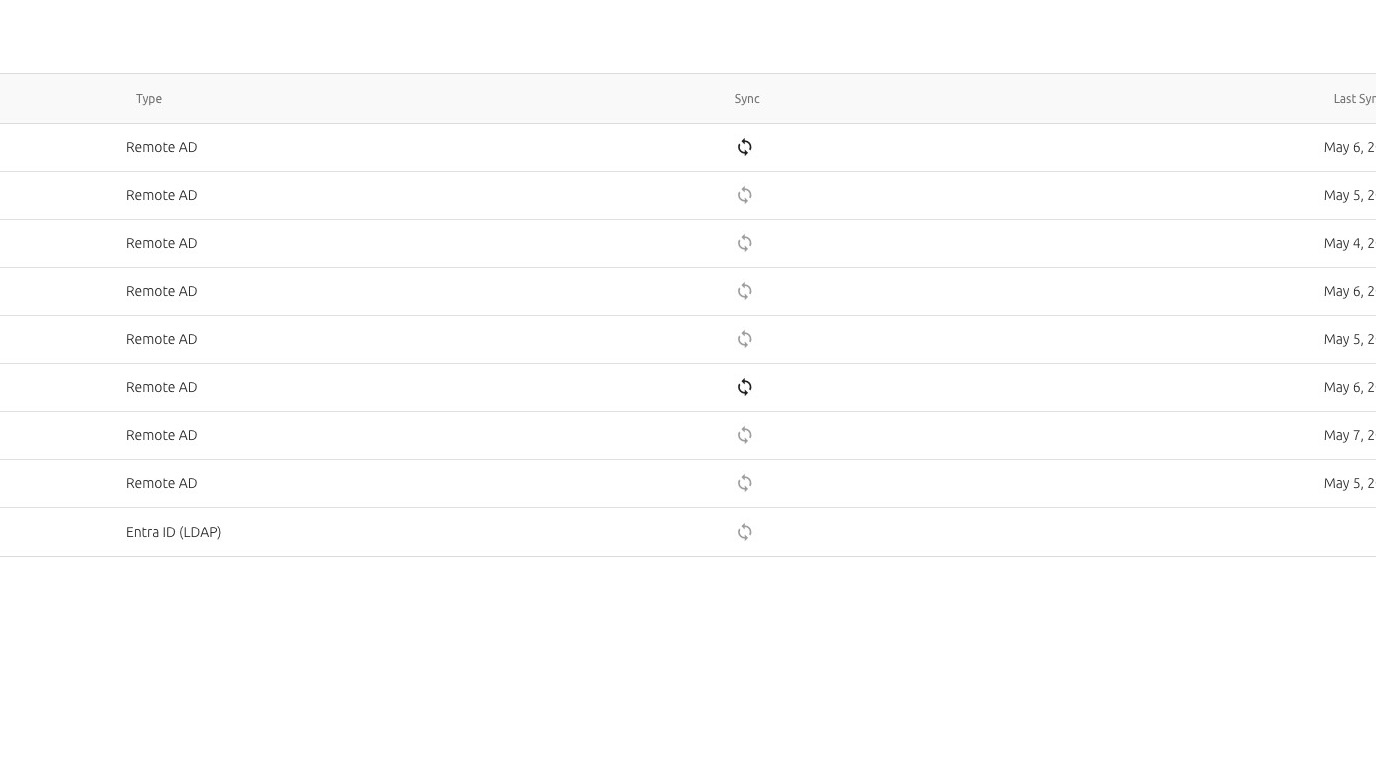
- Select the relevant directory from the list.
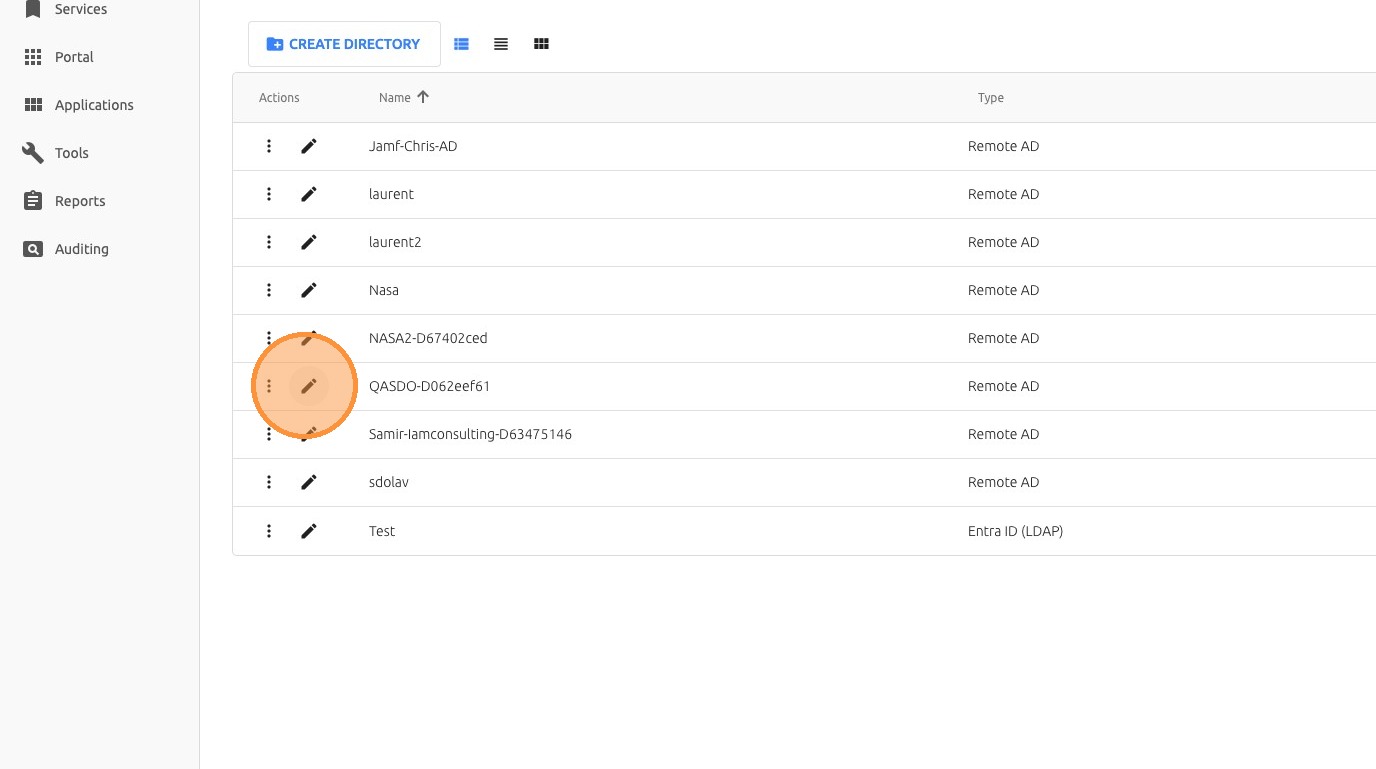
- Click Policyto view and modify directory policy settings.
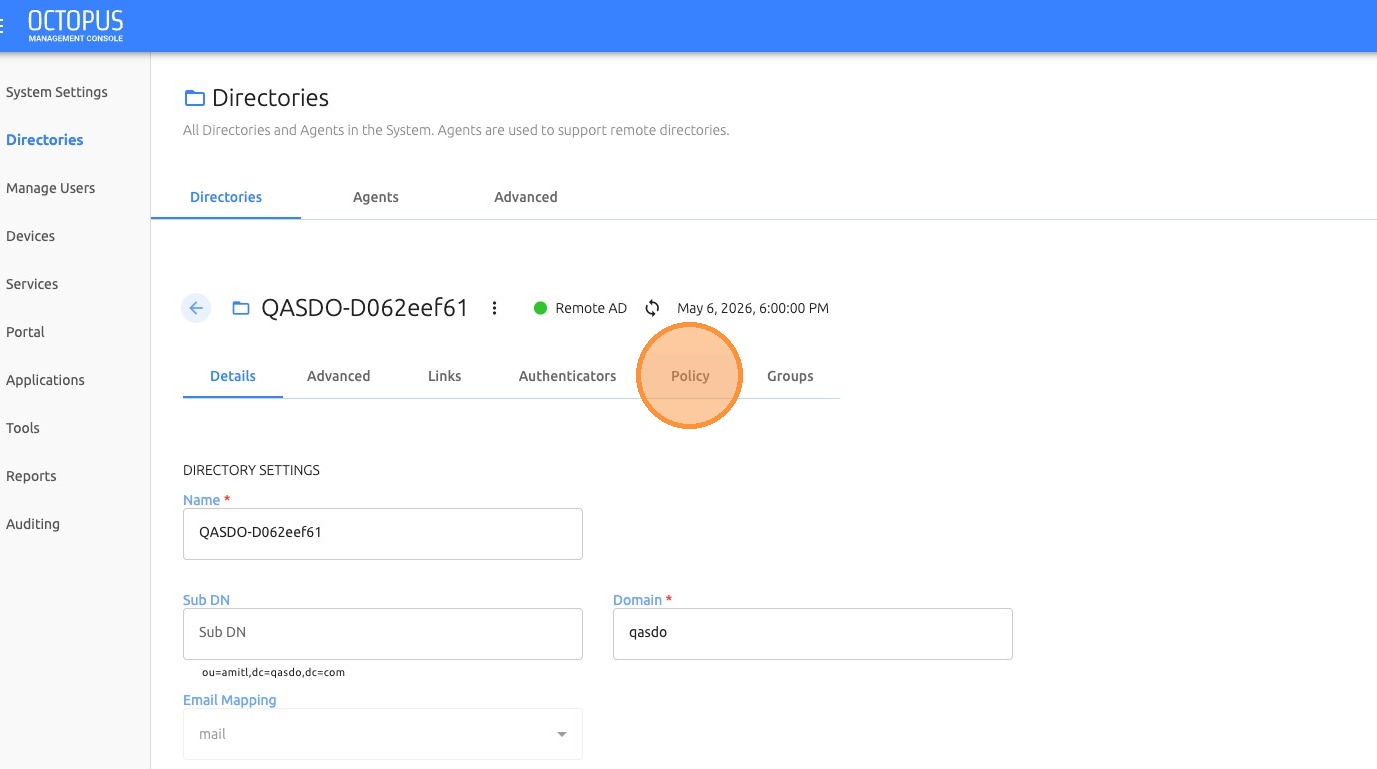
- Adjust the required authentication parameters, such as password length or other policy controls.
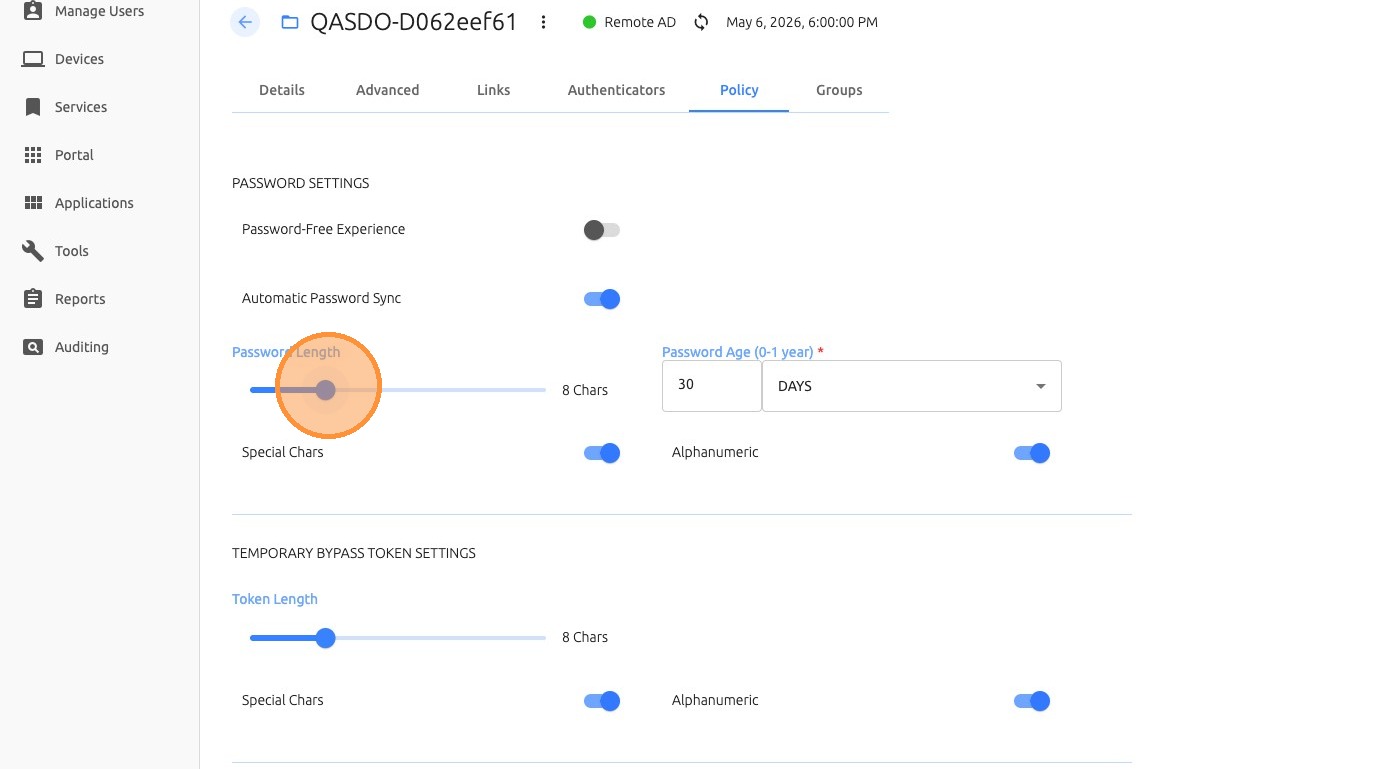
- Save the current policy changes before navigating to another tab or section.
2. Configure Authenticator Policy Settings
Authenticator settings define how authentication methods are configured and enforced for the selected directory.
- From the selected directory, open the Authenticatorstab.
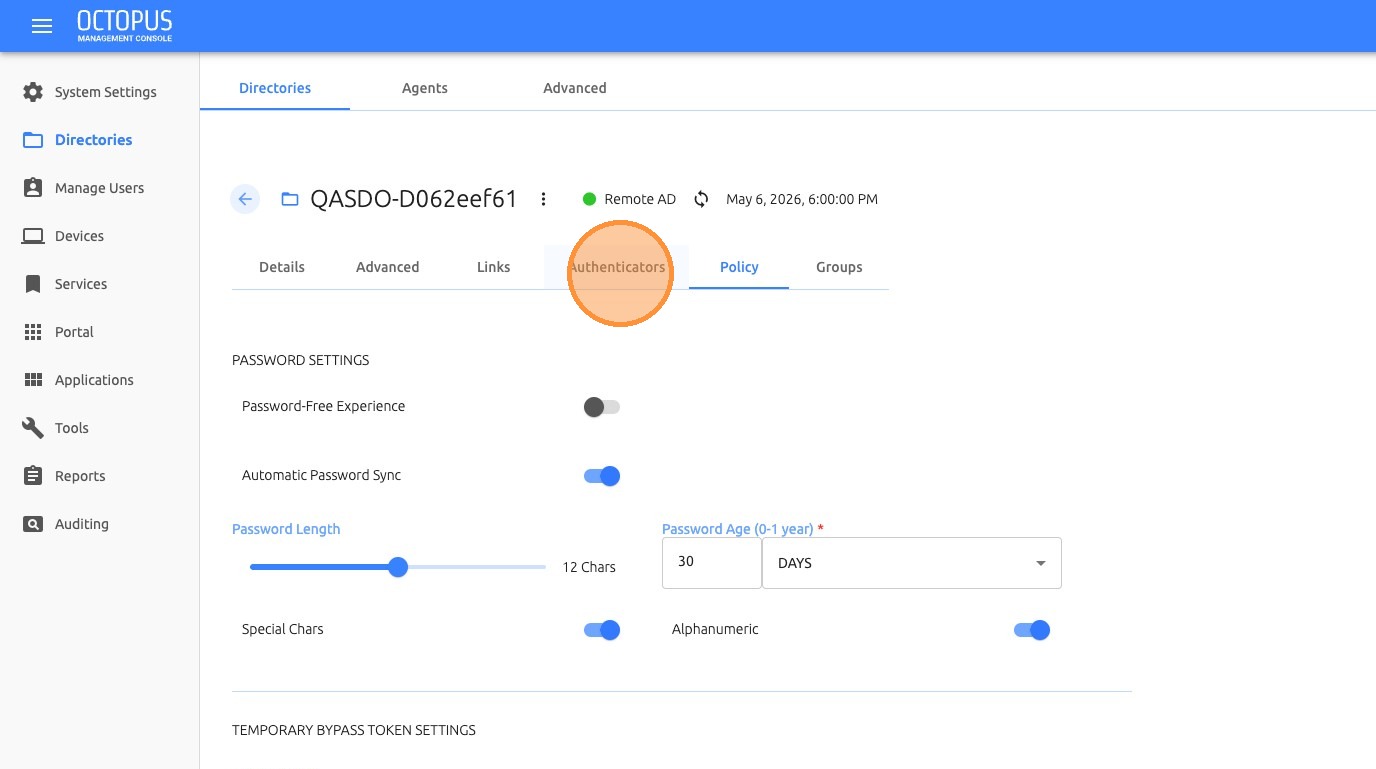
- Select the required algorithm from the dropdown menu, such as SHA256.
3. Apply Policies to Users and Groups
Policies can be scoped and enforced for users and groups based on directory membership, user configuration, and administrative settings.
- Open the Manage Userssection.
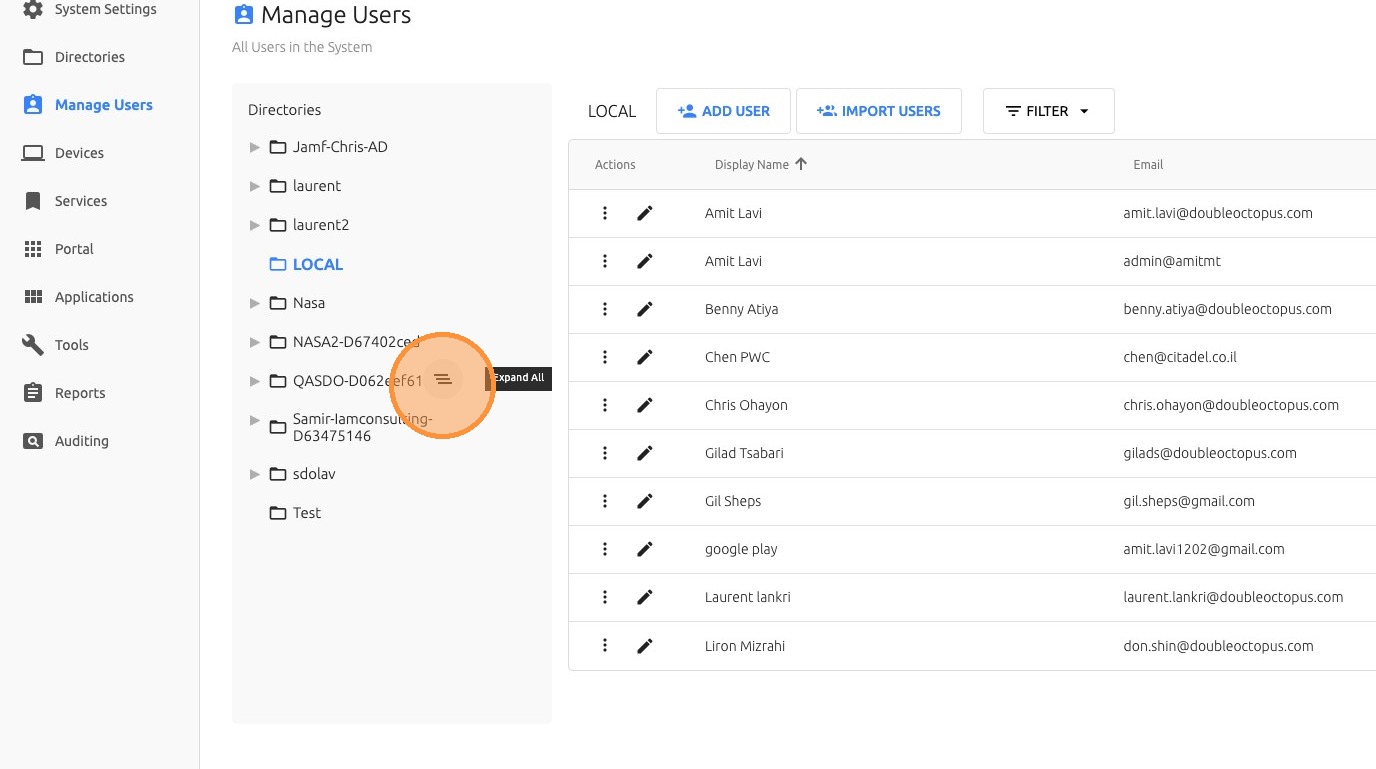
- Filter the user list by the relevant directory.
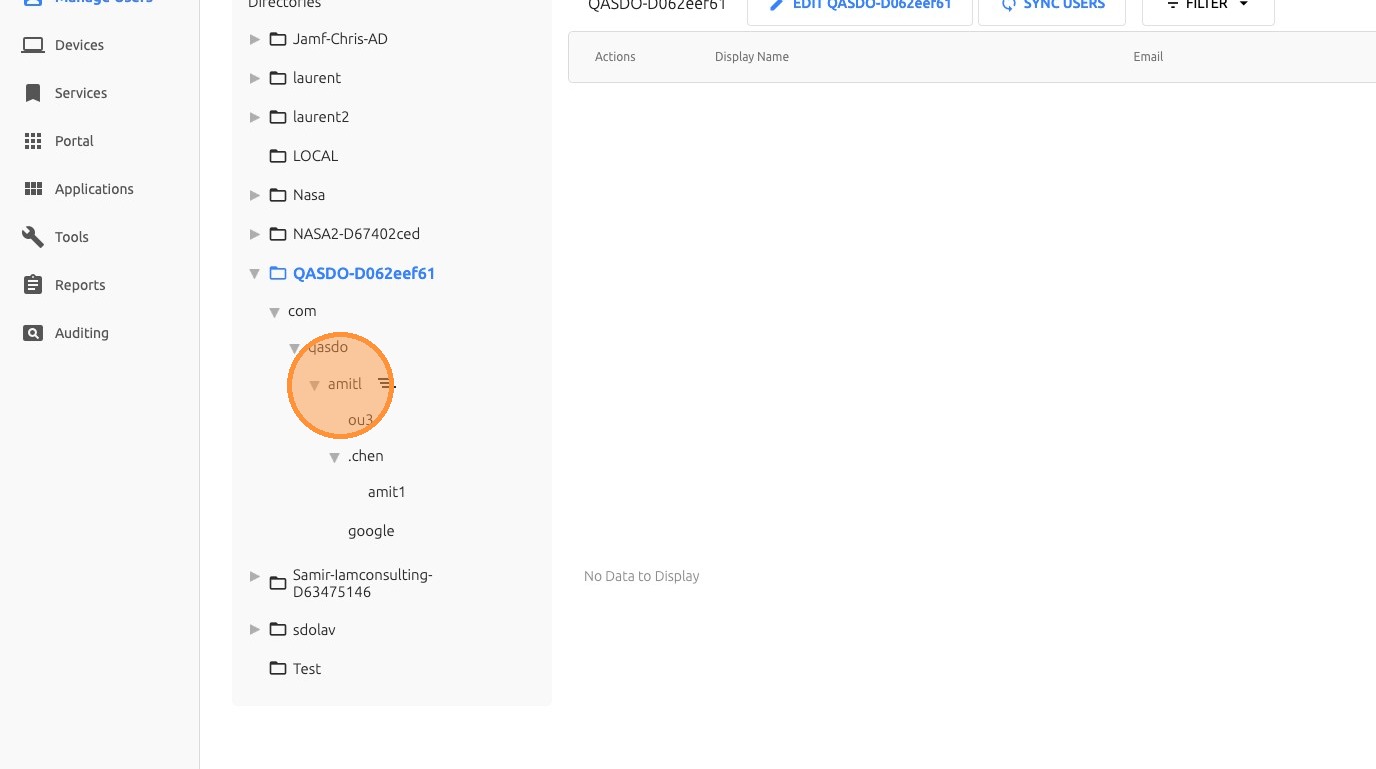
- Select the specific user or group that you want to configure.
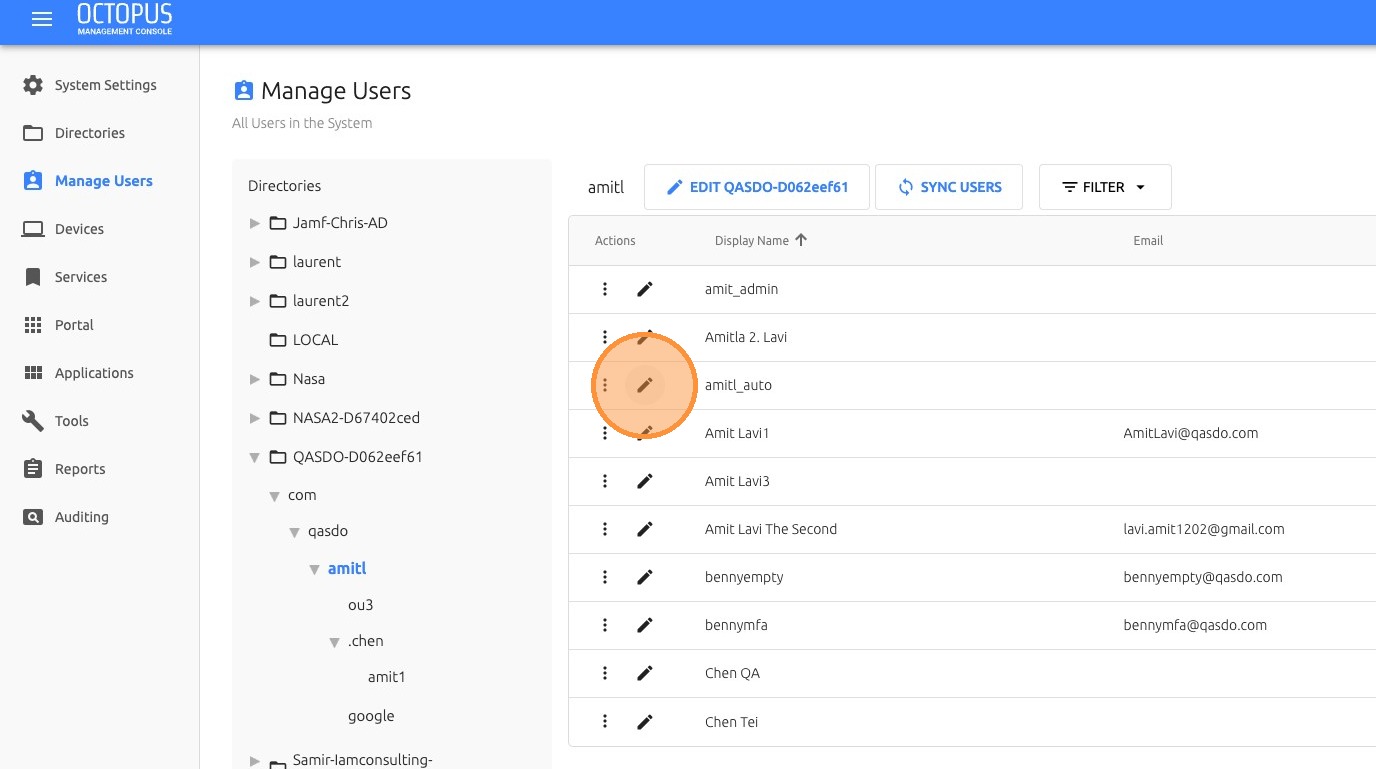
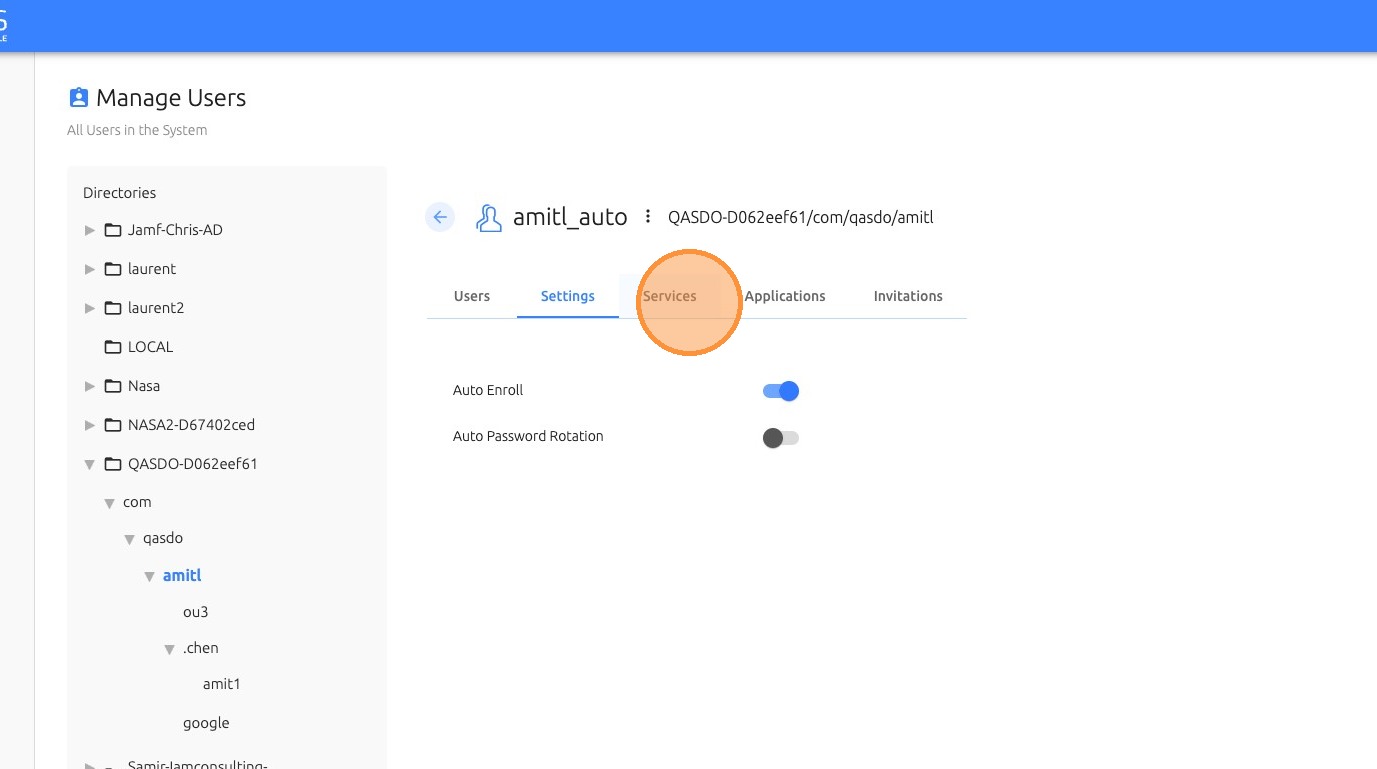
- Click Settings.
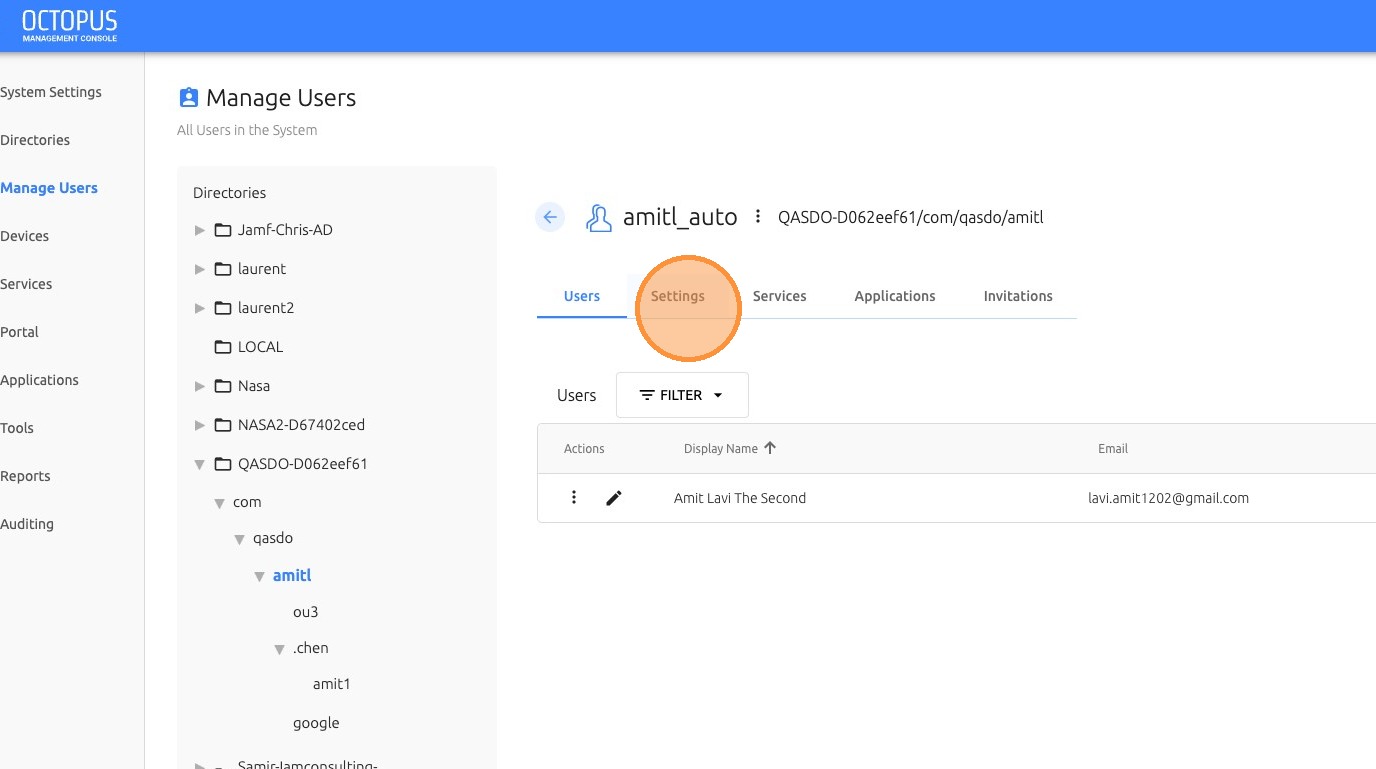
- Choose whether to enable Auto-enrollaccording to the required policy.
4. Configure Device Policy Settings
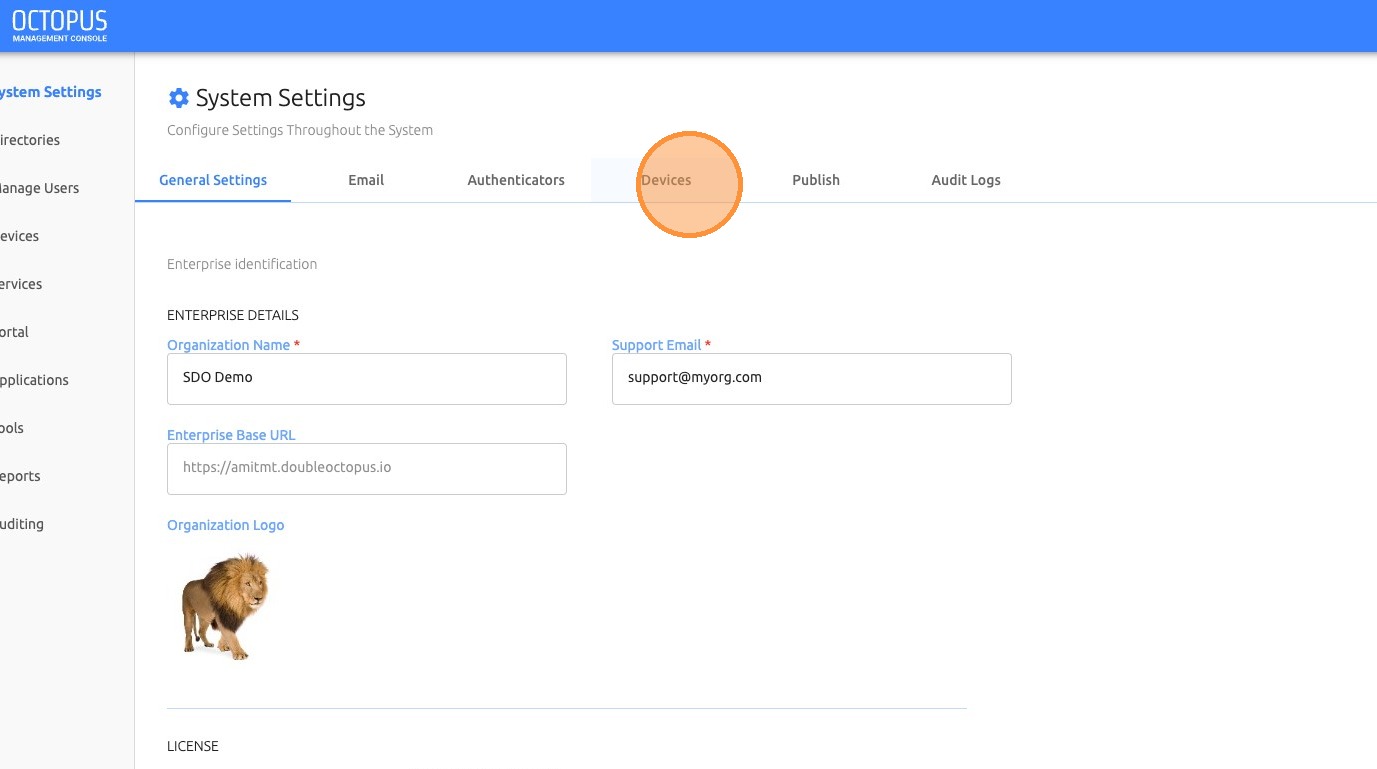
Device policy settings allow administrators to control workstation limits, supported protocol versions, and compatibility behavior.
- Navigate to Settings → System Settings, and then click Devices.
- Choose whether to limit the number of workstations per user.
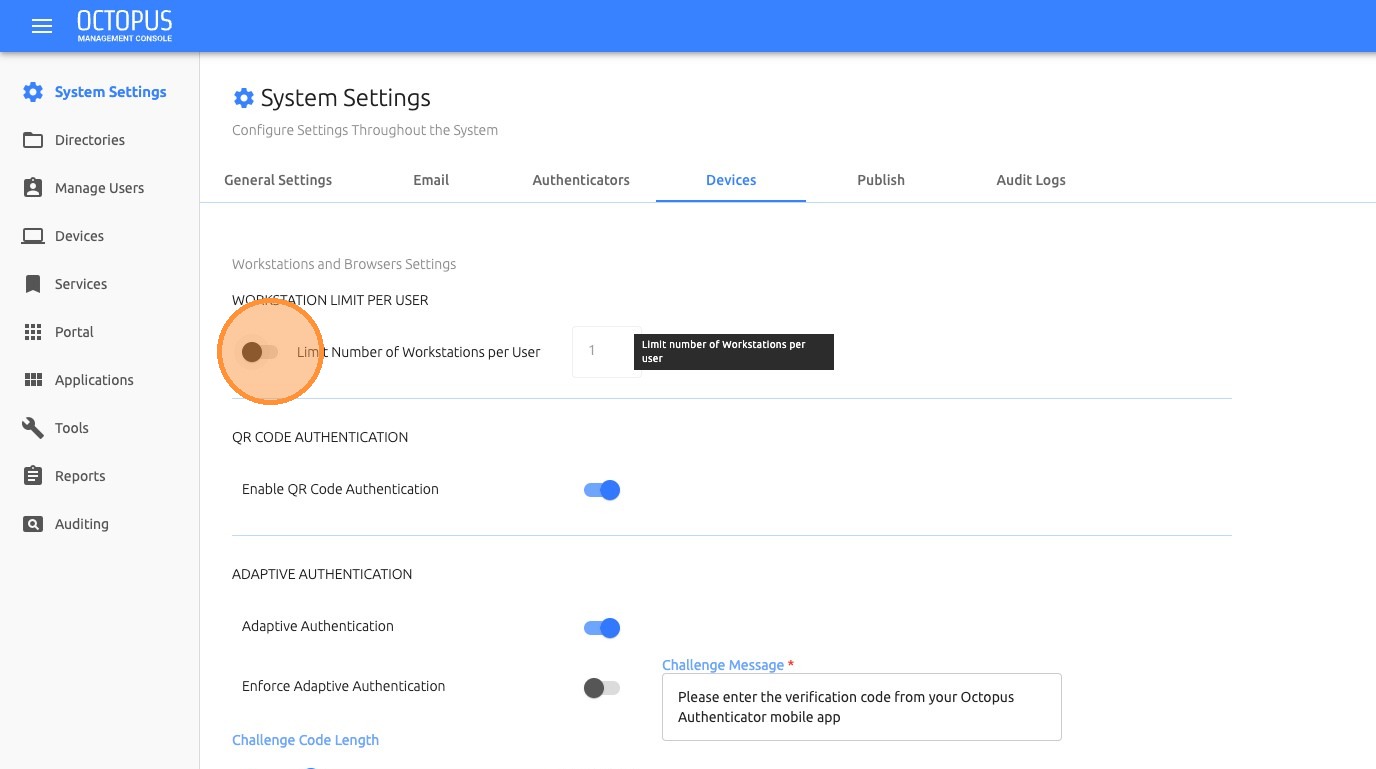
- If workstation limit is enabled, update the Workstation Limit per User field.
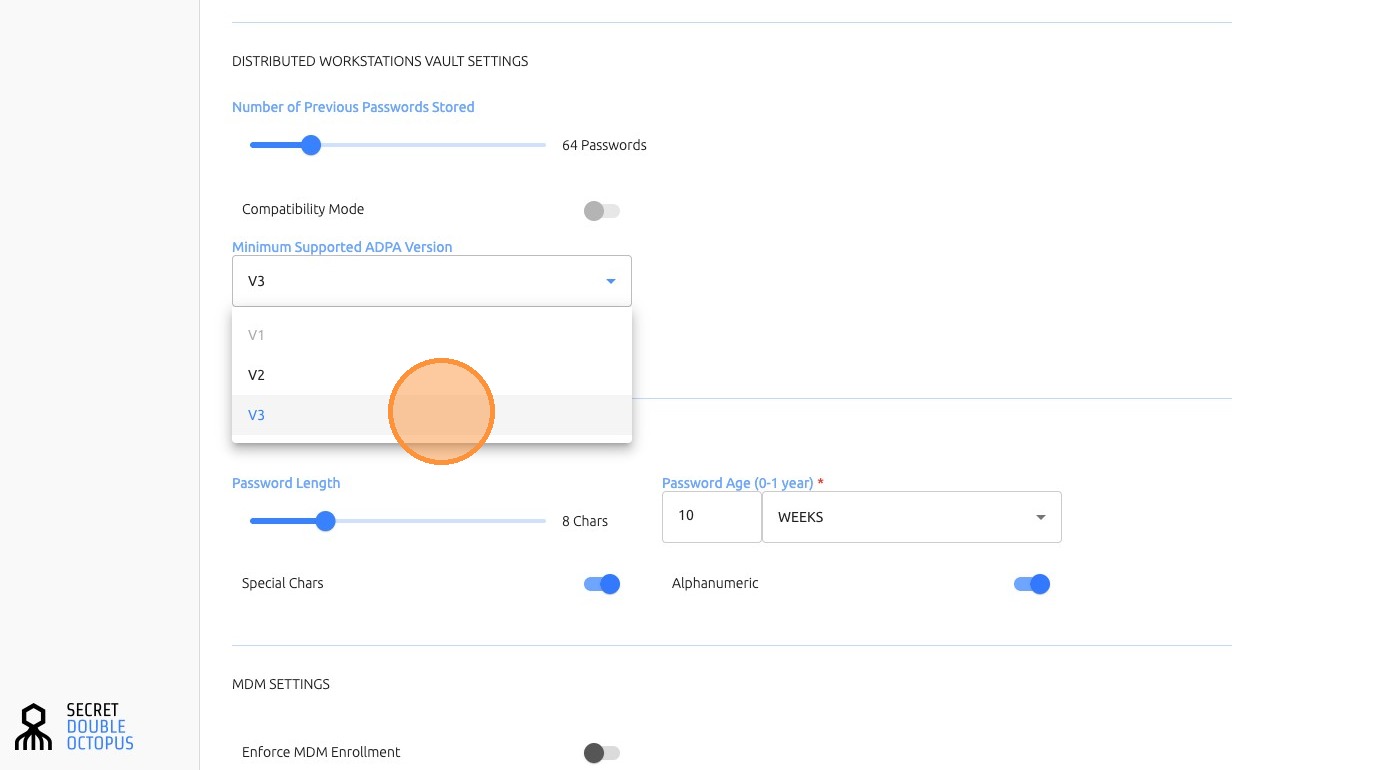
- Choose the minimum supported ADPA version. The recommended version is V3, where supported.
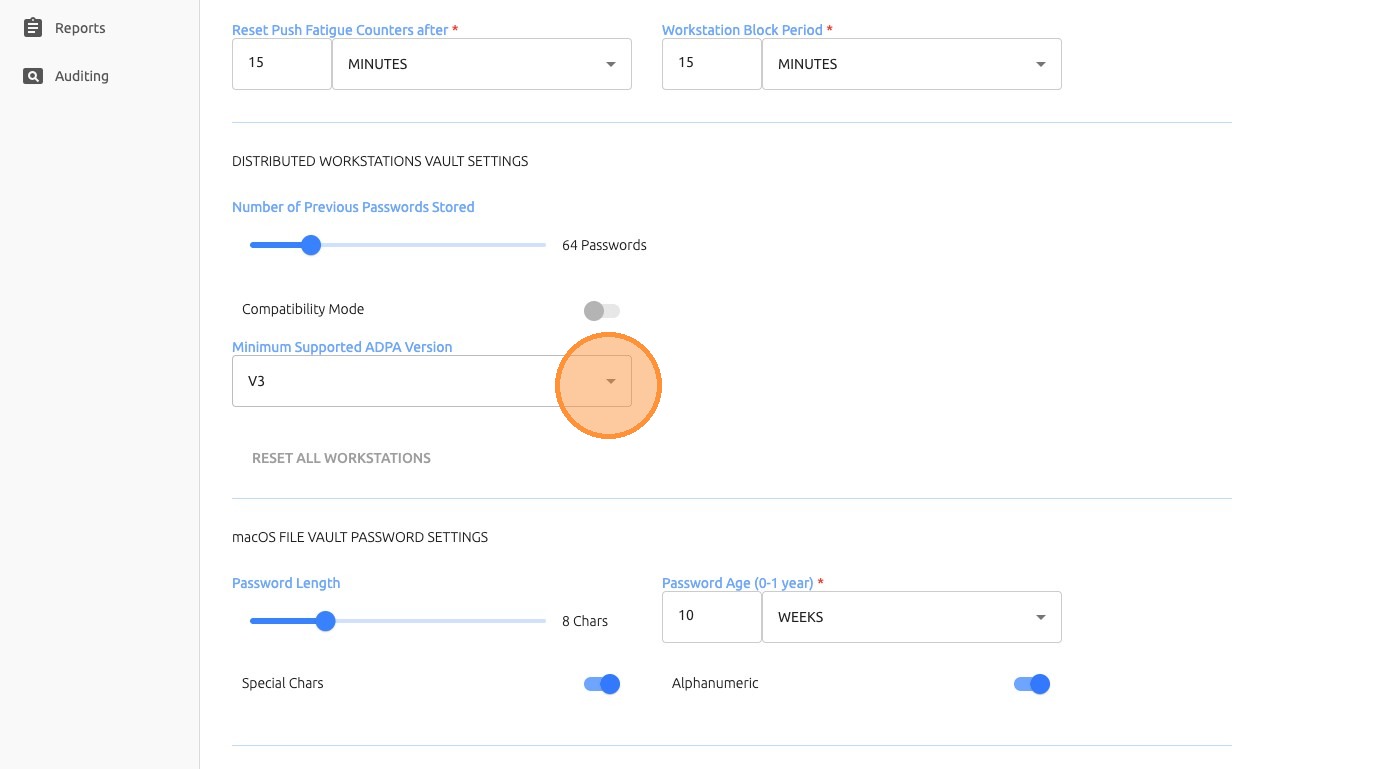
- To strengthen security protocols, disable Compatibility Mode when it is no longer required.
- Set the Minimum Supported ADPA Versionto V3.
- Click Saveto apply the device policy configuration.

5. Configure Push Fatigue Protection
Push Fatigue Protection helps reduce the risk of repeated or unwanted authentication prompts by enforcing additional controls around push-based authentication.
- Review the Push Fatigue Protectionsettings.
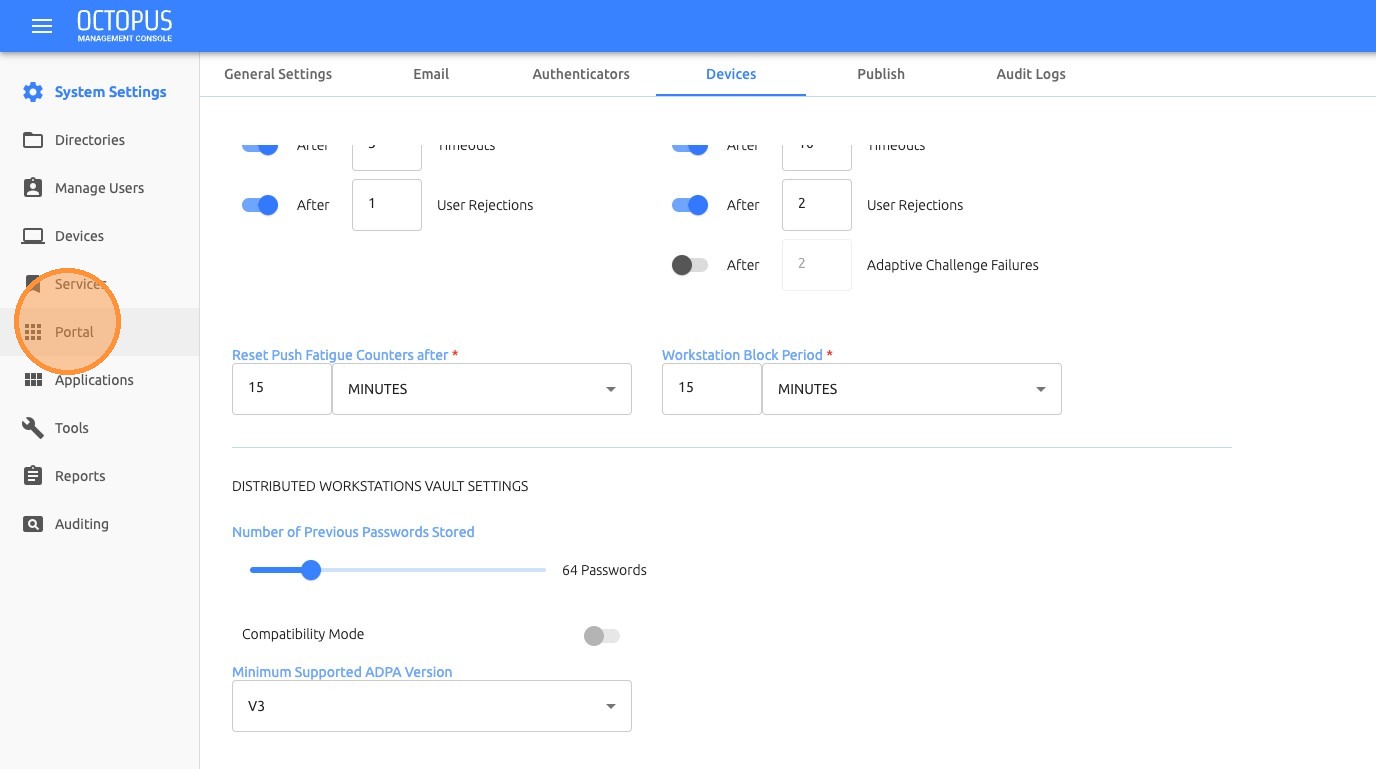
- Align the configuration with the organization security policy.
6. Configure Self-Service Portal Access
Self-service portal settings define which services are available to end users through the portal.
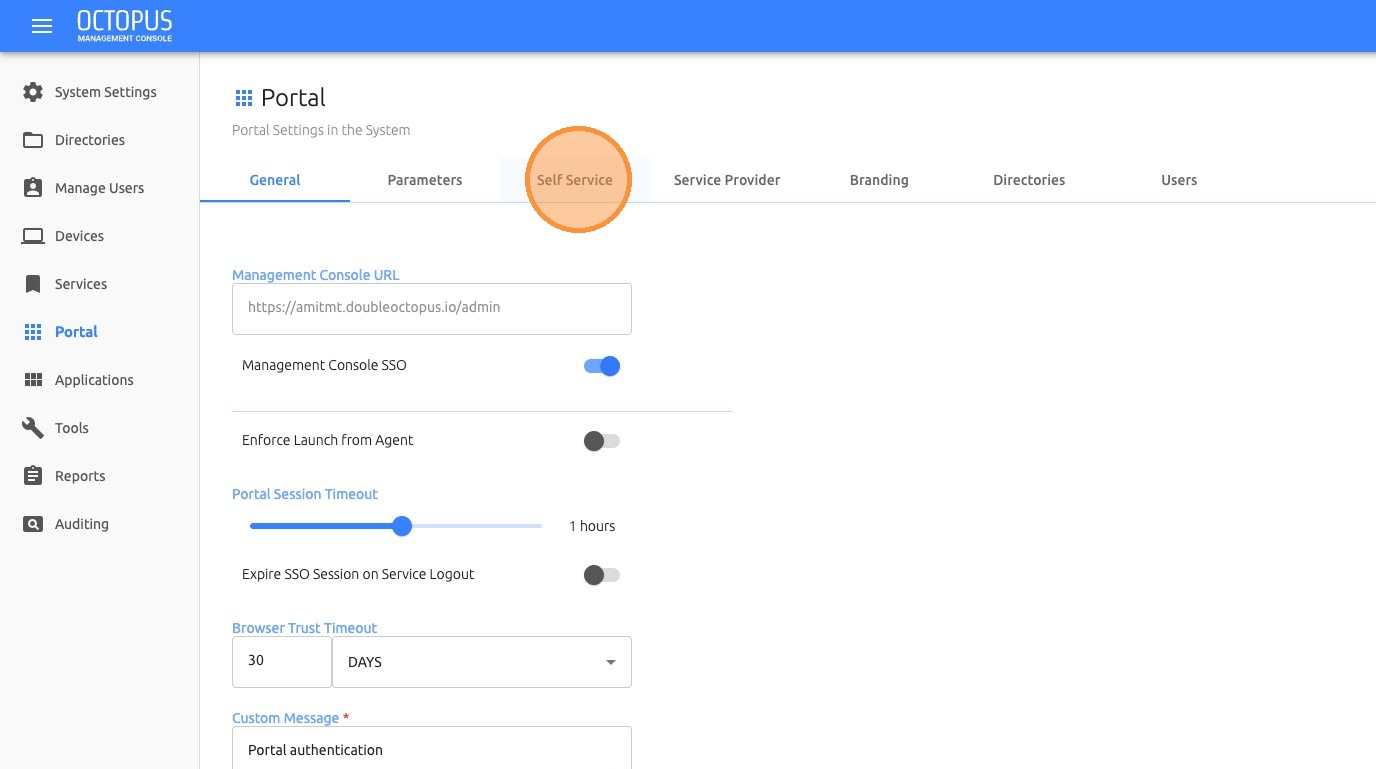
- Navigate to Portal.
- Click Self Service.
- Choose the services that should be available to end users.
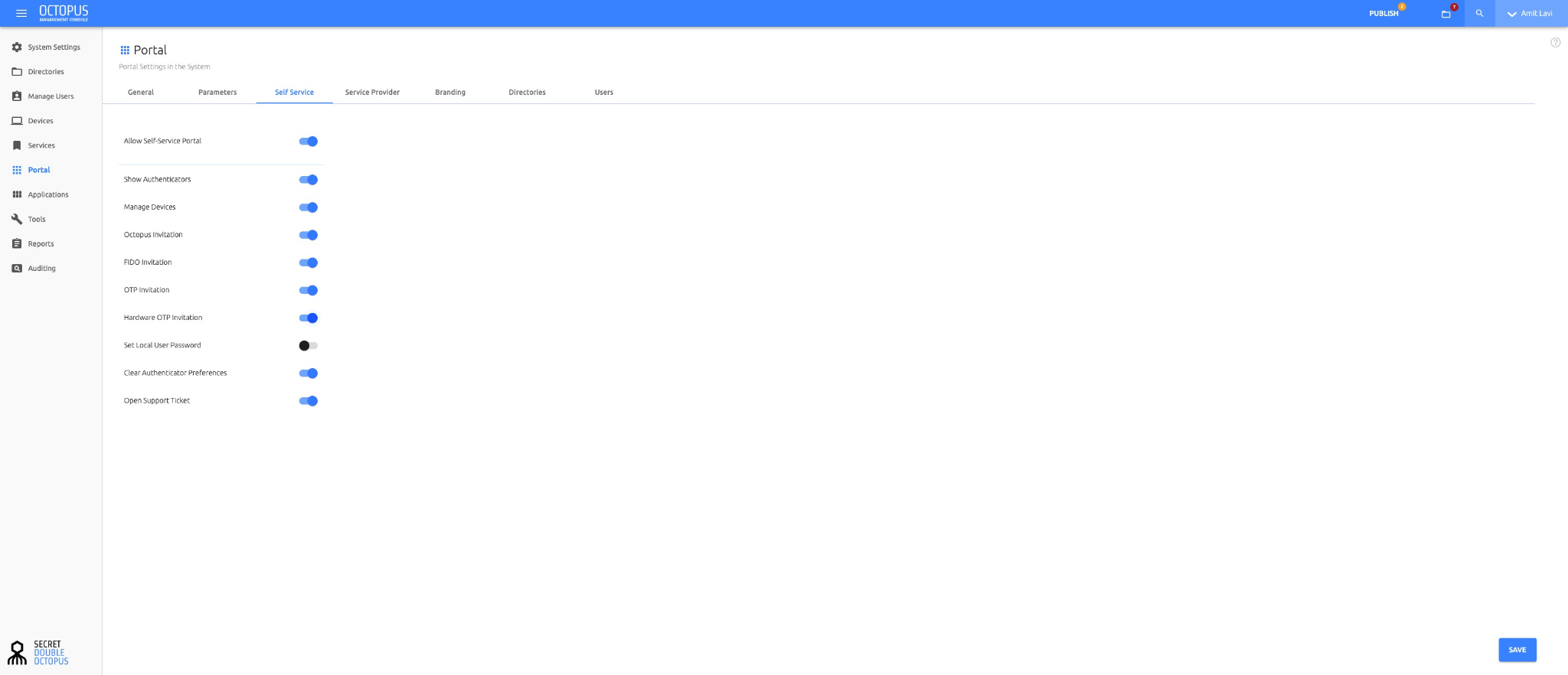
- Save the configuration.
Validation checklist
Troubleshooting
- Users are not receiving the expected authentication flow — confirm the user is assigned to the correct directory, group, and policy scope
- Policy changes are not reflected — verify that the changes were saved and that the correct directory or user group was updated
- Older clients fail after policy hardening — review ADPA version requirements and Compatibility Mode settings
- Users cannot access expected portal services — review the Self Service portal configuration and confirm the required services are enabled
Summary
Policy Management is used to control authentication behavior, enforce security standards, and scope authentication rules across users, groups, directories, devices, and portal services. Administrators should review policy changes carefully, save each configuration update, and validate the impact before broad deployment.
Module 3: Shared Accounts
Maintain secure and compliant shared account usage over time:
- Manage shared account configurations — how to update and maintain shared identities
- Update user access to shared accounts — managing which users can access specific shared accounts
- Update technician access to shared accounts — managing which technicians can access specific shared accounts
- Review audit logs for shared account usage — ongoing monitoring and validation of shared account activity
Direct link: Shared Accounts
Module 4: Audit, Logging & Compliance
Monitor activity, ensure traceability, and support compliance requirements:
- Access authentication logs — how to review login attempts and authentication events
- Track shared account activity — how to audit usage of shared/admin accounts by individual users
- Generate reports for compliance — how to generate reports for audits and compliance frameworks
Module 5: Expansion & Optimization
Grow SDO usage across the client environment:
- Add new applications — how to extend SDO authentication to additional systems
- Extend deployment to additional users — best practices for expanding beyond initial pilot groups
- Optimize deployment based on usage patterns — how to refine configuration based on real-world usage
Support Specialist
Overview
The Support Specialist track follows Implementation and Administration and focuses on resolving day-to-day user and authentication issues in a live client environment.
This track ensures that users can consistently access systems without disruption and that issues are resolved quickly and effectively.
Direct login: Support Specialist
Objective
Enable MSP technicians to independently troubleshoot and resolve SDO-related issues across deployed client environments.
After completing this track, technicians will be able to:
- Diagnose and resolve common login and authentication issues
- Troubleshoot device, enrollment, and access problems
- Execute user recovery and re-enrollment workflows
- Escalate issues with the appropriate diagnostic information when required
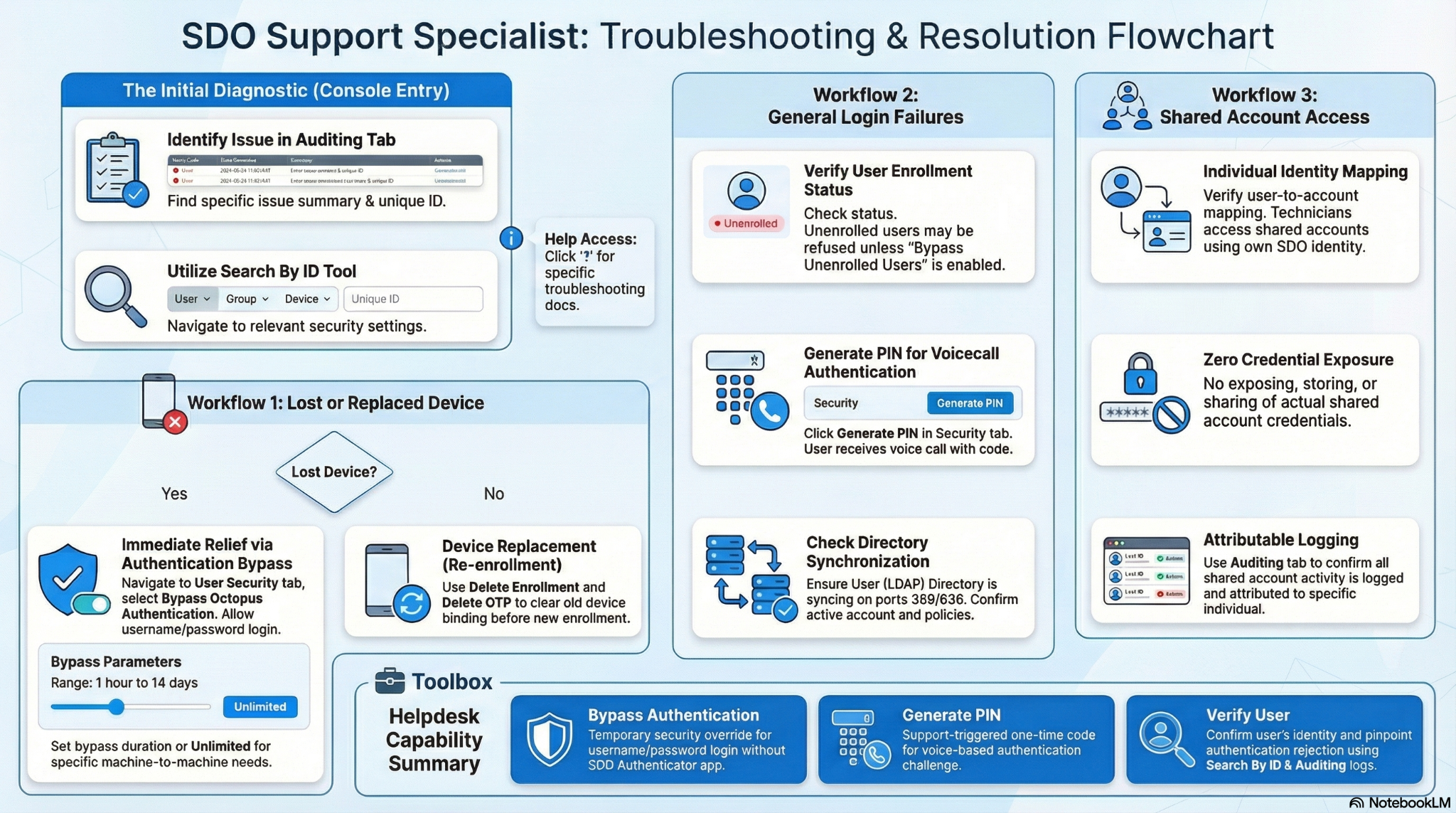
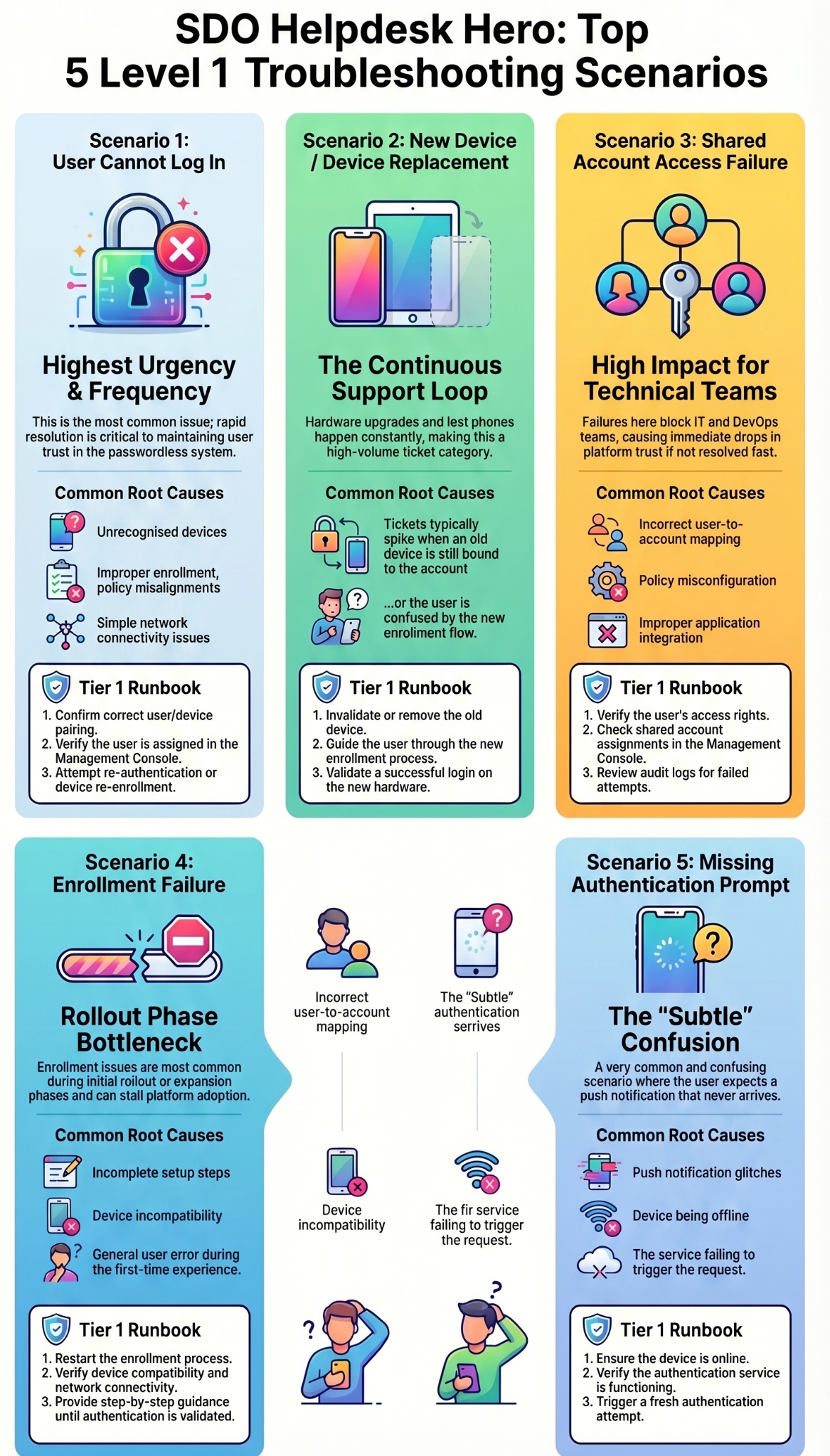
Top Five SDO Support Scenarios
- User cannot log in
- New device / device replacement
- Shared account access failure
- Enrollment failure
- Missing authentication prompt
1. User Cannot Log In
Why this matters
This is the highest urgency + highest frequency issue. If this isn't solved fast, confidence in SDO drops immediately.
Typical root causes
- Device not recognized
- User not enrolled properly
- User not added to the correct service
- Policy misalignment
- Network / connectivity issues
What Tier 1 support must do (runbook)
- Confirm: correct user & correct device
- Check: device registered in SDO & user assigned correctly
- Validate: authentication prompt is being triggered, or use "verify user" from the console
- Attempt: re-authentication
- If needed: reset authentication / re-enroll device
- Check that the user is assigned to the service they are trying to log in to
- Check that the user has network connectivity
Required KB coverage
- Troubleshooting Login Failures
- Device Recognition Issues
- Resetting User Authentication
Direct link: Support Playbook — Scenario 1: User cannot log in
2. New Device / Device Replacement
Why this matters
Happens constantly — new laptops, lost phones, upgrades. If this flow is clunky, tickets spike and users get frustrated.
Typical root causes
- Old device still bound
- New device not enrolled
- User confusion
What Tier 1 support must do
- Confirm device change
- Remove or invalidate old device (if needed)
- Guide user through new device enrollment
- Validate login on new device
Required KB coverage
- Managing Lost or Replaced Devices
- Re-enrolling Devices
- Enrollment Guide
Direct link: Support Playbook — Scenario 2: New device / device replacement
3. Shared Account Access Not Working
Why this matters
If this breaks, technicians get blocked and trust in SDO drops fast.
Typical root causes
- Incorrect user-to-account mapping
- Policy misconfiguration
- Application not properly integrated
What Tier 1 must do
- Confirm: user should have access
- Check: shared account enabled and user assignment
- Validate: application integration working
- Review: audit logs for access attempt
- Escalate only if config issue confirmed
Direct link:
Troubleshooting tip: using shared accounts to impersonate users.
4. Enrollment Failure / User Not Fully Set Up
Why this matters
Common during rollout and expansion phases. If this isn't smooth, pilots stall and adoption slows.
Typical root causes
- Incomplete setup steps
- Device compatibility issues
- User error
What Tier 1 must do
- Confirm where enrollment failed
- Restart enrollment process
- Verify device compatibility and network connectivity
- Guide user step-by-step
- Validate successful authentication
Required KB coverage
5. User Not Receiving Authentication Prompt
Why this matters
This is subtle but very common — and confusing for users.
Typical root causes
- Push notification issues
- Device offline
- App/service not triggering authentication
- Policy misconfiguration
What Tier 1 must do
- Confirm: device is online
- Check: authentication app/service functioning
- Validate: policy correctly applied
- Trigger: new authentication attempt
- Reset if needed
Required KB coverage
- Authentication Prompt Issues - Verify user
- Troubleshooting Login Failures
- Policy Configuration
Direct link: Enrollment Failure and Authentication Prompt Issues
Recovery Actions (When Primary Fix Fails)
Modules included:
Diagnostics & Deep Troubleshooting
Modules included:
- Collecting Logs & Analysis
- Error Codes & Descriptions
- Mac Agent Troubleshooting
Escalation
Required inputs
- Logs
- Error details
- Reproduction steps
End User Training
Overview
The End User Training track follows Implementation, Administration, and Support and focuses on enabling users to successfully adopt SDO in their daily workflows.
This track ensures that users can authenticate confidently without passwords and understand what to expect during login and authentication.
Objective
Enable MSP technicians to onboard, guide, and support end users in using SDO across client environments.
After completing this track, technicians will be able to:
- Guide users through initial enrollment and setup
- Support daily authentication workflows (Windows, O365, VPN, etc.)
- Explain passwordless authentication clearly and simply
- Resolve basic user issues and reduce repeat support requests
End User Training Flow
Module 1: What's Changing
Goal for the user
The user understands why passwords are going away, what will change on their next login, and feels confident rather than surprised.
What the technician covers
- Explain authentication without passwords simply
- Explain what changes for the user — and what stays the same
- Address common user concerns (FAQ)
Share the plain-language explainer that expands on this module: Goodbye Passwords: Here's What's Changing for You — covers what changes, what stays the same, and a quick FAQ.
Message to users
Subject: Action required: your password is going away on [rollout date]
Hi [First Name],
Starting [rollout date], you won't need a password to log in anymore. Just tap to approve on your phone using the Octopus Authenticator app (or a security key, if issued one).
No more passwords resets.
No more passwords to remember.
No more passwords to type.
Everything else — your username, your apps, your workflow — stays the same.
Before [rollout date]: install the app from the enrollment email you'll receive. Takes 2 minutes.
Questions? [support contact]
We've been looking forward to rolling this out for you.
[Your name / MSP name]
Module 2: First Login Experience
The user completes their first passwordless login successfully and knows what the login screen will look like from now on. Emphasize the simplicity: one authenticator covers all of their access needs — workstation, apps, and everything in between. No passwords to remember, reset, or type. This is the "wow" moment of the rollout.
What the technician covers
Login experience for Windows users:
Login and unlock experience for Mac users:
Retrieving passwords — when needed:
Module 3: Device Enrollment
The user's device is enrolled, registered, and verified with a first successful authentication.
What the technician covers
- Guide user through enrollment process
- Validate successful device registration
- Confirm first successful authentication
Resources
Users get an enrollment email matched to their authenticator type — the linked guide below walks through what to do next, following the instructions provided.
Enrollment guides by authenticator: Octopus Authenticator · FIDO2 Key · OTP
Module 4: Daily Usage
It's one process through SDO for everything: log into the workstation, then use the same prompt for M365, VPN, and any other app. To see all apps in one place, log into the SSO portal through the SDO app.
See it in action
Module 5: Self-Service & Recovery
Most login issues, lost devices, and device swaps are self-service — no ticket needed. From the Self-Service Portal, users can:
- View their enrolled devices and authenticators
- Send themselves a new enrollment invitation (lost, replaced, or new device)
- Reset their password or clear saved authenticator preferences
- Open a support ticket if they're still stuck
What the technician covers
- Walk users through the Self-Service Portal
- Re-enroll and confirm login on a replacement device when needed