Configure 1Password as an Identity Provider
Step-by-step guide to connect 1Password with Secret Double Octopus
Last Updated: December 2025 | Estimated Time: 20–30 minutes
Download options:
⚠ Prerequisites
Before you start, make sure you have:
- Admin access to your Secret Double Octopus (SDO) tenant
- Admin access to your 1Password Business account
- A test user in both SDO and 1Password
- Browser access to both admin portals
✅ What you will do
- Configure an OpenID Connect service in the SDO Management Console
- Connect 1Password to SDO as an external Identity Provider
- Test the connection and assign who can sign in using the IdP
Part 1 – Configure SDO Management Console
In this part, you will create and publish an OpenID Connect service in the SDO Management Console.
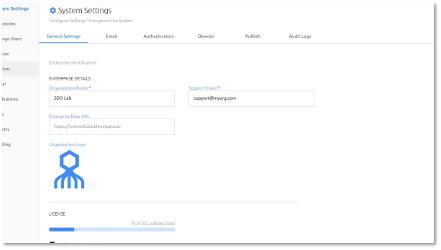
1 Navigate to SDO Management Console
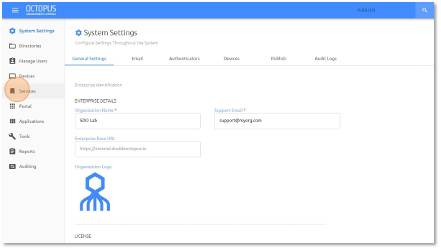
2 Click "Services"
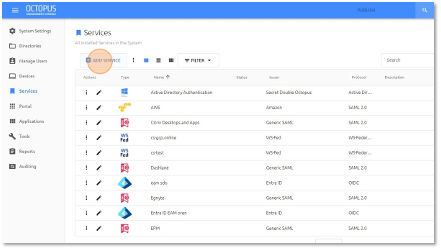
3 Click "ADD SERVICE"
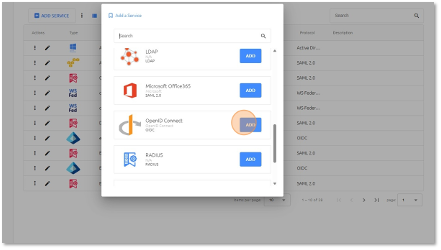
4 Click "ADD" OpenID Connect Service
5 Click the "Service Name" field.
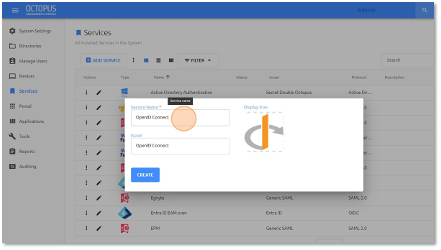
6 Give it a name
7 Click "CREATE"
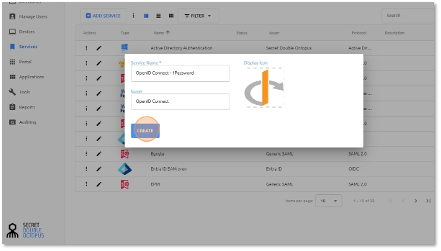
8 Click "Directories"
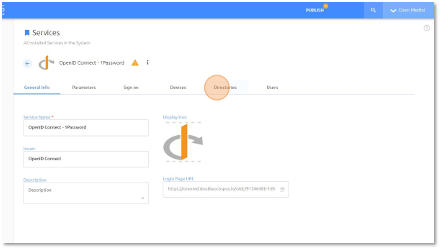
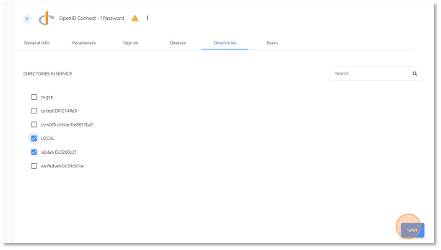
9 Add your directory
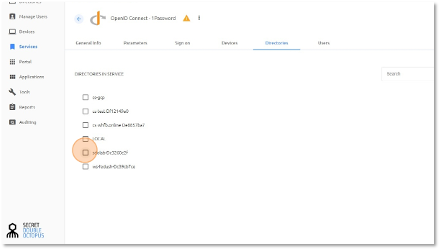
10 Click "SAVE"
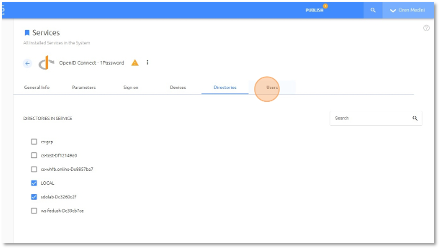
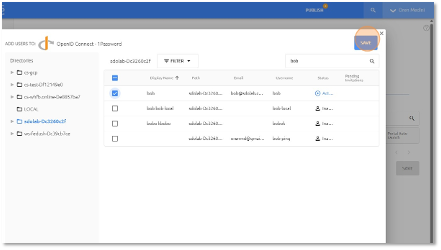
11 Click "Users"
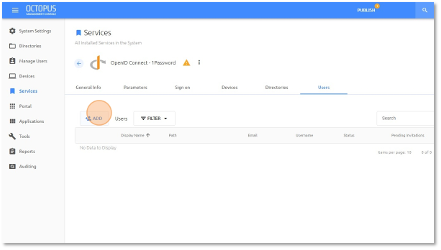
12 Click "ADD"
13 Add the Group or Users that have permission to use the service
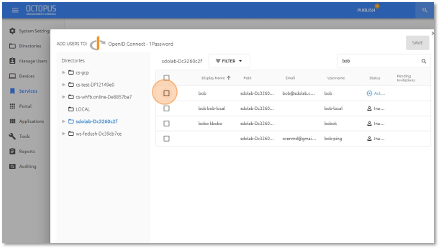
14 Click "SAVE"
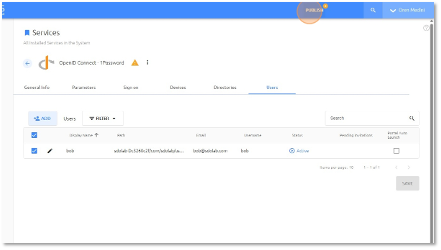
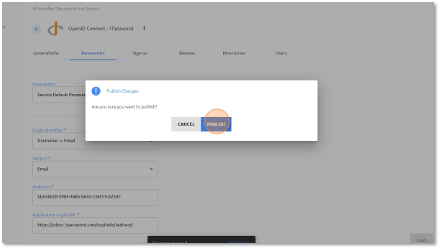
15 Click "PUBLISH"
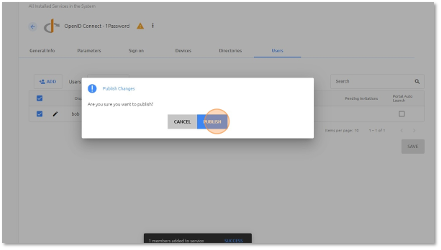
16 Click "PUBLISH"
Part 2 – Configure 1Password to use SDO as IdP
In this part, you set up 1Password to use SDO as an external identity provider and test the connection.
17 Switch to tab 1Password Console
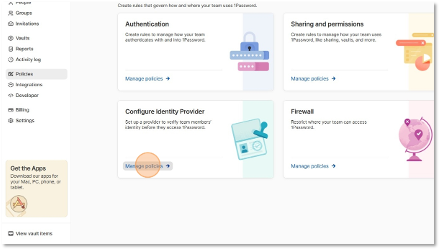
18 Click "Policies"
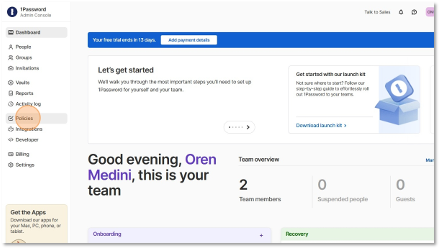
19 Click "Manage policies"
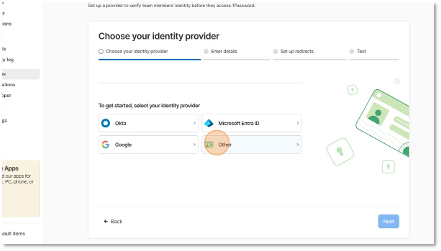
20 Click "Other"
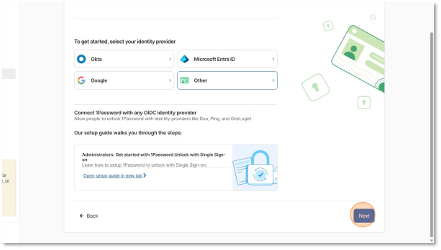
21 Click "Next"
22 Click "Select an Identity Provider"
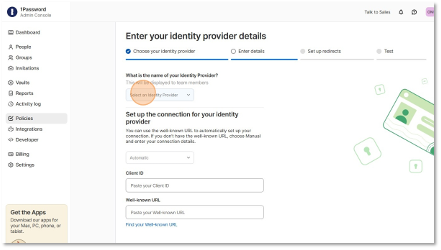
23 Click "Other"
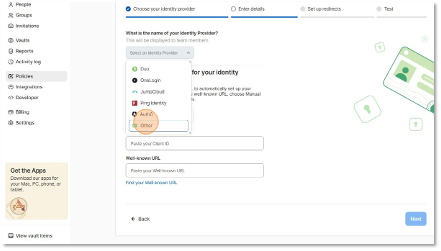
24 Click the "Name" field.
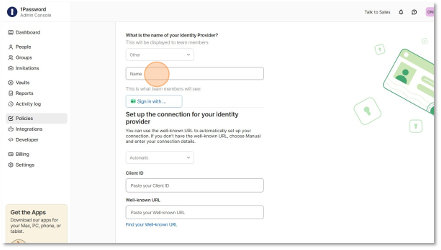
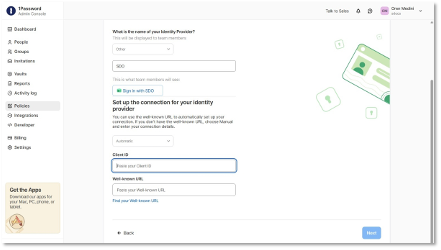
25 Type "SDO"
26 Move to SDO Management Console -> Services and edit the OpenID Connect service you previously created
27 Click "Sign on"
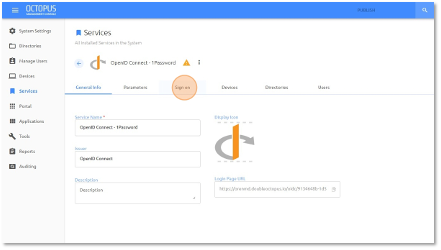
28 Copy the Client ID value
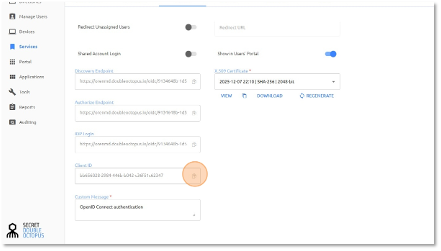
29 Switch back to the 1Password Console
30 Click the "Client ID" field.
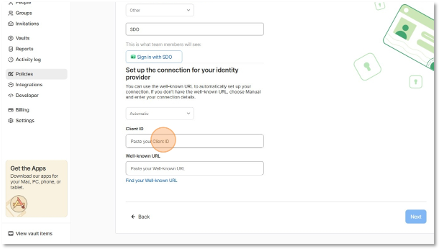
31 Paste the value
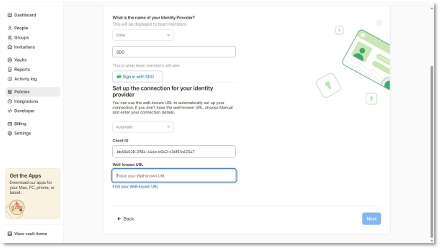
32 Move back to the SDO Management Console
33 Copy the Discovery Endpoint URL
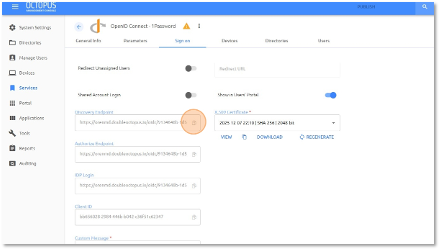
34 Switch back to the 1Password Console
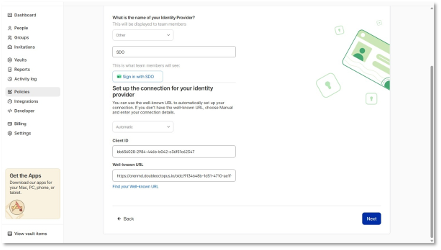
35 Paste the value into the "Well-known URL" field.
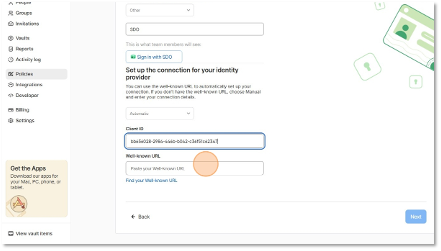
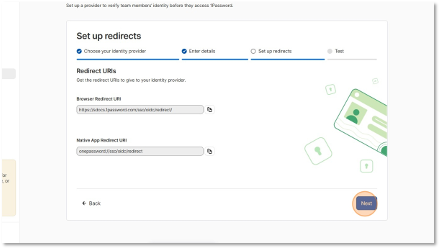
36 Click "Next"
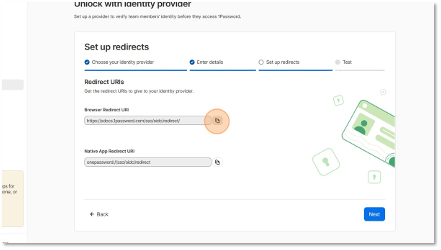
37 Copy the Browser Redirect URL
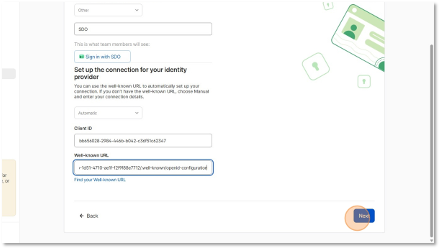
38 Move back to the Service in SDO Management Console, Select "Parameters" tab, and past the URL to the "Application Login URL" field
39 Click "SAVE"
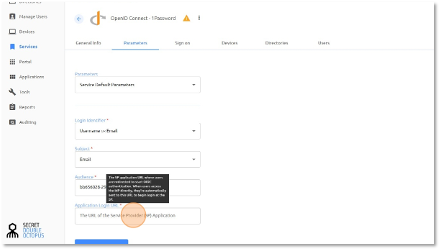
40 Click "PUBLISH"
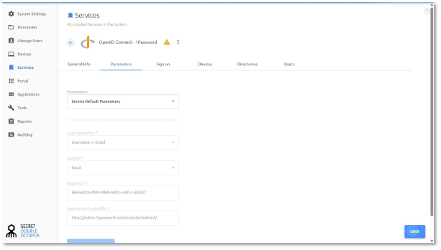
41 Click "PUBLISH"
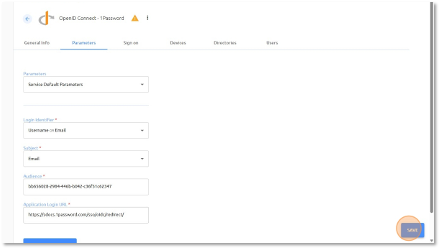
42 Switch back to the 1Password Console
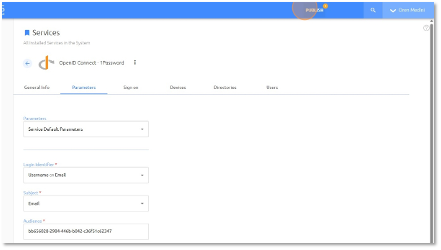
43 Click "Next"
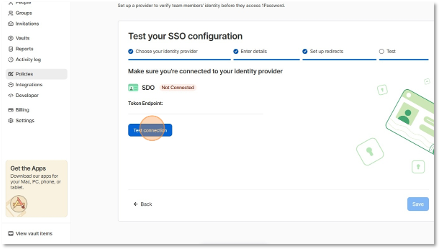
44 Click "Test connection"
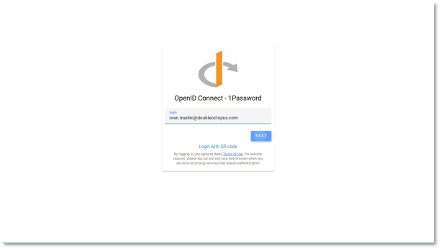
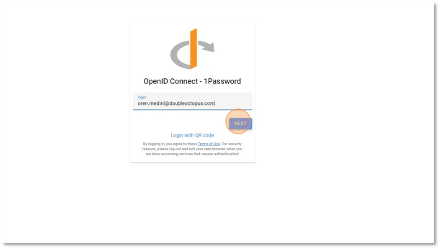
45 Type your user
46 Click "Next"
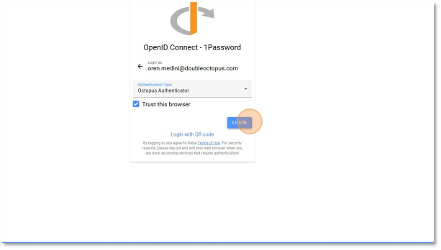
47 Click "Login" and answer the Push message
48 Click "Save"
49 Select the "People Signing to the 1Password with an IDP"
50 Click "Save"
You have now configured 1Password to use Secret Double Octopus as an Identity Provider.